
Editora 0.27.0 docs. You are reading an archived version, kept so links from that release keep working. Read the 0.28.0 docs →
Projects, windows & files
Projects
A project is a VS Code-style single-folder workspace: a root folder plus its own saved session (open files with carets and pins, the active tab, folds, the editor-group layout, and tool-window layout). Projects are on by default since 0.10.0; Settings → Workspace turns them off.
| Action | Command | Default key |
|---|---|---|
| Open a folder as a project | project.open | C-x C-p |
| Switch project | project.switch | C-x p |
| New project from a template | project.newFromTemplate | (palette) |
| Edit this project’s settings | project.editSettings | (palette) |
From the file finder (C-x C-f), C-d
opens the highlighted folder as a project too.
The Project tool window shows the folder tree with keyboard navigation, a filter that searches the whole project by file name, per-file-type icons, and right-click actions: new file, new folder, new from template, rename, reveal, Reveal in Map, open terminal, Show Local History, and Git stage/revert. A folder’s menu also has Find in Folder… and Git ▸ Show Git History. Typing in the filter highlights the first match, so Enter opens it and Down moves on from there. The project root has its own menu too (with rename omitted so you can’t move the whole project).
The filter searches every file in the project, however deep, and never lists
.git. A path such as core/v1/types.go narrows a common name. Search
Everywhere, the Project Map’s search and the tree’s filter share one list of the
project’s files, kept current as you work, and rank matches the same way: the
name as you typed it first, then the project’s own source, then vendored code,
then tests. So each of them finds the same file first.
From the keyboard, F2 renames and Delete deletes the selected file, and
the Menu key or Shift+F10 opens the selected row’s context menu (also in
the Bookmarks, Notes, TODO, Git Log, and Structure tool windows). Renaming or
moving a file or folder keeps its bookmarks, personal notes, breakpoints, fold
state, and other per-file settings.
Bookmarks and notes are scoped per project. Closing a project returns you to the
global, no-project session.
A folder on another machine can be a project too: connecting to it over SFTP opens it as a project in its own window. See Remote folders as projects.
Delete moves files to the system trash on Linux and macOS, and the confirmation says which will happen. Windows deletes permanently, as does any file the trash cannot take; a permanent delete asks with Cancel as the default button.
Select several files and folders in the tree with Ctrl/Cmd- and Shift-click, and drag them onto a folder to move them, with open tabs following to the new path; a name conflict is skipped rather than overwritten, and a folder can’t be moved into its own subtree. Dragging a single file moves it at once; dragging a folder or several items asks first. Undo Move in the tree’s right-click menu puts the last drag-move back. Delete acts on the whole selection at once: unsaved files get one Save/Discard/Cancel decision before the batch begins, and Editora records recoverable Local History before removing anything it has opened or edited.
Files open in any editor tab carry an accent marker in the tree; the active file uses a stronger marker. A file or folder menu can also add a first-line bookmark or Personal Note directly, with compact indicators showing both annotations.
Project Map
The Project Map shows the project on a spatial canvas, in a window of its
own. Click Map beside the Project tool window’s search field, press
Alt-Shift-1 (Cmd-Shift-1 on macOS, C-c o m in Emacs), or run Project:
Open / Close Project Map Window (project.toggleMapView) to open it; if it is
open already it comes forward. The key and the command work even with the
Project tool window closed, and close the Map window when that is the window in
use. The Project tool window keeps showing the tree.
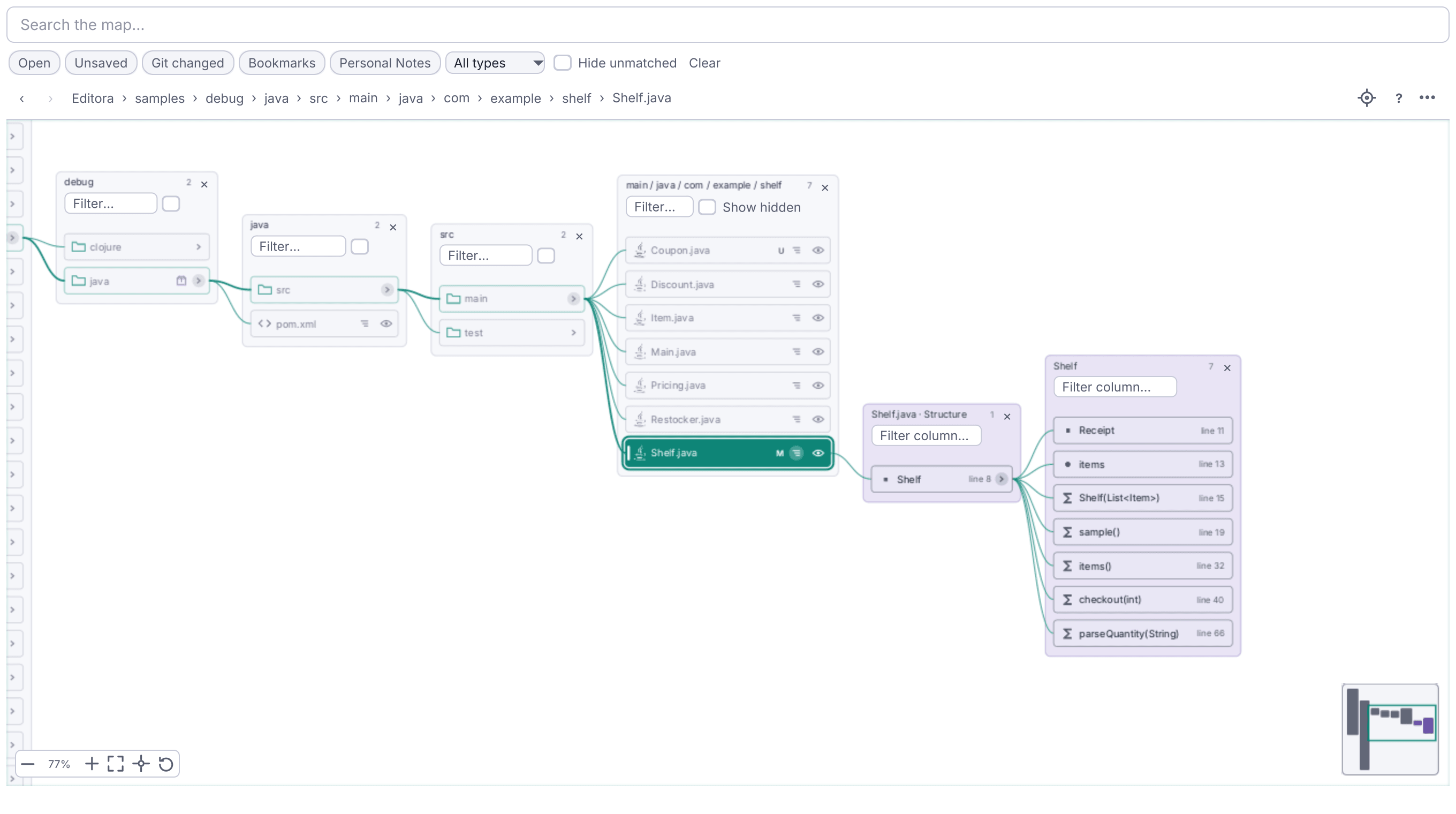
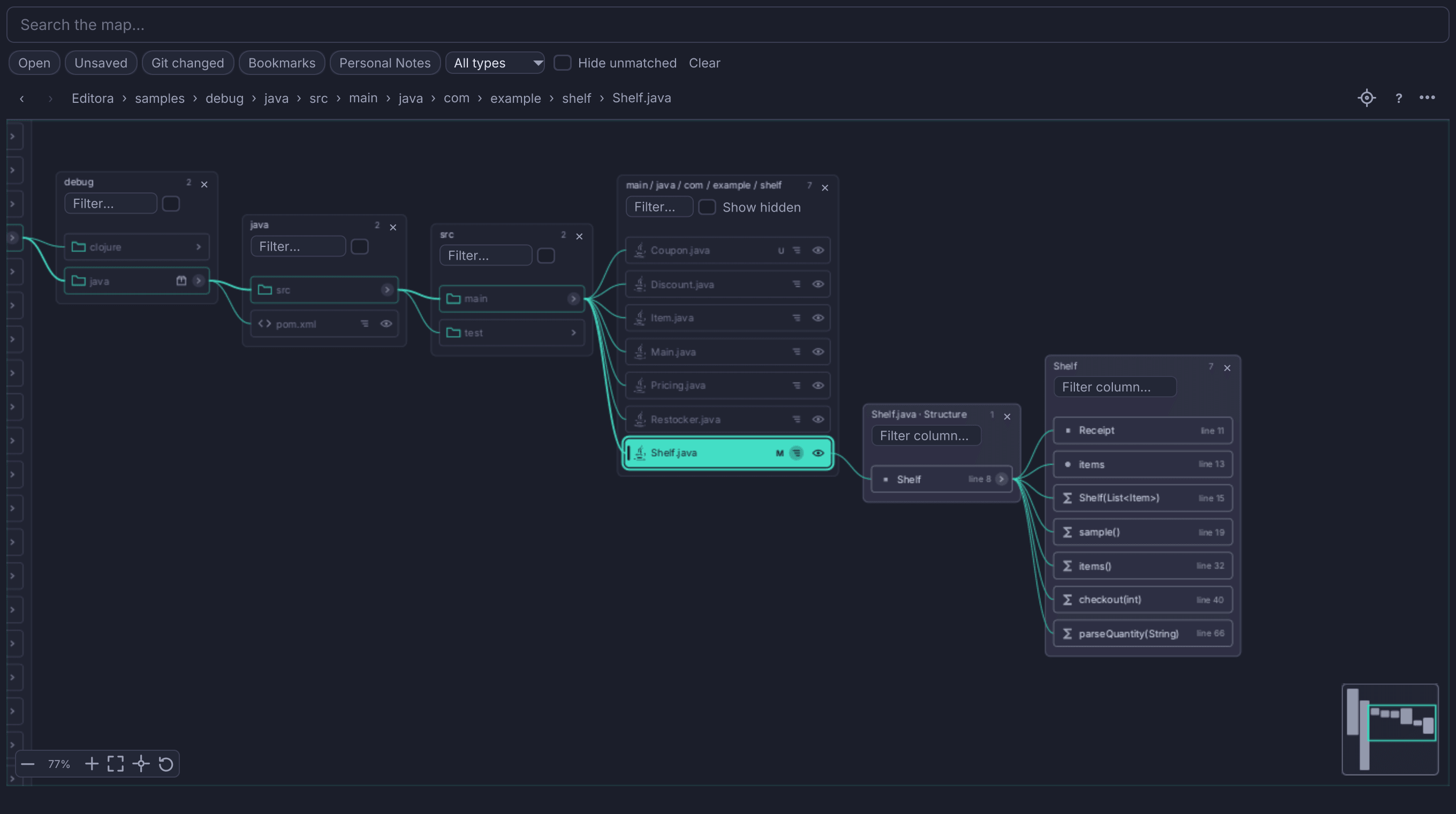
The map shows the project as Miller-style columns: selecting a folder reveals
its children in the next column, and several open branches sit side by side
without mixing together. The first column lists the project’s own files and
folders under the project’s name; click that title (or the first breadcrumb) to
select the project folder, and right-click it for the folder’s menu. A chain of
single-child folders, such as src/main/java/com/acme in a Java project, opens
with one click and shows as one column titled src / main / java / com / acme;
every folder of the chain is still in the breadcrumb.
The Map window is resizable and can sit beside the editor window or on another screen. It does not stay above the editor window: opening a file from the Map brings the editor window forward. It closes with its editor window or project. Whether the window was open, where, and whether it was maximized is remembered per workspace, so a workspace that last had the Map open reopens it, even with the Project tool window closed. In a window without a project, the Map stays on the folder you opened it on while you open files and switch tabs; close and reopen it to map the current tab’s folder.
The window has its own status line under the map. Everything the Map has to tell you appears there, not in the editor window: a folder it cannot read, the row limit, what the search found, and the outcome of a move, an undo or a delete.
- Click a file to open it in an editor tab. If you would rather select files
with a click and open them with a double-click or
Enter, turn off Single-click opens files in the ⋯ menu. Click a folder to select it and show its column; clicking a folder that is already open selects it and brings its column into view. A folder’s chevron expands or collapses it, and a column’s × closes that branch (a whole folder chain at once). - ⋯ → Collapse All tidies the map down to the path you are on: it closes every column but the first and the ones that lead to the selection, with the cards opened from them. A row’s Close Other Branches keeps just the way to that row.
- ⋯ → Flow sets the direction: left-to-right (the default), right-to-left, top-to-bottom, or bottom-to-top. Connector direction and arrow-key navigation change together, and the flow is remembered per workspace.
- Drag anywhere to pan, including from a row, and use the mouse wheel to zoom
around the pointer;
ShiftorAltwith the wheel pans instead. Fit, Center selection and Reset recenter the layout. Zoom runs from 15% to 225%, so Fit can show even a big map. Below 60% the columns become labelled blocks: each row is a bar, matches are in the accent colour, and each column is labelled with its title, how many items it lists and how many match. The overview in the corner can be clicked or dragged; it stays on the map and is hidden in small windows. When the zoom bar or the overview covers a row under the pointer, it fades and lets the pointer through to that row. - Drag a column header to reposition it and use its lock to prevent accidental movement. The lock shows only while you use that column (the pointer is over it or the keyboard is in it) or once it is locked. Columns size themselves to the longest loaded name, up to a limit. A longer name is shortened where it differs from its neighbours, keeping its extension, so similar names stay apart; the tooltip has the full name.
- Ignored, dependency (
node_modules), vendored and generated files and folders are drawn dimmed, and their tooltip says why. ⋯ → Hide ignored and generated takes them off the map. - Filter globally by open, unsaved, Git-changed, bookmarked, or Personal Notes state and by file type. Matches and the folders that contain them stay prominent while everything else fades (still readable), or drops out with Hide unmatched (below). The Git chip includes the files inside a new, untracked folder. Clear turns the filters off and clears the search. Every non-root column also has a fuzzy name filter and a Show hidden checkbox.
- Click a file’s eye (or select it and press
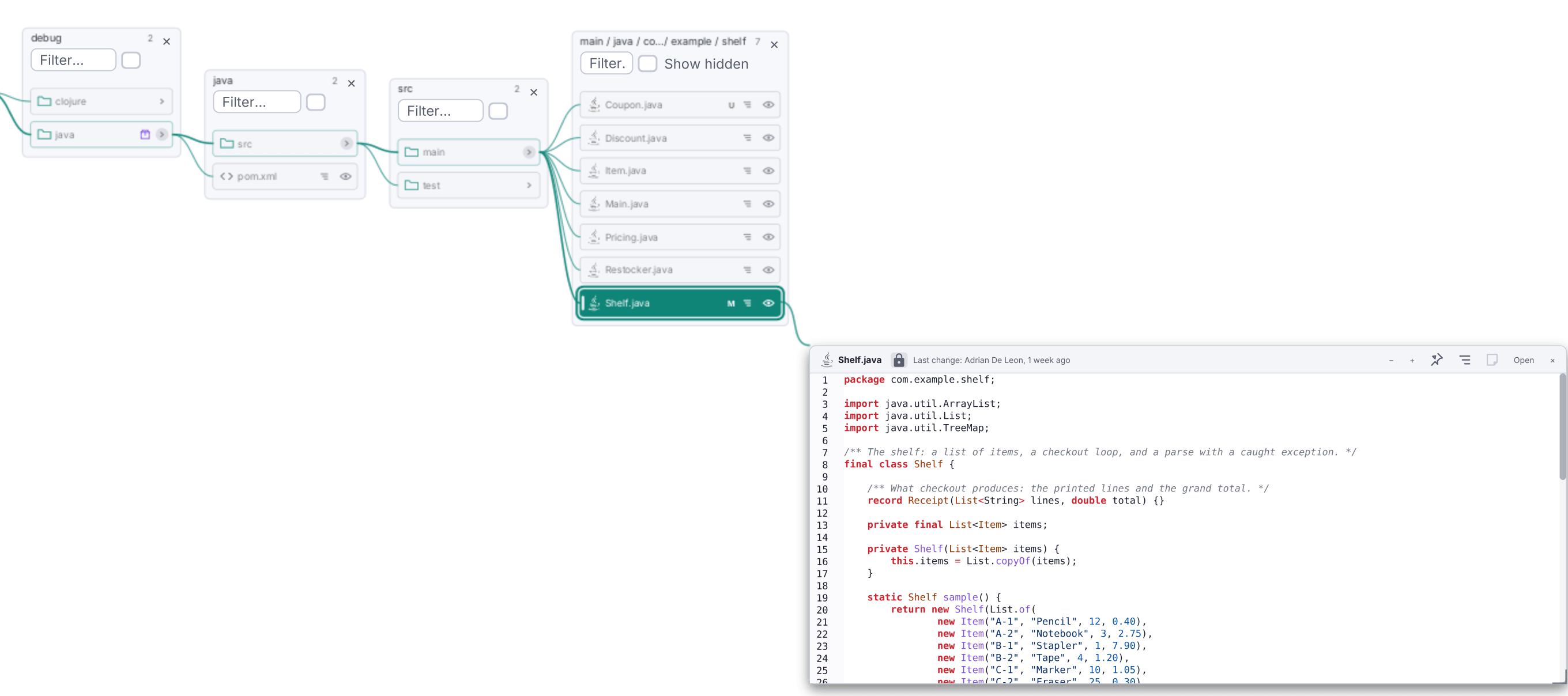
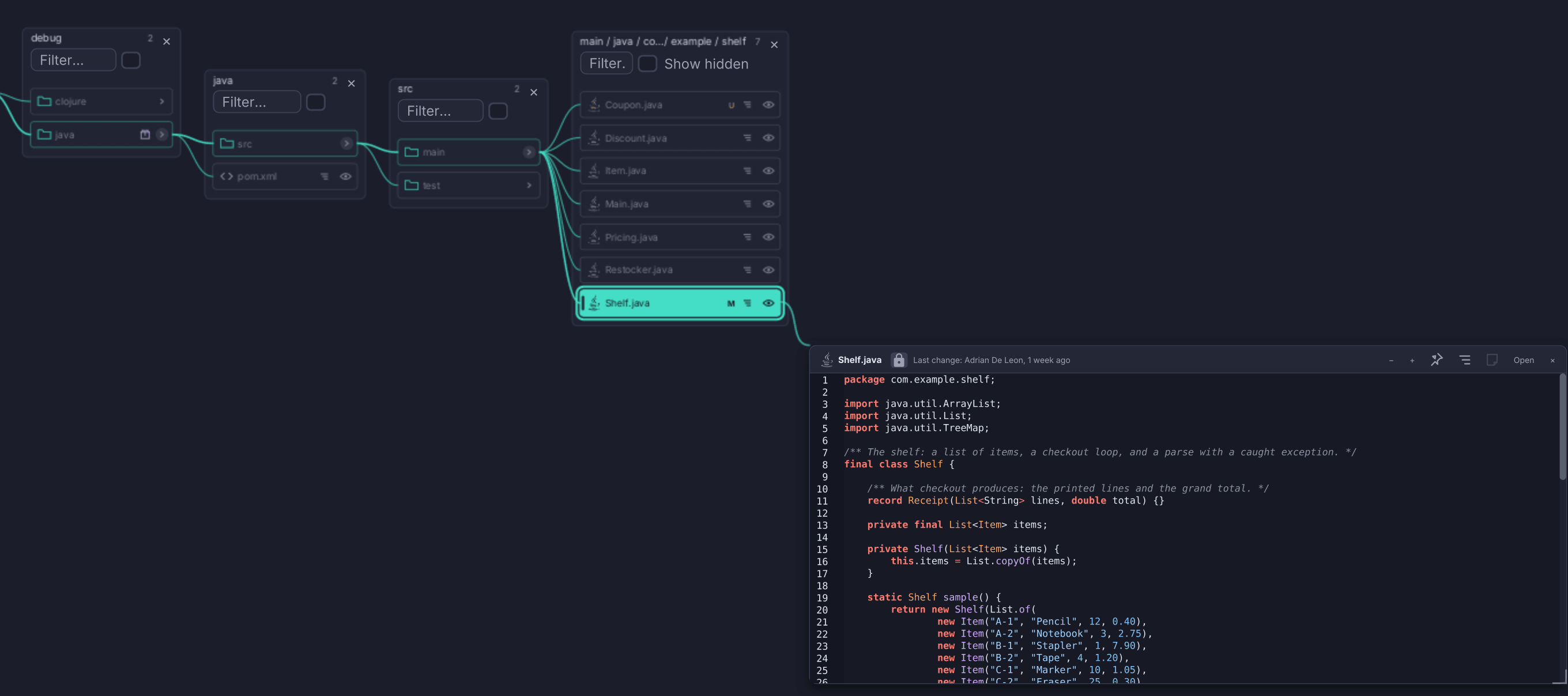
Shift-Enter) for a movable, resizable, syntax-highlighted read-only preview card in the editor’s font. The preview uses unsaved buffer text when available, says so, and follows later edits; Open promotes it to a normal editor tab. A code card opens past the file’s licence header. A card opens the way the map flows: past its row’s column, as a new column would (right of it when the map flows left to right, below it when it flows down, and so on). When there is no room there, it opens beside the column, level with its row; opening a card never pans the map. It never covers the folders that lead to the file, where its next column will open, or the zoom bar and the overview. A declaration card opened from a card’s Structure column opens right of it, level with its row, and one opened from the map’s Structure column opens past that column. Move to Free Space in a card’s menu places it again. - Click a file’s Structure icon, just before the eye, to open a column of its classes, methods or headings. See File structure.
- A file’s Personal Notes badge opens its preview card with the notes stuck beside it (see Notes on cards). A folder’s badge opens an editable note card for the folder.
- Right-click a node for Preview, Show Structure, Personal Notes, Close Column and Close Other Branches, then the same New, Maven, rename, delete, reveal, terminal, Local History, and Git actions available in the tree. A file’s menu adds Related Test / Subject, and a folder’s adds Find in Folder… and Git ▸ Show Git History (see Following the code). Rename, New Folder, Delete, Undo Move and Reveal stay in the Map window and ask there; a folder or file made from the Map is shown and selected on it. The other actions bring the editor window forward.
- The ? button lists every mouse gesture and key, including cards, notes, the search and how to find where you are, in your language.
- Screen readers read the rows on screen as a tree, and the selected row has the reader’s focus. They announce its states, the folder it is in, its place among the visible rows and, during a search, which match it is (“match 2 of 14”).
Hide unmatched, a checkbox in the filter row, takes the rows a filter
doesn’t match off the map instead of fading them, so only the matches and the
folders that lead to them stay. With no filter active it does nothing. Hidden
rows are always counted: an amber N rows hidden badge appears beside the
checkbox, each column’s header count reads shown/total (for example 1/5),
and an italic N hidden line sits under the column’s rows, or on its empty row
when nothing in the column is left. +N more… and Empty folder rows stay,
and a hidden folder’s open columns disappear with it. Uncheck the box to bring
the faded rows back. The choice is remembered per workspace.
The options (⋯) menu holds Keep current zoom, Focus new column, Single-click opens files, Compact folder chains, Compact rows, Hide ignored and generated, Show recent changes, Hide all open Personal Notes, Always select opened file and Flow ▸; then Reveal Active File, Project overview, Open cards, Collapse All, Working sets ▸ and Trails ▸; then Print…, PDF… and Export ▸. Keep current zoom, Focus new column, Single-click opens files and Compact folder chains are on by default; every on/off option except Hide all open Personal Notes is remembered per workspace. With Keep current zoom and Focus new column, opening a folder preserves the current scale and brings its new column into view; turning zoom preservation off restores fit-to-content when the map expands. Compact rows fits more rows on screen; each column then shows its filter, Show hidden and lock only while the pointer is over it, it holds the selection, or one of them is set.
Hidden (dot) files follow Settings → Workspace → Show hidden files in the project tree. A column’s Show hidden checkbox overrides the setting for that folder only.
Preview and note cards sit on the map like columns: panning carries them along,
zooming scales them with the columns around them, and you can drag a card past
the edge of the window and pan back to it later. The overview marks every open
card, and ⋯ → Open cards lists them, the most recently used first; click a
mark or pick one to bring that card back into view with the keyboard in it. With
a card focused, Alt+arrow keys move it and Alt+Shift+arrow keys resize it.
Cards, the zoom bar and the overview never hide one another. A card’s resize
corner stays under the pointer at any zoom. Each card also keeps a live
connector to its source row. Image previews support common bitmap formats. A
binary file’s card shows its size, type and date with Reveal in File Manager
instead of its bytes, and a very long file is coloured for its first lines, with
the card saying how many. A card cut at its display limit says how much it shows
(Showing lines 1–7,515 of 9,135) and ends in a line, Preview ends here; Open
to read the rest, that opens the file when you click it. A text or image card’s
own − and + buttons size its content on top of the map’s zoom, so a card
can stay readable when the map is zoomed out. At most eight cards are open
at once, previews and notes together; opening a ninth replaces the one used
least recently that is not pinned.
Cards are for a glance beside the map; Open takes the file to the editor for reading and editing. A card’s lock says so: Preview — read only; Open to edit.
- Pin a card from its title bar, or with Pin Card in its menu, to keep
it open until you close it with its own ×: it is never closed to make
room, and closing its folder, Collapse All, Close Other Branches,
Escapeon the map or a trail moving on all leave it open. When all eight are pinned, a new card is refused, and the status line asks you to unpin one. - Find in a card with
Ctrl-F(Cmd-Fon macOS,C-sin Emacs) while the card has the keyboard, or Find in Card… in its menu. A find bar opens under the title bar with k of N, previous and next, and Aa for match case.EnterandShift-Enter(orF3andShift-F3) step through the matches.Escapecloses the find bar with the match still selected; a secondEscapecloses the card. - Who changed it last. In a Git project a card’s status line ends with the last change to its file, or to a declaration card’s lines: Last change: Ada, 3 days ago. Hover it for the commit’s subject. Annotate in the card’s menu, beside Show Git History, opens the file with blame annotations.
Searching the map
The Map window has its own search field, Search the map…, at the top (the
Project tool window’s field filters the tree only). Ctrl-F (Cmd-F on macOS,
C-s in Emacs) in the Map window jumps to it. The search covers the whole
project, however large or deep, and answers as you type.
- Type a name to find files and folders. A folder match is selected and opened.
- Type part of a path, such as
core/v1/types.goorcmd/kube-scheduler, to narrow a common file name; several words must all match the path. End the query with/to find only folders. - Start with
#to find files only, or with@to find declarations (@NewScheduler), as in Search Everywhere. A declaration is shown in its file’s Structure column.
The best match comes first: the exact name, then whole words, then partial
matches; a name in the case you typed; source before tests, fixtures, resources
and docs; your code before vendored code; and a top-level README.md before
nested ones. A one-character query only filters what is already on the map;
type at least two characters to search the whole project. The query also
matches the declarations in open Structure columns.
While a query searches, a results strip under the search field counts the matches (3 of 49), with previous and next buttons and a drop-down list of every match and its folder; folders and declarations are marked.
| Key (in the search field) | Result |
|---|---|
Enter / Shift-Enter | Step to the next / previous match (both wrap) |
F3 / Shift-F3 | The same, also on the map |
Ctrl-Enter (Cmd-Enter on macOS) | Open the current match: a file in the editor, a declaration in its card |
The search keeps the best 2,000 matches and opens the folders of the best 30 only, so a broad search does not turn the map into a tower of columns; stepping to a later match opens its folders. During a search a column’s +N more row reads +N not matching, so no match hides behind it. The status line says when more matched than were kept and when the search did not reach the whole project (it lists up to 200,000 files, 64 levels deep), and the strip then reads partial. When nothing matches, No files match names your query. While Exclude .gitignore files and folders from search (Settings → Search) is on, ignored files are not searched, and No files match says so. On an SSH project the host lists the project’s files with one command.
Clearing the search keeps your place. Press Escape, the field’s × or
Clear: the row the search took you to stays selected, with the folders that
lead to it and any you opened during the search still open. Back returns to
where you were before you searched.
Finding your way
Back and Forward (Alt-Left / Alt-Right) step through the places
you visited: files you opened or previewed, where a search landed, reveals,
breadcrumb jumps and rows you clicked. A run of arrow keys is one step, so Back
returns to where the run started. Right-click either button for the list of
places.
Project Map: Reveal Active File (projectMap.revealActiveFile; Alt-F1,
C-c o r in Emacs) opens the Map window, or brings it forward, and selects the
file you are editing. The crosshair button after the breadcrumb and ⋯ →
Reveal Active File do the same, and Show in Map in
Search Everywhere does it for the
highlighted file. To find any other file on the Map, right-click its editor tab,
or the file in the Project tree, and choose Reveal in Map. Turn on Always
select opened file in the ⋯ menu to have
the Map follow every file you open. A Map opened with nothing selected starts at
the current file. A revealed row, like a search landing or a Back step, is shown
a third of the way down with the folders that lead to it (zooming out to no less
than 70% when that shows more), and flashes briefly.
In a column, type the first letters of a name to jump to it; a one-second
pause starts again, and the same letter again steps to the next row with that
initial. Home and End go to the column’s first and last rows.
The first time you open the Map on a project, a Project overview card shows its README, build system and modules, languages, top-level folders with their file counts, likely entry points, and where the tests and docs are. Click any of them to see it on the map. It opens before the project’s own column, the way the map flows (left of it, right of it, above or below), and the map moves aside just enough to make room. Its − and + make its text smaller or larger, as a file card’s do, and the next overview opens at the same size. Reopen it from ⋯ → Project overview; it does not count toward the eight cards. Module folders carry a small package badge, and a folder’s tooltip gives its project-relative path and how many folders and files it holds.
The Map remembers your exploration of a local project across restarts: the folders you opened, the selected row, Back and Forward, the zoom and pan, and the code cards you had open, with their place, size and Structure column. They come back the first time the Map shows that folder again; anything deleted meanwhile is dropped. Note cards are not kept. To keep a view you want to come back to on purpose, save it as a working set.
File structure
A file whose language the Structure tool window can outline (Java, Python,
JavaScript and TypeScript, Go, Kotlin, Markdown headings, Typst, .http
requests, Clojure, YAML, Dockerfiles, Makefiles, Maven poms and more) has a
Structure icon, three stepped lines, just before its eye. Click it to open a
structure column next to the file: its declarations, in the order they are
written, as the Structure tool window lists them. A declaration that holds
others, such as a class’s members or a heading’s subsections, has its own
chevron and opens a further column, like a folder. A file with a single
top-level class opens that class’s members right away. Click the icon again, or
the column’s ×, to close it.
Click a declaration to open a preview card of only its lines: its block, with the doc comment and annotations written above it. Its line numbers are the file’s own, in the amber the editor uses for a narrowed file, and the card title names the declaration with its parameter types, for example App.java › add(int, int), so overloads are easy to tell apart. In the card:
- Open opens the file narrowed to the declaration’s block.
- Open Narrowed, in the card’s right-click menu, does the same, as the Structure tool window’s Narrow to fold region toggle does.
A declaration row’s own right-click menu has Preview, Open at Declaration and Open Narrowed.
A declaration card’s ‹ › buttons, or Alt-Page Up / Alt-Page Down, show
the previous or next declaration of the same file in the same card. Show in
Structure, in the card’s menu, selects the declaration in the file’s Structure
column, opening the column if it is closed.
Several declarations of one file can be open side by side, within the eight-card limit. The columns and cards follow your edits: a card follows its declaration when lines move above it or its signature changes, and keeps its last lines when the declaration is deleted. A file that is open in a tab is read from its unsaved text, using the language server’s symbols when the Structure tool window has them. When a language server is already running for a file’s language, the Structure columns use its outline even for files you have not opened; the Map never starts a server for this, and uses its own outline when none is running. A closed file is read again when it changes on disk. A card whose declaration was removed keeps its last lines and says so. Structure columns are included when the map is printed, and they are not remembered when Editora restarts.
Outlines follow the language’s own conventions, here and in the Structure tool window:
- Go files are listed as gopls lists them: methods by receiver
(
(*Kubelet).Run) under their type, struct fields, interface methods, and constants, a typed one under its type. Parameter lists show as(…). - Java fields are listed, and a Java or Kotlin class whose header wraps onto
an
extendsorimplementsline still holds its members. Kotlin annotations are not listed as types. - Gradle Kotlin scripts (
*.gradle.kts) list theirplugins,dependenciesand task blocks. - A YAML key’s card shows its whole block or list. Dockerfiles are
outlined by build stage, and a Makefile target defined in several branches
is labelled by line and includes its recipe. One-line members, CSS rules, and
a
.httprequest with its headers and body are listed too.
A structure column reads files up to 4 MB, so even a very large source file lists all its declarations, and a declaration card shows its own lines even past the whole-file card’s display limit. A larger file says only its start was outlined.
A preview card has a Structure column too. When the card’s file can be outlined, its title bar has a Structure button, before Notes. It sticks the file’s declarations beside the card as an indented list, coloured as the editor colours them. The column belongs to the card: it works even when the file’s row is filtered or scrolled off the map, moves, zooms and closes with the card, and does not count toward the eight cards. It always sits on the card’s right, so the declarations read on from the code; opened on a card near the right edge, the card first steps left to make room for it.
- Click a declaration, or press
Enteron it, to open it in a card of its own, right of the column, level with its row and connected to it. When there is no room there, the file card steps left to make some. - Shift-click or
Shift-Enterscrolls the file card to the declaration instead and highlights its lines. - A declaration card follows the Structure column you last opened it from. If the file’s Structure column on the map is open too, clicking the same declaration there moves its card beside that column, with its line from that row; clicking it in the card’s column brings it back. A pinned card stays where it is, and only its line moves.
- From the keyboard, the Structure tool window’s key (
Alt-7in the Emacs and IntelliJ keymaps) or Show this preview’s Structure in the card’s menu opens the column and puts the keyboard in it; the same key goes back to the card. The arrows andC-n,C-p,C-fandC-bmove in the column, its right-click menu is a declaration row’s, andEscapeor its × takes it off.
Following the code
From a card’s or a declaration row’s right-click menu, Go to Definition,
Find Usages, Go to Implementation, Type Hierarchy and Call
Hierarchy open the file in the editor at that spot and run there, bringing the
editor window forward. Their keys work in a focused card too (F12 and
Shift-F12 in the CUA and VS Code keymaps), at the card’s caret.
To follow the code without leaving the Map, right-click a declaration, or a name in a card, and choose Show Callers as Cards or Show References as Cards. The places found open as cards around it, each joined to it by an edge that says how: calls, references, or by name. Each opens at the call or use, with the name selected. Up to six open, the code nearest the declaration first and tests last; a +N more chip on the card lists the rest, and picking one opens its card. When pinned cards leave no room, the places left over are listed under the chip and the status line says so. Closing the card you asked from closes the cards it opened, except pinned ones, and stepping it to another declaration ends its question. A language server that is already running for the language answers, even for files with no editor tab, and the editor stays where it is. With no server running, or when it fails or does not answer in time, Editora matches the name in the project’s files instead: those edges are dashed and say by name, and the status line says why.
Related Test / Subject, in a file row’s and a card’s menu, finds the file’s test, or the class a test tests, and reveals it on the Map; when there are several you pick one. Show Git History in a card’s menu shows the file’s log. A folder’s menu, here and in the Project tree, has Find in Folder…, which opens Find in Files on that folder, and Git ▸ Show Git History, the Git log of that folder.
Notes on cards
Select text in a preview card (a file’s or a declaration’s) and a small bar
appears over the selection with Add Personal Note; the note prompt opens over
the Map window and names the file and lines. The same shortcuts that add a note
or toggle a bookmark in an editor (C-c n and C-c m in the Emacs keymap) work
inside a focused card on that card’s file.
The Notes button before Open counts the notes on what the card shows and
sticks them beside it as small editable sheets, each tied by a connector to its
line, which is marked in the note’s amber. The keymap’s caret keys work in a
sheet as in the editor’s Notes box (C-f, C-b, C-n, C-p, C-a, C-e,
M-f, M-b in the Emacs keymap), and so do they in a note card. A sheet’s × takes that one note
off the card; it stays saved and comes back the next time the card shows its
notes. Up to two stacks of sheets fit beside a card; the rest gather in one
+K more notes sheet that opens the file’s note card. Notes follow changes
made to the file outside Editora; one whose text can no longer be found is
marked orphaned. A file’s Personal Notes badge on the map, and Personal
Notes in its row’s menu, open the file’s card with its notes already out. A
folder’s notes open in a note card of their own. In a note card, each note is
headed by its line; click the heading to open the file there. While Hide all
open Personal Notes is on, the Notes button says so.
Recent changes and owners
⋯ → Show recent changes warms each row by how often it changed in the last 90 days, with a heat bar along the foot of the row. Hover a row to see how many commits touched it and who changed it last. Merges are left out, and a very long history is read only up to a limit, so the Map stays quick; a renamed or moved file keeps its history. A folder is never warmer than the folder it is in. A shallow clone counts only the history it holds, so a clone of one commit shows no heat. When there is nothing to show (a shallow clone, no Git history, no commits in the window) or only the newest commits were read, turning the option on says so in the Map’s status line. The option is off by default.
If the project has a CODEOWNERS file (in .github/, the root, docs/ or
.gitlab/, with GitLab sections and their default owners) or Kubernetes-style
OWNERS files, each row’s tooltip says who owns it, and who reviews it when an
OWNERS file names reviewers. A folder whose OWNERS file names only reviewers
shows them as reviewers, and its owners come from the nearest folder above that
names approvers. Teams and aliases show as the file writes them: everything is
read from the project’s own files, with no network, and an edited owner file is
read again.
The Project overview card adds both: Most changed (90 days) lists the folders where most of the work happens, counting commits to each folder’s own files and leaving out generated, vendored and ignored folders, and Owners lists who owns the project and its top-level folders. A card’s status line ends with the last change to its file or declaration; in a shallow clone, a change older than the clone’s history reads before this shallow clone’s history.
Working sets
A working set is a view of the Map you can go back to. Choose ⋯ → Working sets ▸ Save Current As… and give it a name. It keeps the open folders, the selected row, the zoom and pan, and the open cards with their Structure columns and pins. Pick the set from the same menu to show it again, as a restart would: the search is cleared, a playing trail ends, the cards you have open now close, and the set’s folders and cards come back at the zoom and pan you saved. Anything deleted since is dropped. Saving under a name you already used replaces that set, and Delete ▸ removes one.
Working sets are kept per workspace, and the menu lists only the sets of the folder the Map shows. They need a local folder.
Trails
A trail is a guided tour of the code. It is kept in the project’s
.editora/map-trails/ folder, so the team can commit it and everyone gets the
same tour.
- Make a trail. Choose ⋯ → Trails ▸ New Trail… and give it a name. Then open a card on the code you want to show and choose Add This Card as a Stop, from the card’s menu or from ⋯ → Trails. Write a note for the stop, or leave it empty. A stop keeps the card’s file and its lines: a declaration card’s declaration, else the lines you selected, else the lines in view.
- Play it. Choose ⋯ → Trails ▸ Play and the trail’s name. A bar at
the top of the map shows Stop 3 of 9 and the stop’s title, with ‹ › to
step, or
Ctrl-Right/Ctrl-Left(Cmdon macOS) from the map, the bar or a note. Each stop opens its card at the stop’s lines, with your note stuck beside it; a card you pin during a stop stays open when the tour moves on. If you close the stop’s card, the bar’s title says (card closed) and clicking it shows the stop again. The bar’s ×, orEscapeon the map or in the bar, ends the tour before any card closes, and leaves the last card open. The palette commands Project Map: Next Trail Stop (projectMap.trailNext), Previous Trail Stop (projectMap.trailPrevious) and Close Trail (projectMap.trailClose) do the same and can be bound to keys. - Edit it. Edit in the bar or in ⋯ → Trails opens the trail’s
stops in a card over the map. Move Up and Move Down (
Alt-Up/Alt-Down), Remove (Delete), Rename… and Note… change a stop; Play from Here (Enter, or a double-click) starts the tour at it, and Rename Trail… renames the trail. Each change is saved at once, unless the file changed on disk meanwhile (a pull, say): then the editor shows the trail as it is now and saves nothing.
A new stop goes to the trail you made, played or edited last; with none yet, Editora asks for a new trail’s name first. A trail file can be named or renamed by hand. A stop whose file is gone, or whose lines are past the end of its file, says so in the status line. A trail file that cannot be read is listed with the reason and left alone, and one written by a newer Editora, or with more than 200 stops or fields Editora does not know, plays but cannot be edited. Trails need a local folder.
Large folders
On a local project a column lists its whole folder, up to 50,000 entries, so you can scroll a folder of thousands of files from top to bottom. Whole folders list at most 60,000 rows between them; past that, a folder ends in +N more…. On an SSH project a column shows up to 300 rows of a folder and ends in a +N more… row that loads the next 300; after it loads, the selection continues at the first new row. A column’s header reads shown/total whenever a filter or a limit hides rows, and its own filter searches the whole folder, not only the rows already loaded.
The map as a whole shows at most 1,200 rows; a long folder counts as one screenful of them, so it does not crowd out the other columns. The column you are reading keeps its rows when other columns open. When the limit is reached the status line says so, and a folder that does not fit stays open with a Not loaded row until you close a column; when there is no other column to close, type in the long folder’s filter to find the rest. An empty or unreadable folder opens a column that says so (an unreadable one in the status line too), and a folder on a slow or stalled mount shows Not responding instead of holding up the map; the Map does not wait for it again.
The Map lists a folder again only when it has changed. Opening a file from the Map or moving between Editora’s windows does not re-read your folders, and coming back from another program only checks which ones changed. On an SSH project a folder’s listing is reused for 30 seconds.
Files sort in natural order (note-2 before note-10) here and in the Project
tree. A folder whose names are all hashes (a fuzz corpus, a cache, an object
store) sorts in plain character order, so you can scan for a hash prefix.
Keyboard
The canvas is fully keyboard-navigable.
| Key | Result |
|---|---|
Alt-Shift-1 (Cmd-Shift-1 on macOS, C-c o m in Emacs) | Open or close the Map window, from anywhere |
Alt-F1 (C-c o r in Emacs) | Reveal the active file on the Map, from anywhere |
| Arrow keys | Move along the flow (into a folder, a file’s structure or a declaration; back to the parent) and among siblings |
Ctrl-N / Ctrl-P | Select the next or previous sibling |
Page Down / Page Up | Move ten rows, stopping at the end of the column |
Home / End | Select the first or last row of the column (Shift-Home: the first row of the first column) |
| Typing a name | Jump to the next row in the column whose name starts with what you typed |
Enter or Space | Open the selected file or a declaration’s card, or expand or collapse the selected folder |
Shift-Enter | Open or close the selected file’s or declaration’s preview card |
Backspace | Select the parent (the project folder from the first column) |
Alt-Left / Alt-Right | Go back or forward through the places you visited |
Ctrl-F (Cmd-F on macOS, C-s in Emacs) | Focus the Map’s search field |
F3 / Shift-F3 | Step to the next / previous search match |
/ | Focus the current column’s filter; Enter there returns to the map on the first match |
Ctrl-0 (Cmd-0 on macOS) | Fit the whole map |
F2 | Rename the selected file or folder |
Delete | Delete the selection, as in the tree |
Menu key or Shift-F10 | Open the selected row’s context menu, with Preview, Structure, Personal Notes, Close Column and Close Other Branches |
Alt+arrows / Alt+Shift+arrows | In a focused card: move it / resize it |
Ctrl-F (Cmd-F on macOS, C-s in Emacs) | In a focused card: find in the card; Enter / Shift-Enter or F3 / Shift-F3 step through the matches |
Alt-Page Up / Alt-Page Down | In a declaration card: show the previous / next declaration of the file |
Ctrl-Right / Ctrl-Left (Cmd on macOS) | While a trail plays: the next / previous stop |
Menu key or Shift-F10 | In a focused card: open its menu at the caret, with Pin Card, Find in Card…, Show Callers as Cards, Annotate and Add This Card as a Stop |
Alt-7 (Emacs and IntelliJ keymaps) | In a focused card: open its Structure column and move into it, or back to the card |
F12 / Shift-F12 (CUA and VS Code keymaps) | In a focused card: Go to Definition / Find Usages in the editor |
Escape | In a card: close its find bar, then the card. On the map: end a playing trail, close open cards (not pinned ones), then clear the search (your place stays; Alt-Left goes back to before it), then return to the editor window |
These keys reach the map in every keymap while it has focus, including the
chords a keymap binds to something else, such as Ctrl-N or Ctrl-0. Tab
moves only between controls you can see.
File management
The map works on one row at a time: its context menu, F2 and Delete act on
the selected file or folder, with the tree’s New, Rename, Delete and move actions.
Renaming to a name that is taken says so, and a rename that only changes case
works on case-insensitive disks. Multi-select and drag-to-move are in the
Project tree, not the Map. Preview and note cards follow a
file you rename or move inside Editora.
Printing and exporting the map
Print… and PDF… in the options menu, or Project Map: Print…
(projectMap.print) and Project Map: Export to PDF…
(projectMap.exportPdf), output the whole map, not only the part on screen,
with the current flow, filters, open branches and column positions. The output
is light whatever the theme. A map that is wider than tall goes on a landscape
page. A map slightly too big for one page is shrunk a little, with labels no
smaller than 6 pt; a larger one is split across several pages, and the status bar
says how many. One print or PDF makes at most 40 pages: a bigger map is shrunk to
fit them, and the status bar says so. A long folder is output as its first 300
rows and a +N more row, not every file. The Print Preview and the Save dialog open over the Map window.
The PDF is searchable: every name on it is text, so a PDF viewer’s find, select
and copy reach it. See Print & PDF export for the preview and
the Save dialog.
⋯ → Export ▸ saves the map as an image:
- PNG… saves the map area exactly as you see it, at twice its size, with the cards and their connectors but not the zoom bar or the overview.
- SVG… saves the whole map, laid out as Print and PDF lay it out, with every name as text you can search and copy.
The Save dialog opens over the Map window in the project folder, and the status line says where the file went.
With no project open, the Project tool window becomes a Current Folder explorer rooted at the active file’s parent directory, and follows the focused tab as you switch files. The Map window does not follow it: it stays on the folder it was opened on.
Starting a project from a template
New Project From Template (project.newFromTemplate) scaffolds a whole
project rather than pointing Editora at a folder you made yourself: pick a
multi-file template, enter a project name and a
location, and fill in the template’s variables. The dialog shows the folder
it will create; a folder that already exists and is not empty is refused.
Editora creates the folder, registers it as a project, and opens it in its own
window on the template’s main file. Two project templates ship with Editora:
Python Project (package layout, a test, pyproject.toml, README and
.gitignore) and Node.js TypeScript Project (a module, a node:test test,
tsconfig.json, README and .gitignore). Every other multi-file template, yours
included, appears in the same picker.
Settings a project can commit
A project can carry a .editora/settings.json file with values that override
your own for anyone who opens that project, so they travel with the repository:
- how its files are edited: indent style, tab size, rulers (also by language), wrapping for code and for prose, trimming trailing whitespace and ending files with a newline on save, and the spell-check language;
- the command each build tool runs, and the program of the Java, Python and JavaScript debuggers;
- which language server to run for a language, and whether to run it, and the Bash server’s options such as ShellCheck’s arguments and shfmt’s style (see Bash server options).
One repository can then use two-space indentation and a JDK 17 language server while another uses tabs and a JDK 25 one, and nobody has to flip a global preference when switching between them.
The values apply only once the folder is trusted: run Project: Trust This
Project’s Settings (lsp.trustProjectSettings), or use Trust Folder… in
Settings. A file’s .editorconfig rules still come before the project’s
values.
In a project window, Settings has a User | Project switch at the top, and
its Project side names the project. Choose Project (the window’s title then
names the project too) to change the project’s values on the same rows you use for
your own; the change is written to .editora/settings.json. In User, a row
the project sets says “Overridden by this project”, and in Project it says
“Set for this project” and offers Use my setting.
Project: Edit Project Settings… (project.editSettings) creates the file
with an example and opens it. Appearance, keymap and fonts stay personal,
because checking out a repository should not rearrange somebody else’s editor.
The whole list, the file’s keys and the trust rules are in
Configuration. Run configurations have
their own shared file, described in Run & debug.
Multiple windows
When projects are enabled, each project opens in its own window, with its own tabs, tool windows, and session. The window’s project picker acts as a window switcher: choosing a project focuses or opens that window. The set of open windows is remembered and restored on the next launch. With projects disabled, Editora stays a single window.
Everything in a window acts on that window’s project, whichever window you used
last: Git, Project: Edit Project Settings…, exporting and importing run
configurations, where a new file is offered and where the file finder starts, a
template’s ${projectName}, snippet variables such as $WORKSPACE_FOLDER, the
AI agent’s working folder, and finding the files of a stack trace. A recent
file that belongs to another open project opens in that project’s window.
Launching Editora again while it is running hands the launch to the running
editor instead of starting a second process. Start with --new-instance when
you want a separate one; see the command line.
Tabs
Tabs are draggable to reorder and can be pinned. The tab strip, the
switcher, and the Open Files picker all show the same unsaved-file marker. Close
the last tab and the editor is left empty (it doesn’t recreate an Untitled
buffer). Two open files with the same name show their folder in the tab
(pom.xml · core, pom.xml · web); the suffix appears when the second opens
and goes when it closes.
A file you’re only glancing at, for example while arrowing through a picker or following a definition, lands in a single reusable preview tab, shown in italic, so browsing costs one tab rather than one per glance. Editing it, or opening it explicitly, makes it permanent. See preview tabs.
Closed a tab by mistake? Buffer: Reopen Closed Tab (buffer.reopenClosed)
brings back the file whose tab you closed last, with the caret where it was.
Run it again for the one before, up to the last 20 tabs closed in the window
during this session. A file deleted since is skipped, and a file that is open
again is simply focused. It counts the tabs you close yourself (the close
command, Close Others and the other tab-menu closes, or a tab’s ×), not the
ones that go when a window closes or you switch projects, and it brings back
files only, not diff or preview tabs. It is Ctrl+Shift+T (⇧⌘T on macOS) in
the VS Code, Sublime Text and CUA keymaps, and it is in the File menu
under Open Project. IntelliJ IDEA’s Ctrl+Shift+T stays Go to Test, so there it is a
palette command.
Saving and reverting
| Action | Command | Default key |
|---|---|---|
| Save every modified file in the window | file.saveAll | C-x s |
| Throw away unsaved changes and read the file again | file.revert | (palette) |
File: Save All saves every modified file open in the window, in all its
editor groups, exactly as File: Save would for each one, so a file that needs
administrator rights, the Markdown on-save fixes and the check for a file changed
on disk all apply. Untitled buffers are skipped. When it is done, one line in the
status bar gives the count: how many were saved, how many could not be, and how
many untitled buffers were skipped. In VS Code’s keymap it is Ctrl+K S (⌥⌘S
on macOS), and it sits in the File menu under Save As.
File: Revert File reads the file again from disk. It asks first only when that would discard unsaved changes, and Local History keeps a copy of them. The caret, scroll position and folds stay where they were, and the file is read in the encoding chosen for it, if any. An untitled buffer or a file that no longer exists on disk has nothing to revert to, and the status bar says so. It is in the File menu under Save as Administrator.
File encodings
Editora reads a file as UTF-8 unless a byte-order mark or a charset rule in an
.editorconfig says otherwise. A file that is not valid in
that encoding still opens without losing a byte: it is shown through a
single-byte stand-in (Windows-1252 or ISO-8859-1), and the status bar draws its
encoding in the warning colour, with a tooltip saying the real encoding is
unknown.
Click the encoding in the status bar (Buffer: Change Encoding…,
buffer.chooseEncoding) to fix it, or use the two commands it offers from the
palette:
| Action | Command |
|---|---|
| Read the file again in another encoding | buffer.reopenWithEncoding |
| Choose the encoding the file is written in | buffer.saveWithEncoding |
The list puts about 45 common encodings first, grouped by script (Unicode, Western, Central European, Cyrillic, Greek, Turkish, Hebrew, Arabic, Baltic, Vietnamese, Thai, Japanese, Chinese, Korean and DOS), with Shift_JIS, EUC-JP, ISO-2022-JP, GB18030, GBK, Big5, EUC-KR, windows-1251 and KOI8-R among them, followed by every other encoding available. The list is the same on every operating system.
- Reopen with Encoding… reads the file from disk again in the encoding you pick. If the bytes are not valid in it, nothing changes, and the status bar names the first line and column that could not be read. With unsaved changes it asks first, and Local History keeps a copy of them.
- Save with Encoding… sets the encoding the file is written in from its next
save, whatever the
.editorconfigsays. The tab shows as modified until you save; picking the encoding the file already has on disk makes it clean again. If the text holds a character the encoding cannot store, the command refuses and names the character and its line, and a save that meets such a character later refuses too, rather than quietly writing UTF-8. For a file whose encoding Editora could not detect, reopen it in the right encoding first.
The encoding you choose is remembered for that file: it is used the next time you open it, after a restart and when a session is restored, it follows the file when you rename it, and it works for remote files too. If the file later stops being valid in that encoding, Editora forgets the choice and says so in the status bar. A crash-recovery copy keeps a choice that had not been saved yet.
The File Information tool window (tool.fileInformation) shows the file’s
encoding.
None of the three has a default key or a place in the File menu; reach them from the status bar or the palette, and bind them in Settings → Keymaps if you use them often.
Editor groups: two files at once
The editor area splits into independent editor groups, each with its own tabs and its own selection, so a header can sit beside its implementation or a test beside what it tests.
| Action | Command | Default key |
|---|---|---|
| Split the group to the right | view.splitEditorRight | (palette) |
| Split the group downwards | view.splitEditorDown | (palette) |
| Move the file to the next group | view.moveToNextGroup | (palette) |
| Focus the next group | view.focusNextGroup | (palette) |
| Merge every group back into one | view.unsplitEditorGroups | (palette) |
All five are bindable in Settings → Keymaps like any other command.
- Splits nest, so a side-by-side pair can hold a stacked pair and you can build an L-shaped layout. Splitting the same direction twice widens the existing row instead of chaining, which gives you three even columns rather than one column and a shrinking remainder.
- Drag a tab onto another group to move it there, or onto a group’s edge to split that group and drop the file on that side; a translucent highlight shows where it will land.
- Closing the last file in a group collapses it, so you never end up looking at an empty pane.
- The layout is saved with the session and restored on the next launch. A file that has since disappeared does not leave a blank pane behind.
Two views of one file
Separately from editor groups, you can split the current file into two views of the same buffer, which is useful for reading one part while editing another. The two can be combined.
Both views share one undo history: an edit made in one pane can be undone from the other, exactly once, and undo moves the caret of the pane it was issued in.
| Split | Command | Default key |
|---|---|---|
| Side by side | view.splitVertical | C-x 3 |
| Stacked | view.splitHorizontal | C-x 2 |
| Unsplit | view.unsplit | C-x 1 |
These commands are disabled on tabs that aren’t text buffers: the Welcome and Doctor pages and the image, hex, PDF and diff viewers.
Tool window layout
Tool windows live on three stripes (left, right, and bottom), and you can rearrange them without leaving the keyboard or reaching for a preference.
| Action | Command | Default key |
|---|---|---|
| Maximize / restore the tool window | view.maximizeToolWindow | C-x f |
| Float it into its own window | view.floatToolWindow | (palette) |
| Open a second window on one side | view.splitToolWindow | (palette) |
| Close a focused tool window | view.closeFocusedToolWindow | C-x 0, or M-g |
Maximize and float also have a button each in the tool window’s header, and the header’s right-click menu carries all three. Each acts on the focused tool window, or on the only open one; with two open and focus elsewhere, the command says so rather than guessing.
- Maximize expands a tool window over its split and toggles back. It is session-only and never saved, so a maximized window can’t reopen next launch covering the editor.
- Re-dock by dragging its stripe button onto another stripe. Dropping it on an existing button inserts it before or after; dropping it on empty stripe space appends it to that side. A window that was open stays open on its new side.
- Two windows can share a side, for example Project over Structure. Use Open in
Split from the stripe button’s right-click menu, or
view.splitToolWindow, which lists only the windows that could join a side right now. Left and right split vertically; the bottom splits horizontally, so that two consoles side by side both stay readable. A third window evicts the companion, not the primary. Opening a tool window normally still replaces, so the stripe buttons, keybindings, and palette behave as before. - Floating puts a tool window in its own window, owned by the editor. It floats above the editor, minimizes with it, and closes with it. Bounds are remembered, and reused only when they still overlap a screen, so a window saved on a since-detached monitor is re-centred rather than opened somewhere you can’t reach. Closing a floating window closes the tool window; reopening it from the stripe docks it again.
Each tool window remembers its own size, rather than sharing one number per side, and the whole layout is saved with the session.
Settings → Tool Windows lists the windows under Left, Right and Bottom, in the order their buttons stand on each stripe. Each row has a switch that shows or hides the window’s stripe button, the side it docks on, and ▲ ▼ to move it one place among the buttons shown on that side; the list follows every change. The side of a hidden window can be set too. A window whose feature is off (Project, Commit, Personal Notes, Problems, Debug) has its row greyed out, with the Settings page that turns it on. The Layout row says that the layout is saved per project (or per window when no project is open), so other projects keep theirs, and that Reset to Defaults does not change it. Its Restore Default Layout button puts every window back on its own side, shown or hidden as on a fresh install, in the default order.
The Welcome page
With no session to restore, Editora opens a Welcome page (a real tab).
Reopen it with view.welcome. From top to bottom it has:
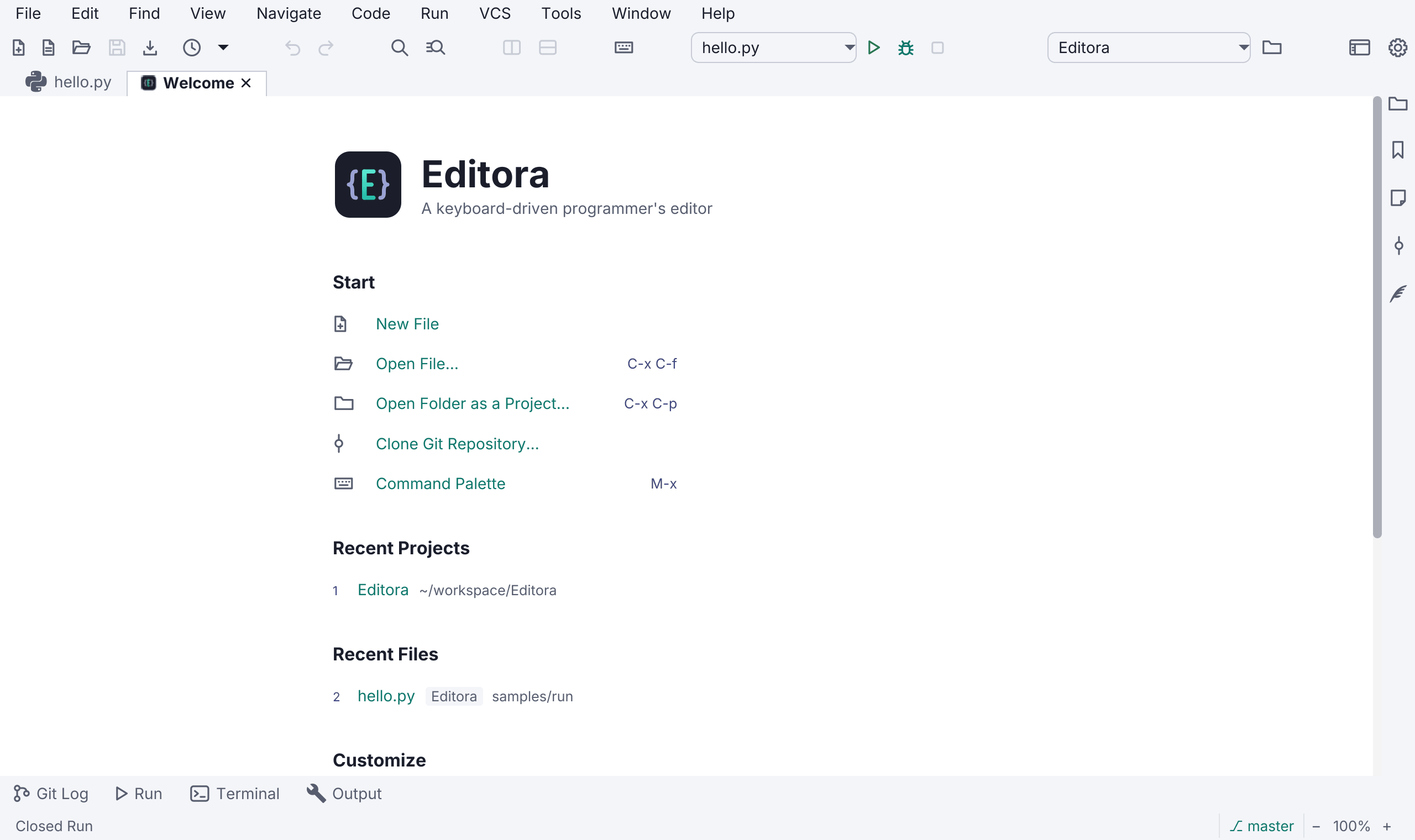
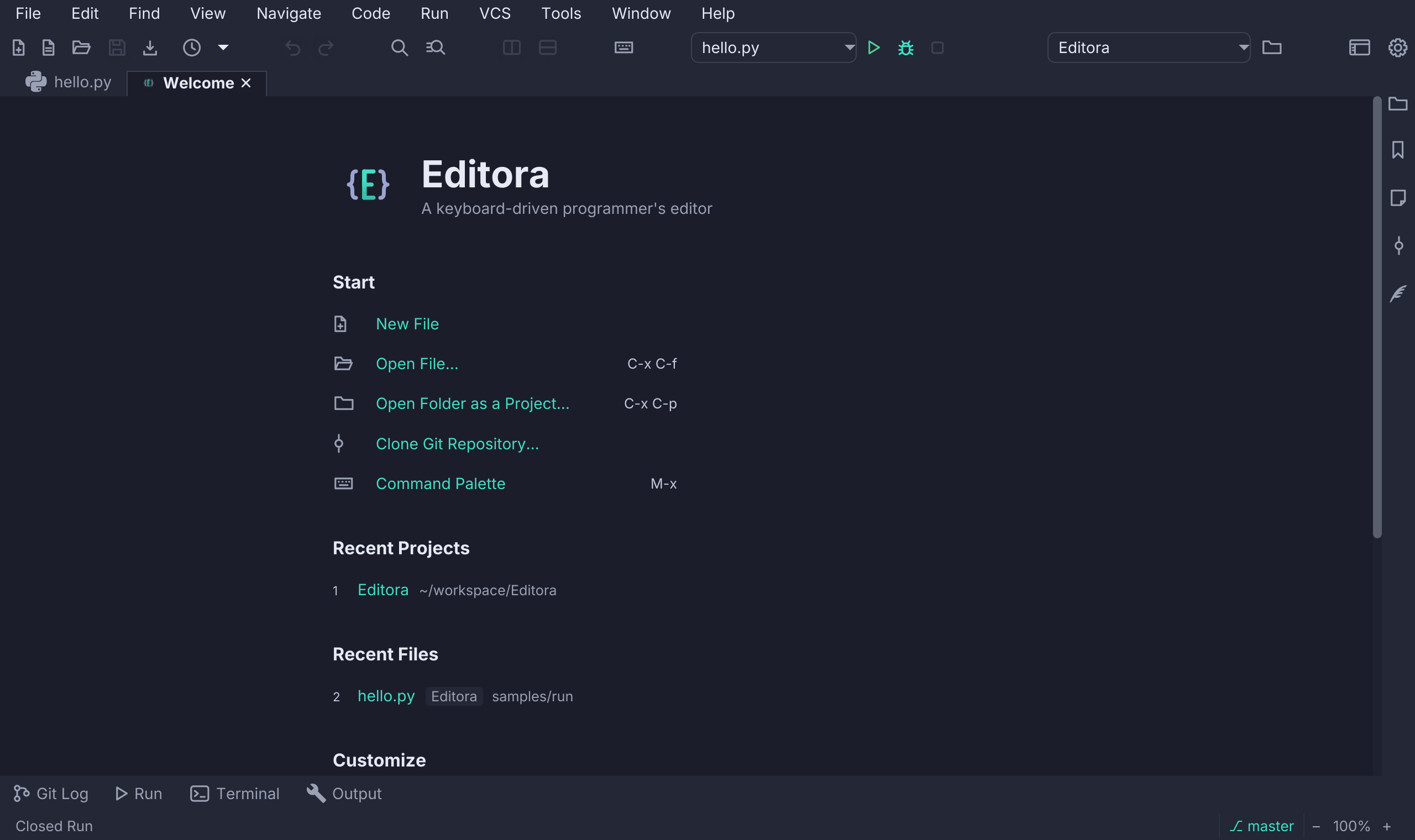
- Start: New File, Open File, Open Folder as a Project, Clone Git Repository and the Command Palette, each with its shortcut when the keymap binds one.
- Recent Projects, newest first. Picking one opens or focuses that project’s window. A project whose folder no longer exists is left out.
- Recent Files. Each row shows the file name, the project it belongs to
(or the host of a remote file) and its folder: relative to the project, or
starting with
~. A long folder is shortened from its start. Right-click a row to copy its path or remove it from the list. - Remote Sites: your saved SFTP sites; picking one opens the connect form filled in.
- Customize: the current keymap and theme; click either to change it. With
the Emacs keymap it also explains the notation (
C-is Ctrl,M-is Alt). On a first run, before there is anything recent, this block sits right under Start. - Help: Documentation, What’s New (the release notes of the version you run) and Doctor.
The first nine projects and files are numbered: press 1–9 to open one. When the page opens, the first entry has the focus, so Enter opens it. Long lists show five entries and a “Show N more” link.
Closing the last tab does not bring the Welcome page back. The editor area shows a short list instead (Open File, Open Folder, Command Palette, Welcome Page) with their shortcuts.
Focus modes
-
Zen mode hides the chrome for distraction-free writing, with a small floating “Z” to exit. Toggle it from the palette (
view.toggleZen),C-c z, or start with the--zenflag. -
Expert mode is a lighter focus mode than Zen: it strips only the window chrome (toolbar, tab bar, breadcrumb, tool stripes, whitespace guides) but keeps the full editor view, line numbers, status bar, minimap, rulers, indent guides, and current-line highlight, so you stay oriented. Toggle it from the palette (
view.toggleExpert),C-c C-e, Settings → Interface → Modes, the floating “E” button, or the--expertflag. Expert and Zen are mutually exclusive, and like Zen it’s per-window and never changes your saved settings. -
Simple UI mode strips the editor to the essentials: it hides the extra toolbar groups, the tool-window stripe, the breadcrumb, the gutter, and the minimap, and turns off the heavier features (LSP, debugging, Git, multiple cursors) for a calm surface. Toggle it from Settings → Interface → Modes, the toolbar button at the right end beside Settings (it never moves into the overflow menu), the palette (
view.toggleSimpleMode), or the--simpleflag (session-only). Toggling off restores everything.It keeps a menu bar, simplified to File, Edit, Find, View and Help. The menus removed are the ones for features the mode switches off (code intelligence, running and debugging, version control, tool windows), which would otherwise be entirely greyed out. The menu bar stays because it shows what the editor can do, and people new to the editor need that most. The Simple UI mode toggle stays in the reduced View menu, so anyone who entered the mode from there can leave it the same way.
The right-click menus are trimmed the same way:
- Tab: Save, Save As, Encrypt… (Lock File on an encrypted file), Print, Export to PDF, Close, Close Others, Close All, Reveal in Map (when projects are on), Reveal in File Manager, Copy Path and Rename. Unpin stays on a tab that was pinned before.
- Editor: Comment / Uncomment, the spelling suggestions, Cut, Copy, Paste, Undo, Redo, Select All, Print and Export to PDF.
- Project tree: New (a file or a folder), Rename, Undo Move, Delete, Reveal in Map and Reveal in File Manager.
- Preview (Markdown, Typst, Markwhen, diagrams): the copy actions, Go to Source, Enlarge, Export to PDF and Print. Copy HTML and the other export formats are hidden.
Git, Local History, the compare actions, Open Terminal, Pin, bookmarks and notes, External Tools and plugin items, and the Run, Debug, language-server, build, AI, Markdown and Typst submenus are left out. Turning Simple mode off brings every entry back.
Window chrome
Each row of chrome can be hidden on its own under Settings → Interface → Window chrome: the menu bar, toolbar, status bar, tab bar, breadcrumb and tool-window stripe. (Hiding the tool stripe hides every tool window’s button, whatever the Tool Windows page says; the windows still open from their keyboard shortcuts and the palette.)
Merge the menu bar into the title bar goes one further: the window is drawn without a system title bar, and the menus, the window title and the system buttons share that single row, which gives the editor a full bar of vertical space back. Minimise, maximise, close, drag-to-move, double-click-to-maximise, edge resize and snapping all stay the platform’s own, so the window behaves as before and only the position of the menus changes. The window drags from the title in the middle of the bar as well as from its empty parts.
It is experimental, off by default, and applies on restart, because a
window’s style is fixed once it has been shown. Linux and Windows only. macOS is
excluded because the menu belongs to the system menu bar at the top of the
screen there, so drawing it inside the window would not make the window any
taller. The checkbox is disabled rather than hidden, so its note still explains
why. Also on the palette as
view.toggleExtendedWindow.
The breadcrumb sits directly under the editor area and is as wide as the
editor, rather than spanning the whole window above the status bar. It writes your home directory as a single ~ crumb, which still
navigates there. In a Markdown file it continues with the path of headings at
the caret.
In the status bar, indent, line endings and encoding are one segment
(Tab 4 · LF · UTF-8), since all three describe how the file is written to disk.
They remain three separate click targets with three tooltips, because they run
three different commands, and they appear only when a file is open. In a
Python file that mixes tabs and spaces the way Python rejects, the indent part
reads Tab 4 · mixed indent in the warning colour (see
Editing). The encoding
is drawn in the warning colour when Editora had to guess it; see
File encodings. A file whose
lines do not all end the same way reads Mixed with its dominant ending, for
example Mixed (LF). Saving such a file unchanged leaves it as it is; saving an
edit writes the dominant ending on every line and says so.
The toolbar
Settings → Toolbar adds, removes and reorders the icons; right-click the toolbar and choose Customize Toolbar… to drag them directly on the bar (drag one off to remove it). Restore Default Layout puts it back.
The bar is two containers on one row. The icon cluster is what you customize, and it is what collapses into the overflow chevron when the window gets narrow. The tail is pinned to the right end and never overflows, the way an IDE pins its run widget. It holds the run-configuration selector with its Run, Debug and Stop buttons, the project switcher, Open Folder, the build badges and Settings. As a result, the selector and its Run, Debug and Stop buttons are not draggable items in Settings → Toolbar. They are pinned so that a narrow window cannot hide the control that starts a run, whereas every icon in the cluster is also reachable from the menus and the palette.
Recent Files sits in the cluster, between Save As and Undo. It is a file action, one of the ways to get a file on screen, and beside the project switcher it read as a project control. As a catalog item, it can be dragged elsewhere or removed like any other. A toolbar you had already customized keeps the button. Because a saved layout is used verbatim, the button is inserted after Save As so that it does not disappear from both halves.
Its dropdown is as wide as the longest file name, up to a limit, with each file’s project label lined up in one column. Hover a row for the file’s full path. A row’s trash icon asks before removing that file from the list, and the question shows the full path, so two files with the same name are easy to tell apart.
Cut, copy and paste are not in the default layout, because in a keyboard-driven editor they are rarely reached for with the mouse. They remain catalog items and can be dragged back onto the bar. A bar you have already arranged is otherwise untouched.
Local file history
Local History snapshots your local files over time, independent of any version control, so you have a safety net even outside Git. A revision is recorded on save, on auto-save, and before a file is reloaded after an external change. The first save of a session also keeps the text the file held before it, listed as Before first save, so the version you started from is in the history too. A save that changes nothing adds no revision, and auto-saves less than five minutes apart collapse into one, so a run of them does not push earlier revisions out. Encrypted files get no revisions: their text stays out of the history.
The Local History tool window lists the active file’s revisions, newest first, under day captions. Each row shows its label if it has one, the time, and the reason it was recorded; the size and full date are in the tooltip. The newest row is tagged Current when it equals the editor’s text and Latest when the editor has moved on (unsaved edits, an undo, or a restore of an older row).
| Action | Command | Emacs | CUA, Sublime Text, VS Code, IntelliJ IDEA |
|---|---|---|---|
| Show or hide Local History | tool.fileHistory | M-g l | Alt+Shift+H (⌃⌘H on macOS) |
| Put Label | history.putLabel | (palette) | (palette) |
| Recent Changes | history.recentChanges | (palette) | (palette) |
The same three are under VCS ▸ Local History, and Show Local History is in a tab’s right-click menu and in the Project tree. Git’s per-file log is a separate command, Show Git History.
Select a revision for a side-by-side diff against the current file; the diff follows edits you make in the editor. Restore replaces the file’s text with that revision, or use the apply-chevrons to copy individual fragments back in. Either way the change goes into the open tab as an undoable edit and nothing is written to disk until you save. Restore asks first only when the tab has unsaved edits.
| Key | Result |
|---|---|
Enter | Move into the selected revision’s diff |
F2 | Set or edit the revision’s label |
F5 | Reload the list |
Menu key or Shift-F10 | Open the row’s menu (Restore This Version, Set Label…) |
Tab | Leave the diff for the filter and the list |
Escape | Clear a typed filter, then return to the editor |
It mirrors more of IntelliJ’s Local History:
- Named snapshots with Put Label (
history.putLabel), shown bold in the list even when the content is unchanged. - A filter over the revision list that matches the words the rows show
(label, reason, time, and day), plus a project-wide Recent Changes picker
(
history.recentChanges) that opens the revision you pick, including one of a deleted file. - A folder view: right-click a folder in the Project tree and choose Show Local History to list every file under it that has history, with deleted files struck through and badged. Selecting a revision shows its diff, and Enter or Restore puts it back, recreating a deleted file; a file that still exists asks before it is overwritten. The view stays up while you restore several files, and a file row’s menu has Delete History… for that one file. Deleting a file in Editora snapshots it first, so an accidental delete is recoverable (for files Editora had opened or edited).
- History follows the file. Renaming or moving a file from the Project tree keeps its revisions, and a file created with Save As starts with a copy of the original’s history once its first save is recorded (the original keeps its own). The copied revisions count towards the project’s size limit.
- Deleting history for good: Local History: Delete History of Current
File… (
localHistory.purgeFile) and Local History: Delete History of Project… (localHistory.purgeProject) remove snapshots permanently, after a confirmation that states how many snapshots go.
Restore validates the stored revision and verifies that the file has not changed while it was loading. If either check fails, the current file and editor contents are left untouched, and the status bar says which check failed. A copy of what a restore replaces is stored first.
A file’s Local History is the same in every window, whichever project’s window recorded it, and an open panel follows saves, labels, and deletions made in another window.
Snapshots are deduped by content and stored gzip-compressed in your config folder, pruned by configurable limits (Settings → Workspace → Local History, or the three commands):
| Limit | Command | Default |
|---|---|---|
| Max revisions per file | history.setMaxPerFile | 50 |
| Max age in days; 0 means no age limit | history.setMaxAgeDays | 30 |
| Max size per project, in MB of uncompressed text | history.setMaxTotalMb | 50 |
The size limit applies to each project and counts content shared by several revisions once. When a project is over it, a file above its fair share loses its own older revisions first, so one large file does not push the other files’ history out. A file’s newest revision, labelled revisions, and copies taken before a delete are never removed for size, and are kept six times as long as the age limit (at least 180 days). Lowering a limit asks first when it would delete existing history, stating how many snapshots from how many files would go. It’s on by default, local-only, and off in Simple UI mode.
External-change detection
When a file changes on disk under you, Editora notices on window focus and tab switch and prompts to reload or keep your version. When the buffer has unsaved edits, the prompt says so and Keep Mine is the default, so pressing Enter keeps your version; without unsaved edits Reload is the default. The Project tree also re-scans on focus so files added or removed outside the editor show up, keeping your expanded folders and selection, and a folder is listed afresh each time you open it.
A file deleted outside Editora keeps its tab and its text: the tab is marked unsaved, the status bar says the file no longer exists on disk, and auto-save does not write it back. Save it yourself to recreate the file.
A remote project’s folder is watched on its host when that host
may run commands, so a
git pull or a build there updates the Project tree, Git, language servers and
an open file that changed, as for a local folder. A host with inotifywait
reports changes at once; others are checked every few seconds.
A project whose tools run in a container is watched here, since a bind-mounted
folder is this machine’s own. A project inside a WSL distribution is watched
from inside the distribution while its tools run there,
because Windows cannot watch the \\wsl.localhost share.
Trusted folders
A Maven or Gradle build runs code that lives in the repository rather than on
your machine: a shipped wrapper (./mvnw, ./gradlew), the pom’s plugins and
extensions, the files under .mvn/, every Gradle build script. A repository
you merely cloned and opened could execute its own code on the first build,
with your privileges, whether or not it ships a wrapper.
Editora asks first. The first build of any kind in a folder it hasn’t
been told to trust shows what would run and waits: the wrapper, the pom’s
plugin coordinates, the .mvn/ files, the Gradle scripts, and a
.editora/project.json build-command override. Trust is remembered for the
folder that ships the wrapper, else the project you opened, and inherited by
subfolders, so a multi-module repository asks once and a module never
silently covers a script one level up. The default is always untrusted,
including when the trust file can’t be read. The same question fronts
Gradle’s Load all tasks…, the build before Run and Debug, and Maven’s
classpath fallback.
Declining means no build runs at all. Editora does not fall back to the
mvn or gradle on your PATH, because that would not be safer: a hostile pom.xml or
build.gradle executes code through those too, since build plugins and Gradle
scripts run in-process.
Only Maven and Gradle are gated. Every other build tool (npm, Cargo, Go) launches
your own toolchain, and Run and Debug always invoke a PATH interpreter, so
none of them prompt.
The same trust covers two language-server features. The
Maven pom.xml server resolves the
parents, plugins and repositories a pom names and can run their code, so a
pom.xml in an untrusted folder is edited with the plain XML server until you
trust it. With Download schemas left at Only in
trusted folders, the XML server fetches the schemas a file names only in a
trusted folder. In both cases the file offers Trust Folder, and
Workspace: Trust This Folder in the palette trusts the active file’s folder:
the open project when the file is in it, else a pom’s own Maven project. It
asks first, with Cancel as the default, and covers builds too. Revoking the
folder turns both off again.
Review or revoke trust in Settings → Advanced → Trusted folders, with the
Revoke button in the Maven or Gradle window’s header (which shows
Trusted or Not trusted yet), or from the palette with
workspace.manageTrust and workspace.revokeTrust. Revoking a folder that is
still covered by a trusted parent tells you so, rather than claiming a revoke
that the parent would override.
A folder on a remote host is trusted on its own: trusting
/srv/app on a server does not trust a local /srv/app, or the other way round.