
Language servers (LSP)
Editora speaks the Language Server Protocol, so with a server installed you get real language smarts. LSP is on by default: each server starts once it is installed, and a file whose server is missing offers to install it. In a folder you have not trusted, servers that would run the project’s build wait (see Servers that load a project’s build). The master switch is Enable LSP (language servers) in Settings → LSP.
This page covers what every server offers. What is particular to one language (its server’s settings, extra refactorings, project setup) is on that language’s page: Java, Python, JavaScript & TypeScript, HTML, CSS & JSON, XML & pom.xml, Shell & Bash, Kotlin, Groovy, Scala and Clojure.
Navigation
| Feature | Command | Default key |
|---|---|---|
| Go to definition | lsp.gotoDefinition | M-. |
| Peek definition | lsp.peekDefinition | (palette) |
| Go to definition in a split | lsp.gotoDefinitionInSplit | (palette) |
| Go to implementation | lsp.gotoImplementation | C-c l i |
| Go to type definition | lsp.gotoTypeDefinition | C-c l d |
| Go to declaration | lsp.gotoDeclaration | (palette) |
| Find references | lsp.findReferences | M-S-/ |
| Go to Symbol in Workspace | lsp.gotoSymbol | M-g s |
| Call hierarchy | lsp.callHierarchy | C-c l c |
| Type hierarchy | lsp.typeHierarchy | C-c l h |
| Next / previous problem | lsp.nextProblem, lsp.previousProblem | M-g M-n, M-g M-p |
| Show problem at caret | lsp.problemAtCaret | C-c l e |
In the References and Hierarchy tool windows a row’s right-click menu (or the
Menu key, Shift+F10) has Open and Copy, and the Copy key copies the selected row;
the commands are References: Open Reference / Copy Line
(references.openSelected, references.copySelected) and Hierarchy: Open
Declaration / Copy Name (hierarchy.openSelected, hierarchy.copySelected).
The goto, references and hover commands are also in the editor right-click menu
while a server is active, under a single LSP submenu, and you can
Ctrl/Cmd-click a symbol to jump to its definition. Go to Implementation
and Go to Type Definition join that menu only when the server
supports them, so it never offers a dead entry. Go to Super Method (Navigate
menu, and this submenu for Java) jumps from anywhere in a method, its @Override
and Javadoc included, to the method it overrides or implements. That includes an
anonymous class’s method, wherever the class is written: in a method, a field, an
initializer or an enum constant. The type hierarchy fills in what the server
misses, so an interface’s default method and a method two interfaces declare both
have somewhere to go; of two where one overrides the other, the nearer one is
offered. A static or private method, or another overload, has no super method. In
a lambda it goes to the functional interface’s method, in a constructor to the
super constructor it calls (through this(...) too), and from a class to its
supertypes, the superclass first and each named by its type (never
java.lang.Object, as in IntelliJ). On an anonymous class itself (its header,
from the type’s name to its {, or a field in it) it opens the type the class
instantiates, also for a nested type written with <>, such as
new Outer.Mid.Sink<>() {…} or an imported Map.Entry. A comment right above a
method, Javadoc or //, counts as the method’s. Several targets open a picker,
and it works the same in a library source tab.
The submenu does not change which actions a server contributes. A fully-featured server offers up to eight. Grouping them keeps cut, copy, paste and the spelling suggestions near the top of the menu, and labels entries such as “Go to Definition” as coming from the language server.
When an implementation lives in the JDK or a dependency, Go to Implementation
lists every implementation in a picker, each with its package and a nested
class by its own name (AbstractList.SubList), and opens the one you choose as
read-only source.
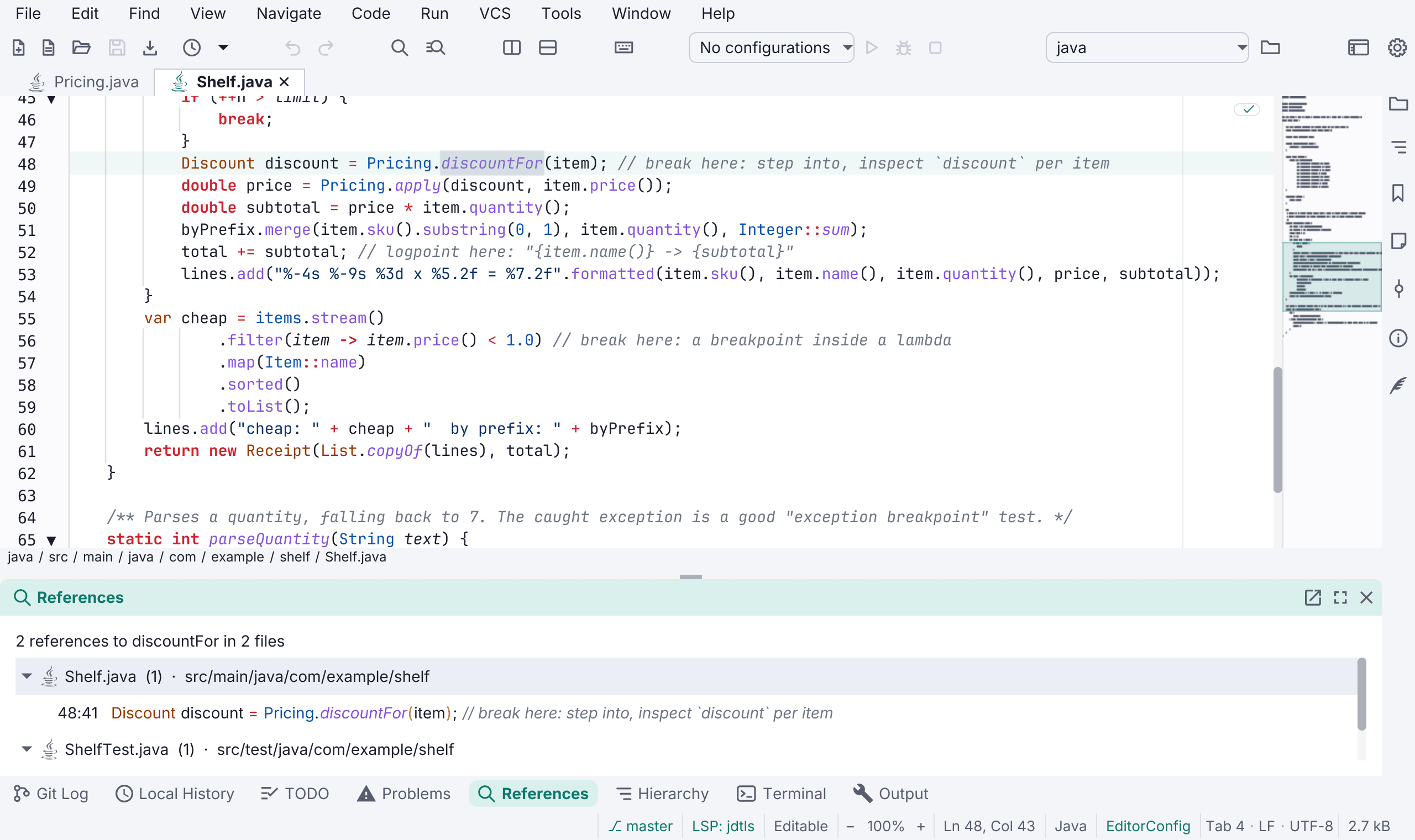
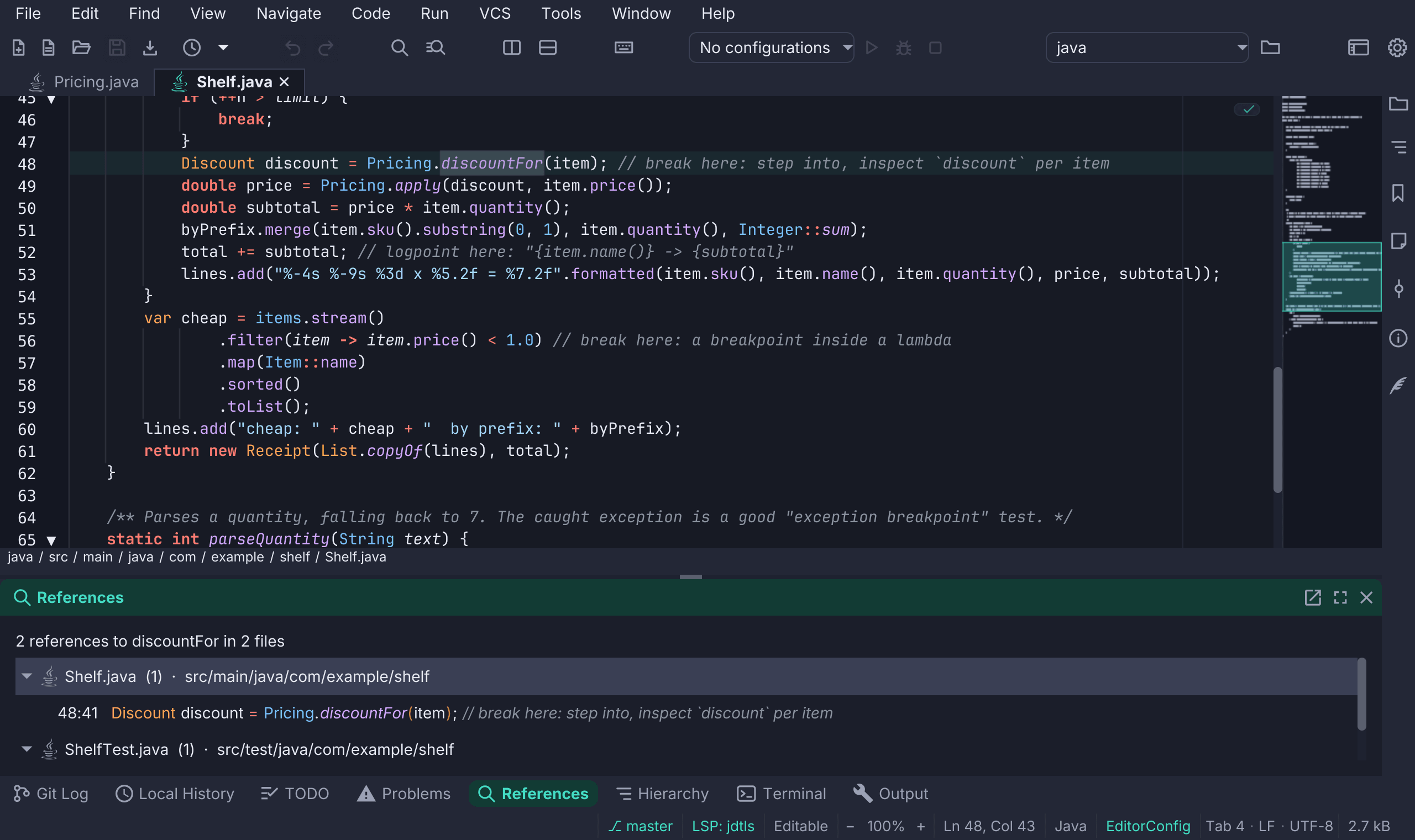
Find references and Go to Implementation list multiple results in a browsable
References tool window (tool.references), grouped by file with a line and
preview; a single result jumps straight there. When the file has an open tab,
the preview is the reference’s line with the editor’s syntax highlighting, in
the active editor color theme; for a file with no tab the line is read from disk
in the background and filled in a moment later. Each file’s header names its
folder, so two Main.java in different packages can be told apart, the summary
names what was searched (“5 references to area in 4 files”), and a reference
that writes the symbol (an assignment, +=, ++) is marked (write). The
declaration itself is not listed, so Find References on an unused symbol says
there are none. A request that fails or times out says so instead of “No
references”.
Go to Symbol in Workspace opens a live search over every symbol in the project, methods included, with JDK and library types after the project’s own, labelled with their module or jar. With a Java server running, Search Everywhere lists those library classes too, in the same order. Where no server is running, Editora’s own project symbol index answers the same question.
Peek Definition shows the definition over the editor instead of taking you to it, leaving your place, scroll position and tab count where they were; Enter commits to the real jump. Go to Definition in a Split puts the definition in a new editor group beside the code that referenced it. Both are covered in Code navigation.
Definitions inside libraries work too. A Java definition that lives in the JDK or a dependency is fetched from the server and opened in a read-only, highlighted tab on the declaration, not the start of its Javadoc. Inside that tab the language server keeps working: Go to Definition, hover, Find References (which finds your project’s calls), Go to Implementation, Type Definition and Declaration, Peek Definition and both hierarchies, onward into another library class or back into your own code. Peek Definition on a library member shows its source in the peek window rather than opening a tab.
Call and type hierarchy open in a Hierarchy tool window. Call hierarchy
shows who calls the method under the caret, or what it calls (flip with the
Callers / Callees toggle); a member called more than once is one row with its
count, as in append(String) ×2. Type hierarchy shows a type’s supertypes and
subtypes, and on an interface it opens on the subtypes, its implementations.
Each level is fetched from the server as you expand it, and Enter or a
double-click jumps to any entry, a JDK or library one included.
Next Problem and Previous Problem move the caret to the file’s next or previous error, wrapping at the end (its warnings when it has no errors), and say what it is; Show Problem at Caret says the problem under the caret, or the worst one on its line. In a log file they step through its warnings and errors instead (see the log viewer). The CUA and Sublime keymaps bind them to F8 and Shift+F8, like VS Code.
Reading the code
| Feature | Command | Default key |
|---|---|---|
| Hover docs | lsp.hover | C-c h |
| Signature help | lsp.signatureHelp | C-c l s (also automatic) |
| Toggle inlay hints | view.toggleInlayHints | (palette) |
| Toggle code lenses | view.toggleCodeLens | (palette) |
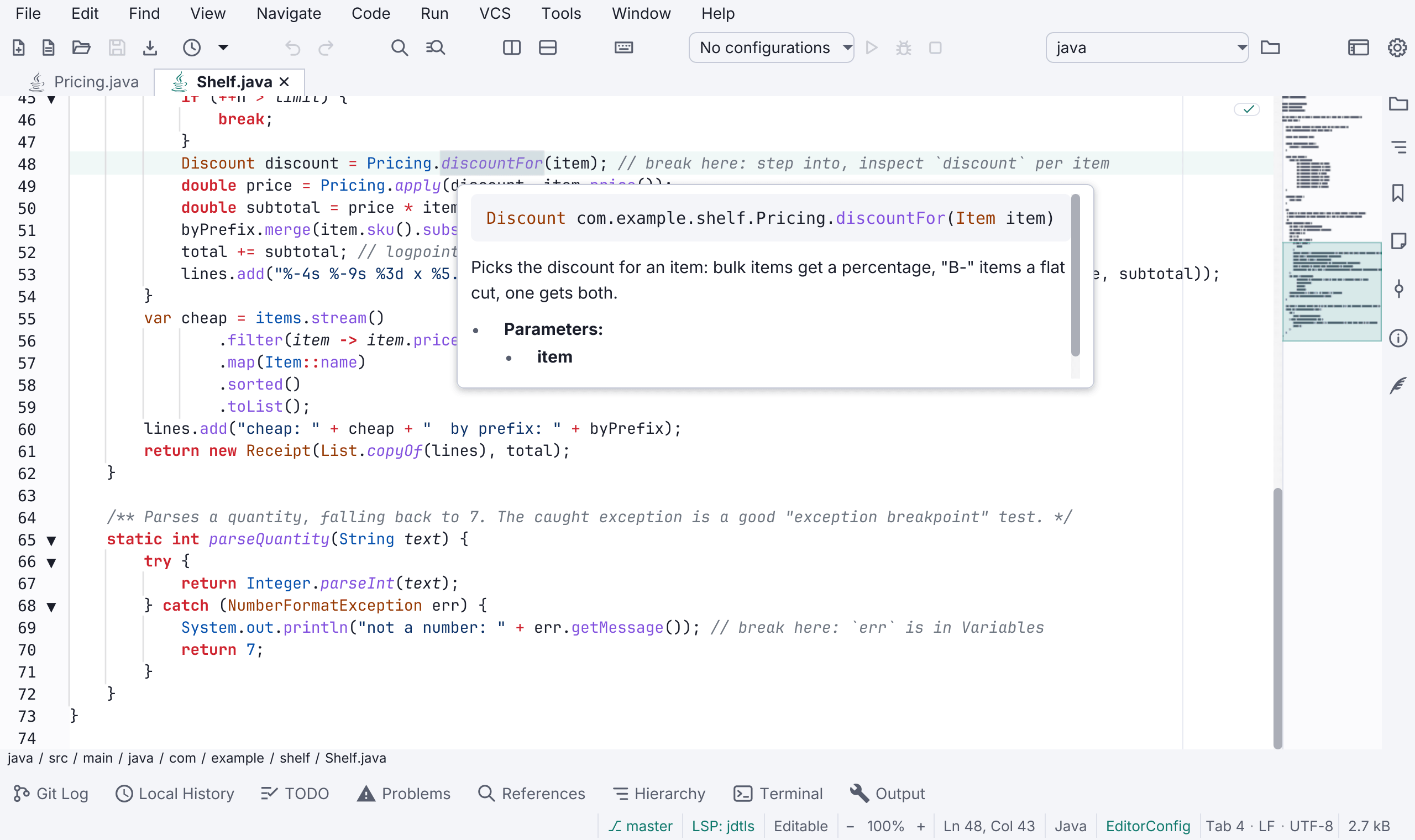
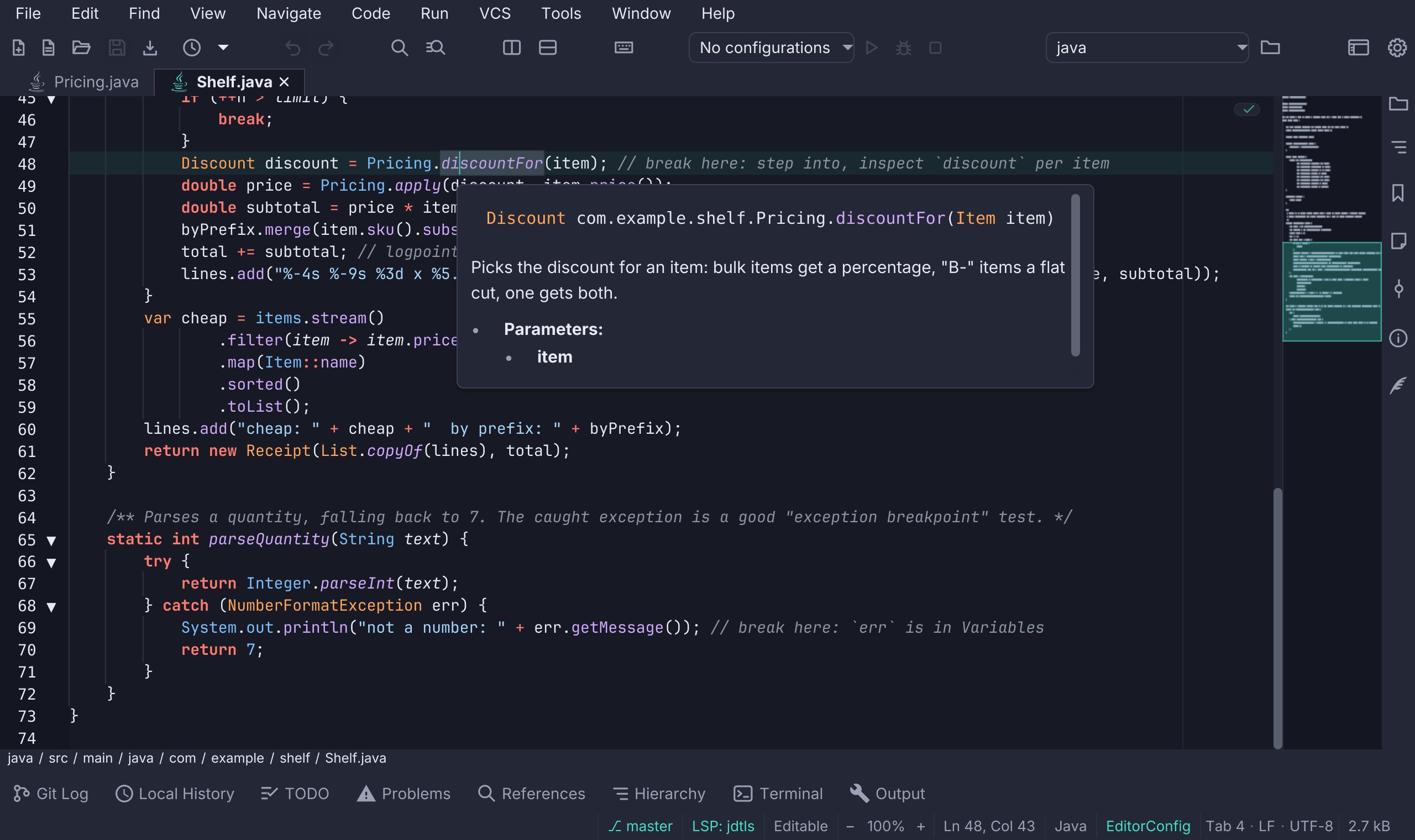
Hover docs open in a popup at the caret. Long documentation, such as the
man page bash-language-server shows for a command like ls, scrolls inside a
popup no taller than part of the window. Page Down and Page Up scroll it
from the keyboard (and C-v / M-v in the Emacs keymap); Escape closes it. A
man page gets its full 80 columns.
Signature help pops the server’s overload list when you type ( or , in a
call: the active signature with the current parameter highlighted, an n/m
overload counter, and the signature’s documentation (for Java, the method’s
Javadoc, led by the current parameter’s own @param text). It follows your typing as
arguments are entered, stays open across multiline calls, and lets you move
between overloads with lsp.nextSignature and lsp.previousSignature. It
closes when the caret leaves the call, on Escape, or on scroll. Finished
zero-argument calls and method references do not open an irrelevant signature
popup.
Inlay hints are the server’s parameter-name and inferred-type annotations,
drawn in grey italics inline, at the position they describe. They are off by
default; turn them on in the Language server features card of Settings →
Code Completion or with Toggle Inlay Hints. A hint keeps the space the server
asks for, so a lambda’s type reads String s ->. By default a parameter-name hint
appears only where the argument is a literal; LSP: Set Inlay Hint Filter
(lsp.setInlayHintMode) switches between that and hints on all arguments. Type hints are never filtered; in Java
they show the inferred type of a var and of a lambda’s parameters. Arguments
named only by number (List.of(e1: 1, e2: 2)) get no hint. They cost nothing
while off. Not every server gives them; Pyright, for one, does not. Turning inlay
hints on in such a file says so in the status bar (Inlay hints are on, but
Pyright gives none for this file.), and Set Inlay Hint Filter says there is
nothing to filter instead of opening its list. Turning on View: Toggle
Semantic Highlighting (view.toggleSemanticHighlight) gives the same notice
when the file’s server sends no semantic tokens, and the file keeps its grammar
colours.
Code lenses are the server’s reference and implementation counts, drawn
after a declaration (3 references, 2 implementations). A lens lights up
under the pointer, and a click opens what it counts. A references lens always
opens the References tool window with its first row selected, also for a
single reference and for 0 references, which shows the empty list. An
implementations lens runs Go to Implementation. When a declaration has more
than one lens, a short list asks which one. They are off by default,
because each count is a search on the server; turn them on in Settings → Code
Completion (“Code lenses”) or with view.toggleCodeLens (View: Toggle Code
Lenses). Turning them on in a file whose server gives none, such as a Python
file under Pyright, says so in the status bar.
Occurrence highlighting needs no command: rest the caret on a symbol and
every occurrence in the file gets a subtle wash, with writes (assignments) shaded
warmer than reads. It is semantic rather than textual, so a local x does not
light up an unrelated field x, and it clears the moment the caret moves.
Diagnostics appear as inline squiggles, in the Problems tool window
(M-8), and as marks on the minimap and scrollbar. A hint (ShellCheck’s
“style” level, for example) is drawn as a faint dotted line rather than a full
squiggle, code the server marks as unused, such as a variable nothing reads,
is drawn faded, and a call the server marks as deprecated is struck through.
Those unused and deprecated marks are not listed in the Problems window or
counted by the problem counter.
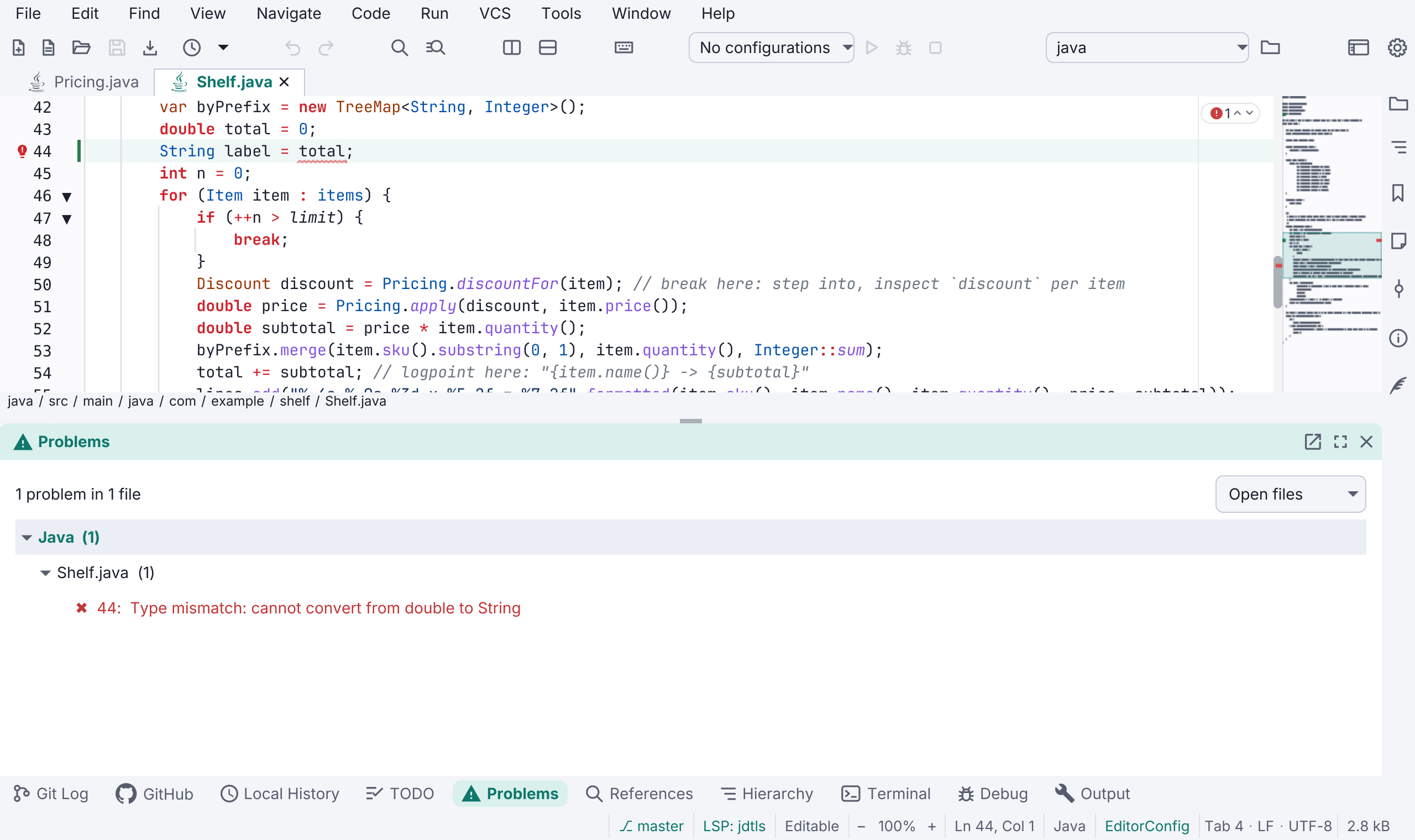
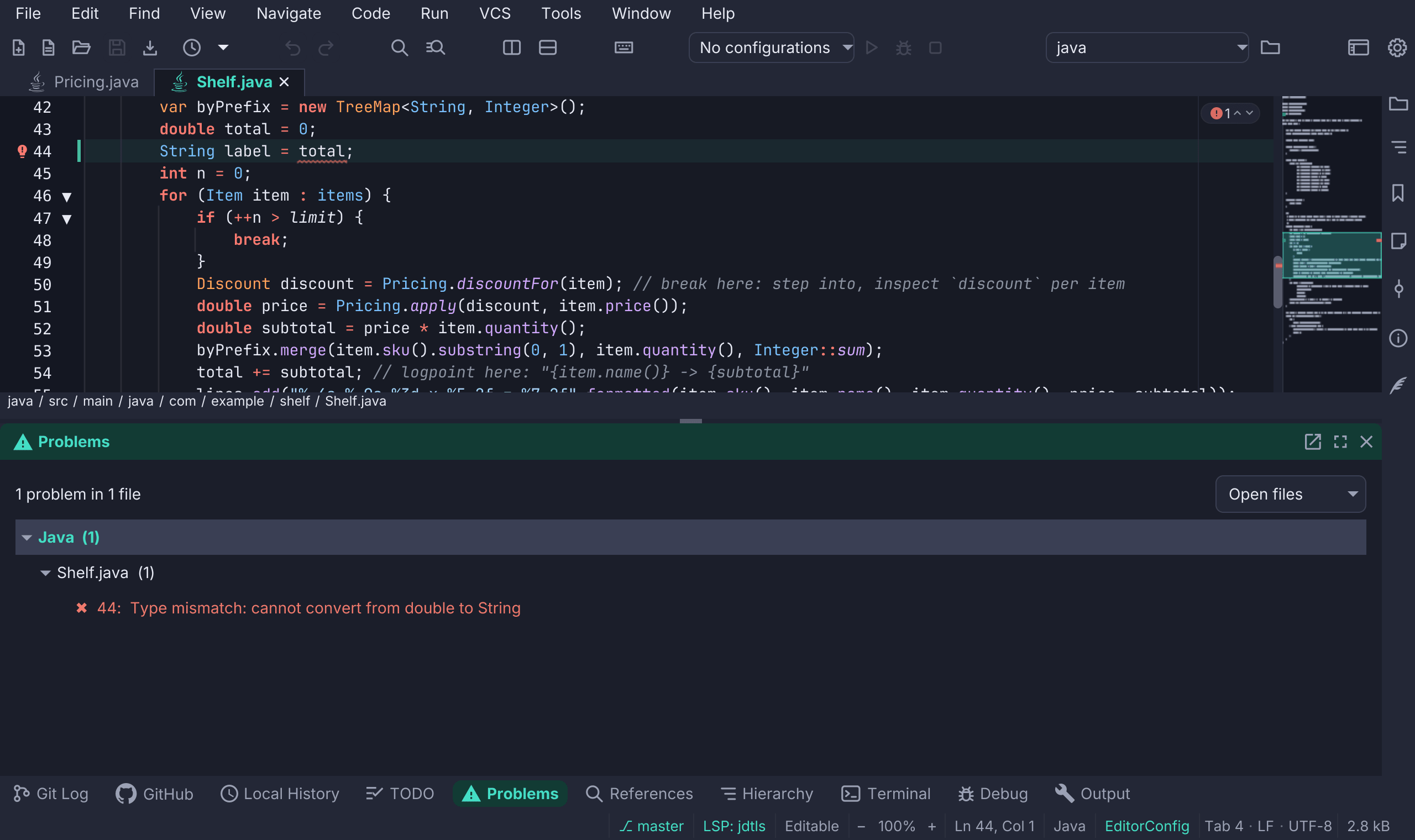
The problem counter at the top right of the editor shows the file’s errors
and warnings, and a muted count of notes (information and hints, such as
ShellCheck’s quoting advice). The green check means the server found no
problems at all. Until the server has
checked the file it says Analyzing… (for Java, until the project has loaded,
and again after a restart), and Not checked when the file’s project did not
import. Its arrows go to the previous and next problem in that
file, notes included, and clicking the counts shows or hides Problems. While
the Problems window is open, its arrows and Next Problem / Previous
Problem select the problem they reach there too, and the focus stays in the
editor. It hides when the code
pane is narrower than 520 pixels. When the caret rests on a line where the
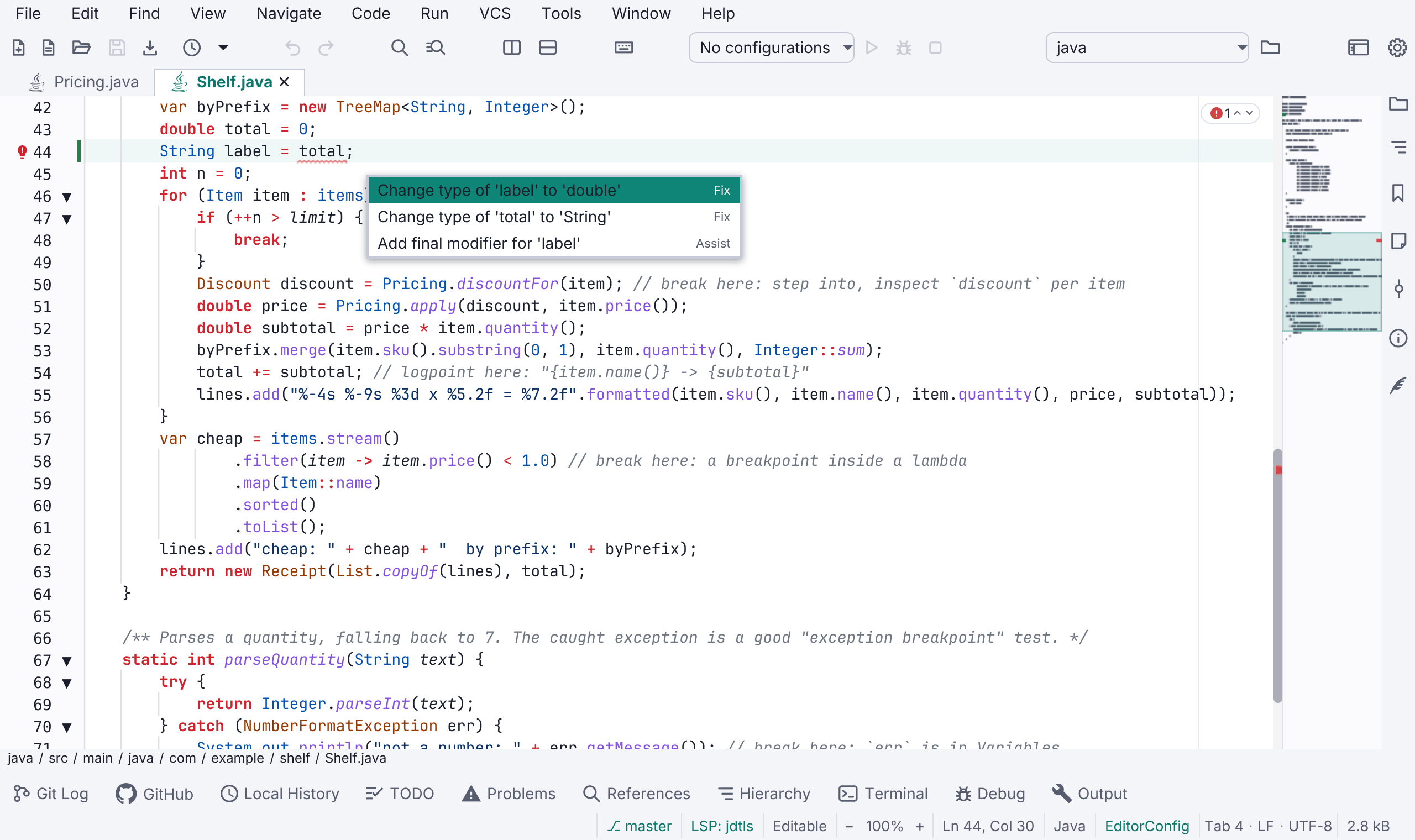
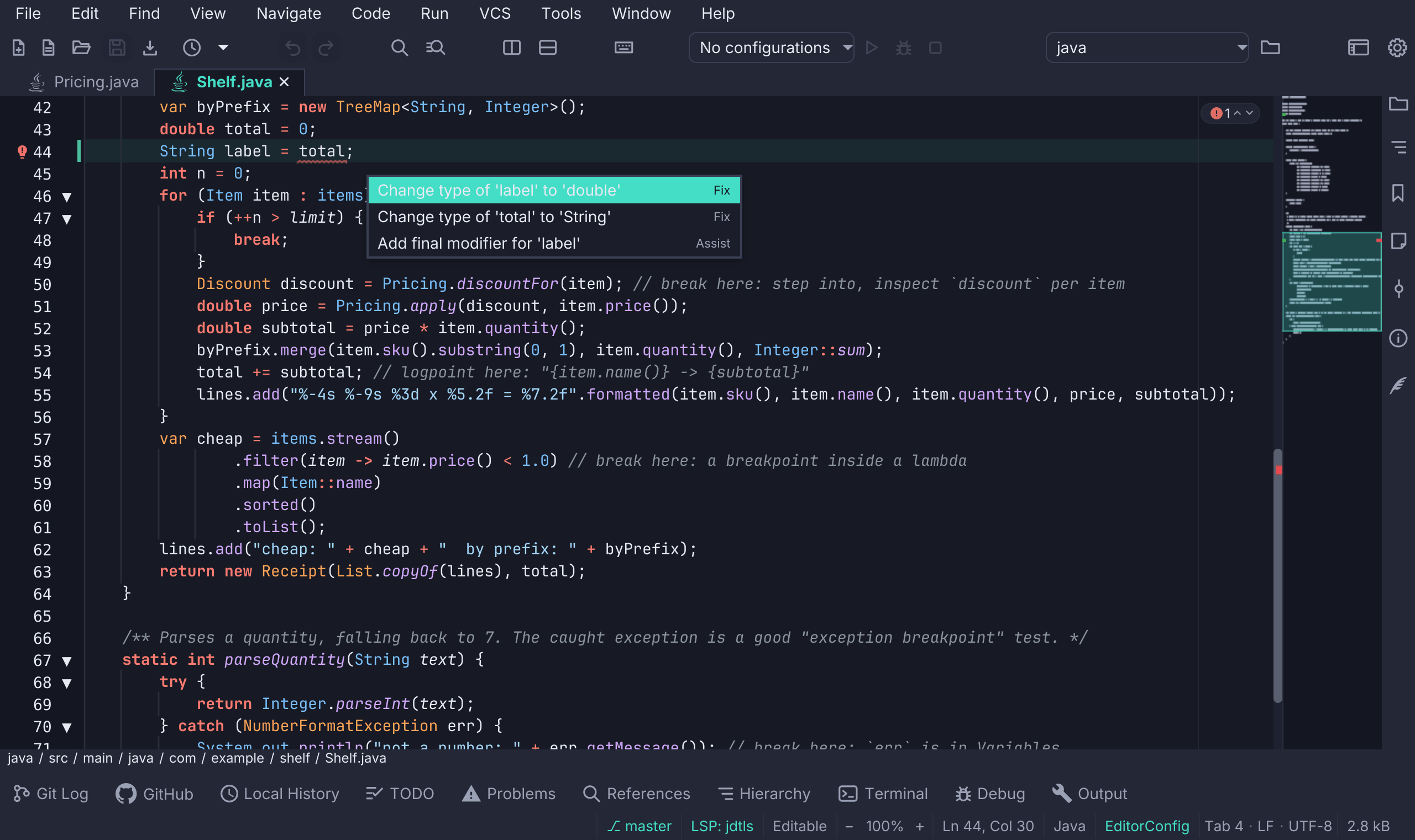
server can fix an error, a red lightbulb with a ! appears in the
gutter; an amber one marks other quick actions, a warning’s fixes included.
Click it for the list Code Actions (C-c l a in Emacs, Ctrl+. in the
other keymaps, also Alt+Enter in IntelliJ) shows, for its own line.
Refactorings, source actions and Add Javadoc, which a server offers almost
everywhere, light no bulb, and the bulb goes as soon as you edit its line. In a
split it shows only in the view you are typing in; a tab you come back to keeps
it; and its colours come from the editor theme (in Summer Dark, Navy Dark, Fall
Dark and Blacky, whose accent is the bookmark’s yellow, the quick-action bulb takes
the text colour). Both
can be turned off in Settings → Code Completion → Language server features.
Completion is merged into
the autocomplete popup, which keeps every row the
server sends (os. in Python lists all of the module’s members). When the
server has not answered after 300 ms, as Pyright may not on a very large file,
the popup shows the rows Editora has without it, with Waiting for Pyright…
(or the name of the file’s server) under them, and the server’s answer replaces
them when it comes. The Structure
tool window builds its outline from the server’s document symbols, with real
kinds, per-kind icons and method signatures. A server that lists its symbols
flat, as bash-language-server does, has them nested under the function that
contains them, and a variable assigned several times in one scope is listed
once. In a pom.xml the outline names what the XML server lists only by
element: a dependency, plugin, exclusion or extension by its
groupId:artifactId, and a profile, execution, repository or
pluginRepository by its id, so five “dependency” rows become a list you can
pick from.
Each row in the Problems window ends with the rule’s code when the server gives
one, for example [SC2086] (but not jdtls’s numeric problem ids, which link
nowhere). Right-click a row for Open Rule Documentation,
which opens the rule’s page (ShellCheck links every code to its wiki), and
Copy Code, which puts the code on the clipboard.
Java completion reacts immediately after member access and begins identifier
completion after a short pause. Its documentation popup shows the item’s Javadoc;
the Excluded types in the Language server features card (vscode-java’s list,
sun.*, com.sun.*, jdk.* and the like, plus java.awt.* by default) are not
offered, imported or listed by Go to Symbol and Search Everywhere; JUnit and Mockito
statics such as assertEquals and mock are offered without an import, which
is then added; and in an argument or assignment it also offers a call chain that
gives the expected type, such as Collectors.toList() inside collect(. The
list matches what you type against the name, not the parameter list. Enter and Tab accept the selected item without
also inserting a newline or indentation; complete result lists filter locally,
and obsolete requests are cancelled as you continue typing. Overloads remain
distinct, commit characters and server ranges are honored, and method
completion reuses parentheses already in the file before requesting signature
help. Auto-imports can safely follow continued typing and remain grouped with
the completion for undo and redo; an answer that can no longer be rebased is
dropped instead of touching newer text.
Smart Type completion (Edit → Smart Type Completion; Ctrl+Shift+Space in the IntelliJ keymaps) opens the list with only what fits the type the code expects at the caret, and the status bar names that type. Editora reads the type from:
- a declaration (
String s =); - an assignment, using the type the name was declared with;
return, using the method’s return type;- a condition (
if (,while (, after&&,||or!), which expectsboolean; - a call’s argument, using the parameter that signature help shows, in every
overload the call could be:
System.out.println(offers anintas well as achar[], and the status bar names the other types.
A generic method’s type variable takes the type the line declares, matched
against the method’s return type: List<String> l = List.of( expects a String,
and String[] a = names.toArray( a String[]. Inside another call’s argument
(names.contains(requireNonNull() it is left open.
The list keeps the fields, variables and methods of a fitting type, null for
an object, and true and false for a boolean. After new, it keeps the
classes that implement the type (ArrayList for a List). A class of your own
that implements or extends the expected type stays too, because jdtls ranks it
as a match. Where the code expects no particular type, the full list opens and
the status bar says so.
The Problems window has an Open files / Whole project selector
(lsp.toggleProjectProblems), plus a Build Project command
(lsp.buildWorkspace) that recompiles the Java project and fills it; it says
when the build found errors. With Open files selected, problems come only
from files you have open, so a compile error in a file you haven’t touched is
not listed. Open files is the default, so the window lists more only when you ask
for it. With Whole project selected, saving a Java file runs a quiet
incremental build, so an error in a closed file clears once its cause is fixed.
With Open files, the same build runs when another file of the project is open, in
this window or another one on the same project, so
a file calling a method you just renamed elsewhere shows the error at once.
For Python, Whole project has Pyright check every Python file of the project, opened or not, which can take a while on a large one; Open files has it check only the open ones. Build Project on a Python file switches Problems to Whole project and says so in the status bar.
Problems of the project rather than of a file, such as a JDK version the build expects and the machine does not have, are reported after a Maven or Gradle project is imported: said in the status line, and listed in Problems in either scope.
Changing the code
| Feature | Command | Default key |
|---|---|---|
| Code actions / quick fixes | lsp.codeActions | C-c l a |
| Generate (Java) | lsp.generate | C-c l g |
| Refactor This (Java) | lsp.refactorThis | C-c l t |
| Undo Last Refactoring | lsp.undoRefactoring | C-c l u |
| Rename symbol | lsp.rename | C-c l r |
| Format Document (or the selection) | lsp.formatDocument | C-c l f |
| Organize imports | lsp.organizeImports | C-c l o |
| Clean Up File (Java) | lsp.cleanUp | (palette) |
| Smart Type completion (Java) | lsp.smartTypeCompletion | (palette) |
| Copy fully qualified name | lsp.copyQualifiedName | (palette) |
| Reload project configuration | lsp.reloadProject | (palette) |
| Re-indent as you type | view.toggleOnTypeFormatting | (palette) |
| Add imports for pasted Java | view.togglePasteImports | (palette) |
| Smart semicolon placement | view.toggleSmartSemicolon | (palette) |
Code actions ask the server what it can do at the caret or selection: quick
fixes for the diagnostics there, assists, and extract and inline refactorings.
The list opens at the caret, where you are looking, with the fixes first,
then assists, refactorings and source actions, each row labelled Fix,
Assist, Refactor or Generate in words, and a title the server offers twice listed
once. The fixes for a line’s problem are offered from anywhere on that line, not
only on the squiggle. Typing narrows the list to titles containing what you type
(Backspace widens it again) instead of editing the code behind it; arrow keys or
C-n / C-p move, Enter applies, Escape or C-g dismisses. Every action shape is supported, including a server-side command whose
edits
arrive back over workspace/applyEdit. An edit to the open file is one undo
step; one that changes other files is applied and saved as one
refactoring, undone together. Ctrl-. / Cmd-. is bound in the VS Code, Sublime and IntelliJ keymaps;
the command is in the palette and the right-click menu in every keymap.
Organize Imports works the way the file’s server does it: jdtls’s own request, Pyright’s organize-imports command, or the server’s organize-imports code action. If the server has none of these, the status bar says so. On a Python file Format Document uses Ruff or Black; see Formatting Python. Pyright offers no quick fixes of its own, so on a Python file Editora adds Import, Remove unused import and Ignore on this line; see Python quick fixes.
A multi-file edit is applied completely or not at all. An action that would delete a folder or replace an existing file asks first and names the paths, and whatever an edit deletes or replaces is copied to local file history beforehand (text files of up to 5 MB, while Local History is on). If Editora is interrupted in the middle of an edit that moves or deletes files, the next time the project is opened an Interrupted Refactoring dialog offers to put the files back.
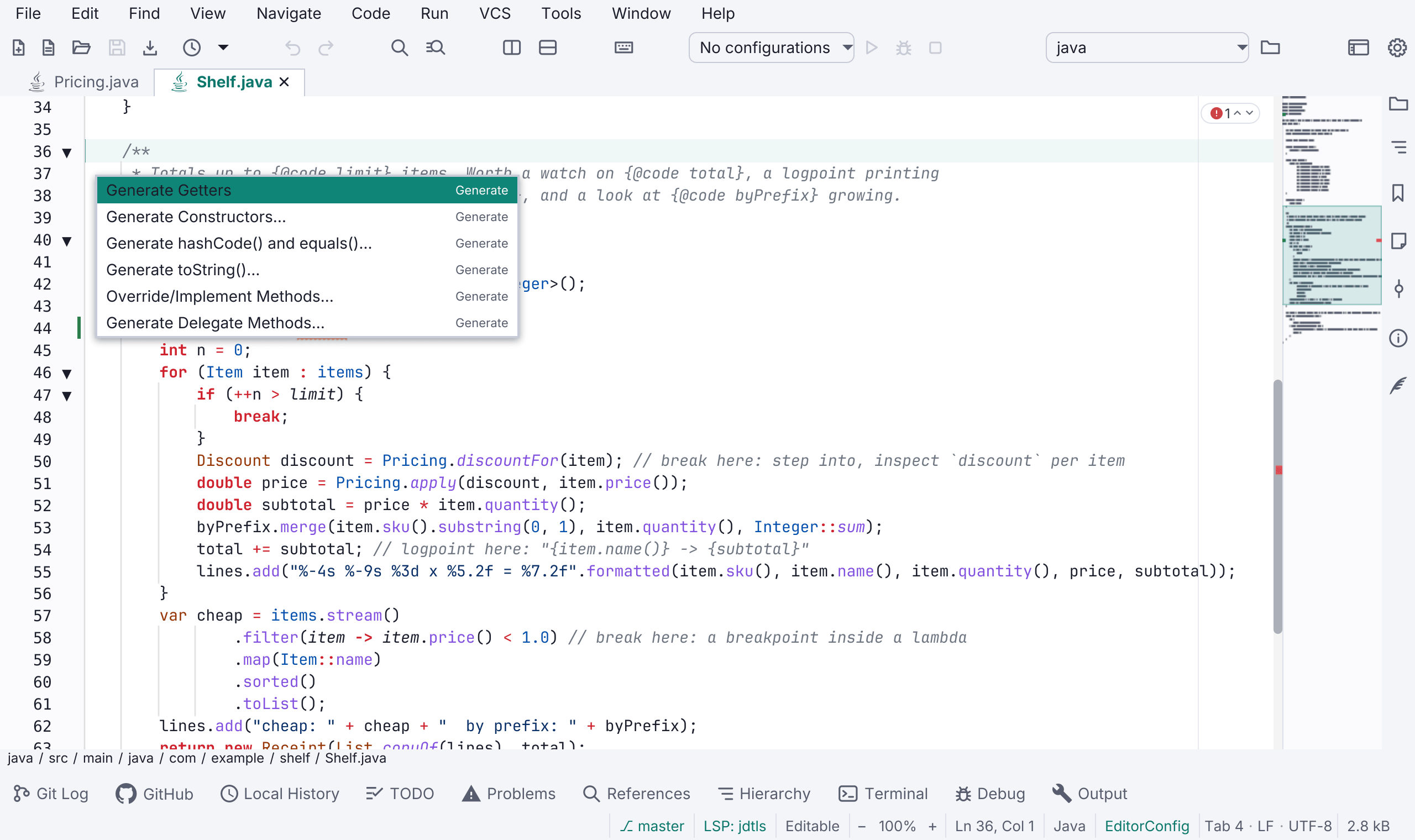
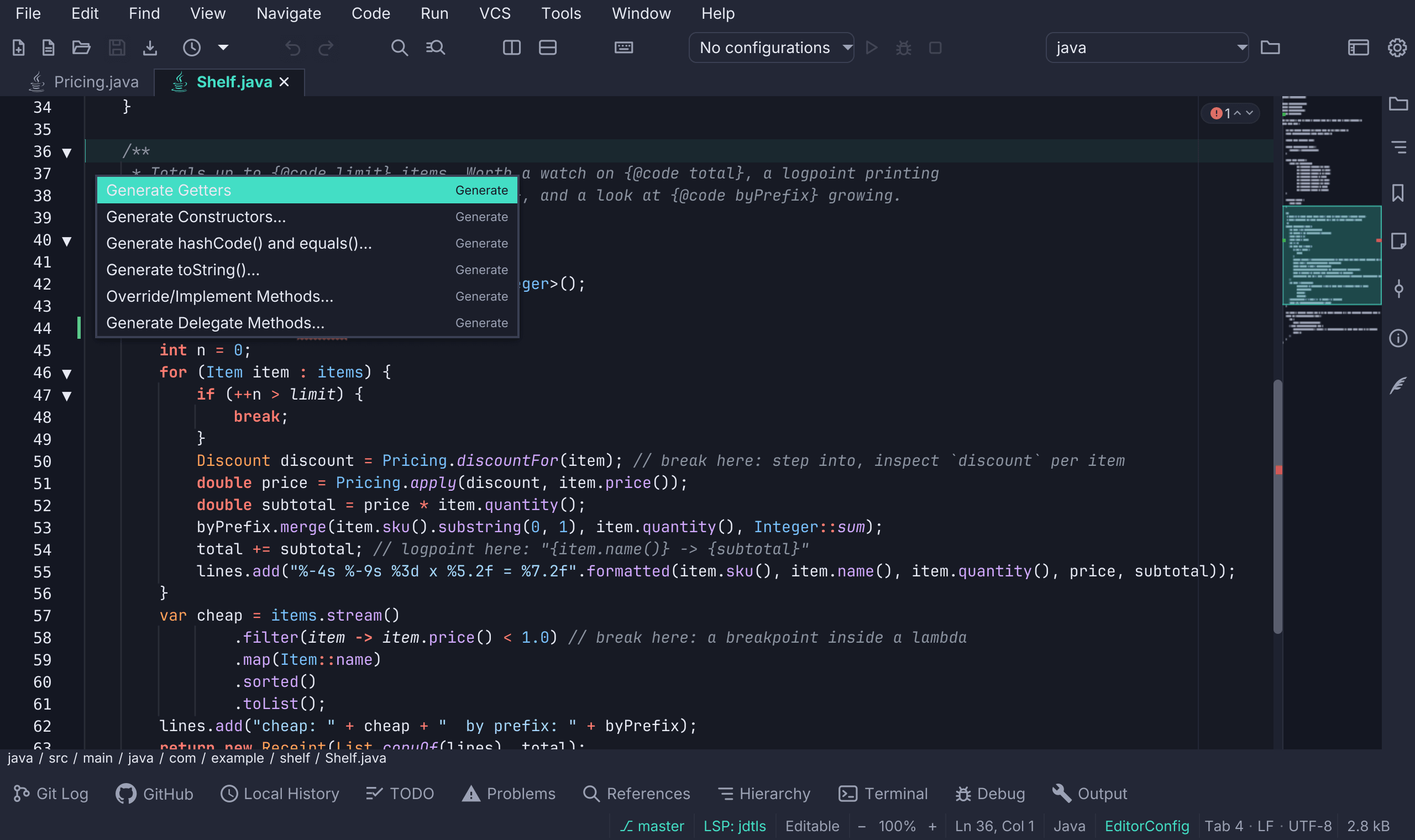
Java code generation has its own list, Generate… (lsp.generate,
Alt+Insert in the IntelliJ keymap): Generate toString(), Generate
hashCode() and equals(), Generate Constructors, Generate Getters and
Setters, Generate Delegate Methods and Override/Implement Methods
(lsp.overrideMethods, Ctrl+O in the IntelliJ keymap). For Java they are not
repeated in the quick-fix list. Each opens a checkbox list so you choose which
fields or methods to include, with Space to toggle and Enter to generate;
hashCode() and equals() starts with every field ticked, and Enter with nothing
ticked says so. Delegate Methods asks for the field to delegate to first, then
lists that field’s methods. The server offers these only when the editor
declares that it can drive the picker, and Editora does.
Refactorings have commands of their own, in the Code ▸ Refactor submenu
and the palette: Refactor This… (lsp.refactorThis) lists the ones at the
caret, and Extract Variable, Extract Constant, Extract Field,
Extract Method, Introduce Parameter, Inline, Move… and Change
Signature… (lsp.extractVariable, lsp.extractConstant, lsp.extractField,
lsp.extractMethod, lsp.introduceParameter, lsp.inline, lsp.move,
lsp.changeSignature) each run the one jdtls offers there.
The extract refactorings work at a bare caret: with nothing selected Editora
asks the server which expressions are there and lets you pick one when there are
several. Extract to Field and Convert Local to Field ask where to initialize the
field when there is a choice. After an extraction, Rename opens on the name the
server picked (d, getTotal), so you can name it at once.
Java has three more refactorings that ask a question first (Move, Extract Interface and Change Signature): see Java refactorings that ask a question.
A refactoring is one change across files. Every file a refactoring renames,
moves or creates is saved, so the project compiles straight away, and a file it
opened only to edit is saved and its tab closed. Renaming a .java file in the
Project tree, or dragging it (or a package folder) into another package, is such a
refactoring too: the class is renamed or its package line changed with it, and
the files that use it are updated; Undo Move moves it back the same way.
Dragging several files is one refactoring: Undo Move and Undo Last
Refactoring each take all of them back, and either one ends the other. Dragging
only files jdtls has nothing to change for, such as a text file, is no
refactoring, so the one before stays undoable. One drag runs at a time: a drop
while one is under way says to drop again when it is done, and Undo Move says to
undo it when it is done. While jdtls is still loading, or
does not answer, Editora asks once before it moves Java files without updating
their package lines. Undo in one of those files
offers to undo the refactoring in all of them, and Undo Last
Refactoring (lsp.undoRefactoring) does that from anywhere, moving renamed
files back and removing created ones. A rename onto a name that is already taken
is reported after it lands, with the way back.
Three commands sit outside the menu: Organize Imports sorts and prunes a
file’s imports directly (in Java, JavaScript and TypeScript), Copy Fully Qualified Name puts the full name of the
symbol at the caret on the clipboard, and Reload Project Configuration makes
the server re-read pom.xml or build.gradle, also from the pom.xml tab
itself. A build file you save is picked up on its own, so Reload is rarely
needed. In Java, Organize Imports asks which class an ambiguous name such as
Date or List means, and so does the Add all missing imports quick fix.
The question waits for you: it does not time out while it is open, and goes
away when the server stops (a restart). A second Organize Imports while it is
open says to answer it first, and a save does not organize the file under it.
If the file changes while the question is open, the answer no longer applies and
the status says to run Organize Imports again.
After a failed Gradle import, saving the fixed build file imports the project
again, as Reload Project Configuration does from any of its tabs.
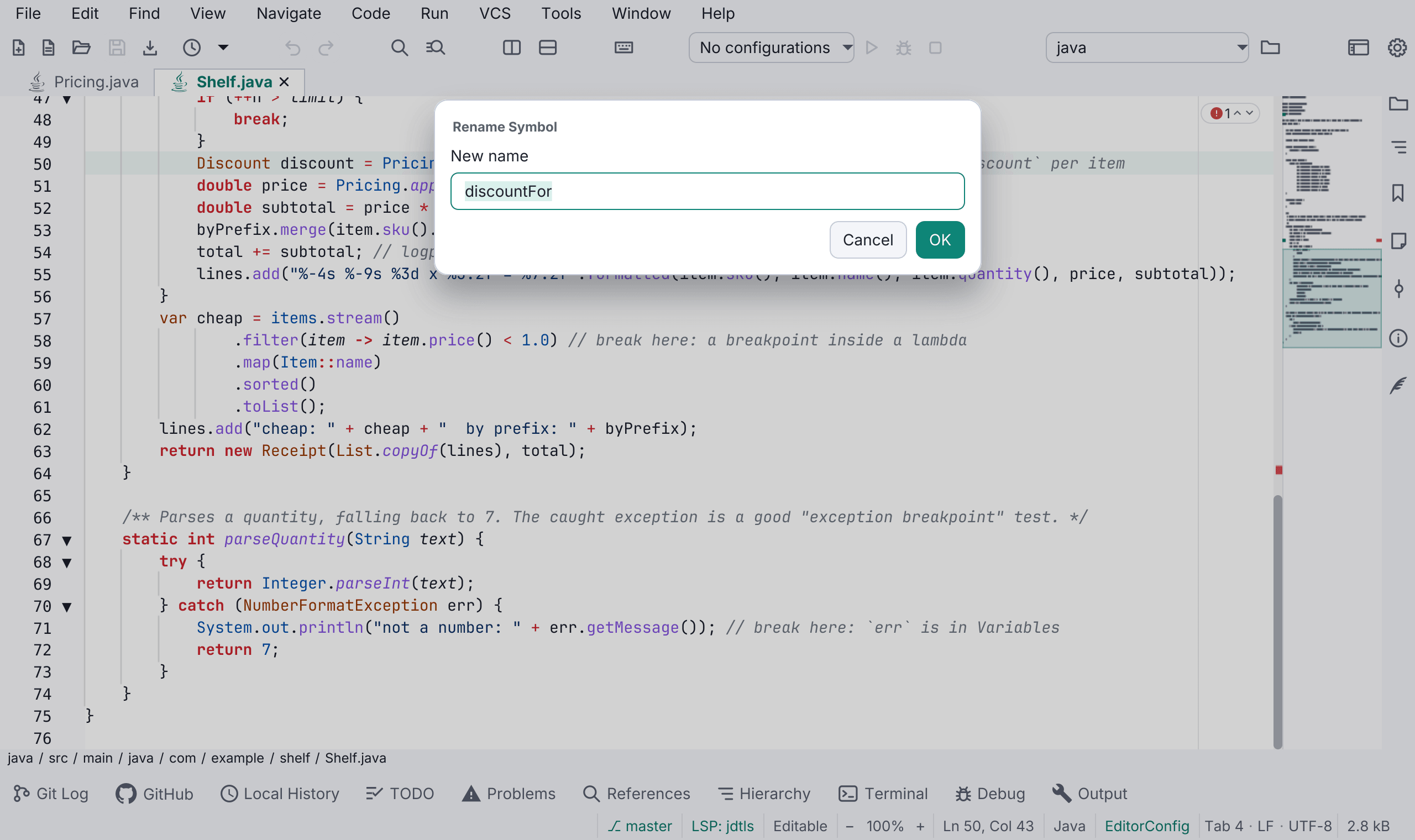
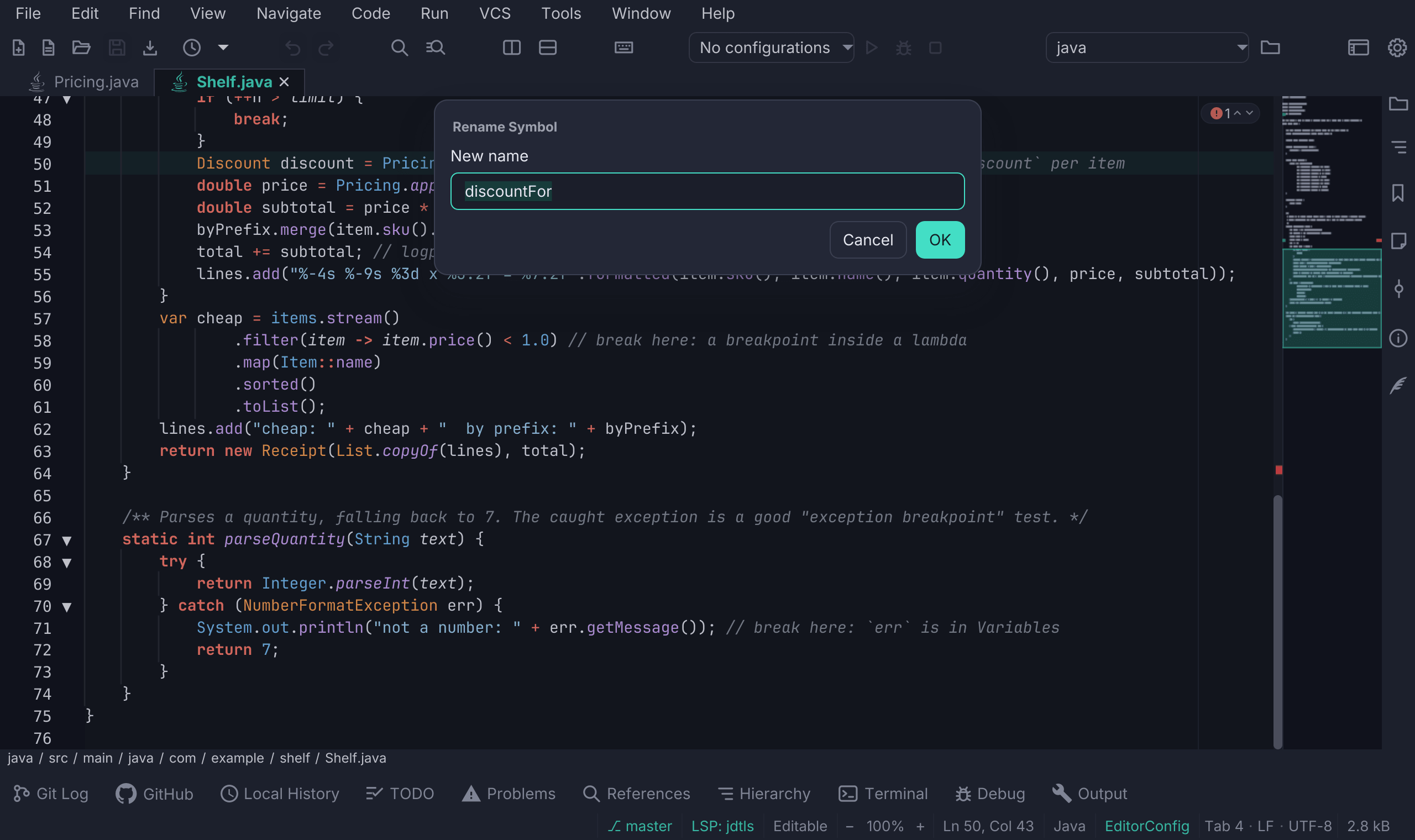
Rename symbol renames across the whole workspace. The prompt comes pre-filled
with the current name, and the server validates the spot first, so you are told
up front when something cannot be renamed. Renaming a public Java class also
moves its .java file, and the tab, session state and language server all
follow to the new path. Renaming a .java file or a package folder in the
Project tree renames the class or package too, so references, package
lines and imports follow. F2 is bound in the VS Code and Sublime keymaps, and
Shift+F6 in the IntelliJ keymap.
A rename that reaches beyond the file you’re looking at shows you what it will do first: every affected file, its change count, and where it moves to, with a tick beside each one so you can leave a file out. The preview also lists any file or folder the rename would delete and any existing file it would replace, each marked as such. A rename confined to the current file applies straight away, because the result is on screen and one undo away.
Format Document reformats the whole file through the server when it advertises
formatting (undoable, palette or right-click menu), including .json, .css and
.html (for HTML, see Formatting on the HTML page:
<pre> and <textarea> are kept as written, and without the server Editora
formats it itself). With a selection it formats only the selected lines. It tells the server the file’s own indentation: the indent_style and
indent_size from EditorConfig when there are any, else
what the file already uses, not the global tab size. A two-space script stays
two-space. It also passes the file’s trim_trailing_whitespace and
insert_final_newline (or the project’s save rules), so the formatted file
already looks the way saving writes it; the XML server adds the final newline
only when asked. In a language whose server supports range formatting, Tab also snaps
the current line’s indentation to the server’s convention.
Folding and selection
Where a server is running, code folding comes from the server’s own understanding of the file instead of brace and indent scanning: an import block folds as one region, javadoc and block comments fold, and multi-line expressions nest correctly. Expand and shrink selection uses the same source, so it respects strings and comments rather than guessing at brackets.
Both fall back to the built-in behaviour whenever LSP is off, the file is on a remote host that may not run commands, or the server offers neither, so a file is never less foldable with a server than without one.
While the server works
Servers that report long-running work through the LSP progress channel (jdtls
importing and indexing a project, gopls loading packages, rust-analyzer’s first
check) drive the status-bar loading bar and show what they are doing, with a
title and percentage, in the echo area. Each message starts with the name of the
server it comes from, for example bash-language-server: ….
Startup ends with a line that says it is done, such as
jdtls: Loaded and ready. It appears once the server is ready and has had no work outstanding for
a moment; for jdtls that is after the project import, not at its own earlier
“Ready”. After that, background work (diagnostics after an edit, a search) is
shown only when it is still running after that moment, and work that was shown
ends with another ready line, so the last line never reads as a job left
unfinished. Work that a ready server began but never reported as done counts as
over once the server has been silent for 30 seconds, so the ready line, and the
end of the loading bar, always come. A line that repeats the one just shown is
skipped.
External file changes are forwarded to the running servers, so a server’s
project model stays current after a git checkout, a branch switch, a CLI build
or an edit in an external editor. In a window without a project, and for a
server whose folder is outside the project, Editora watches the server’s folder
itself (hidden folders, node_modules, __pycache__ and virtual environments
aside), so a module created by git or a terminal resolves without a restart.
A server that dies mid-session (a crash, an
OOM-kill, a failed handshake) is announced in the status bar, has its stale
diagnostics cleared, and is restarted for the affected files, with a cap so a
server that keeps crashing is not relaunched forever.
A server that answers a request with an internal error is not mistaken for
one with nothing to say. The error is logged with the server’s own detail, and
the first failure of each request kind is announced in the status bar, such as
lemminx-maven: internal error on hover — see the log. Hover then says
Hover failed: … with the reason instead of “No documentation at the caret”.
Three failures in a row with no good answer between them stop the server: the
status bar says so, Doctor shows the server as a warning with the reason, and
LSP: Restart Language Servers (lsp.restartServers) tries it again.
Servers are auto-detected, never bundled
Editora doesn’t ship language servers. It looks for each one on your PATH (a
Settings field can override the command per server) and uses it if present.
Twenty-six servers are supported:
- Java (
jdtls), TypeScript / JavaScript (typescript-language-server), Python (pyright-langserver), Go (gopls), Rust (rust-analyzer), C / C++ (clangd), C# (csharp-ls) - Ruby (
ruby-lsp), PHP (phpactor), Kotlin (JetBrains’ Kotlin LSP,kotlin-lsp), Groovy (gls, from gvy), Clojure (clojure-lsp), Scala (Metals), Lua (lua-language-server), Elixir (ElixirLS,elixir-ls), PowerShell (PowerShell Editor Services, onpwsh) - Astro (
astro-ls), HTML (vscode-html-language-server), CSS (vscode-css-language-server), JSON (vscode-json-language-server), YAML, XML (lemminx), Bash (bash-language-server), Dockerfile, SQL (sqls), Terraform (terraform-ls), TOML (taplo), Typst (tinymist)
The HTML, CSS and JSON servers come from one npm package, vscode-langservers-extracted (the servers taken out of VS Code), so one install gives all three; see HTML, CSS and JSON.
There is also a Maven-aware pom.xml server (JVM lemminx plus the
lemminx-maven extension), shown as lemminx-maven in Settings, Doctor and
the status bar where the XML server is lemminx. A pom.xml in a trusted
folder gets dependency, plugin and GAV completion from it while every other XML
file keeps the fast native lemminx; see
pom.xml and the Maven server.
Each server has a card on the Settings → LSP page: its enable switch, its
command field with Browse…, and a Detected line such as jdtls: found
(/usr/bin/jdtls) or rust-analyzer: not found, with an Install… button
while it is missing. A command left blank uses the program on your PATH. While
Enable LSP (language servers) is off, the cards are greyed and a note says to
turn it on. The switches for inlay hints, code lenses and the other server
features are in the Language server features card on Settings → Code
Completion; the LSP page links there.
Doctor reports the same detection for every
enabled server in one place.
Per-project overrides
A project can commit a .editora/settings.json naming which server to run for
a language and whether to run it, which overrides your global preference for
anyone who opens that project. It can also set the
Bash server’s options and the
HTML server’s. This covers one repository needing a
JDK 17 server and another a JDK 25 one, where nobody has to remember to flip a
setting when switching between them. The same file can also set indentation,
rulers, build commands and debugger programs; see
projects and the full list in
Configuration.
Because those commands are programs that run on your machine, they apply only
to a trusted folder. In an untrusted folder the project’s server commands
(and any attempt to re-enable a server you switched off) are ignored until you
run Project: Trust This Project’s Settings (lsp.trustProjectSettings).
Settings → LSP shows your own commands. When the project in the window overrides a server, that server’s card says so: which command the project runs, which one it asks to run until you trust it, or that it turns the server on or off.
A remote project’s .editora/settings.json is not read; set a server’s command
for a host in Settings → Remote instead (see
Language servers on a remote host).
Servers that load a project’s build
Some servers run the project’s own code just to load it: a Gradle build’s
scripts, Maven build extensions, Rust build scripts and proc macros, a
Gemfile, MSBuild projects, Leiningen. In a folder you have not
trusted, Editora holds that back:
| Server | In an untrusted folder |
|---|---|
| Java (jdtls) | Starts without the Maven or Gradle build. Syntax checks, the JDK’s types and navigation within the file still work. |
| Kotlin | Waits when the folder has a pom.xml, build.gradle(.kts) or settings.gradle(.kts). |
| Scala (Metals) | Waits when the folder has a build.sbt, build.sc, build.mill or project.scala. |
| Rust (rust-analyzer) | Waits when the folder, or a folder one level down, has a Cargo.toml. |
| Ruby (Ruby LSP) | Waits when the folder has a Gemfile or gems.rb. |
| C# (csharp-ls) | Waits when the folder, or a folder up to two levels down, has a solution, a project file or Directory.Build.props/.targets. |
| Clojure (clojure-lsp) | Waits when the folder has a project.clj, build.boot or shadow-cljs.edn. A deps.edn or bb.edn is read as data and does not hold it back. |
A file of one of these languages says so, with Trust Folder and Not now. Trusting the folder (the button, or Workspace: Trust This Folder) restarts the server with the build; removing the trust in Settings → Advanced → Trusted folders stops it again. A loose file with no build next to it starts its server as usual. Other servers, Pyright among them, are not held back.
One-click install
If a server isn’t installed, Editora can fetch it for you. Every server is covered through one of these channels, picked per server:
- npm packages (Astro, Bash, YAML, Dockerfile, TOML, Python/Pyright), needing Node.
- Pinned npm packages for TypeScript / JavaScript, typescript-language-server 5.3.0 and TypeScript 5.9.3, installed with npm into Editora’s own folder rather than globally (see TypeScript and JavaScript). They need Node.
- A pinned npm package for HTML, CSS and JSON, vscode-langservers-extracted 4.10.0, installed with npm into Editora’s own folder rather than globally (see HTML, CSS and JSON). It needs Node.
- Toolchain installs that use the language’s own package manager (Go, Ruby,
C#, Rust, PHP, and SQL, whose
sqlsinstalls withgo install), which run only when that toolchain is already on yourPATH. - Binary releases downloaded per OS/architecture (clangd, terraform-ls, Lua, and tinymist for Typst), extracted into your config folder.
- ElixirLS, the Elixir server and debugger in one, from its pinned 0.31.1 release zip checked against its SHA-256 (Install… on the Elixir card of Settings → Debugging). Its first start compiles it with your Elixir, which takes a minute or two. It compiles your Mix project too, so it waits until you trust the folder.
- A pinned native binary for lemminx, the XML server, from one vscode-xml release, with both the zip and the program checked against the release’s SHA-256 (see Installing lemminx).
- A pinned release for the Java server, Eclipse JDT LS (the version is under The Java server and your project), unpacked into your config folder. A server installed earlier keeps its version until you install it again.
- A pinned distribution for the Kotlin server, checked against its published checksum. It is about 370 MB to download and about 1.2 GB once installed, because it brings its own Java runtime, so Editora asks before it starts.
- A JVM zip with its dependencies for the Maven-aware
pom.xmlserver, which needs a JDK, plus three jars from Maven Central that the zip leaves out, each checked against its published checksum. The server is started and asked one request before the install is kept. - A single jar for the Groovy server (
gls, from gvy), pinned to one release and checked against its published checksum. It runs on the JDK chosen for builds and runs (Java 17 or later). - A pinned native binary for clojure-lsp, one per OS and architecture, each checked against its SHA-256 before it is unpacked. It needs no JVM.
- Coursier for Metals, the Scala server, which is published only as Maven artifacts: Editora downloads coursier’s launcher (pinned, and checked against its published checksum), which fetches Metals’ jars into your config folder. It runs on the JDK chosen for builds and runs (Java 17 or later).
There are three entry points: an Install… button per server in Settings → LSP, an
in-editor banner when you open a file whose server is missing (turn the nudge
off with view.toggleInstallPrompts; its Not now lasts for every file of
that kind in the window), and the Install: Language Server…
picker (install.languageServer). After installing, the server is auto-detected
and activates without a restart. Editora never installs the underlying runtimes
(Node, Python, Go, …); if one is missing it tells you which to install first.
The Bash server lints with ShellCheck and formats with shfmt, which it does not install itself. Editora installs those two separately; see ShellCheck and shfmt.
Installing over an existing version is safe to retry. A downloaded server is unpacked beside the installed one and replaces it only once it is complete and is the expected tool, so a failed or interrupted install leaves the working version in place.
For Astro, startup also locates the TypeScript SDK required by astro-ls,
whether it is hoisted in the workspace or Editora’s own TypeScript 5.9.3, the
same copy the TypeScript / JavaScript server
uses. A TypeScript SDK inside the project is loaded only from a trusted
folder; otherwise Editora uses its own or the one beside the server, or does
not start the server until you trust the folder. The trust prompt lists the SDK when the folder has an
astro.config.* or an .astro file is open.
Workspace roots and lifetime
A server runs once per workspace root. The root is the active project, else the
nearest build marker (pom.xml, package.json, go.mod, Cargo.toml, and so
on), else the file’s directory. Files of the same language in one project share a
single server. Python looks for its own markers first, and a Python sub-project
inside a project gets a server of its own; see
Python sub-projects.
An HTML page with no project, and no package.json or .git above it (one in
your home folder or above it does not count), is rooted at its site root, by
the one rule HTML Live Preview uses too: the nearest folder with an
index.html, then on up while the folder above holds one too, never into your
home folder, Downloads, Desktop, Documents or a temporary folder. So the whole
static site shares one server, its /css/… links resolve, and Ctrl-click and
the browser agree. A page with a package.json or .git above it is rooted
there instead, while the preview still serves its site root, so the two agree
only when that folder is the site root (see
What is served). Go to Definition on a /… link
and the markup checks use the server’s root for a page outside the project
even when no server is running.
A file directly in your home folder, the temporary-files folder or at the top of
a drive (~/.bashrc, /tmp/x.sh) has that whole folder as its root. Editora
tells the Bash server not to scan such a folder for other scripts, so opening
one loose file does not walk your whole home folder. The file itself still gets
diagnostics, completion and navigation.
Servers start per tab, as you visit it, rather than all at once while a session restores, and they shut down when their last file closes, after a three-minute grace period so reopening a file keeps the server warm.
Two windows on one Java project share one Java server. The second window joins the jdtls the first one runs, so the project isn’t imported twice and the second window costs no extra memory (a jdtls takes about 1.5 GB). Both windows show its diagnostics; a window that opens while jdtls is still importing the project waits for it to finish before it says the project is ready. A question the server asks, such as which class to import, goes to the window you are working in. Closing one window leaves the server to the other, and it stops when the last window closes. Restart Language Servers in either window restarts it for both, and the other window reopens its files on the new server. It restarts only the current project’s jdtls: a second project open in the same window keeps its server and its problems. Projects on a remote host, in a container or in WSL, and other language servers, still get one server per window.
jdtls keeps an index for every Java folder you have opened, under
jdtls-workspaces in your config folder: about 40 MB each, and often far more.
LSP: Clear Java Index Caches (lsp.clearJavaIndexCaches) deletes every
index that no running server is using and reports the space it freed; the ones
in use are kept and counted. jdtls rebuilds a project’s index the next time the
project opens. It works with LSP turned off too.
A Java file without a .java name (an extension-less java --source 25
shebang script, or a file set to Java in the status bar) is shown to jdtls as a
temporary .java copy, since jdtls works only on files named .java. It gets
completion, hover, the outline and syntax errors, and an import a completion
adds goes below the #! line. The copy sits outside any project, so type
errors are not reported. A script in a remote folder is not given a copy.
Language servers on a remote host
A file in a remote folder is served by a language server running
on its host, once that host
may run commands: completion,
hover, diagnostics, go to definition, rename and the rest work as for a local
file. The server is the one the host’s PATH finds. To use another, add a
server = command line for that host under Language servers in Settings →
Remote, for example python = basedpyright-langserver --stdio. A command set in
Settings → LSP is used on the host only when it is a bare program name rather
than a path on this machine.
- All files on the project’s host share the project’s server, including a file outside the project folder, such as a library source reached by Go to Definition.
- Renames and other cross-file edits create, move and delete files on the host.
pom.xmluses the host’s plain XML server, unless amaven-pom = commandline for the host, or a bare program name set in Settings → LSP, names a Maven server there. Editora’s own copy, which runs from a folder on this machine, is never sent to the host. The same holds in a container or WSL.- Python: Pyright on the host is told the project’s virtual environment as
the host names it, found there the way Run finds it, else
the host’s own
pythontool. The status-bar item names it, for examplepython (.venv), without running it on this machine. If the connection drops, the host’s ownpython3is used. - Java works too: jdtls runs on the host with the host’s JDKs and keeps its
index in
~/.cache/editorathere. LSP: Clear Java Index Caches clears only the indexes on this machine. - Files changed on the host, by
git pullin a terminal for example, reach the server when the Editora window comes back to the front, and every minute while it stays there. Each check lists up to 300 folders and 5,000 files, and skips virtual environments. - Losing the connection stops the host’s servers without reporting a crash, and reconnecting starts them again.
- The Astro server does not run on a host yet.
Language servers in a container or WSL
A project whose tools run in a container
or, on Windows, in a WSL distribution has
its language servers run there, each the one the container’s or distribution’s
PATH finds, and told about the files by the names they have inside. A command
set in Settings → LSP is used there only when it is a bare program name.
- When the project’s tools move into a container or back out, a server started on the other side is stopped and its files reopen on the right one.
- Java: jdtls runs inside with the JDKs found there, and keeps its index in
~/.cache/editorainside, so it is kept across restarts of Editora for as long as the container lasts. LSP: Clear Java Index Caches clears only the indexes on this machine. - Python: Pyright inside is told the project’s virtual environment by the name it has inside, as on a remote host.
- Files changed inside reach the server the same way as on a remote host: when the window comes back to the front, and every minute while it stays there.
- The Astro server does not run in a container or distribution yet.
Finding the server’s binary
A GUI-launched app inherits a stripped PATH that often misses Homebrew, npm,
and version-manager directories. Editora rebuilds the PATH from your login
shell plus the usual install locations before launching a server, which recovers
things like nvm’s per-version node bin. If a server still isn’t found, set its
absolute path in Settings. See Troubleshooting
for details.
Notes and limits
A file reaches its server once it has loaded, with its whole text in the one open message. The server never sees it empty first, so an XML file shows no passing “Premature end of file” error while it opens. The indentation the server is told, which quick fixes and generated files follow, is read from the file and kept up to date as you edit. Document sync is incremental for servers that accept it (most of them), with a periodic full resync as a divergence safety net, and semantic highlighting transfers only what changed on servers that support token deltas. Diagnostics for files that aren’t open are dropped by default, to keep the Problems window focused on what you’re editing, and the whole-project selector above lifts that when you want it. Java can organize imports and format on save, JavaScript and TypeScript have their own actions on save, and Python can format on save with Ruff or Black; other languages cannot yet.
The protocol library is LSP 3.18 / DAP 1.70. Two fields it widened affect
Editora. A diagnostic’s message may be markup rather than plain text;
the markup’s text is used, so a squiggle always carries its explanation. A
document edit may be a snippet edit carrying ${1:name} placeholders.
Editora refuses one rather than applying it, since inserting it as plain
text would write the placeholder markup into your file. That is the same
all-or-nothing rule that already covers file creates and deletes, and in
practice no server sends one, because Editora does not advertise the
capability.