Running programs
This page covers running programs and saving run configurations. Breakpoints, stepping and the Debug window are on Debugging, and what is particular to one language is on its page under Languages in the sidebar.
Running files
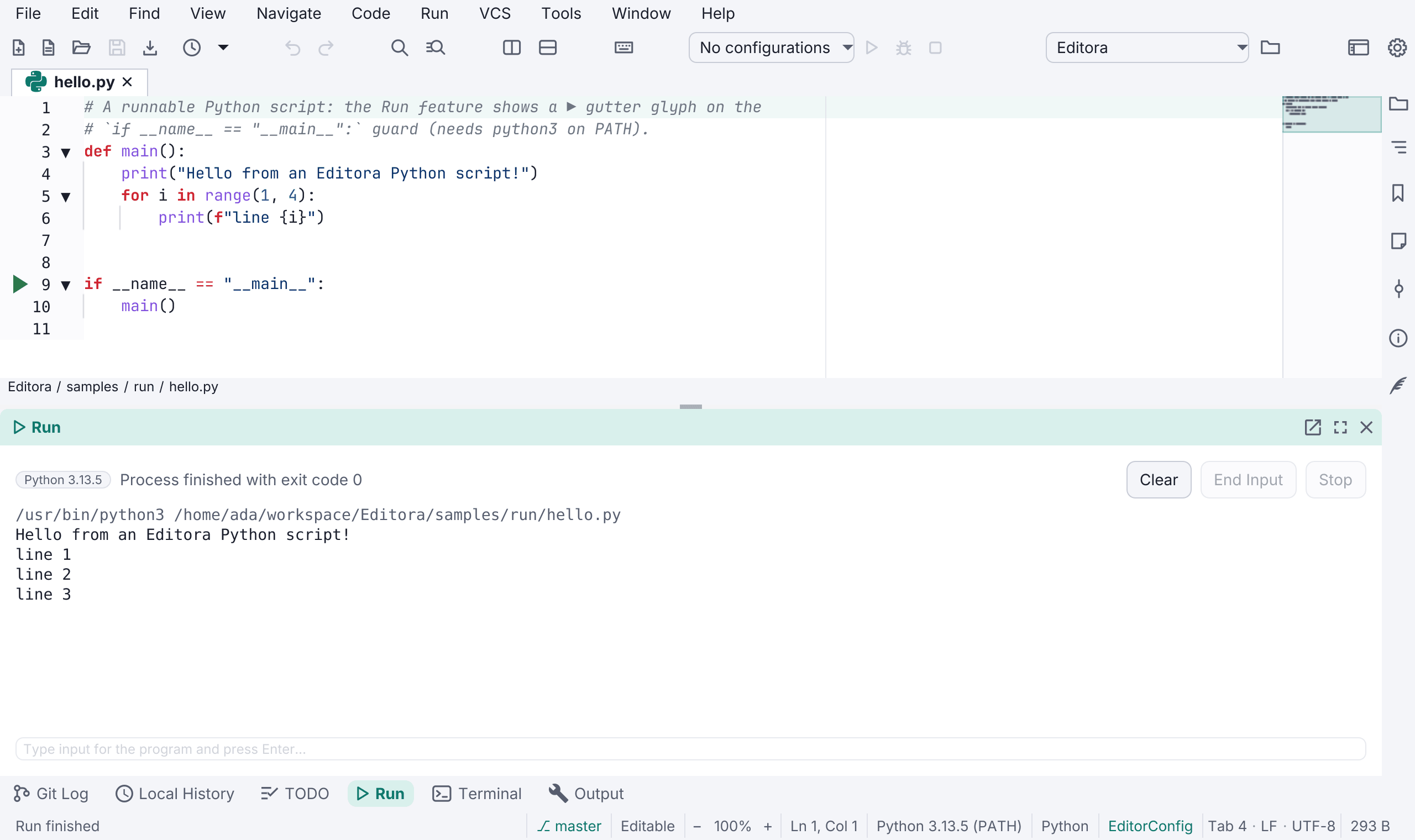
You can run single-file Java programs, Python scripts, Node.js scripts, shell scripts, Groovy scripts, Kotlin files, Clojure files, Scala files and PHP files with language services disabled. A green ▶ appears in the gutter of a runnable file:
- a Java compact source file (JEP 512, a
.javawith a top-levelvoid main) or an extensionless Java file with ajava --source 25+shebang, - a single-file Java program: a
.javaoutside a Maven or Gradle project whose first class has astatic void main(String[] args). The ▶ sits on thatmain, and Run File runs the file with the source launcher (java Hello.java), which compiles it in memory first. Apublicmain runs on JDK 11 or newer; one that is notpublicneeds JDK 25. The launcher runs the first class in the file, so amainin a later class gets no ▶. In a Maven or Gradle project a class’smainruns through the build instead, from its own ▶ (see Running a project’s main class), - a Python script (the ▶ sits on the
if __name__ == "__main__"guard, written either way round, with either quote or in parentheses; see Python scripts), - a JavaScript or TypeScript file (
.js,.mjs,.cjs,.ts,.mts,.cts) or a script whose shebang namesnode(see Node.js scripts), or - a shell script:
.sh,.bash,.zsh,.kshand the other shell types, or a file whose shebang names a shell (see Shell scripts). Startup files that a shell reads rather than runs, such as.bashrc,.profile,.zshrc,.bash_logout,.xinitrcand.envrc, get no ▶. - a Groovy script or class (
.groovy): the ▶ sits on itsstatic void mainwhen it has one, else on the first line. See Groovy scripts. - a Kotlin script (
.kts,.main.kts), with the ▶ on its first line, or a.ktfile with a top-levelfun main, with the ▶ on that line. See Kotlin files. - a Clojure file (
.clj,.cljc,.bb, or a script with aclojureorbbshebang): the ▶ sits on its(defn -mainwhen it has one, else on the first line. EDN files (deps.ednand the like),project.cljand ClojureScript (.cljs) get no ▶. See Clojure files. - a Scala program: the ▶ sits on an
@main def, anobject … extends Appor an object’sdef main(args: Array[String]), and on the first line of a.scscript. A build definition (build.sbt,build.mill,build.sc) gets none. See Scala files. - a PHP script with code of its own, a web app’s
index.php, Laravel’sartisan(the ▶ on the first line), or a PHPUnit test file (the ▶ on its class). A file of classes alone gets none. See PHP files.
Click the ▶, use the right-click Run File, or bind file.run (C-c r). Output
streams to the Run tool window (M-9), which accepts stdin so
console-style programs work. Double-click a stack-trace line to jump to the
file and line: JVM frames from Java, Kotlin, Groovy, Scala and Clojure code
(and Clojure’s own at my-app.core/f (core.clj:4)), Python and Node frames, and
shell errors such as deploy.sh: line 12: …. A Node frame or a tsc error opens
at its column too, also for an ES module’s file:// path and a path with spaces.
For Python that covers traceback frames of any file (also a script with no .py
extension), app.py:12: locations in warnings and in pytest, mypy or Ruff
output, and pdb’s > app.py(12) lines; <stdin> and <frozen …> frames have
no file to open.
The console’s first line, drawn muted, is the command that started a script or a test run: which interpreter ran, with which options, on which file.
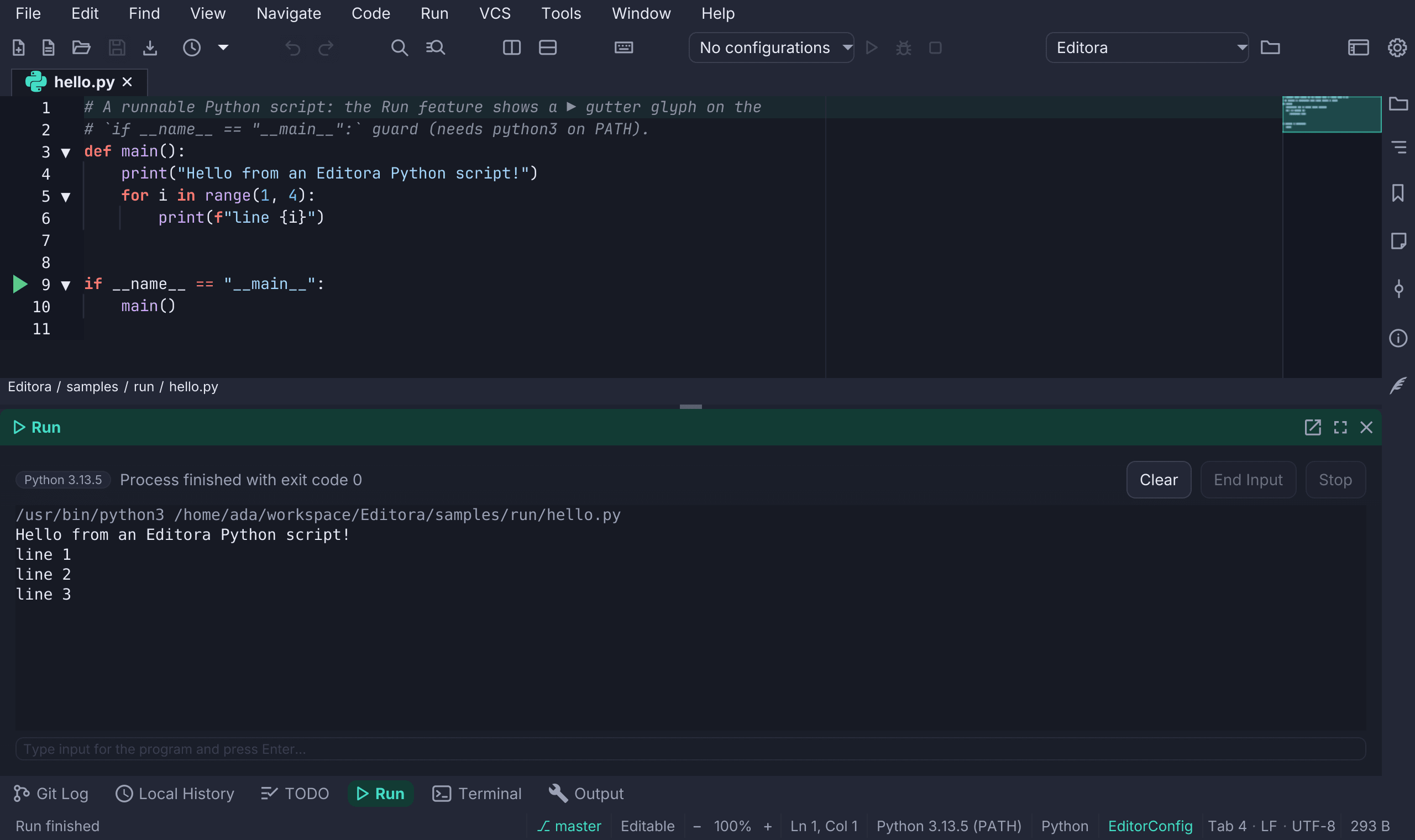
The console reads the terminal codes programs print: colours are drawn in the
theme’s colours, a carriage return (\r) rewrites the current line so a
progress bar stays on one line, and clear empties the console. Other cursor
codes are dropped. Stop ends the program and everything it started, and the
console then says Stopped. On macOS and Linux, a Python or Node.js program
(and npm, pnpm, yarn or bun) started on this computer first gets Ctrl-C
(SIGINT), so it can clean up (a Python program’s finally blocks and atexit
handlers run), and is ended only if it is still running a moment later.
The console keeps the newest output. When a program prints faster than the
console can show, some lines are skipped (the program is never slowed down),
but the last screenful is always complete, and the console says that output
was skipped. When the console reaches its size limit, it drops the oldest
output and says so at the top. End Input in the console’s header, or
Ctrl+D in the empty input field, closes the program’s input, so a loop that
reads lines until the end of input can finish (Run: End Program Input,
run.endInput).
While a program runs, a small spinner turns beside the Run window’s status, from the launch (including a configuration’s before-launch command) until the program exits, is stopped, or fails to start, so a script that prints little does not look stalled. The Run button on the tool-window stripe badges the same spinner on its icon, which shows a run is alive with the Run window closed or another window open in its place.
Which runtime a program runs under
Beside the status, the Run window names the runtime the program runs under: Java 25.0.4 (Temurin), Python 3.13.5, Node.js 24.18.1, Groovy 5.1.3 (Java 25.0.4), Kotlin 2.4.21 (Java 25.0.4), Clojure CLI 1.12.6.1673, Leiningen 2.13.0, Babashka 1.13.226, Scala CLI 1.18.0 (Scala 3.9.0), Bash 5.2.37 or GNU Make 4.4.1. A Java runtime also shows its distribution (Temurin, Corretto, Zulu, GraalVM CE and others) when the JDK names one. Hover the name for the runtime’s own version text and, for Java, the JDK’s folder.
The name comes from the very program the run starts, asked in the run’s folder
and with its environment. A run configuration’s JDK, a virtual environment’s
python, a version picked by pyenv and a remote host’s or container’s own
runtime are therefore what it shows, rather than whatever is first on your
PATH. It appears a moment after the launch (the program does not wait for
it), stays after the program exits, and is replaced by the next run. A plain
sh script and a compiled program show no runtime, and neither does a
configuration’s before-launch command.
A clicked Java frame in the Run, Test or Build console is resolved by the language server, so a frame inside a dependency or the JDK opens its source instead of reporting “not found”. Frames in your own code open as usual, and filename matching handles anything the server can’t place, plus every non-Java trace.
Pass per-file program arguments with file.runWithArgs (remembered across
runs and reused by the debugger), and repeat the last run with run.rerun.
Rerun first saves the file it runs, even when another tab is in front. Run: Find in
Output (run.findInOutput) opens a find bar over the Run console, with every
match highlighted.
Arguments are split the way a shell splits them: quote an argument that
contains spaces ("two words" or 'two words'), and put a backslash before a
space, quote or backslash to keep it (O\'Brien). Inside double quotes, \"
and \\ are escapes; a backslash before any other character stays, so a
Windows path such as C:\tools\x.exe is kept as typed. An unclosed quote
stops the run with a message instead of joining the rest of the line into one
argument. $NAME in an argument is passed as written.
Running a Java file needs JDK 25 or newer. Editora uses the selected Default JDK
when one is configured, or java on your PATH, and checks that exact launcher
before running. An extensionless shebang can request a newer source release.
For Maven projects, Settings → Build Tools → Default JDK selects the toolchain used by Run, Debug, Maven classpath resolution,
Maven tasks, and before-launch steps. Installed JDKs are discovered from the
usual platform locations and common version managers. A run configuration’s
JDK field can inherit that choice or override it for one configuration. The
Default JDK also applies to standalone Java Run and Debug. A Java file or folder
without Maven or Gradle runs on the Default JDK, else on the java on your
PATH, and the Java language server builds it for that same JDK. A changed
Default JDK reaches a running language server at once, with no restart.
Run with Trace
Run: Run with Trace (run.trace, also in the Run menu and the editor’s
right-click menu on a shell script) runs the active shell script with -x,
keeping the shebang’s interpreter. Under bash, each command is printed before
it runs with its file and line:
+/home/me/deploy.sh:12: tar czf site.tgz publicDouble-click a trace line to open that line. Trace lines are drawn muted, not
as errors. A script run by sh or dash is traced too, but its trace lines
carry no file and line, because those shells can’t print them. zsh scripts and
scripts in other languages can’t be traced.
To trace a run configuration, put -x in its
Interpreter options; the trace lines link to their source the same way.
Running on a remote host
A file in a remote folder runs on its host, when that host
may run commands; otherwise
Run says so when you launch it. Remote is in Beta. That covers Run on a file, a Java project’s main
class (the gutter ▶, Run Main Class, or a saved configuration, with the class
path the host’s jdtls or Maven gives), and script, make and npm
configurations of a remote project. A shell script runs under the interpreter
its shebang names, found on the host, and Run with Trace works there too; the
read -p prompts described above show only for a local run. Output, input and
Stop work as for a local run, over the same SSH connection, and a makefile at a remote project’s root
shows the run-configuration toolbar as it does locally. A configuration’s
working directory is a folder on the host.
The host’s own java is used, or the JDK home set for that host in
Settings → Remote. Your local Default JDK and a configuration’s JDK override
are paths on this machine, so they are not sent to the host.
A Python script or configuration runs under the configuration’s
Interpreter, the interpreter picked for the project, or the project’s venv
on the host (a .venv, venv, env or .env folder there). Without one, it
uses the host’s Python for Run and tests from Settings → Remote → This Host
(see Remote), then the Python
interpreter on Settings → LSP → Python when that is a plain command name
rather than a path on this machine, then the host’s python3. PYTHONPATH gets
the project root and its src/ folder; the host’s own PYTHONPATH is not
kept, because Editora does not know it. Stop ends a remote program straight
away, without the Ctrl-C a local Python program gets first.
A Node.js script runs from its package folder there, the nearest folder above
it on the host with a package.json, as it does locally. This holds in a
container and in WSL too. A .nvmrc or .node-version on the host picks its
Node.js from the host’s nvm (see Node.js scripts).
A project on this machine can run on a host too: set a configuration’s Run on to a deployment, and Editora copies what changed in the project to a folder on the host before each run, then runs the program there.
Running in a container or WSL
A project whose tools run in a container
or, on Windows, in a WSL distribution runs
its programs there: Run on a file, a main class, and every kind of run
configuration, with the java, interpreters and environment the container or
distribution has. Output, input and Stop work as for a local run, and Stop ends
what the program started inside. The files are handed over by the names they
have inside, and a configuration’s absolute working directory is read as a
folder there. Containers and WSL are part of Remote, which is in
Beta.
A Python script picks its interpreter as on a remote host: the configuration’s
Interpreter, the project’s pick, or the project’s venv (one created inside
the container or distribution, named by its path there), else the python3
found inside. Stop ends it straight away, as on a remote host.
Running a project’s main class
Beyond single files, Run: Run Main Class… (run.mainClass) and
Debug: Debug Main Class… (debug.mainClass) pick any main class in the
active file’s Maven or Gradle project and run it in the Run console or debug
it with breakpoints. A green ▶ also appears in the gutter next to every
public static void main, and the editor right-click menu offers
Run ‘….main()’ and Debug ‘….main()’ (Debug: Debug Main Class at
Caret, debug.mainClassAtCaret).
Run: Run Context at Caret (run.context; Ctrl+Shift+F10, or ⌃⇧R on
macOS, in the IntelliJ keymaps) runs whatever the caret is in: the test at the
caret (the whole test class when the caret is above its declaration), else the
class’s main as its ▶ does, else the file. A Java class with neither says so.
There are two paths under that, picked automatically:
- With the Java language server set up, Editora asks it for the project’s main classes and resolved classpath. This is the fast, project-wide path, and it is the only one that can debug. In a folder you have not trusted the server runs without the build, so it knows only the JDK’s classes and the project’s sources (see Servers that load a project’s build).
- Without it, plain Run falls back to the build tool: Maven resolves the
classpath (
compile dependency:build-classpath) and runs the file’smain, and Gradle delegates to itsruntask, orbootRunin a Spring Boot project. In a multi-module Maven build the fallback finds the module’s reactor through the poms’<modules>(an aggregator one level down, or amodules/folder without a pom of its own, counts; the search never leaves the open project) and, when the root lists the module, runs from the root with-pl <module> -am, so a submodule that depends on an uninstalled sibling still runs. A module the reactor does not hold builds alone, and a build that fails with “Could not find the selected project in the reactor” is retried for the module alone; the Run console says which mode ran. The checked profiles and flags of the Maven window are appended (its Reactor toggle is not: the fallback decides that itself). The Maven it runs is the one the Maven window runs (./mvnwonce trusted, the command override, elsemvnon yourPATH), in the Run console: its output streams there, Stop ends it, and a second Run is refused while it runs. When it fails, the status quotes Maven’s first[ERROR]line. The program’s classpath carries the compile and runtime scopes only; a class undersrc/testgets the test classpath. The program runs on the Default JDK’sjava; with none selected, on$JAVA_HOME/bin/java, the one Maven compiled with, and only without aJAVA_HOMEon thejavaof yourPATH.
The fallback compiles as part of resolving the classpath, and in a Maven or
Gradle project on this computer the language-server path builds first too:
Maven’s compile (test-compile for a class under src/test) or Gradle’s
compileJava (compileTestJava) runs in the Run or Debug console before the
launch, through the project’s wrapper once trusted, the command override, or
the tool on your PATH. The Maven compile builds from the reactor root with
-pl <module> -am when the root lists the module, else the module alone, and
carries the Maven window’s checked profiles and flags, as the fallback does.
A failed build aborts the launch, so a fresh clone does
not stop with ClassNotFoundException and an edited file never runs the
previous binary. Settings → Build Tools → Build before Run and Debug (on)
turns it off; a run configuration with its own
before-launch step keeps that step and is not
built twice. A launch that ran without the build prints a hint to build when
the JVM cannot find the main class.
Run configurations
A run configuration saves how something is launched: a name, what to launch, program arguments, VM arguments, environment variables, an optional JDK override, and a working directory.
Run configurations belong to a project: each
project window keeps its own list. The No Project window has none; there, a
script or a compact Java file runs from its gutter ▶ or File: Run
(file.run), as described in Running files.
Environment takes KEY=value pairs, quoted and escaped like
program arguments. $NAME and ${NAME} in a value expand
to that variable: one set earlier in the same field, or else the environment
the program would get anyway, so PATH=/opt/tools/bin:$PATH adds a folder to
the real PATH. Single quotes keep $ as it is. In a remote project, a
variable that is not set earlier in the field is passed to the host as written.
An entry @path, with no =, loads a .env file, as VS Code’s envFile
does: @.env, or "@config/dev env/.env" in quotes when the path has spaces.
A relative path is relative to the configuration’s working directory. The file
holds one NAME=value per line, read the way dotenv tools read it:
- blank lines and lines starting with
#are skipped, and anexportbefore the name is dropped; - a value in single quotes is taken as written;
- a value in double quotes expands
$NAMEand${NAME}, and reads\n,\t,\"and\\as escapes; - an unquoted value ends at a
#comment, is trimmed, and expands$NAMEand${NAME}.
A name expands to a variable set earlier in the file or the field, else to the
environment the program would get anyway. The file’s variables are set where
the entry stands, so a later NAME=value overrides one of them and can use it
as $NAME: @.env DEBUG=1 keeps the file’s values but turns DEBUG on. When
the file cannot be read, Run and Debug stop before launching, and the status
bar names the configuration and the file, such as Run configuration “API”:
cannot read the environment file /home/me/api/.env.
A relative Working directory is relative to the project root, and a blank one means the project root, except for a Python script: that runs in the script’s own folder, as its gutter ▶ does. A relative script path is relative to the project root too, whatever the working directory. Run names a working directory or script that does not exist, and opens the configuration at the field to fix.
Run on picks where the configuration runs: This machine, or one of the project’s deployments, a folder on an SSH host that the project is copied to before the run. Deployments… beside it opens the list.
What a configuration can launch
Pick a Type in the project’s Run Configurations window:
| Type | Launches |
|---|---|
| Java main class | a main in the project, via the language server or the build tool |
| Python script | a .py file with the project’s Python (see Python scripts) |
| Python module | a module by its name, as python -m app.main does, from the project root |
| Shell script | a script with the interpreter its shebang names (or bash), unless Interpreter is set |
| Node.js script | a .js or .ts file under Node.js |
| Groovy script | a .groovy file with groovy, on the configuration’s JDK; its VM arguments go into JAVA_OPTS |
| Kotlin file | a .kts script with kotlinc -script, or a .kt program compiled and run with java -jar, on the configuration’s JDK |
| Clojure script | a Clojure file with the tool Run File picks, on the configuration’s JDK; its VM arguments go to the program’s JVM (-J arguments for the Clojure CLI, JVM_OPTS for Leiningen) |
| Scala (Scala CLI) | a .scala or .sc file with Scala CLI, on the configuration’s JDK; its VM arguments are passed as --java-opt |
| C program / C++ program | a C or C++ file, built the way Debug builds it: its CMake or Make project, or the file alone with cc or c++ |
| Go program | a Go file’s package (or the file alone outside a module); a test file runs all its tests |
| Rust program (Cargo) | a Rust file’s Cargo package; a test file runs all its tests |
| Make target | a target in a makefile |
| npm script | a named package.json script, run with the project’s package manager |
A C, C++, Go or Rust configuration names a source file and builds it the way
Debug does, then Run starts the program in the Run console (or a Terminal tab)
and Debug starts it under CodeLLDB (GDB when that is the C and C++ debugger) or
Delve. Both use the configuration’s arguments, environment variables, working
directory and before-launch step; a blank working directory is the folder Debug
uses for the file. These configurations build and run on this computer only,
not on a remote host, in a container or on a deployment, and Run on a Go file
of a package other than main says the file has no program to run.
The form shows only the fields the selected type uses. A Java main class
has no Script / target field; a Python, Node.js, shell, Make or npm
configuration has no Main class, Module, VM arguments or JDK, and a Groovy or
Clojure or Scala one keeps only VM arguments and JDK of those. A hidden field
keeps its value, so switching the type and back loses nothing. A Python,
Node.js, shell, Groovy, Clojure or Scala file can be picked with Browse…
beside Script / target;
a script inside the project is saved relative to the project root. A Clojure
configuration with no working directory runs in its project’s folder. For an
npm configuration, Browse… lists the scripts in the package.json instead.
A Java main class configuration has Browse… beside Main class: pick a
.java file and its fully qualified class name is filled in, so
src/main/java/test/App.java gives test.App. The name comes from a main
method the file declares, or else from the file’s package and name. A
configuration still named “New Configuration”, or named after the class it
launched before, is renamed after the new class; a name you typed is kept.
A Node.js script configuration has Script, Node.js options (such
as --max-old-space-size=4096), Node.js, program arguments and
environment. Left blank, Node.js is picked the way Run picks it (see
Node.js scripts), and a blank working directory is the
package folder, the nearest one with a package.json. A Node.js path that
does not exist stops the run with a message that names it, and the
configuration opens so you can fix it. Before launch can run a command
first, such as npm run build.
An npm script configuration runs <manager> run <name>, with its arguments
after --. The manager is the one the project uses (npm, pnpm, yarn or bun), as
in the Package Scripts
window, so a pnpm workspace member runs pnpm too. The npm command set in
Settings → Build Tools applies only when it names that same manager, or is a
wrapper script. A package script also runs its pre and post scripts, so
Run and Debug on an npm configuration first ask you to
trust the folder, as the Package Scripts
window does; declining runs nothing.
A shell configuration also has Interpreter and Interpreter options.
Left blank, the script’s shebang decides (see Shell scripts);
set, they replace it, for example /opt/homebrew/bin/bash with -eu. Options
alone keep the shebang’s interpreter and replace its options.
A Python script or module configuration has them too. Interpreter names the
Python for this configuration (a path relative to the project root, such as
.venv-311/bin/python, works); left blank, the project’s Python runs it, chosen
as described in Python scripts. Interpreter options go
between the interpreter and the script, for example -X dev -W error. A Python
module configuration takes the module name in Script / target, the part after
python -m (for example app.main).
Script and make configurations need no language server. Java, Groovy, Kotlin, Clojure, Scala, Node.js script and npm script configurations can be debugged. A Node.js or npm configuration is debugged the way Run starts it, with the same Node.js, package manager, folder and environment (see Debugging JavaScript and TypeScript). Debugging a Node.js or npm configuration of a remote project is not supported yet. Debug on any other type says so. For a shell configuration it says to open its Bash script and debug it there, or to use Run with Trace.
The toolbar selector
The toolbar carries a configuration dropdown with Run, Debug and Stop
beside it; your choice is remembered across restarts. The dropdown ends with
Edit Configurations…, which opens the separate Run Configurations window
with the configuration you had selected already picked out. The same window is
available as Run: Edit Run Configurations… (run.editConfigs).
Starting a file or configuration always opens and focuses the Run tool window. If that process is already active, Run brings its existing console back instead of hiding the useful output behind a busy message.
The group only appears in a project window where you could launch something: a
Maven, Gradle, npm, Cargo or Go build file inside the project, or a makefile
at its root. Anything you have already saved keeps the group visible
regardless, because a configuration only needs a main method and a plain Java
folder can hold one. The palette commands work in any project either way. The
No Project window never shows the group, and its run configuration commands say
to open a project.
Each configuration also becomes a real command, so it appears in the palette by name and can be given its own keyboard shortcut in Settings → Keymaps, the same way saved macros and external tools work.
A step before the launch
A configuration can name a command to run first, such as a build or a codegen step. A non-zero exit aborts the launch, so a stale binary is never run by accident. The step runs in the configuration’s working directory; for a Python script with a blank one, it runs at the project root. A Java configuration’s step always runs in its project root, whatever the working directory, because it is usually a build.
The step may name a build tool instead of a program: maven:compile or
gradle:compileJava runs that goal or task through the project’s own Maven or
Gradle (its wrapper once trusted, the command override, else the tool on your
PATH), resolved at run time, so the saved configuration does not freeze a
command that goes stale when your Maven moves. A project generated by
New Maven Project stores maven:compile
and leaves the working directory blank, which means the project root. A saved
Java configuration builds and runs in the module its project name (the pom’s
artifactId) or its main class’s source file belongs to, whatever file is
active when you run it.
A Java configuration with a step of its own runs that step instead of the
automatic build before a launch.
Running in a Terminal tab
A configuration’s Console option, Run in a Terminal tab, runs its program in the Terminal tool window instead of the Run console. Use it for programs that draw on the screen, read single keys, or ask for a password, which need a real terminal. It works for every type, on this computer, on the project’s host, and in its container or WSL distribution.
- The step before the launch still runs in the Run console first.
- The tab is named after the configuration. When the program ends, it stays, with the program’s exit code in the corner, and the status bar gives the exit code too. Closing the tab while the program runs asks first.
- The Run console’s own tools don’t apply. Stack-trace links, the runtime chip, End Input and Stop belong to the console. Rerun repeats the last run that used the console, so after a terminal run it is unavailable until the next console run.
Sharing them with your team
| Action | Command |
|---|---|
| Write them into the project | run.exportConfigs |
| Merge the project’s back in | run.importConfigs |
Export Configurations to Project writes them to
.editora/run-configurations.json inside the project, where they can be
committed alongside the project’s committed settings.
Import merges them back by name, so importing twice doesn’t duplicate and
a colleague’s edit updates a configuration rather than doubling it.
What the file holds
Export writes every configuration of the window, and the project’s deployments, replacing the file. It is plain JSON, one object per configuration:
{
  "configurations": [
    {
      "name": "App",
      "type": "java",
      "mainClass": "com.example.App",
      "args": "--port 8080",
      "vmArgs": "-Xmx512m",
      "env": "LOG_LEVEL=debug",
      "beforeLaunch": "maven:compile"
    },
    {
      "name": "serve.py",
      "type": "python",
      "target": "scripts/serve.py",
      "workingDir": ""
    }
  ]
}
type is java, python, python-module, shell, make, npm, node,
groovy, kotlin, scala or clojure. A field left out is blank, and a
blank field means the default described above. Relative paths in target and
workingDir are relative to the project root.
Before you commit it:
- Machine paths travel too. A JDK (
jdkHome), an interpreter or Node.js path (interpreter), or a deployment’s key file is written as you set it, so a path that exists only on your computer fails on a colleague’s. Leave these blank to use each machine’s default. A Python interpreter can also be a path relative to the project root, such as.venv/bin/python. - Environment values are written as typed. Keep secrets out of a configuration you share.
- A file that cannot be read counts as empty. A hand edit that breaks the JSON makes Import say there are no shared configurations, rather than naming the error. Unknown keys are ignored.
Creating and editing them
The Run Configurations window (run.editConfigs, or Edit
Configurations… in the toolbar dropdown) is a master-detail editor for the
list, and
Run: Save Run Configuration… creates one from the palette;
Run: Run Configuration… runs one and Run: Delete Run Configuration…
removes one.
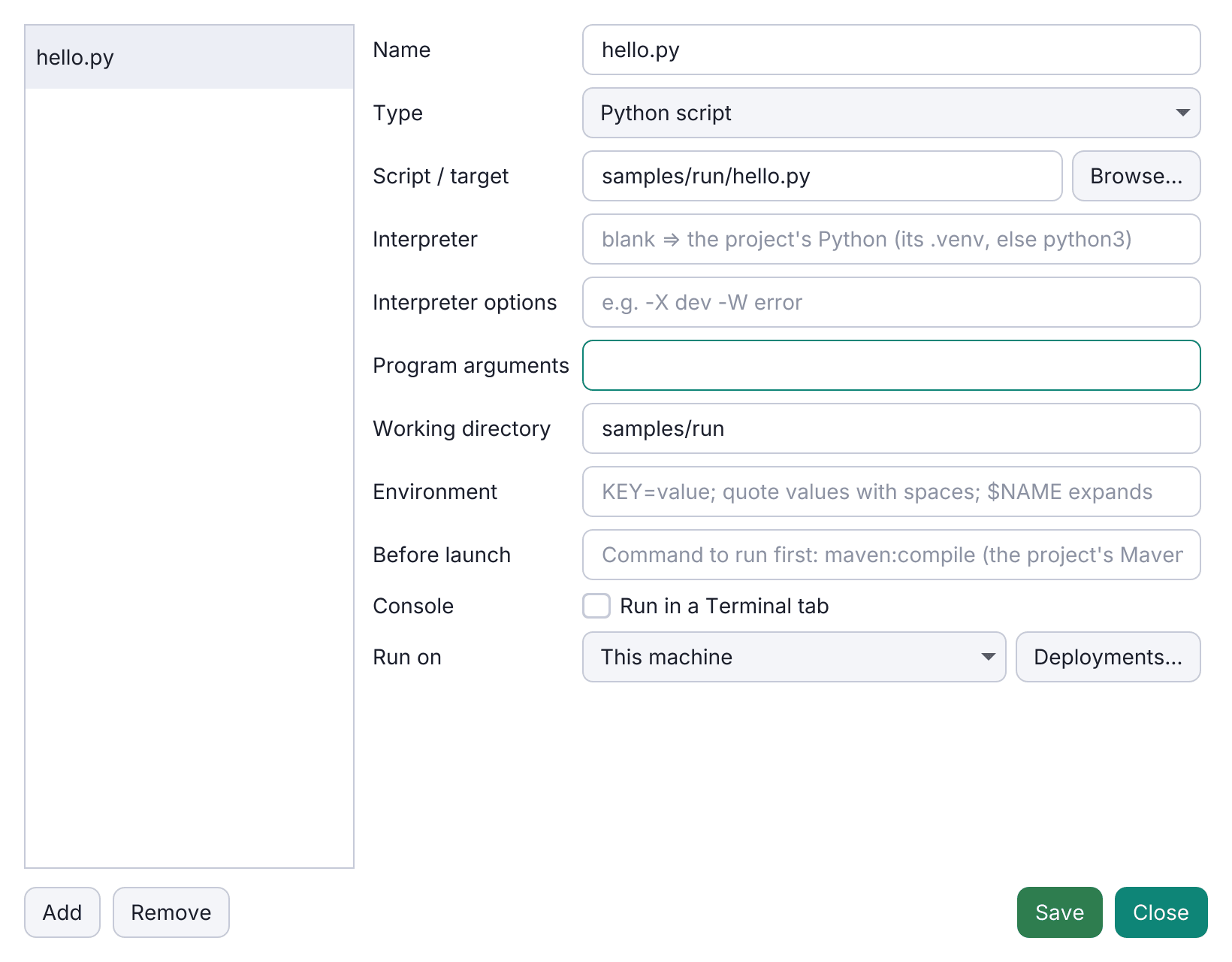
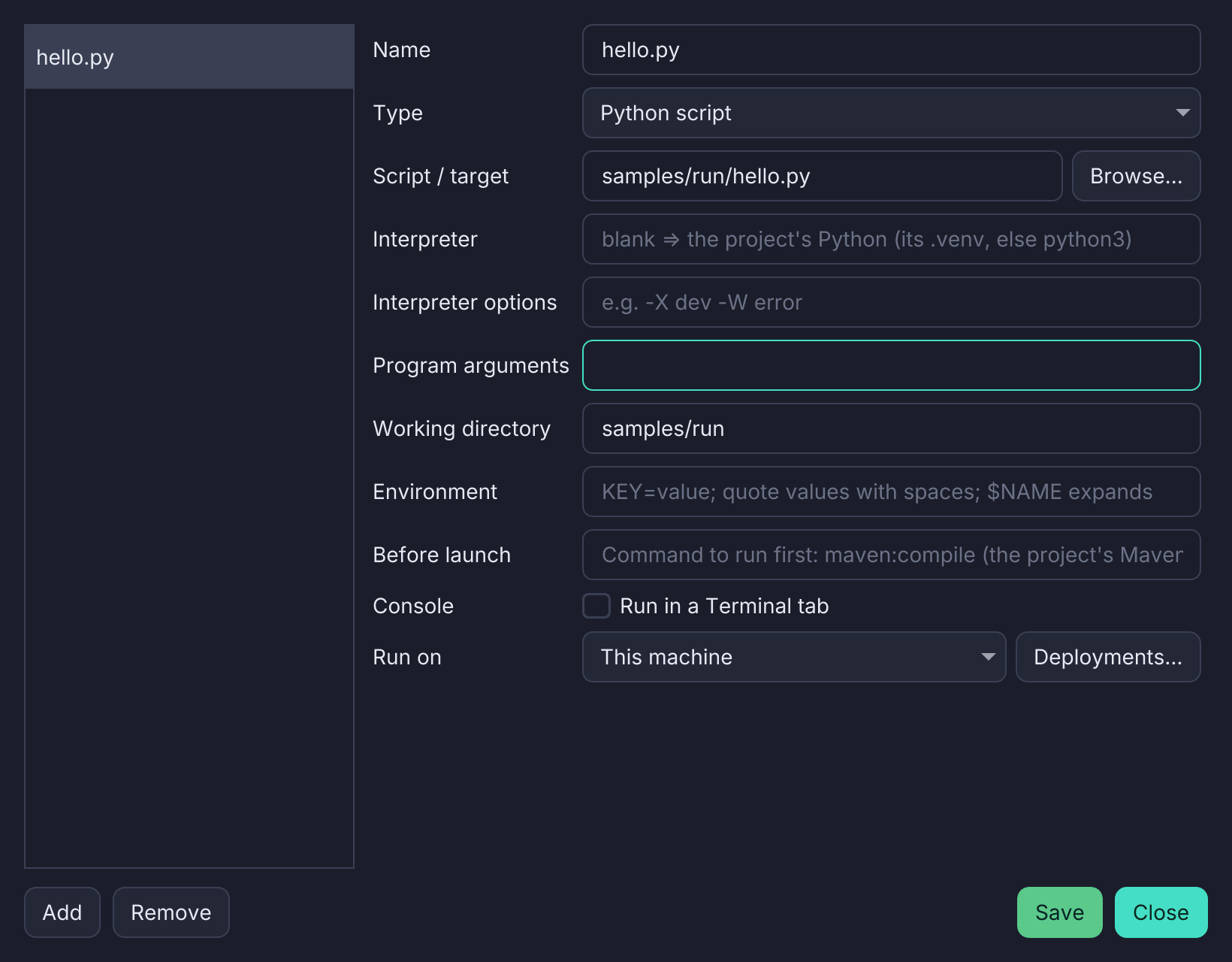
Add (run.addConfig) starts from the file you are looking at rather than a
blank entry. For an active Python, Node.js or shell script it adds a configuration
of that type for the script, named after the file; a C, C++, Go or Rust file gets
a configuration of its type too. With a makefile in front, Add makes a Make
target configuration, and with a package.json an npm script one, each set
to run in that file’s folder. A Python, shell, Node.js, Groovy, Kotlin, Scala or
Clojure file that is not saved yet gets a configuration of its type too, and a
file no type launches (a note, a C# file) gets a Java one. The Type box shows
each type with the icon its files carry in the tabs and the Project tree. For a Java file it
prefills the main class from the active Java file (or the one your Gradle build
declares as mainClass, mainClass.set(…), or the legacy mainClassName), names
the configuration after that class, and puts the cursor in whichever field still
needs you. Adding twice from the same file gets you “App” and “App (2)” rather
than two entries sharing a name.
Run: Save Run Configuration… saves the active Java file’s main class, or the active Python, Node.js or shell script, with the file’s program arguments. For a script, Add and Save write the folder its gutter ▶ runs it in into Working directory, so the configuration runs exactly as ▶ does. It is left blank when that folder is the project root, and for a Node.js script, which runs from its package folder.
Running an incomplete configuration opens its form at the field you need to fill in, rather than naming the problem and leaving you to find it. VM arguments and environment variables apply to both Run and Debug. Before a script configuration runs, Editora saves that script if it has unsaved edits in any tab.
A saved configuration does not depend on which tab is in front: any open Java file in the project serves, and it reports an error only when there isn’t one.