
Editor groups
Split the editor into independent groups with their own tabs to see two files at once, nest the splits, drag a tab between them, and get the whole arrangement back on the next launch.
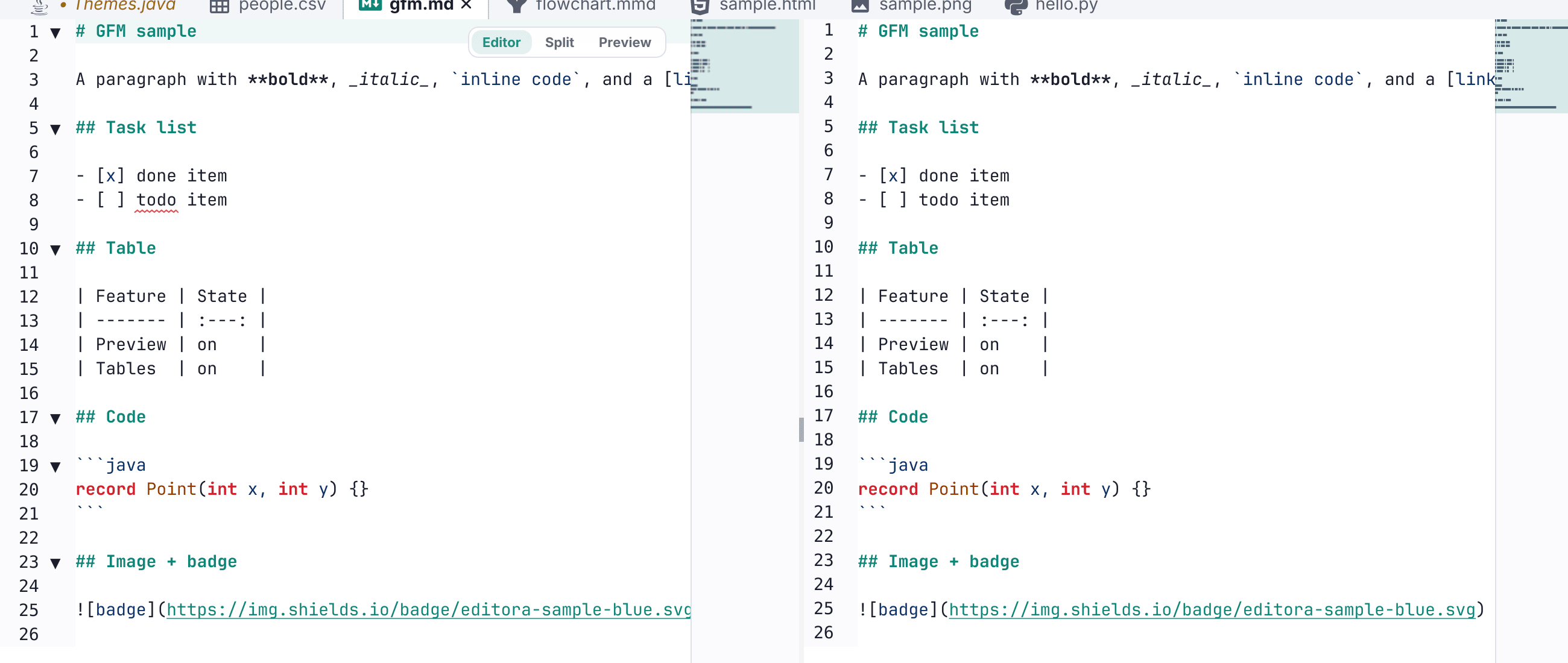
The editor area splits into independent editor groups, each with its own tabs and its own selection, so a header can sit beside its implementation or a test beside what it tests.
- Split Editor Group Right and Split Editor Group Down move the current file into a new group.
- Move File to Next Editor Group shifts it along, Focus Next Editor Group moves the keyboard between them, and Merge Editor Groups puts everything back.
- Closing the last file in a group collapses it, so you are never left with an empty pane.
All five are in the command palette and bindable like anything else.
Nesting
Splits nest: a side-by-side pair can hold a stacked pair, so an L-shaped layout is reachable. Splitting the same direction twice widens the existing row instead of chaining, which gives you three even columns rather than one column and a shrinking remainder.
Drag and drop
Drag a tab onto another group to move it there, or onto a group’s edge to split that group and drop the file on that side. A translucent highlight shows where it will land before you let go.
Restored on launch
The layout is saved with the session, so the arrangement you left is what you get on the next launch. A file that has since disappeared no longer leaves a blank pane behind.
Not the same as Split Editor
The older Split Editor commands show two views of the same file, for reading one part while editing another. Those work exactly as before, and the two can be combined.