
Project Map navigation
Explore a project as a file tree or a spatial canvas: focused columns, pan and zoom, live filters, and connected code and Personal Notes cards.
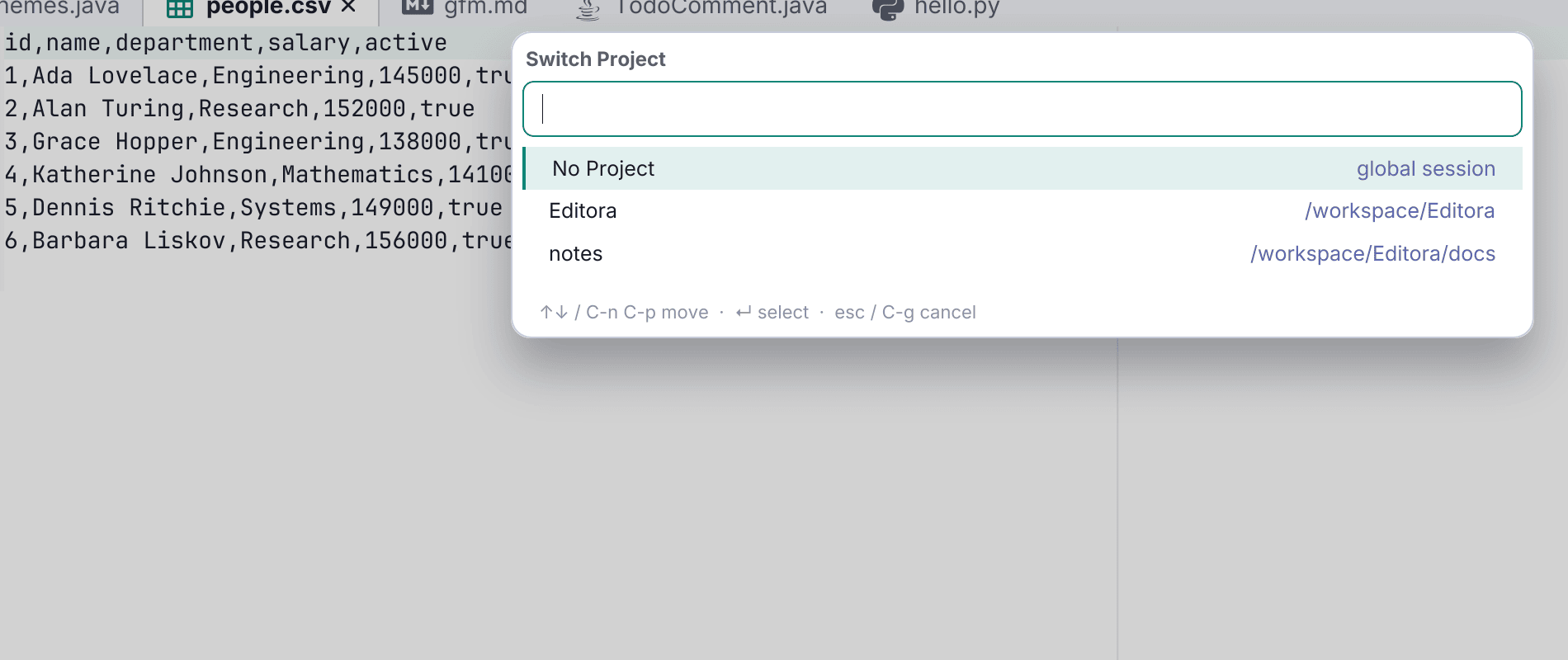
Projects are VS Code-style single-folder workspaces: a root folder plus its own saved session, open files (with carets and pins), the active tab, folds, editor-group layout and tool-window layout. Each project opens in its own window.
Open one with C-x C-p, switch with C-x p, and close to return to the global session. Bookmarks, notes and run configurations are scoped per project. On by default since 0.10.0; Settings → Workspace turns it off.
Navigate on a canvas
The Project tool window switches between the familiar file tree and a visual Project Map. The map lays the active path out as focused Miller-style columns on a canvas: expand a folder and its children appear in the next column, while the ancestor path stays visible. Choose left-to-right, right-to-left, top-to-bottom, or bottom-to-top flow; the connectors and arrow keys follow the direction you choose.
Pan and pointer-centered zoom make room for large projects, with Fit, Center, and a compact overview when you want your bearings back. Default-on Keep current zoom and Focus new column options preserve the scale and center each newly opened column; either can be turned off, and the choice is remembered per workspace. Each column sizes itself to its content, can be repositioned and locked, and has its own name filter and “Show hidden” checkbox. A large folder loads 300 rows at a time, with a “+N more…” row for the next chunk. Global filters narrow by open, modified, Git-changed, bookmarked, or Personal Notes status and by file type without throwing away the surrounding path.
Click a file to open it in an editor tab, or use the row’s eye icon for a movable, resizable syntax-highlighted preview over the canvas, including current unsaved text when that file is already open. Common bitmap images preview too, with zoom kept separately from text. Personal Notes badges open separate editable cards for files and folders, so a note and code preview can stay open together; a default-off filter temporarily hides all open note cards. Live connectors keep every preview and note card tied to its source row as the canvas pans or zooms and as cards move or resize. The map reuses the tree’s file icons and context menu, so New, rename, delete, reveal, terminal, Local History, bookmarks, Personal Notes, Maven, and Git actions work in either view.
The whole map is keyboard-navigable: arrows follow the selected flow and move among siblings, Ctrl-N / Ctrl-P step through a column, Backspace goes to the parent, Alt-Left / Alt-Right traverse selection history, / focuses the column filter, and Home returns to the project root. The traditional tree remains one click away, or one command: Project: Toggle Tree / Map View. Print… and PDF… output the whole map, split across pages when it is large. The map is another view of the same project and does not replace the tree.
Start from a template
New Project From Template scaffolds a whole project and opens it in its own window, rather than pointing Editora at a folder you made yourself. Pick a multi-file template, give the project a name and a location, and the new folder is created, registered as a project and opened on the template’s main file. A Python Project template ships with it (package layout, a test, pyproject.toml, README and .gitignore), and your own multi-file templates appear in the same picker.
Settings you can commit
A project can carry .editora/settings.json saying which language server to run and whether to run it, overriding your global preferences for anyone who opens that project. This is for cases where one repository needs a JDK 17 server and another a JDK 25 one, so that nobody has to remember to flip a global preference between them. Project: Edit Project Settings… creates the file with an example.
Only toolchain settings can be overridden. Appearance, keymap and fonts stay personal, because checking out a repository should not rearrange somebody’s editor.