
Doctor
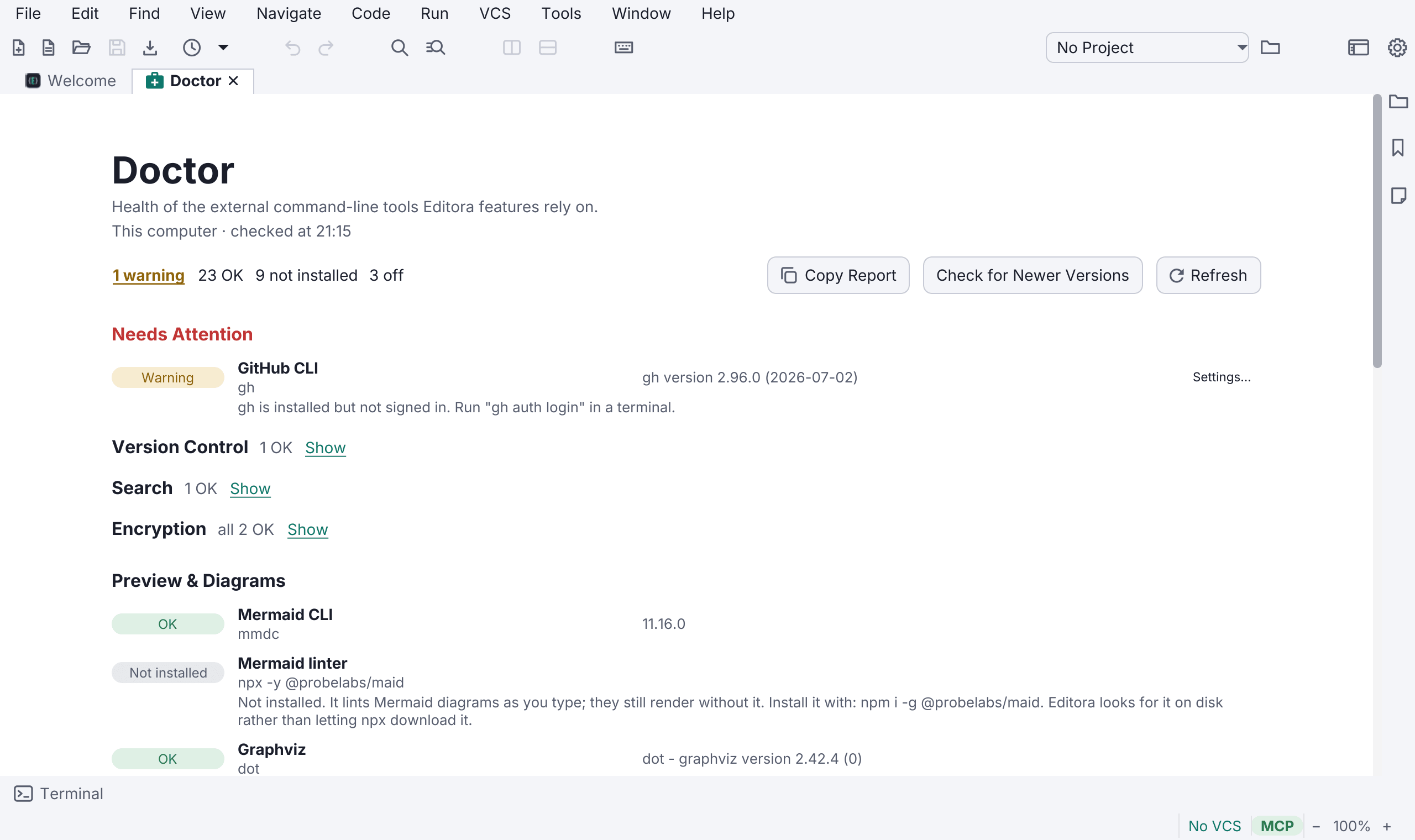
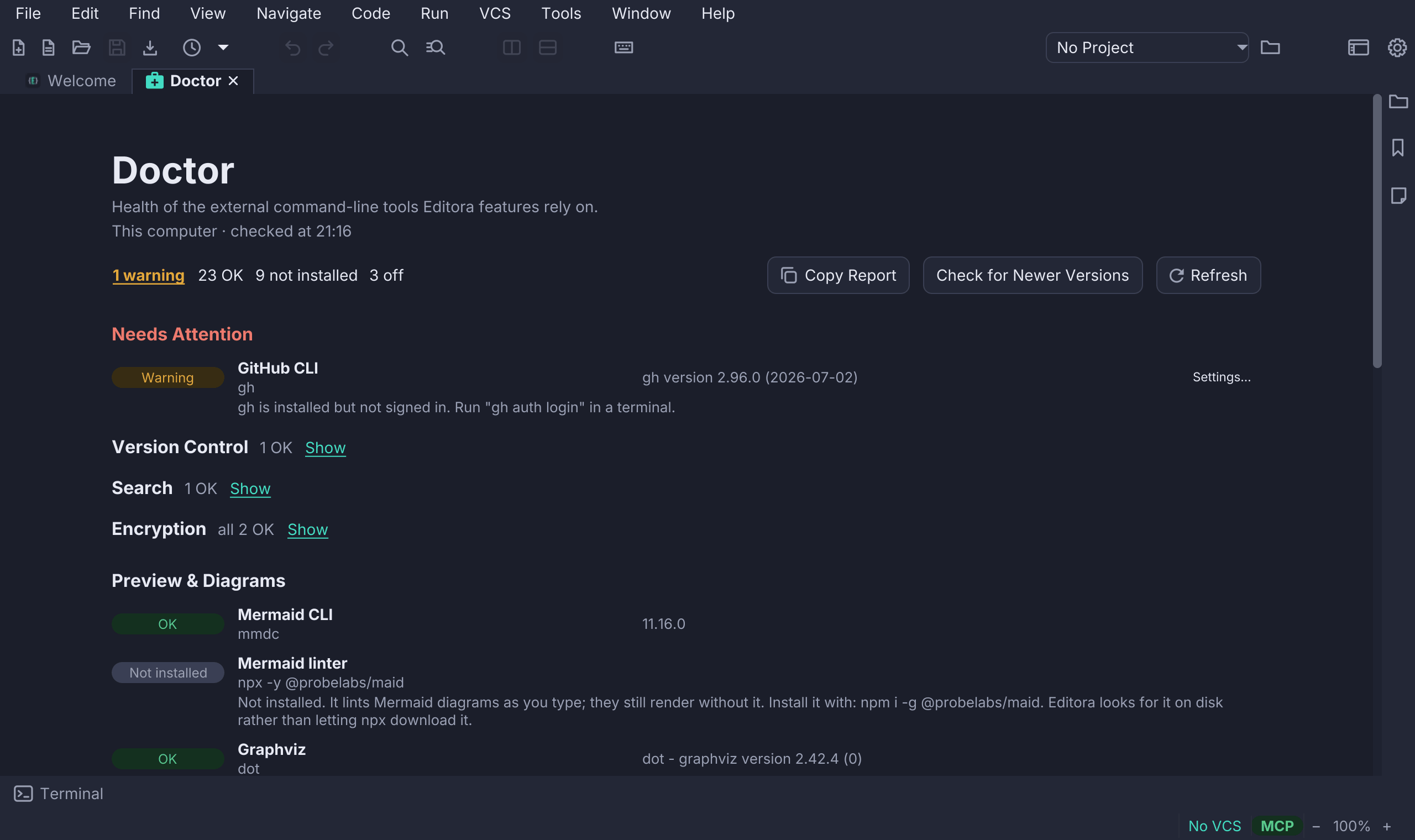
View: Doctor (in the Tools menu and the command palette, linked from the
Welcome page and from the message log’s Open Doctor button) opens a full-tab
health report of every external command Editora’s features rely on, in the
spirit of flutter doctor. It covers Git and the GitHub CLI (including whether
gh is signed in), ripgrep, GnuPG and its passphrase prompt for encrypted
files, the preview and diagram tools (mmdc, maid, Graphviz, PlantUML, the
Typst CLI), every enabled language server, the Python formatter, ShellCheck and
shfmt, a JavaScript project’s ESLint, Prettier and Biome, every debug adapter
Editora supports, the Run interpreters (with a JDK 25 check for Java, and the Python interpreter and Node.js that Run,
Debug and the language servers share), the Node.js for HTTP scripts, the build
tools, the AI provider and agent, the container engine (and WSL on Windows),
elevated save, browsers, the in-app installer’s prerequisites, and plugins that failed to load or start.
Start here when something that should work doesn’t: it answers “is the tool installed, is it the version I think, and is Editora looking at the right one” in one pass. Copy Report puts the whole report on the clipboard, ready to paste into a bug report.
Reading the report
A missing tool is a problem only when the window needs it: a file of that language is open, the project has the tool’s marker file, or you set its command. Anything else shows as Not installed and is not counted. The Python formatter row (Ruff or Black) is optional the same way: it is a warning only while Format on save (Ruff/Black) is on. Problems and warnings are gathered under Needs attention at the top; sections where everything is OK fold to one line.
Each row shows the resolved command and its version or path. When something is off, the row carries a plain-language tip and its fix: Install… (the in-app installer), Turn on for a switched-off feature, How to install, and Settings… straight to the right page. All probes run off the UI thread, and only when you open or refresh the screen.
A row’s buttons are commands too, acting on the row the keyboard is in:
Doctor: Install or Update Check’s Tool (doctor.installRow), Open
Check’s Install Instructions (doctor.howToInstallRow), Open Check’s
Settings (doctor.openRowSettings) and Clear Check’s Cache
(doctor.clearRow); Copy Check (doctor.copyRow), Copy Check’s Path
(doctor.copyRowPath) and Reveal Check’s Path in File Manager
(doctor.revealRowPath) are in its right-click menu.
Language server rows
Under the XML language server, the XML schema cache row shows how much the
server has downloaded (the schemas and DTDs XML files name) and where it keeps
it, cache/lemminx in Editora’s config folder, with a Clear button. With
the XML server off, the row sits under the Maven pom.xml server instead, and
either way it follows its server into Needs attention. Under the Maven
server, the lemminx-maven artifact store row shows the size of the
.lemminx-maven folder where lemminx-maven keeps what it resolves (beside your
local Maven repository: ~/.m2/.lemminx-maven, or next to the folder
<localRepository> names in ~/.m2/settings.xml, with ${env.…} expanded), with
Clear, and Reveal in File Manager in its right-click menu. The XML
server’s row names the Java fallback (Java lemminx 0.30.1 (fallback)) when
XML runs on it, and is an error when the XML command would load lemminx-maven,
which Editora refuses to start. A language
server that keeps crashing, or fails its requests, is a warning with an
Install… button that installs it again and a Restart Language Servers
button; the same goes for a server this window stopped restarting after it
kept crashing, and for a Node.js server (bash-language-server, Pyright, the
JSON, YAML and other npm servers) when no node is found. The rows of
npm-installed servers show the installed package version. A language server
that exits as soon as it starts shows what it printed, rather than OK; for lemminx on a Linux older than glibc 2.34, see
Installing lemminx. A server that keeps
failing while it runs a command you set in Settings gets no Install…,
since installing would not change that command: its tip says to fix the
command or clear it to use the default, then run Restart Language Servers.
The HTML row warns when the copy of vscode-langservers-extracted in use
cannot load TypeScript’s libraries, which is the case for any copy installed
with npm on its own: JavaScript in <script> then has no DOM or standard
library, nothing completes after document. and there is no parameter help.
Update installs Editora’s own copy, which has them, and a blank HTML
command uses it. A command that is just the default text
(vscode-html-language-server --stdio) counts as blank, so Update is offered
for it too. When the HTML command is your own, the tip says to clear its
command in Settings, then click Update. Editora’s own copy shows in the row by
its program, as vscode-html-language-server —stdio (Editora’s copy), rather
than by its long path in the config folder. See
Installing it.
The Node.js row counts the open npm-installed servers (HTML, CSS, JSON,
YAML, Bash, Pyright…) as needing Node.js, not only JavaScript and TypeScript.
When it is missing and one of them needs it, the tip names that server, or,
when several need it, names them and says they are Node.js scripts, and says to
install Node.js or choose one on the Node.js card under Settings →
Build Tools. A server’s own row that cannot start without Node.js says the
same: install Node.js (or start Editora where it is on PATH), or choose one
in Settings → Build Tools → Node.js, then click Restart Language Servers.
The TypeScript / JavaScript row shows the TypeScript the server runs and
where it is. It warns when that TypeScript is 6 or newer: TypeScript 6 leaves
out @types/node and the other installed @types packages unless a tsconfig
lists them, and TypeScript 7 has no tsserver, so the server cannot start on
it. Update… installs Editora’s own TypeScript 5.9, which the server then
uses. When the server’s command is your own, the tip says to use Install…
on the TypeScript card in Settings → LSP instead; your command then uses
Editora’s TypeScript. See
TypeScript features are off or show false errors.
ESLint, Prettier and Biome
For a project with a package.json at its root, Formatting & Linting has
an ESLint, a Prettier and a Biome row. Each reads the tool from
the project’s own node_modules and its version from the tool’s
package.json; nothing is run.
- OK: the tool is installed and the folder is trusted. The row shows its version and path.
- Not installed (not counted): the project has no ESLint configuration, or does not use Prettier or Biome.
- Warning: the project has a configuration (or Prettier in its
dependencies, or the tool chosen as Formatter) but the tool is not
installed; run
npm installin the project. Or the tool is installed but the folder is not trusted, and the tools run only in trusted folders. - Off: Check with ESLint is off in Settings (the ESLint row only).
Their Settings… button opens Settings → LSP; see ESLint and Formatting JavaScript and TypeScript.
Update… for servers older than Editora’s
Editora installs some servers and tools at the exact release it is tested with:
jdtls (Java), the JavaScript debugger (js-debug), lemminx (XML), the Maven
pom.xml server (lemminx-maven), gls (Groovy), Metals (Scala), the Kotlin server, clojure-lsp,
bash-language-server, vscode-langservers-extracted (the HTML, CSS and JSON
servers), ShellCheck and shfmt. A newer Editora can move to a newer release of one of
them. When the copy you have is older than the one this Editora is tested with,
its Doctor row is a warning that names both versions, and its Install…
button reads Update….
Update… downloads the release Editora is tested with, replaces the old copy, and restarts the server on it. If the download fails, the server starts again on the old copy. Install… in Settings also replaces Editora’s own copy when it is known to be older.
What the warning says depends on whose copy it is:
- Editora installed it. For example Editora installed 0.10.0; this release of Editora is tested with 0.11.0. Update replaces it.
- Installed by an earlier Editora. Editora records the version of each copy it installs. For a copy with no record, Doctor reads the version from its files, or from what the program prints, where it can. Where it can’t tell (a Kotlin server from an earlier Editora, for example), the row says the copy may be older and offers Update, which installs the tested release.
- Your own copy is older. A language server you installed yourself, or a
ShellCheck or shfmt found on your
PATH: Update installs Editora’s own copy and uses it instead, and your copy stays where it is. Doctor warns about your own copy only when it can tell its version; otherwise the row stays OK. - A ShellCheck or shfmt path set in Settings. You get the warning but no Update, since Settings names that copy on purpose. Update that copy yourself, or clear the path in Settings → LSP to use Editora’s own.
bash-language-server is a global npm package, not a copy in Editora’s folder. Its row warns when it is older than 5.7, the oldest release that works well with Editora, and Update installs the tested 5.8.1.
vscode-langservers-extracted is installed with npm into plugins/lsp/web in
Editora’s config folder, at 4.10.0. For a copy of your own, Doctor reads the
version from its package.json.
Check for Newer Versions
Many other servers and tools Editora installs at their latest release, so there
is no tested version to compare with. Check for Newer Versions, in Doctor’s
header, asks where each one is published (npm, the Go module proxy, GitHub and
HashiCorp) for its latest release. It covers Pyright, the YAML, Dockerfile, TOML
and Astro servers, gopls, clangd, lua-language-server, tinymist, terraform-ls
and the Mermaid CLI (mmdc), and only the ones that are installed and working.
typescript-language-server is not looked up: Editora installs it at 5.3.0 with
TypeScript 5.9.3 (see TypeScript and JavaScript),
and Install… replaces Editora’s own copy when it is older than that.
Nothing is looked up until you click the button: opening Doctor or clicking Refresh never asks for newer versions. The status bar then says what the check found: newer releases for some of your language servers and tools, that they are all on their latest releases, or that some could not be checked (when you are offline, for example).
A row with a newer release moves to Updates available, below Needs attention, and the summary links to it. The row stays OK, says which version is installed and which is the latest release, and has an Update… button that installs the latest release. Editora keeps what the check found until you close the window, so a Refresh still shows the group.
The pinned servers and tools above are never looked up: a new Editora release brings their newer versions, and Update… on their rows installs them. Servers that a toolchain keeps up to date, such as rust-analyzer through rustup, are not looked up either.