
Projects, windows & files
On this page: Projects · Project Map · Starting a project from a template · Settings a project can commit · Multiple windows · Tabs · Saving and reverting · File encodings · Editor groups · Tool window layout · The Welcome page · Focus modes · Window chrome · Local file history · External-change detection · Trusted folders
Projects
A project is a VS Code-style single-folder workspace: a root folder plus its own saved session (open files with carets and pins, the active tab, folds, the editor-group layout, and tool-window layout). Projects are on by default; Settings → Workspace turns them off.
| Action | Command | Emacs key |
|---|---|---|
| Open a folder as a project | project.open | C-x C-p |
| Switch project | project.switch | C-x p |
| New project from a template | project.newFromTemplate | (palette) |
| Edit this project’s settings | project.editSettings | (palette) |
From the file finder (C-x C-f), C-d
opens the highlighted folder as a project too.
The Project tool window shows the folder tree with keyboard navigation, a filter that searches the whole project by file name, per-file-type icons, and right-click actions: new file, new folder, new from template, rename, reveal, Reveal in Map, open terminal, Show Local History, and Git stage/revert. A folder’s menu also has Find in Folder… and Git ▸ Show Git History. Typing in the filter highlights the first match, so Enter opens it and Down moves on from there. The project root has its own menu too (with rename omitted so you can’t move the whole project).
The filter searches every file in the project, however deep, and never lists
.git. A path such as core/v1/types.go narrows a common name. Search
Everywhere, the Project Map’s search and the tree’s filter share one list of the
project’s files, kept current as you work, and rank matches the same way: the
name as you typed it first, then the project’s own source, then vendored code,
then tests. So each of them finds the same file first.
From the keyboard, F2 renames and Delete deletes the selected file, and
the Menu key or Shift+F10 opens the selected row’s context menu (also in
the Bookmarks, Notes, TODO, Git Log, and Structure tool windows). Renaming or
moving a file or folder keeps its bookmarks, personal notes, breakpoints, fold
state, and other per-file settings.
Bookmarks and notes are scoped per project. Closing a project returns you to the
global, no-project session.
A folder on another machine can be a project too: connecting to it over SFTP opens it as a project in its own window. See Remote folders as projects.
Delete moves files to the system trash on Linux and macOS, and the confirmation says which will happen. Windows deletes permanently, as does any file the trash cannot take; a permanent delete asks with Cancel as the default button.
Select several files and folders in the tree with Ctrl/Cmd- and Shift-click, and drag them onto a folder to move them, with open tabs following to the new path; a name conflict is skipped rather than overwritten, and a folder can’t be moved into its own subtree. Dragging a single file moves it at once; dragging a folder or several items asks first. Undo Move in the tree’s right-click menu puts the last drag-move back. Delete acts on the whole selection at once: unsaved files get one Save/Discard/Cancel decision before the batch begins, and Editora records a Local History copy of each text file (up to 5 MB) before removing anything.
Files open in any editor tab carry an accent marker in the tree; the active file uses a stronger marker. A file or folder menu can also add a first-line bookmark or Personal Note directly, with compact indicators showing both annotations.
With no project open, the Project tool window becomes a Current Folder explorer rooted at the active file’s parent directory, and follows the focused tab as you switch files. The Project Map window does not follow it: it stays on the folder it was opened on.
Project Map
The Project Map shows the project on a spatial canvas in a window of its
own: Miller-style columns of folders, a file’s structure, and read-only code
cards that answer Go to Definition, Find Usages and the other code questions
beside the map. Open it with Map beside the Project tool window’s search
field, Alt+Shift+1 (⇧⌘1 on macOS, C-c o m in Emacs), or
project.toggleMapView. See Project Map for the whole
guide.
Starting a project from a template
New Project From Template (project.newFromTemplate) creates a new folder
from a multi-file template and opens it as a project in its own window; see
Starting a project.
Settings a project can commit
A project can carry a .editora/settings.json file with values that override
your own for anyone who opens that project, so they travel with the repository:
- how its files are edited: indent style, tab size, rulers (also by language), wrapping for code and for prose, trimming trailing whitespace and ending files with a newline on save, and the spell-check language;
- the command each build tool runs, and the program of the Java, Python and JavaScript debuggers;
- which language server to run for a language, and whether to run it, and the Bash server’s options such as ShellCheck’s arguments and shfmt’s style (see Bash server options).
One repository can then use two-space indentation and a JDK 17 language server while another uses tabs and a JDK 25 one, and nobody has to flip a global preference when switching between them.
The values apply only once the folder is trusted: run Project: Trust This
Project’s Settings (lsp.trustProjectSettings), or use Trust Folder… in
Settings. A file’s .editorconfig rules still come before the project’s
values.
In a project window, Settings has an Edit settings for All projects | This project: name switch
at the top. Choose This project (the window’s title then names the project
too) to change the project’s values on the same rows you use for
your own; the change is written to .editora/settings.json. In All projects, a row
the project sets says “Overridden by this project”, and in This project it says
“Set for this project” and offers Use my setting.
Project: Edit Project Settings… (project.editSettings) creates the file
with an example and opens it. Appearance, keymap and fonts stay personal,
because checking out a repository should not rearrange somebody else’s editor.
The whole list, the file’s keys and the trust rules are in
Configuration. Run configurations have
their own shared file, described in Run & debug.
Multiple windows
When projects are enabled, each project opens in its own window, with its own tabs, tool windows, and session. The window’s project picker acts as a window switcher: choosing a project focuses or opens that window. The set of open windows is remembered and restored on the next launch. With projects disabled, Editora stays a single window.
Everything in a window acts on that window’s project, whichever window you used
last: Git, Project: Edit Project Settings…, exporting and importing run
configurations, where a new file is offered and where the file finder starts, a
template’s ${projectName}, snippet variables such as $WORKSPACE_FOLDER, the
AI agent’s working folder, and finding the files of a stack trace. A recent
file that belongs to another open project opens in that project’s window.
Launching Editora again while it is running hands the launch to the running
editor instead of starting a second process. Start with --new-instance when
you want a separate one; see the command line.
Tabs
Tabs are draggable to reorder and can be pinned. The tab strip, the
switcher, and the Open Files picker all show the same unsaved-file marker. Close
the last tab and the editor is left empty (it doesn’t recreate an Untitled
buffer). Two open files with the same name show their folder in the tab
(pom.xml · core, pom.xml · web); the suffix appears when the second opens
and goes when it closes.
Image, PDF and hex tabs are tabs like any other: their right-click menu has Close, Close Other Tabs, Close All Tabs, Close Unmodified Tabs, Close Tabs to the Left and to the Right, Reveal in Map, Reveal in File Manager, Open Terminal Here, Copy Path and Pin Tab, and a pin is kept across a restart. A diff, a pull request review, a Markdown preview, a terminal moved to the editor, Welcome and Doctor have the Close rows too, after their own. A tab’s tooltip is the file’s full path and, under it, its Git status (“Git: modified”, “Git: untracked”), and image, PDF and hex tabs are tinted by that status as editor tabs are.
A file you’re only glancing at, for example while arrowing through a picker or following a definition, lands in a single reusable preview tab, shown in italic, so browsing costs one tab rather than one per glance. Editing it, or opening it explicitly, makes it permanent. See preview tabs.
Closed a tab by mistake? Buffer: Reopen Closed Tab (buffer.reopenClosed)
brings back the file whose tab you closed last, with the caret where it was.
Run it again for the one before, up to the last 20 tabs closed in the window
during this session. A file deleted since is skipped, and a file that is open
again is simply focused. It counts the tabs you close yourself (the close
command, Close Others and the other tab-menu closes, or a tab’s ×), not the
ones that go when a window closes or you switch projects, and it brings back
files only, not diff or preview tabs; an image, PDF or hex tab comes back in the
viewer it was in. It is Ctrl+Shift+T (⇧⌘T on macOS) in
the VS Code, Sublime Text and CUA keymaps, and it is in the File menu
under Open Project. IntelliJ IDEA’s Ctrl+Shift+T stays Go to Test, so there,
as in the Emacs keymap, it is a palette command.
Saving and reverting
| Action | Command | Emacs key | Other keymaps |
|---|---|---|---|
| Save every modified file in the window | file.saveAll | C-x s | VS Code: Ctrl+K S |
| Throw away unsaved changes and read the file again | file.revert | (palette) | — |
The Emacs key column is the default Emacs keymap; Other keymaps gives the chords the CUA, Sublime Text, VS Code and IntelliJ IDEA keymaps bind (— where none does). On macOS those mostly use ⌘ for Ctrl; the keybindings reference lists every keymap.
File: Save All saves every modified file open in the window, in all its
editor groups, exactly as File: Save would for each one, so a file that needs
administrator rights, the Markdown on-save fixes and the check for a file changed
on disk all apply. Untitled buffers are skipped. When it is done, one line in the
status bar gives the count: how many were saved, how many could not be, and how
many untitled buffers were skipped. In VS Code’s keymap it is Ctrl+K S (⌥⌘S
on macOS), and it sits in the File menu under Save As.
File: Revert File reads the file again from disk. It asks first only when that would discard unsaved changes, and Local History keeps a copy of them. The caret, scroll position and folds stay where they were, and the file is read in the encoding chosen for it, if any. An untitled buffer or a file that no longer exists on disk has nothing to revert to, and the status bar says so. It is in the File menu under Save as Administrator.
File encodings
Editora reads a file as UTF-8 unless a byte-order mark or a charset rule in an
.editorconfig says otherwise. A file that is not valid in
that encoding still opens without losing a byte: it is shown through a
single-byte stand-in (Windows-1252 or ISO-8859-1), and the status bar draws its
encoding in the warning colour, with a tooltip saying the real encoding is
unknown. Until you reopen it in its real encoding, the file refuses a save that
would re-encode it. If you type a character the stand-in cannot store, the
status bar names the character and its line, and the file can be saved again
once it is removed.
Click the encoding in the status bar (Buffer: Change Encoding…,
buffer.chooseEncoding) to fix it, or use the two commands it offers from the
palette:
| Action | Command |
|---|---|
| Read the file again in another encoding | buffer.reopenWithEncoding |
| Choose the encoding the file is written in | buffer.saveWithEncoding |
The list puts about 45 common encodings first, grouped by script (Unicode, Western, Central European, Cyrillic, Greek, Turkish, Hebrew, Arabic, Baltic, Vietnamese, Thai, Japanese, Chinese, Korean and DOS), with Shift_JIS, EUC-JP, ISO-2022-JP, GB18030, GBK, Big5, EUC-KR, windows-1251 and KOI8-R among them, followed by every other encoding available. The list is the same on every operating system.
- Reopen with Encoding… reads the file from disk again in the encoding you pick. If the bytes are not valid in it, nothing changes, and the status bar names the first line and column that could not be read. With unsaved changes it asks first, and Local History keeps a copy of them.
- Save with Encoding… sets the encoding the file is written in from its next
save, whatever the
.editorconfigsays. The tab shows as modified until you save; picking the encoding the file already has on disk makes it clean again. If the text holds a character the encoding cannot store, the command refuses and names the character and its line, and a save that meets such a character later refuses too, rather than quietly writing UTF-8. For a file whose encoding Editora could not detect, reopen it in the right encoding first.
The encoding you choose is remembered for that file: it is used the next time you open it, after a restart and when a session is restored, it follows the file when you rename it, and it works for remote files too. If the file later stops being valid in that encoding, Editora forgets the choice and says so in the status bar. A crash-recovery copy keeps a choice that had not been saved yet.
The File Information tool window (tool.fileInformation) shows the file’s
encoding.
None of the three has a default key or a place in the File menu; reach them from the status bar or the palette, and bind them in Settings → Keymaps if you use them often.
Editor groups: two files at once
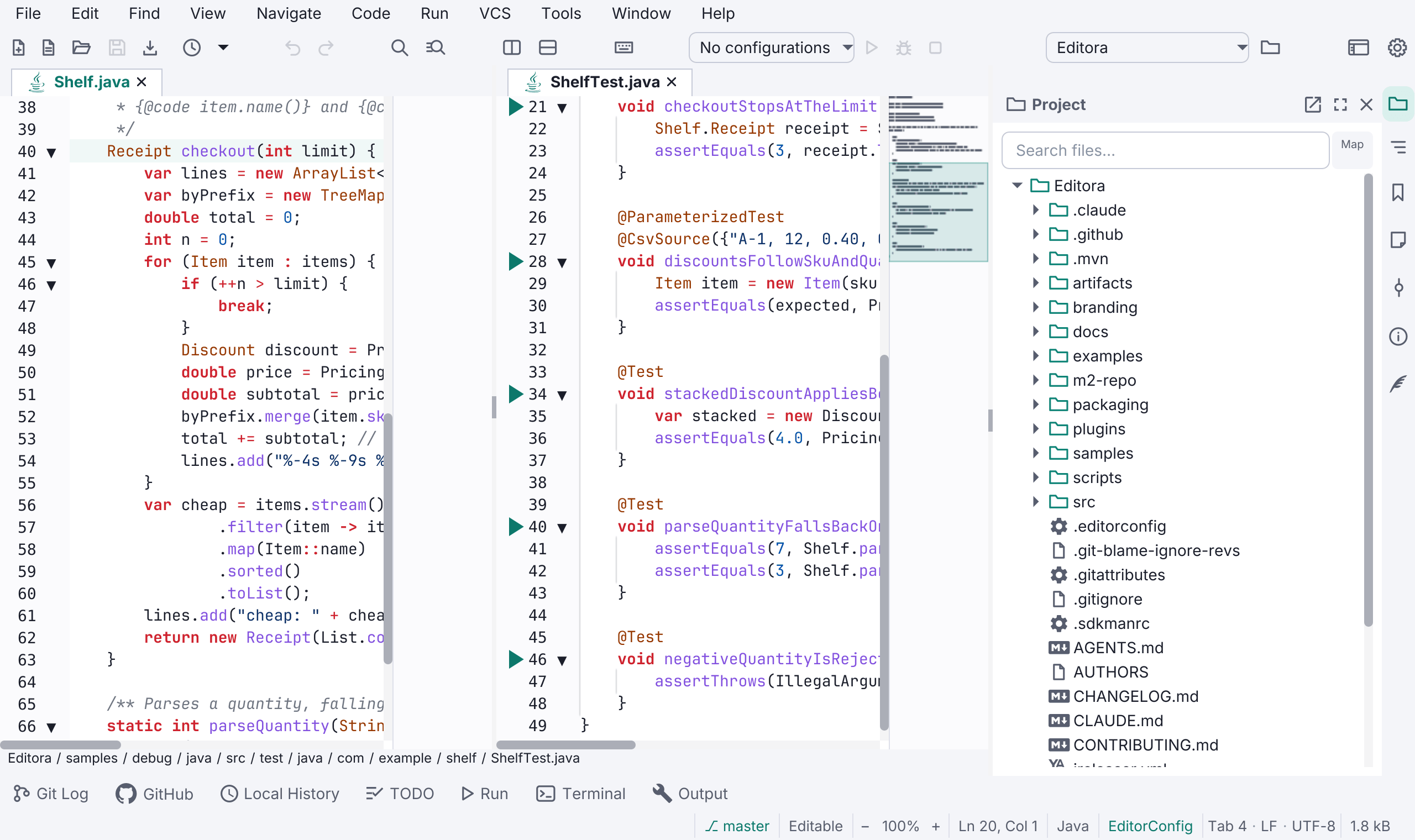
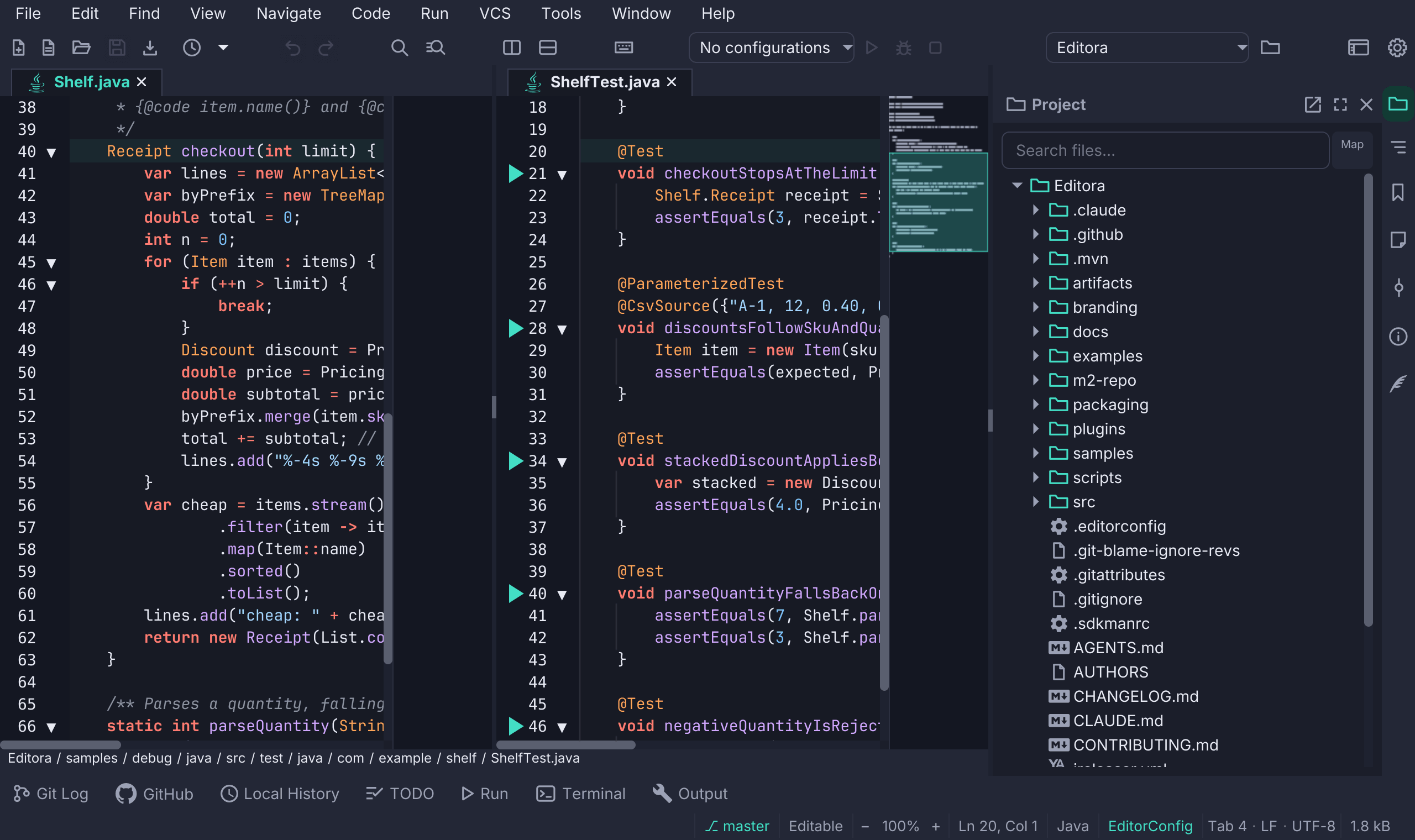
The editor area splits into independent editor groups, each with its own tabs and its own selection, so a header can sit beside its implementation or a test beside what it tests.
| Action | Command | Emacs key |
|---|---|---|
| Split the group to the right | view.splitEditorRight | (palette) |
| Split the group downwards | view.splitEditorDown | (palette) |
| Move the file to the next group | view.moveToNextGroup | (palette) |
| Focus the next group | view.focusNextGroup | (palette) |
| Merge every group back into one | view.unsplitEditorGroups | (palette) |
All five are bindable in Settings → Keymaps like any other command.
- Splits nest, so a side-by-side pair can hold a stacked pair and you can build an L-shaped layout. Splitting the same direction twice widens the existing row instead of chaining, which gives you three even columns rather than one column and a shrinking remainder.
- Drag a tab onto another group to move it there, or onto a group’s edge to split that group and drop the file on that side; a translucent highlight shows where it will land.
- Closing the last file in a group collapses it, so you never end up looking at an empty pane.
- The layout is saved with the session and restored on the next launch. A file that has since disappeared does not leave a blank pane behind.
Two views of one file
Separately from editor groups, you can split the current file into two views of the same buffer, which is useful for reading one part while editing another. The two can be combined.
Both views share one undo history: an edit made in one pane can be undone from the other, exactly once, and undo moves the caret of the pane it was issued in.
| Split | Command | Emacs key | Other keymaps |
|---|---|---|---|
| Side by side | view.splitVertical | C-x 3 | VS Code: Ctrl+\ |
| Stacked | view.splitHorizontal | C-x 2 | — |
| Unsplit | view.unsplit | C-x 1 | — |
These commands are disabled on tabs that aren’t text buffers: the Welcome and Doctor pages and the image, hex, PDF and diff viewers.
Tool window layout
Tool windows live on three stripes (left, right, and bottom), and you can rearrange them without leaving the keyboard or reaching for a preference.
| Action | Command | Emacs key |
|---|---|---|
| Maximize / restore the tool window | view.maximizeToolWindow | C-x f |
| Float it into its own window | view.floatToolWindow | (palette) |
| Open a second window on one side | view.splitToolWindow | (palette) |
| Close a focused tool window | view.closeFocusedToolWindow | C-x 0, or M-g while the tool window has focus |
Maximize and float also have a button each in the tool window’s header, and the header’s right-click menu carries all three. Each acts on the focused tool window, or on the only open one; with two open and focus elsewhere, the command says so rather than guessing.
- Maximize expands a tool window over its split and toggles back. It is session-only and never saved, so a maximized window can’t reopen next launch covering the editor.
- Re-dock by dragging its stripe button onto another stripe. Dropping it on an existing button inserts it before or after; dropping it on empty stripe space appends it to that side. A window that was open stays open on its new side.
- Two windows can share a side, for example Project over Structure. Use Open in
Split from the stripe button’s right-click menu, or
view.splitToolWindow, which lists only the windows that could join a side right now. Left and right split vertically; the bottom splits horizontally, so that two consoles side by side both stay readable. A third window evicts the companion, not the primary. Opening a tool window any other way replaces the one on its side. - Floating puts a tool window in its own window, owned by the editor. It floats above the editor, minimizes with it, and closes with it. Bounds are remembered, and reused only when they still overlap a screen, so a window saved on a since-detached monitor is re-centred rather than opened somewhere you can’t reach. Closing a floating window closes the tool window; reopening it from the stripe docks it again.
Each tool window remembers its own size, rather than sharing one number per side, and the whole layout is saved with the session.
A tool window’s stripe button runs the window’s command, so a button whose feature is off, or the TODO window for a file with no matches, says why in the status bar instead of opening. A window on screen hides on its button, and every Tool Window command (Git Log and the build tools’ included) hides its window when run again. A button’s tooltip follows its window’s title.
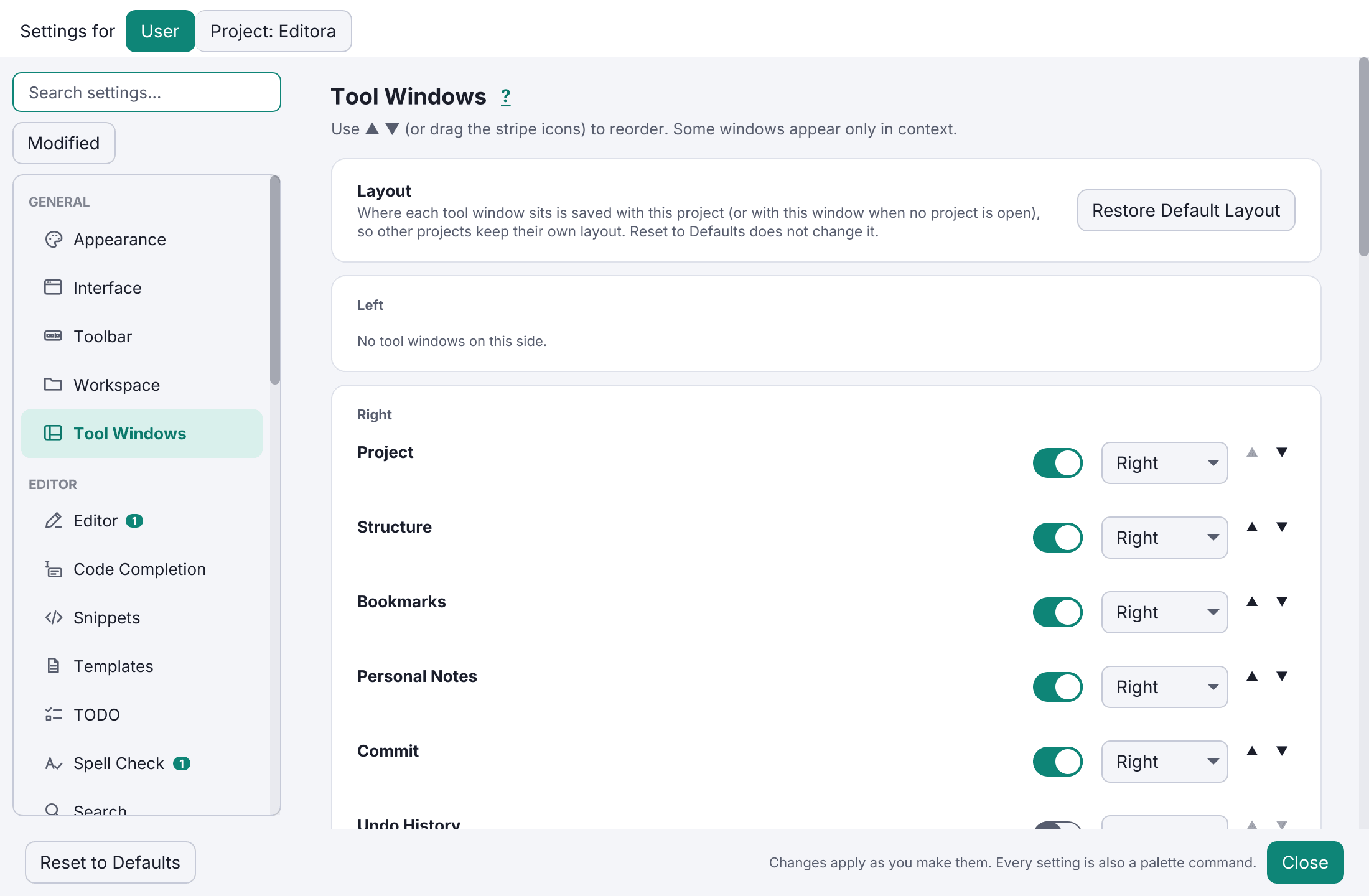
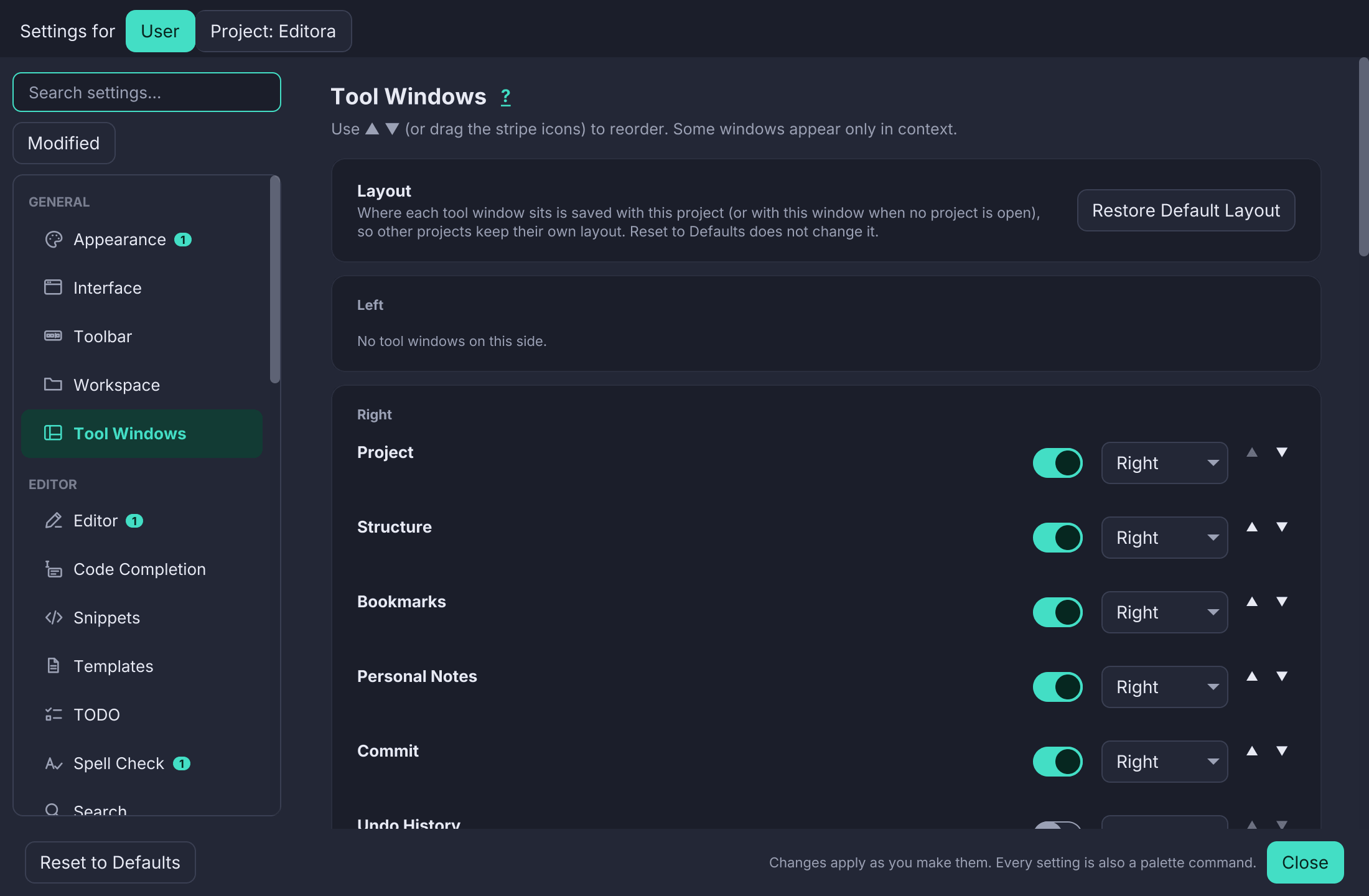
Settings → Tool Windows lists the windows under Left, Right and Bottom, in the order their buttons stand on each stripe. Each row has a switch that shows or hides the window’s stripe button, the side it docks on, and ▲ ▼ to move it one place among the buttons shown on that side; the list follows every change. The side of a hidden window can be set too. A window whose feature is off (Project, Commit, Personal Notes, Problems, Debug) has its row greyed out, with the Settings page that turns it on. The Layout row says that the layout is saved per project (or per window when no project is open), so other projects keep theirs, and that Reset to Defaults does not change it. Its Restore Default Layout button puts every window back on its own side, shown or hidden as on a fresh install, in the default order; it asks first unless the layout already is the default.
The Welcome page
With no session to restore, Editora opens a Welcome page (a real tab).
Reopen it from Help → Welcome Page (view.welcome). From top to bottom it has:
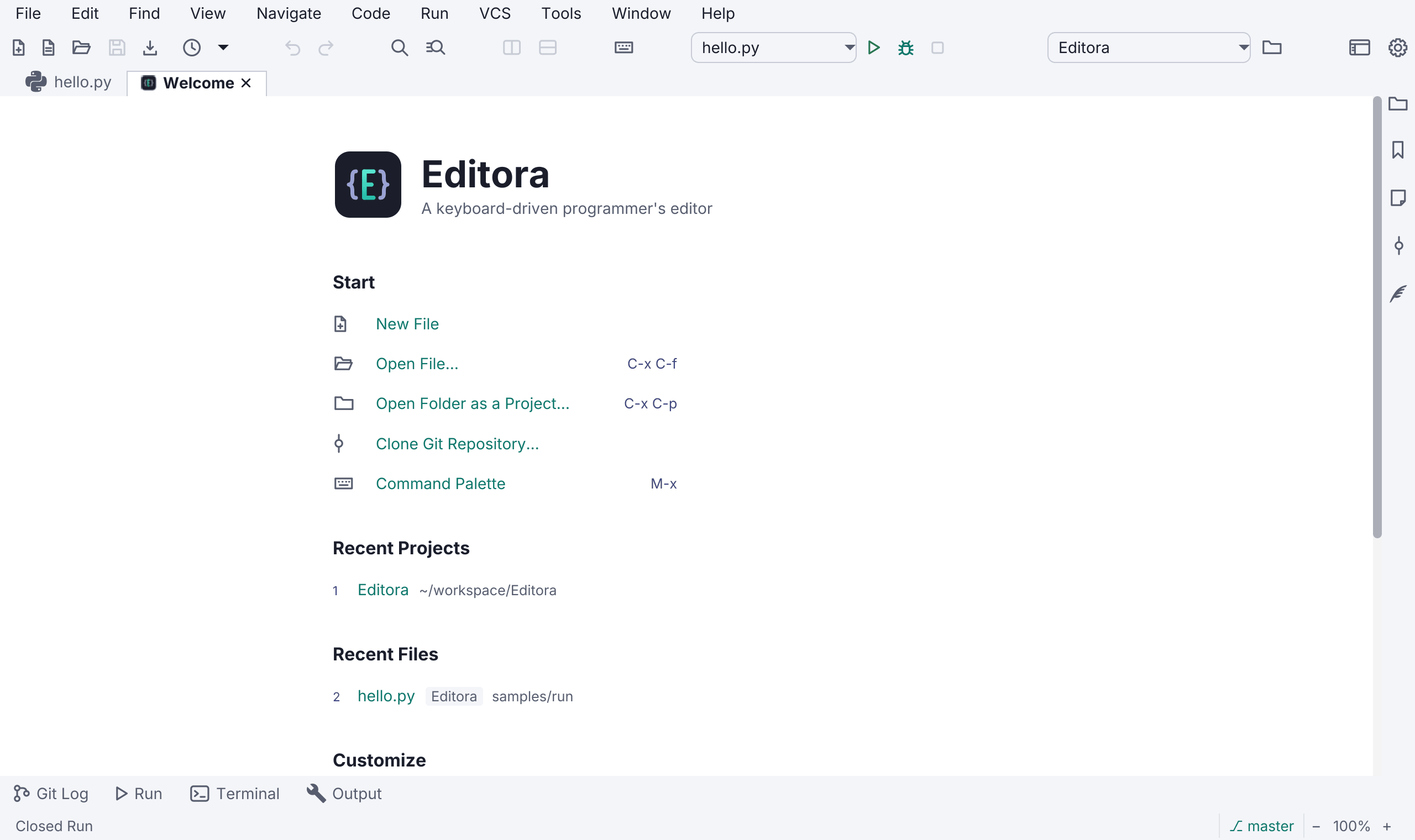
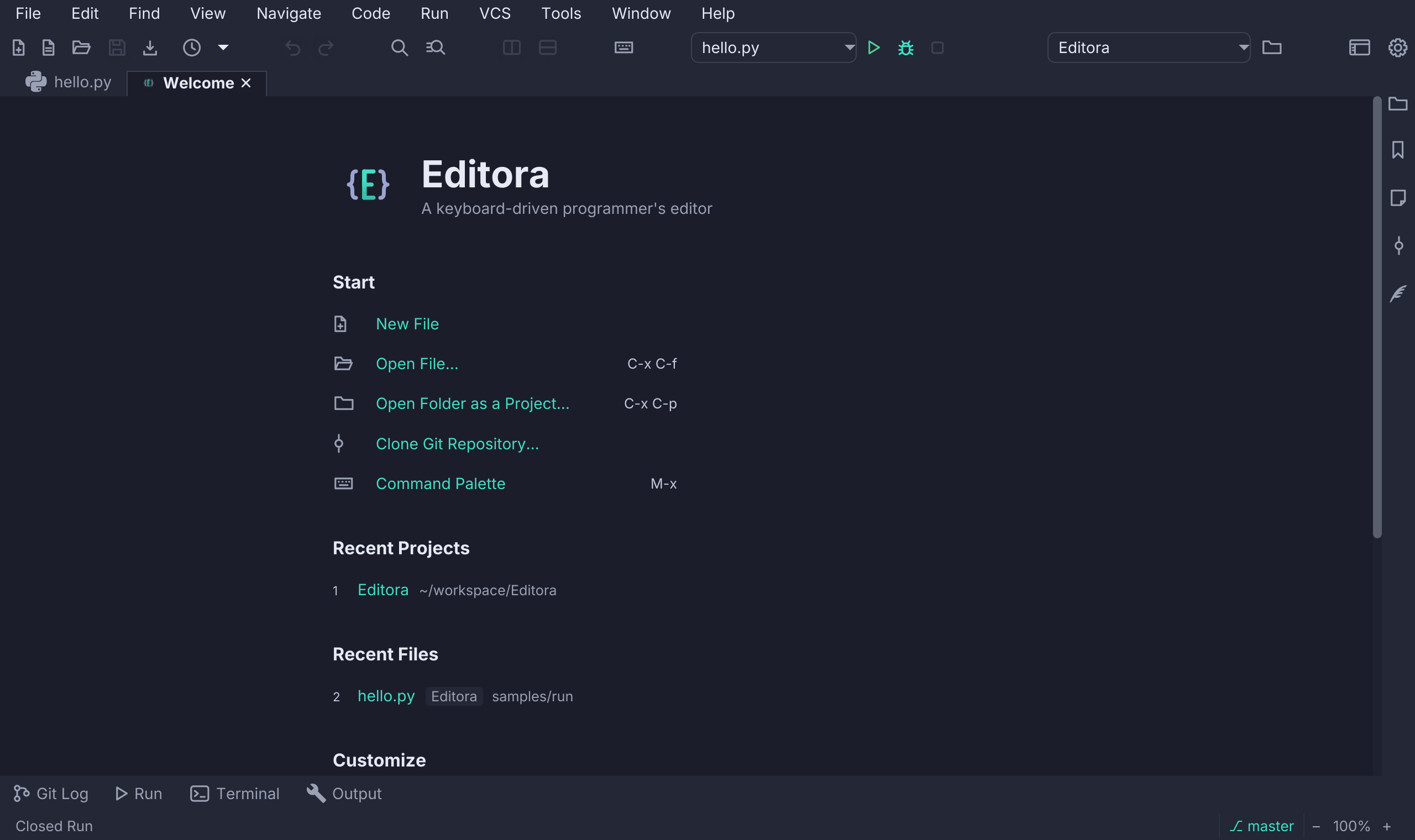
- Start: New File, Open File, Open Folder as a Project, Clone Git Repository and the Command Palette, each with its shortcut when the keymap binds one.
- Recent Projects, newest first. Picking one opens or focuses that project’s window. A project whose folder no longer exists is left out.
- Recent Files. Each row shows the file name, the project it belongs to
(or the host of a remote file) and its folder: relative to the project, or
starting with
~. A long folder is shortened from its start. Right-click a row to copy its path or remove it from the list. - Remote Sites: your saved SFTP sites; picking one opens the connect form filled in.
- Customize: the current keymap and theme; click either to change it. With
the Emacs keymap it also explains the notation (
C-is Ctrl,M-is Alt). On a first run, before there is anything recent, this block sits right under Start. - Help: Documentation, What’s New (the release notes of the version you run) and Doctor.
The first nine projects and files are numbered: press 1–9 to open one. When the page opens, the first entry has the focus, so Enter opens it. Long lists show five entries and a “Show N more” link.
Closing the last tab does not bring the Welcome page back. The editor area shows a short list instead (Open File, Open Folder, Command Palette, Welcome Page) with their shortcuts.
Focus modes
-
Zen mode hides the chrome for distraction-free writing, with a small floating “Z” to exit. Toggle it from the palette (
view.toggleZen),C-c z, or start with the--zenflag. -
Expert mode is a lighter focus mode than Zen: it strips only the window chrome (the menu bar, toolbar, tab bar, breadcrumb, tool stripes, whitespace guides) but keeps the full editor view, line numbers, status bar, minimap, rulers, indent guides, and current-line highlight, so you stay oriented. Toggle it from the palette (
view.toggleExpert),C-c C-e, Settings → Interface → Modes, the floating “E” button, or the--expertflag. Expert and Zen are mutually exclusive, and like Zen it’s per-window and never changes your saved settings. With the menu bar merged into the title bar, only the menus leave; the window title and buttons stay. Commands stay on their keys and in the palette. -
Simple UI mode strips the editor to the essentials: it hides the extra toolbar groups, the tool-window stripe, the breadcrumb, the gutter, and the minimap, and turns off the heavier features (LSP, debugging, Git, multiple cursors) for a calm surface. Toggle it from Settings → Interface → Modes, the toolbar button at the right end beside Settings (it never moves into the overflow menu), the palette (
view.toggleSimpleMode), or the--simpleflag (session-only). Toggling off restores everything.It keeps a menu bar, reduced to File, Edit, Find, View and Help: the menus for features the mode switches off (code intelligence, running and debugging, version control, tool windows) are removed. The reduced View menu keeps the Simple UI mode toggle, so you can leave the mode the way you entered it.
The right-click menus are trimmed the same way:
- Tab: Save, Save As, Encrypt… (Lock File on an encrypted file), Print, Export to PDF, Close, Close Others, Close All, Reveal in Map (when projects are on), Reveal in File Manager, Copy Path and Rename. Unpin stays on a tab that was pinned before.
- Editor: Comment / Uncomment, the spelling suggestions, Cut, Copy, Paste, Undo, Redo, Select All, Print and Export to PDF.
- Project tree: New (a file or a folder), Rename, Undo Move, Delete, Reveal in Map and Reveal in File Manager.
- Preview (Markdown, Typst, Markwhen, diagrams): the copy actions, Go to Source, Enlarge, Export to PDF and Print. Copy HTML and the other export formats are hidden.
Git, Local History, the compare actions, Open Terminal, Pin, bookmarks and notes, External Tools and plugin items, and the Run, Debug, language-server, build, AI, Markdown and Typst submenus are left out. Turning Simple mode off brings every entry back.
Window chrome
Each row of chrome can be hidden on its own under Settings → Interface → Window chrome: the menu bar, toolbar, status bar, tab bar, breadcrumb and tool-window stripe. (Hiding the tool stripe hides every tool window’s button, whatever the Tool Windows page says; the windows still open from their keyboard shortcuts and the palette.)
Merge the menu bar into the title bar goes one further: the window is drawn without a system title bar, and the menus, the window title and the system buttons share that single row, which gives the editor a full bar of vertical space back. Minimise, maximise, close, drag-to-move, double-click-to-maximise, edge resize and snapping all stay the platform’s own; only the position of the menus changes. The window drags from the title in the middle of the bar as well as from its empty parts.
It is on by default and applies on restart, because a window’s style
is fixed once it has been shown. Turn it off for the system title bar with the
menu bar below it. Linux and Windows only: on
macOS the menus are in the system menu bar, so the checkbox is disabled, with a
note saying why. Also on the palette as view.toggleExtendedWindow.
The breadcrumb sits directly under the editor area, as wide as the editor.
It writes your home directory as a single ~ crumb, which still navigates
there. In a Markdown file it continues with the path of headings at
the caret.
In the status bar, indent, line endings and encoding are one segment
(Tab 4 · LF · UTF-8). Each part is its own click target, with its own tooltip
and command, and the segment appears only when a file is open. In a
Python file that mixes tabs and spaces the way Python rejects, the indent part
reads Tab 4 · mixed indent in the warning colour (see
Editing). The encoding
is drawn in the warning colour when Editora had to guess it; see
File encodings. A file whose
lines do not all end the same way reads Mixed with its dominant ending, for
example Mixed (LF); see
Files with mixed line endings.
The toolbar
Settings → Toolbar adds, removes and reorders the icons; right-click the toolbar and choose Customize Toolbar… to drag them directly on the bar (drag one off to remove it). Restore Default Layout puts it back.
The bar is two containers on one row. The icon cluster is what you customize, and it is what collapses into the overflow chevron when the window gets narrow. The tail is pinned to the right end and never overflows, so a narrow window cannot hide the control that starts a run. It holds the run-configuration selector with its Run, Debug and Stop buttons, the project switcher, Open Folder, the build badges and Settings. The selector and its Run, Debug and Stop buttons are not draggable items in Settings → Toolbar.
A button whose command cannot act (Save As with no file in front, Commit outside a repository) is greyed out, as its menu row is. Each button is named after its command, with its key in the tooltip, and Tab moves past the bar’s buttons.
Recent Files sits in the cluster, between Save As and Undo, and can be dragged elsewhere or removed like any other icon.
Its dropdown is as wide as the longest file name, up to a limit, with each file’s project label lined up in one column. Hover a row for the file’s full path. A row’s trash icon asks before removing that file from the list, and the question shows the full path, so two files with the same name are easy to tell apart.
Cut, copy and paste are not in the default layout. They are catalog items you can drag onto the bar.
Local file history
Local History snapshots your local files over time, independent of any version control, so you have a safety net even outside Git. A revision is recorded on save and on auto-save. The first save of a session also keeps the text the file held before it, listed as Before first save, so the version you started from is in the history too; a later save that finds the file changed by something else keeps that version as External change. A save that changes nothing adds no revision, and auto-saves less than five minutes apart collapse into one, so a run of them does not push earlier revisions out. Encrypted files get no revisions: their text stays out of the history.
Editora also keeps the file’s text before anything else replaces or removes it, and each row says why:
| Row | When |
|---|---|
| External change | Before a tab is reloaded because the file changed on disk, and before Decrypt to File replaces an existing file |
| Before revert | Before File: Revert File or Reopen with Encoding drops unsaved edits |
| Before Replace in Files | Before Replace in Files, or Maven Update Versions, rewrites a file that is not open |
| Before link update | Before a Markdown link update rewrites a file that is not open |
| Before agent write | Before the AI agent writes a file that is not open |
| Before HTTP response | Before an HTTP client >>! line replaces a file |
| Before restore | Before a restore from the folder view overwrites a file |
| Deleted | Before Editora deletes a file: from the Project tree, a language-server edit, or Git’s discard of untracked files |
| Before ‹operation› (no undo) | Before a bulk edit in a file without undo |
Git’s Rollback and Discard of tracked files also keep the current text first, and are refused if that copy cannot be made. Save as Administrator keeps the version it replaces, as an ordinary save does.
A language-server edit that deletes folders copies at most 200 of their files. When it would delete more, Editora says how many go without a copy and asks before going ahead.
The versions a save replaces are kept at any size. The copies taken before a delete or a folder-view restore hold text files of up to 5 MB: a binary file, or a larger one, is deleted or replaced without a copy. A step that promises a copy (a delete, an agent write, a Git discard) goes ahead without one when Local History is off.
The Local History tool window lists the active file’s revisions, newest first, under day captions. Each row shows its label if it has one, the time, and the reason it was recorded; the size and full date are in the tooltip. The newest row is tagged Current when it equals the editor’s text and Latest when the editor has moved on (unsaved edits, an undo, or a restore of an older row). When you switch to a tab with no file, such as a diff or a terminal, the window steps aside, and it comes back on the next tab that has a local file.
| Action | Command | Emacs key | Other keymaps |
|---|---|---|---|
| Show or hide Local History | tool.fileHistory | M-g l | CUA, Sublime Text, VS Code, IntelliJ: Alt+Shift+H (⌃⌘H on macOS) |
| Show the current file’s history (leaves it open) | history.showActiveFile | (palette) | — |
| Put Label | history.putLabel | (palette) | — |
| Recent Changes | history.recentChanges | (palette) | — |
| Turn Local History on or off | view.toggleLocalHistory | (palette) | — |
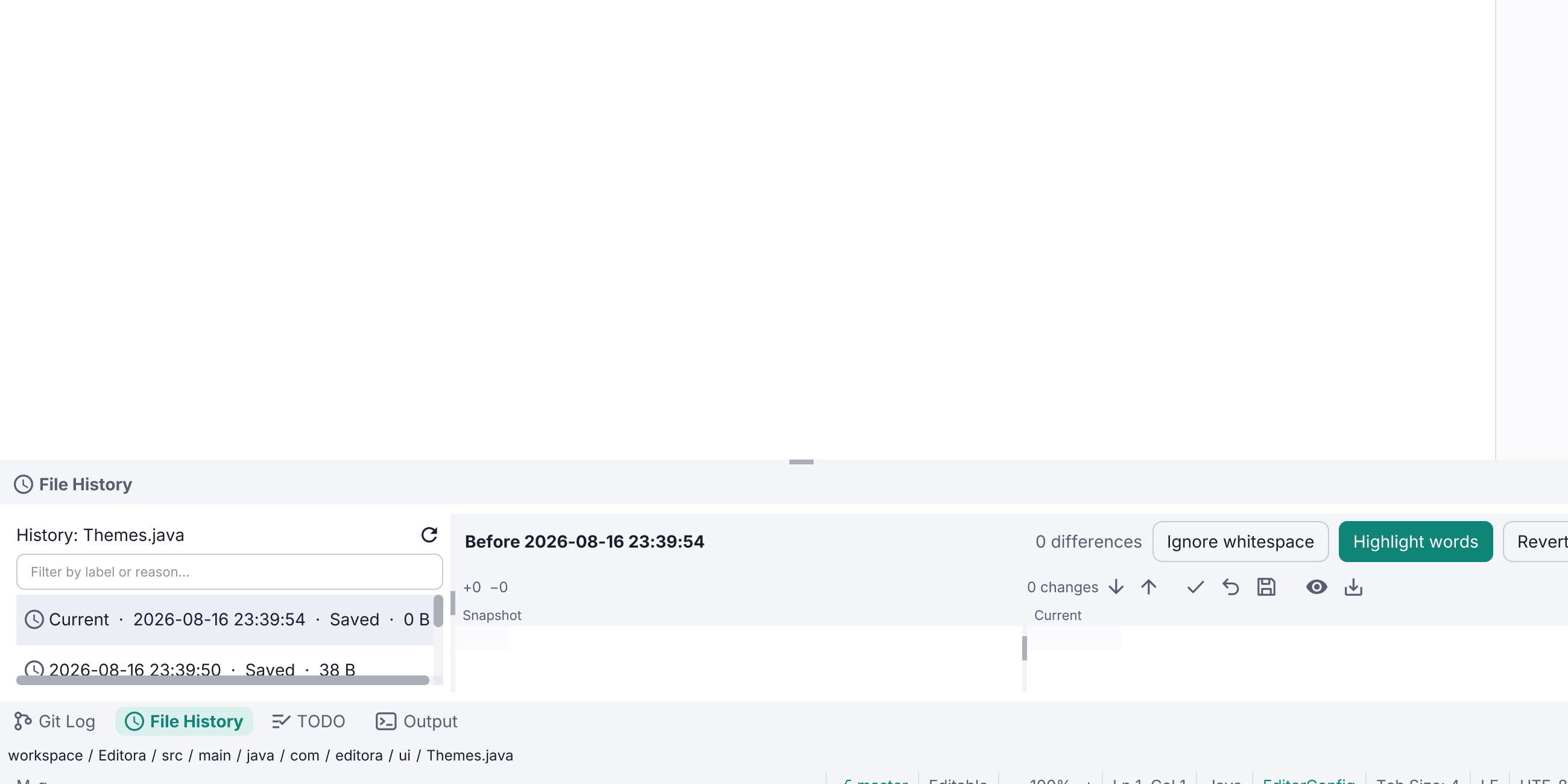
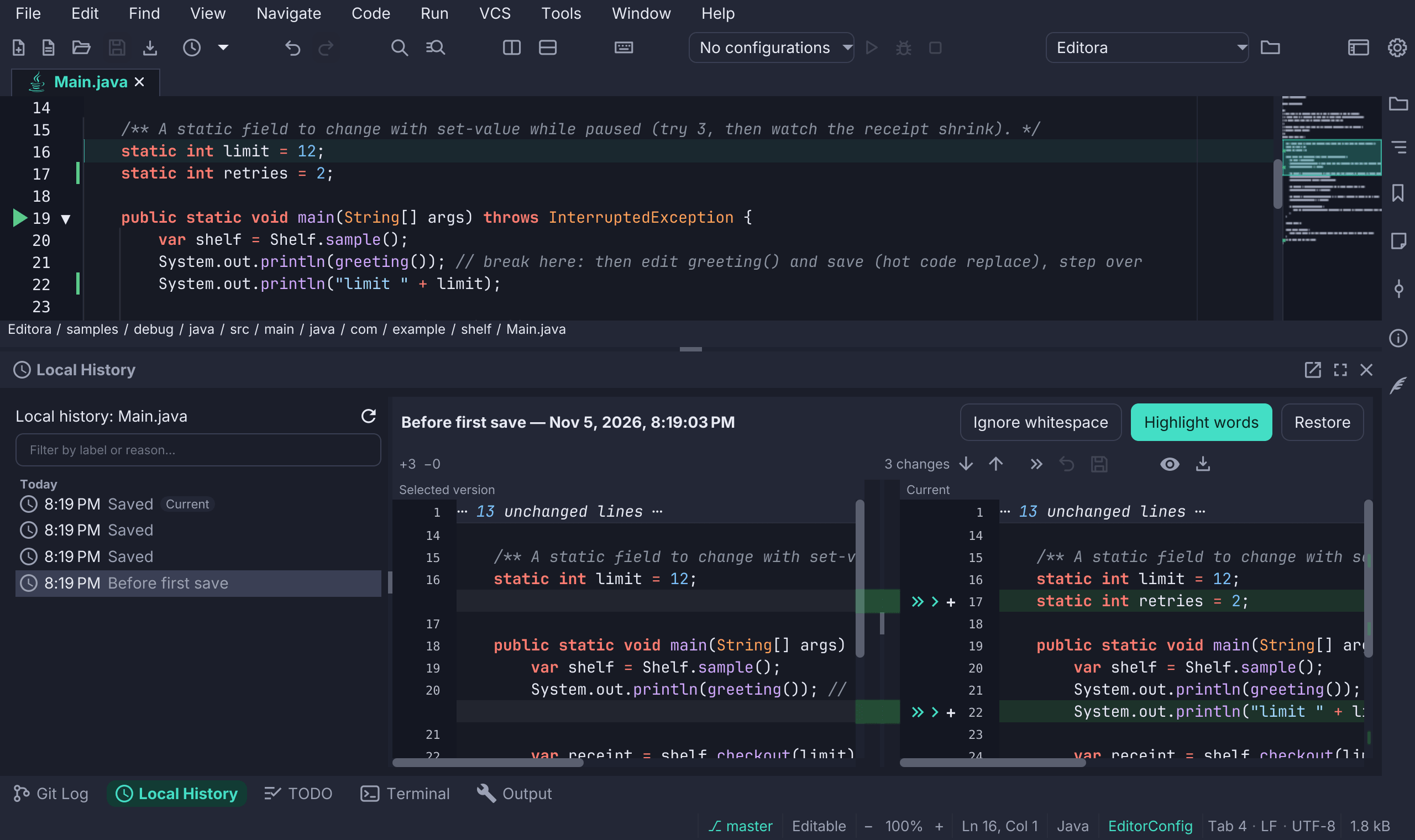
Git ▸ Local History has the tool window, Put Label… and Recent Changes…, and Show Local History is in a tab’s right-click menu and in the Project tree. Local History is switched on in Settings → Workspace → Local History (Enable Local History). Git’s per-file log is a separate command, Show Git History.
Select a revision for a side-by-side diff against the current file; the diff
follows edits you make in the editor. Ignore whitespace
(history.toggleIgnoreWhitespace) compares lines without their spacing, and
Highlight words (history.toggleHighlightWords) marks the changed words
inside changed lines. Restore replaces the file’s text with that revision,
or use the apply-chevrons to copy individual fragments back in. Either way
the change goes into the open tab as an undoable edit and nothing is written to
disk until you save; undo brings back what the restore replaced. Restore asks
first only when the tab has unsaved edits.
| Key | Result |
|---|---|
Enter | Move into the selected revision’s diff |
F2 | Set or edit the revision’s label |
F5 | Reload the list (history.refresh) |
Menu key or Shift+F10 | Open the row’s menu (Restore This Version, Set Label…) |
Tab | Leave the diff for the filter and the list |
Escape | Clear a typed filter, then return to the editor |
The row menu’s entries are commands too, for the selected row:
history.restoreSelected and history.labelSelected.
It mirrors more of IntelliJ’s Local History:
- Named snapshots with Put Label (
history.putLabel), shown bold in the list even when the content is unchanged. - A filter over the revision list that matches the words the rows show
(label, reason, time, and day), plus a Recent Changes picker
(
history.recentChanges) of the newest revisions of the window’s project (in a window with no project, of every file). Picking one opens it; for a deleted file it opens the folder view with that revision selected. - A folder view: right-click a folder in the Project tree and choose Show
Local History to list every file under it that has history, with deleted
files struck through and badged, and a filter that matches a file’s name or
a revision’s label, reason or time. F2 (or the row’s menu) sets a revision’s
label, and Delete on a file row deletes that file’s history after asking.
Selecting a revision shows its diff, and Enter or Restore puts it back,
recreating a deleted file; a file that still exists asks before it is
overwritten, and a file open in any window is restored into its tab there.
The view stays up, keeping your place, while you restore several files, and a
file row’s menu has Delete History… for that one file
(
localHistory.purgeSelectedFile). Local History: Back to the Current File (history.backToFile) leaves it. Deleting a text file of up to 5 MB in Editora snapshots it first, whether or not you had opened it, so an accidental delete is recoverable. - History follows the file. Renaming or moving a file from the Project tree keeps its revisions, and a file created with Save As starts with a copy of the original’s history, from every window, once its first save is recorded (the original keeps its own). The copy shares the stored content, so it adds nothing to the project’s size.
- Deleting history for good: Local History: Delete History of Current
File… (
localHistory.purgeFile) and Local History: Delete History of Project… (localHistory.purgeProject) remove snapshots permanently, from every window’s records, after a confirmation that states how many snapshots go. When a Save As copy shares some of a file’s snapshots, the question offers to delete those copies’ shared snapshots too. If the content cannot leave the disk at once, the status bar says why: another running Editora shares the configuration, an index backup still lists it, or the history index cannot be trusted yet.
Restore validates the stored revision and verifies that the file has not changed while it was loading. If either check fails, the current file and editor contents are left untouched, and the status bar says which check failed. A restore from the folder view that overwrites a file on disk stores a copy of what it replaces first (Before restore).
A file’s Local History is the same in every window, whichever project’s window recorded it, and an open panel follows saves, labels, and deletions made in another window.
Snapshots are deduped by content and stored gzip-compressed in your config folder, pruned by configurable limits (Settings → Workspace → Local History, or the three commands):
| Limit | Command | Default |
|---|---|---|
| Max revisions per file | history.setMaxPerFile | 50 |
| Max age in days; 0 means no age limit | history.setMaxAgeDays | 30 |
| Max size per project, in MB of uncompressed text | history.setMaxTotalMb | 50 |
The size limit applies to each project and counts content shared by several revisions once. When a project is over it, a file above its fair share loses its own older revisions first, so one large file does not push the other files’ history out, even when the large files alone are over the limit. The limit is soft: a file’s newest revision, labelled revisions, and copies taken before a delete are never removed for size. Labelled revisions and copies taken before a delete also don’t count towards the revisions per file, and with a file’s newest revision they outlast the age limit: they are kept six times as long (at least 180 days). Lowering a limit asks first when it would delete existing history, stating how many snapshots from how many files would go. It’s on by default, local-only, and off in Simple UI mode.
External-change detection
When a file changes on disk under you, Editora notices on window focus and tab switch and prompts to reload or keep your version. When the buffer has unsaved edits, the prompt says so and Keep Mine is the default, so pressing Enter keeps your version; without unsaved edits Reload is the default. The Project tree also re-scans on focus so files added or removed outside the editor show up, keeping your expanded folders and selection, and a folder is listed afresh each time you open it.
A file deleted outside Editora keeps its tab and its text: the tab is marked unsaved, the status bar says the file no longer exists on disk, and auto-save does not write it back. Save it yourself to recreate the file.
A remote project’s folder is watched on its host when that host
may run commands, so a
git pull or a build there updates the Project tree, Git, language servers and
an open file that changed, as for a local folder. A host with inotifywait
reports changes at once; others are checked every few seconds.
A project whose tools run in a container is watched here, since a bind-mounted
folder is this machine’s own. A project inside a WSL distribution is watched
from inside the distribution while its tools run there,
because Windows cannot watch the \\wsl.localhost share.
Trusted folders
Opening a folder never runs code that came with it. Several features would, so each waits until you trust the folder. Trust is one list, shared by all of them:
| Trusting a folder lets… | Until then |
|---|---|
| A Maven or Gradle build run (wrapper or not), including the build before Run and Debug | The first build asks; declining runs no build |
The project’s committed settings (.editora/settings.json) apply, including language-server commands, build commands and debugger paths | Your own settings apply |
| Language servers load the project’s build (Java, Kotlin, Scala, Rust, Ruby, C#, Clojure) | Java starts without its Maven or Gradle build; the others wait |
The Maven pom.xml server resolve parents, plugins and repositories | The pom is edited with the plain XML server |
| The XML server download the schemas a file names (with Download schemas at Only in trusted folders) | No schemas are fetched |
| ESLint load the project’s configuration and plugins, and Prettier or Biome format | ESLint says once that it is not running; the Auto formatter uses the TypeScript server, and an explicit Prettier or Biome choice says it needs trust |
An .http file’s response handlers run, and read secrets from the environment or .env | Editora asks before the first run |
| Git’s background auto-fetch run (also after you fetch, pull or push there yourself) | No background fetch |
An MCP client can’t trust a folder for you: every trust command is refused to agents.
Builds
A Maven or Gradle build runs code that lives in the repository rather than on
your machine: a shipped wrapper (./mvnw, ./gradlew), the pom’s plugins and
extensions, the files under .mvn/, every Gradle build script. A repository
you merely cloned and opened could execute its own code on the first build,
with your privileges, whether or not it ships a wrapper.
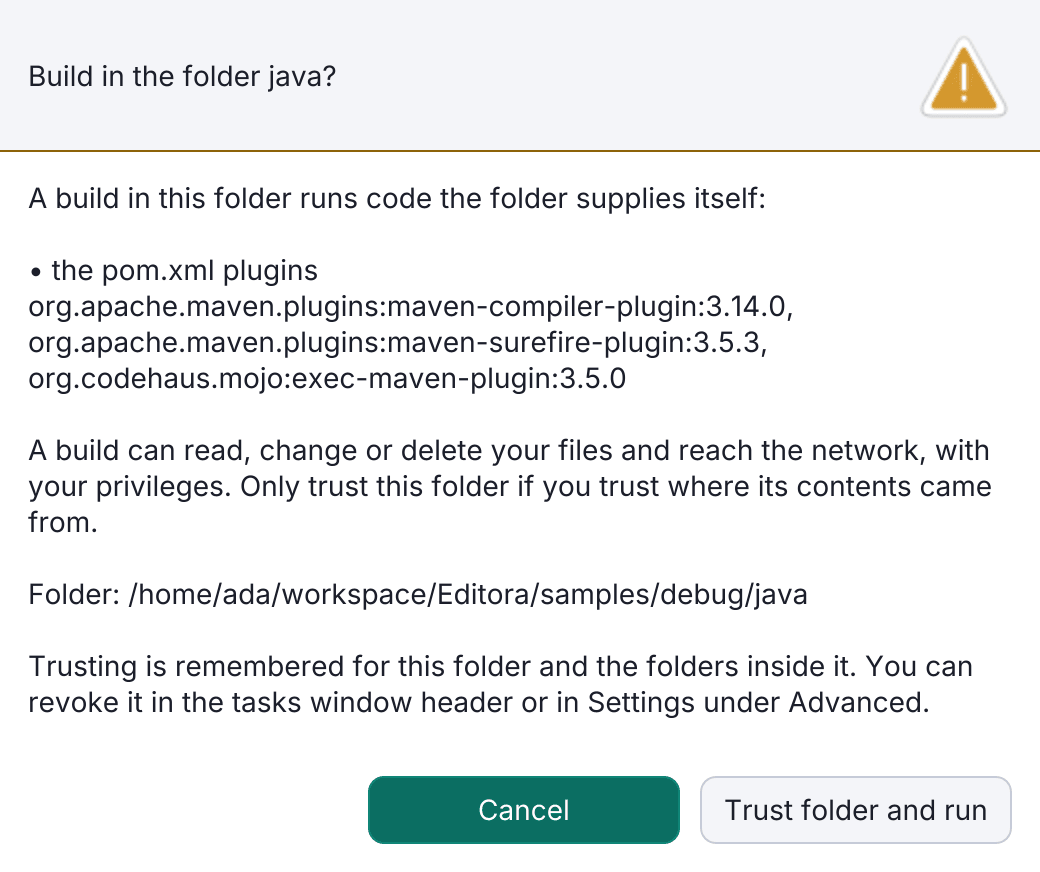
Editora asks first. The first build of any kind in a folder it hasn’t
been told to trust shows what would run and waits: the wrapper, the pom’s
plugin coordinates, the .mvn/ files, the Gradle scripts, and a
.editora/project.json build-command override. Trust is remembered for the
folder that ships the wrapper, else the project you opened, and inherited by
subfolders, so a multi-module repository asks once and a module never
silently covers a script one level up. The default is always untrusted,
including when the trust file can’t be read. The same question fronts
Gradle’s Load all tasks…, the build before Run and Debug, and Maven’s
classpath fallback.
Declining means no build runs at all. Editora does not fall back to the
mvn or gradle on your PATH, because that would not be safer: a hostile pom.xml or
build.gradle executes code through those too, since build plugins and Gradle
scripts run in-process.
Only Maven and Gradle builds ask. Every other build tool (npm, Cargo, Go) launches
your own toolchain, and Run and Debug always invoke a PATH interpreter, so
none of them prompt. The other gated features in the table above don’t prompt
either: each offers Trust Folder where it applies.
Language servers and schemas
The same trust covers language servers that run a project’s build to load it: in an untrusted folder, Java’s jdtls starts without its Maven or Gradle build, and the Kotlin, Scala, Rust, Ruby, C# and Clojure servers wait. See Servers that load a project’s build.
It also covers two XML features. The
Maven pom.xml server resolves the
parents, plugins and repositories a pom names and can run their code, so a
pom.xml in an untrusted folder is edited with the plain XML server until you
trust it. With Download schemas left at Only in
trusted folders, the XML server fetches the schemas a file names only in a
trusted folder. In each of these cases the file offers Trust Folder, and
Workspace: Trust This Folder in the palette trusts the active file’s folder:
the open project when the file is in it, else a pom’s own Maven project. It
asks first, with Cancel as the default, and covers builds too. Revoking the
folder turns them off again.
Review or revoke trust in Settings → Advanced → Trusted folders, with the
Revoke button in the Maven or Gradle window’s header (which shows
Trusted or Not trusted yet), or from the palette with
workspace.manageTrust and workspace.revokeTrust. Revoking a folder that is
still covered by a trusted parent tells you so, rather than claiming a revoke
that the parent would override. The list’s Remove All asks first and names how many
folders lose their trust.
A folder on a remote host is trusted on its own: trusting
/srv/app on a server does not trust a local /srv/app, or the other way round.