
Project Map
The Project Map shows the project on a spatial canvas, in a window of its own: one column per folder, a file’s structure past it, and read-only code cards that answer the editor’s code questions beside the map. The Project tool window keeps showing the tree.
Quick start
- Press
Alt+Shift+1(⇧⌘1on macOS,C-c o min Emacs) to open the Map window. - Click a folder to open its column; click a file to open it in the editor.
- Click a file’s eye, or press
Shift+Enter, for a read-only preview card. - Type in Search the map… (
Ctrl+F,C-sin Emacs) to find any file,@declarationor%text. Alt+Left/Alt+Rightstep back and forward; ? lists every gesture and key.
Keyboard
The canvas is fully keyboard-navigable.
| Key | Result |
|---|---|
Alt+Shift+1 (⇧⌘1 on macOS, C-c o m in Emacs) | Open or close the Map window, from anywhere |
Alt+F1 (C-c o r in Emacs) | Reveal the active file on the Map, from anywhere |
| Arrow keys | Move along the flow (into a folder, a file’s structure or a declaration; back to the parent) and among siblings |
Ctrl+N / Ctrl+P | Select the next or previous sibling |
Page Down / Page Up | Move ten rows, stopping at the end of the column |
Home / End | Select the first or last row of the column (Shift+Home: the first row of the first column) |
| Typing a name | Jump to the next row in the column whose name starts with what you typed |
Enter or Space | Open the selected file or a declaration’s card, or expand or collapse the selected folder |
Shift+Enter | Open or close the selected file’s or declaration’s preview card |
Backspace | Select the parent (the project folder from the first column) |
Alt+Left / Alt+Right | Go back or forward through the places you visited |
Ctrl+F (⌘F on macOS, C-s in Emacs) | Focus the Map’s search field |
F3 / Shift+F3 | Step to the next / previous search match |
/ | Focus the current column’s filter; Enter there returns to the map on the first match |
Ctrl+0 (⌘0 on macOS) | Fit the whole map |
F2 | Rename the selected file or folder |
Delete | Delete the selection, as in the tree |
Menu key or Shift+F10 | Open the selected row’s context menu, with Preview, Structure, Personal Notes, Dependencies, Close Column and Close Other Branches |
Alt+arrows / Alt+Shift+arrows | In a focused card: move it / resize it |
Ctrl+F (⌘F on macOS, C-s in Emacs) | In a focused card: find in the card; Enter / Shift+Enter or F3 / Shift+F3 step through the matches |
Alt+Page Up / Alt+Page Down | In a declaration card: show the previous / next declaration of the file. In a file card: move the caret to the declaration before / after it |
Ctrl+Right / Ctrl+Left (⌘ on macOS) | While a trail plays: the next / previous stop |
Menu key or Shift+F10 | In a focused card: open its menu at the caret (see Reading code in a card) |
Alt+7 (Emacs and IntelliJ keymaps; ⌘7 in IntelliJ on macOS) | In a focused card: open its Structure column and move into it, or back to the card |
F12 / Shift+F12 (CUA and VS Code keymaps) | In a focused card, or on a declaration row: Go to Definition / Find Usages, answered as cards on the Map |
Ctrl+Shift+arrows | Move the keyboard to the nearest card in that direction, from a card or from the selected row |
Recent Files key (Ctrl+E in IntelliJ, Ctrl+R in VS Code) | Switch to another open card by name |
F7 / Shift+F7 | The next / previous change in the Changes card |
Escape | In a card: close its find bar, then the card. On the map: end a playing trail, close open cards (not pinned ones), then clear the search (your place stays; Alt+Left goes back to before it), then return to the editor window |
These keys reach the map in every keymap while it has focus, including the
chords a keymap binds to something else, such as Ctrl+N or Ctrl+0. Tab
moves only between controls you can see.
Every row and button of the Map is a command. The ⋯ menu’s options and
items, the filters and Clear, the zoom bar, the search results’ arrows and
list, a column’s Show hidden, lock and close, the rows of a row’s, a
declaration’s and a card’s menus, a card’s buttons, find bar and gutter, and the
bars and menus of the Changes, History, Dependencies, Code Metrics and Symbol
Graph cards each have a Project Map: command (projectMap.toggleFollowDebugger,
projectMap.showSymbolGraph, projectMap.cardPin, …).
- Run them from the Command Palette, or give them keys under Settings → Keymaps; a menu row shows its key.
- Each acts on what the Map’s keyboard is on: the selected row, the card, the place in a card.
- Working sets, trails, the breadcrumb’s places and the open cards are picked
from a list (
projectMap.showWorkingSet,projectMap.playTrail,projectMap.breadcrumb,projectMap.switchCard). - Where the row or button would do nothing, the Map’s status line says why.
The Map window
Click Map beside the Project tool window’s search field, press
Alt+Shift+1 (⇧⌘1 on macOS, C-c o m in Emacs), or run Project:
Open / Close Project Map Window (project.toggleMapView) to open it; if it is
open already it comes forward. The key and the command work even with the
Project tool window closed, and close the Map window when that is the window in
use.
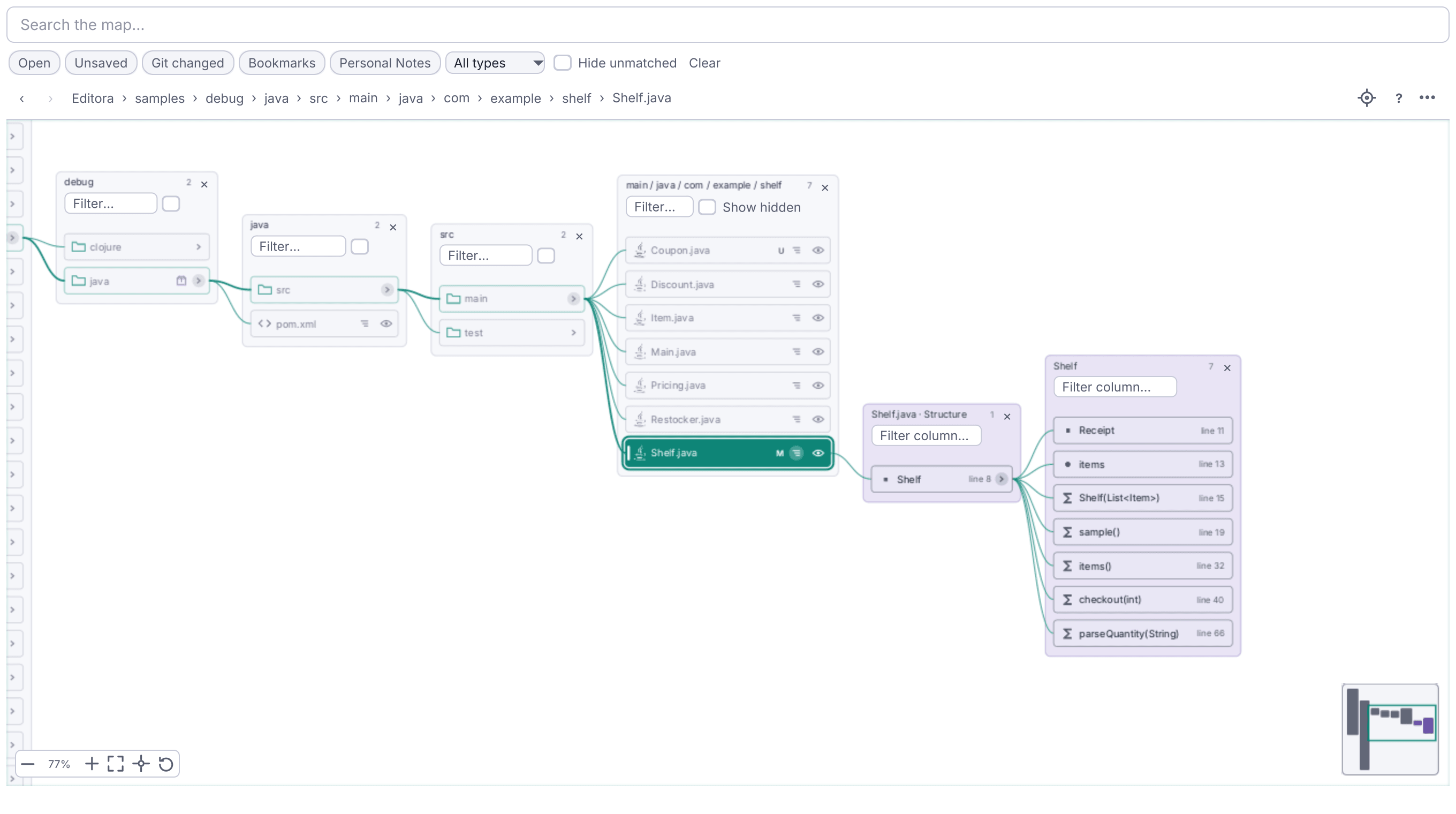
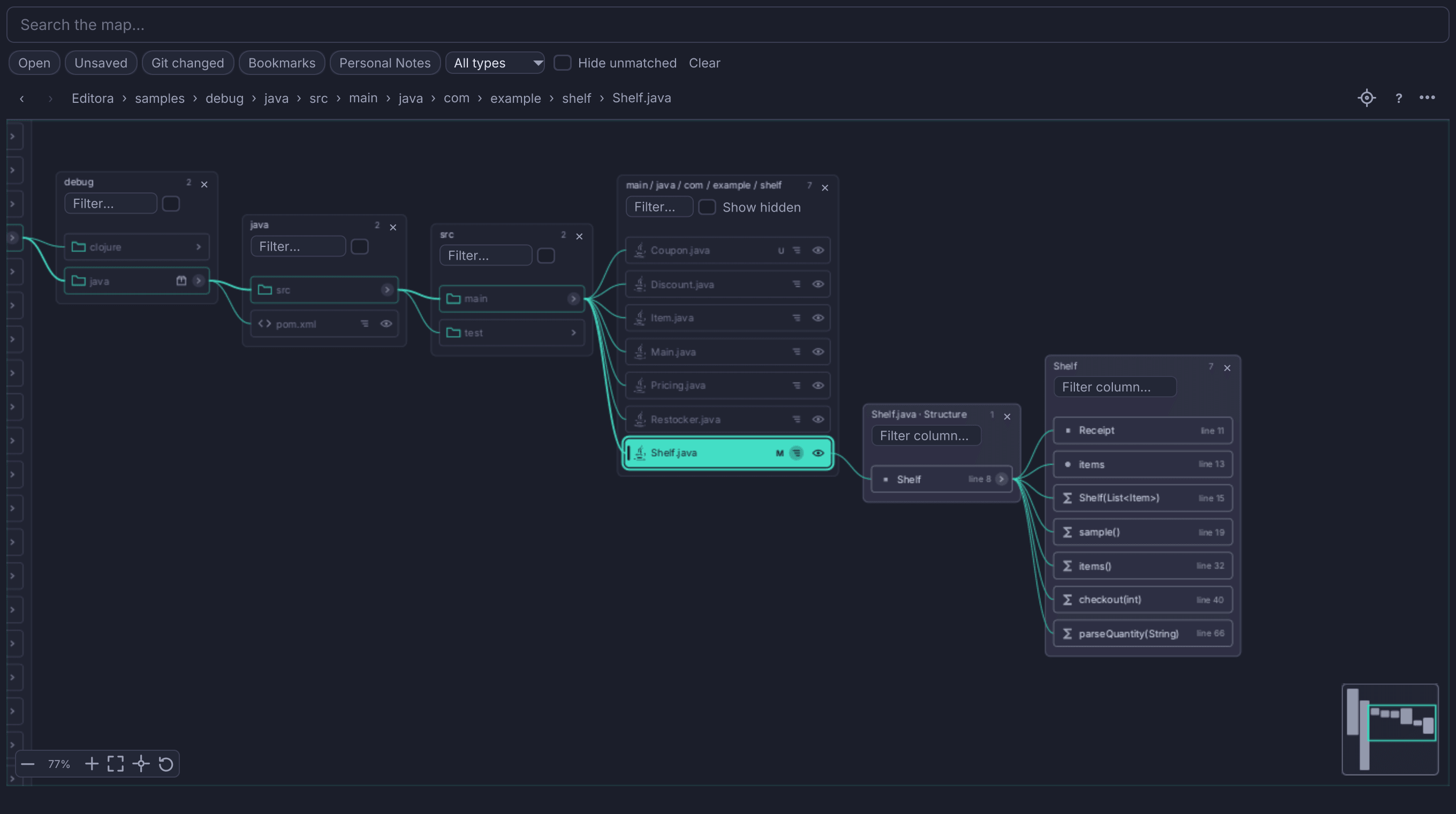
- Its own window. The Map window is resizable and can sit beside the editor window or on another screen. It does not stay above the editor window: opening a file from the Map brings the editor window forward. It closes with its editor window or project.
- Remembered. Whether the window was open, where, and whether it was maximized is remembered per workspace, so a workspace that last had the Map open reopens it, even with the Project tool window closed.
- Without a project, the Map stays on the folder you opened it on while you open files and switch tabs; close and reopen it to map the current tab’s folder.
- Its own status line. Everything the Map has to tell you appears in the status line under the map, not in the editor window: a folder it cannot read, the row limit, what the search found, and the outcome of a move, an undo or a delete.
- Help. The ? button lists every mouse gesture and key, including cards, notes, the search and how to find where you are, in your language.
- Screen readers read the rows on screen as a tree, and the selected row has the reader’s focus. They announce its states, the folder it is in, its place among the visible rows and, during a search, which match it is (“match 2 of 14”).
Columns
The map shows the project as Miller-style columns: selecting a folder reveals its children in the next column, and several open branches sit side by side without mixing together.
The first column lists the project’s own files and folders under the project’s name. Click that title (or the first breadcrumb) to select the project folder, and right-click it for the folder’s menu.
A chain of single-child folders, such as src/main/java/com/acme in a Java
project, opens with one click and shows as one column titled
src / main / java / com / acme; every folder of the chain is still in the
breadcrumb.
- Click a file to open it in an editor tab. If you would rather select files
with a click and open them with a double-click or
Enter, turn off Single-click opens files in the ⋯ menu. - Click a folder to select it and show its column; clicking a folder that is already open selects it and brings its column into view. A folder’s chevron expands or collapses it, and a column’s × closes that branch (a whole folder chain at once).
- ⋯ → Collapse All tidies the map down to the path you are on: it closes every column but the first and the ones that lead to the selection, with the cards opened from them. A row’s Close Other Branches keeps just the way to that row.
- ⋯ → Flow sets the direction: left-to-right (the default), right-to-left, top-to-bottom, or bottom-to-top. Connector direction and arrow-key navigation change together, and the flow is remembered per workspace.
- Drag a column header to reposition it and use its lock to prevent accidental movement. The lock shows only while you use that column (the pointer is over it or the keyboard is in it) or once it is locked.
- Columns size themselves to the longest loaded name, up to a limit. A longer name is shortened where it differs from its neighbours, keeping its extension, so similar names stay apart; the tooltip has the full name.
- Ignored, dependency (
node_modules), vendored and generated files and folders are drawn dimmed, and their tooltip says why. ⋯ → Hide ignored and generated takes them off the map. - Click a file’s Structure icon, just before the eye, to open a column of its classes, methods or headings. See File structure.
Hidden (dot) files follow Settings → Workspace → Show hidden files in the
project tree, which is on by default: .github/, .editorconfig,
.gitignore and .env are project files. The repository’s own .git is never
listed, with the setting on or off. A column’s Show hidden checkbox
overrides the setting for that folder only.
Panning and zooming
- Drag anywhere to pan, including from a row, and use the mouse wheel to zoom
around the pointer;
ShiftorAltwith the wheel pans instead. - Fit, Center selection and Reset recenter the layout. Zoom runs from 15% to 225%, so Fit can show even a big map.
- Below 60% the columns become labelled blocks: each row is a bar, matches are in the accent colour, and each column is labelled with its title, how many items it lists and how many match.
- The overview in the corner can be clicked or dragged; it stays on the map and is hidden in small windows. When the zoom bar or the overview covers a row under the pointer, it fades and lets the pointer through to that row.
Filters
Filter globally by open, unsaved, Git-changed, bookmarked, Personal Notes or Problems state and by file type. Matches and the folders that contain them stay prominent while everything else fades (still readable), or drops out with Hide unmatched. The Git chip includes the files inside a new, untracked folder. Clear turns the filters off and clears the search. Every non-root column also has a fuzzy name filter and a Show hidden checkbox.
Hide unmatched, a checkbox in the filter row, takes the rows a filter doesn’t match off the map instead of fading them, so only the matches and the folders that lead to them stay. With no filter active it does nothing.
- Hidden rows are always counted: an amber N rows hidden badge appears
beside the checkbox, and each column’s header count reads shown/total (for
example
1/5). - An italic N hidden line sits under the column’s rows, or on its empty row when nothing in the column is left.
- +N more… and Empty folder rows stay, and a hidden folder’s open columns disappear with it.
- Uncheck the box to bring the faded rows back. The choice is remembered per workspace.
The options menu
The options (⋯) menu holds, in three groups:
- the options Keep current zoom, Focus new column, Single-click opens files, Compact folder chains, Compact rows, Hide ignored and generated, Show recent changes, Show dependencies of the selection, Follow the debugger, Hide all open Personal Notes, Always select opened file and Flow ▸;
- Reveal Active File, Project overview, Project Dependencies, Project Code Metrics, Review Changes, Open cards, Collapse All, Working sets ▸ and Trails ▸;
- Print…, PDF… and Export ▸.
Keep current zoom, Focus new column, Single-click opens files, Compact folder chains and Follow the debugger are on by default; every on/off option except Hide all open Personal Notes is remembered per workspace.
With Keep current zoom and Focus new column, opening a folder preserves the current scale and brings its new column into view, and a new card is centred in the window. Turning zoom preservation off restores fit-to-content when the map expands.
Compact rows fits more rows on screen; each column then shows its filter, Show hidden and lock only while the pointer is over it, it holds the selection, or one of them is set.
Row menus
Right-click a node for Preview, Show Structure, Personal Notes, Close Column and Close Other Branches, then the same New, Maven, rename, delete, reveal, terminal, Local History, and Git actions available in the tree.
- A file’s menu adds Related Test / Subject, and a folder’s adds Find in Folder… and Git ▸ Show Git History (see Following the code).
- A file or folder also has Copy Permalink; a folder or a source file Dependencies, a folder Code Metrics, and a changed file or folder Show Changes (see Dependencies and code metrics and Reviewing changes).
- Rename, New Folder, Delete, Undo Move and Reveal stay in the Map window and ask there; a folder or file made from the Map is shown and selected on it. The other actions bring the editor window forward.
Preview cards
Click a file’s eye (or select it and press Shift+Enter) for a movable,
resizable, syntax-highlighted read-only preview card in the editor’s font;
click the eye again, or press Shift+Enter again, to close it.
- The preview uses unsaved buffer text when available, says so, and follows later edits. Open promotes it to a normal editor tab.
- A code card opens past the file’s licence header.
- A file’s Personal Notes badge opens its preview card with the notes stuck beside it (see Notes on cards). A folder’s badge opens an editable note card for the folder.
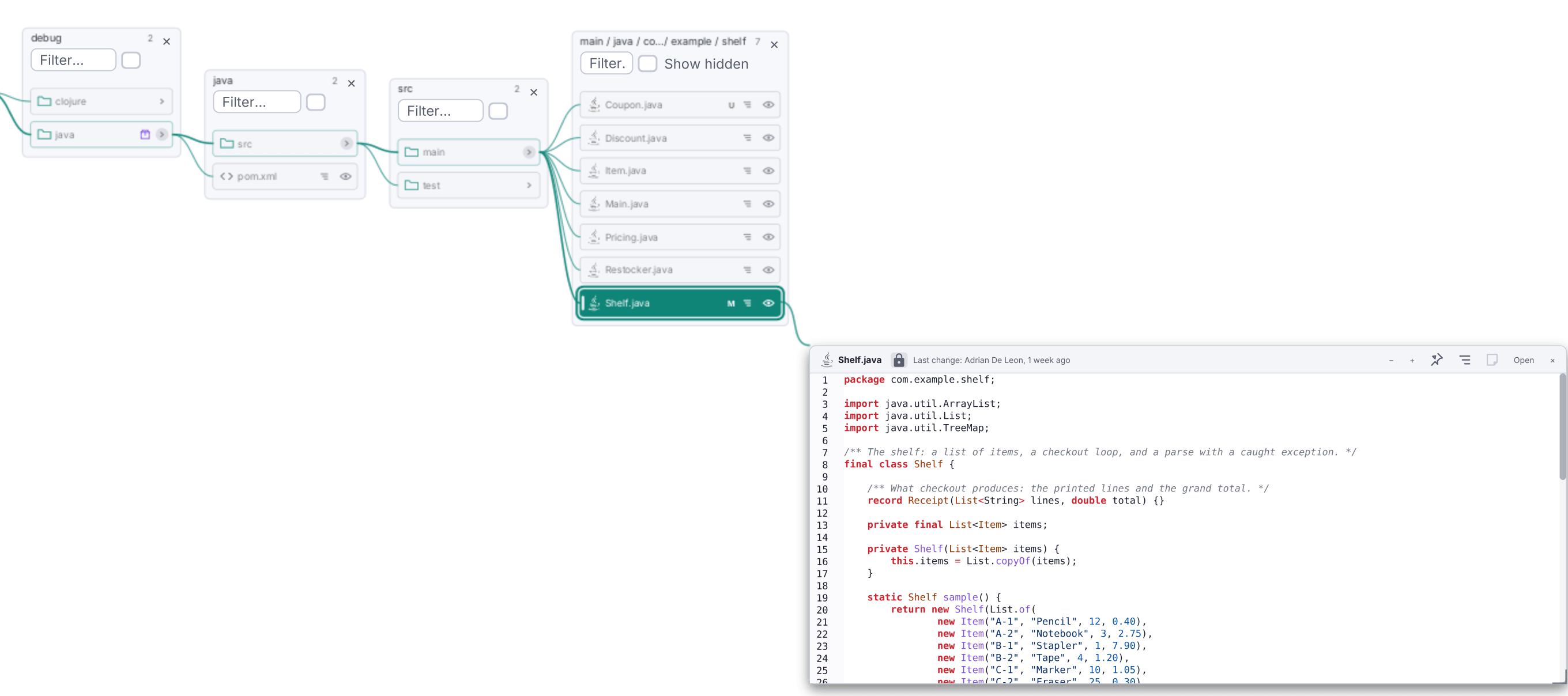
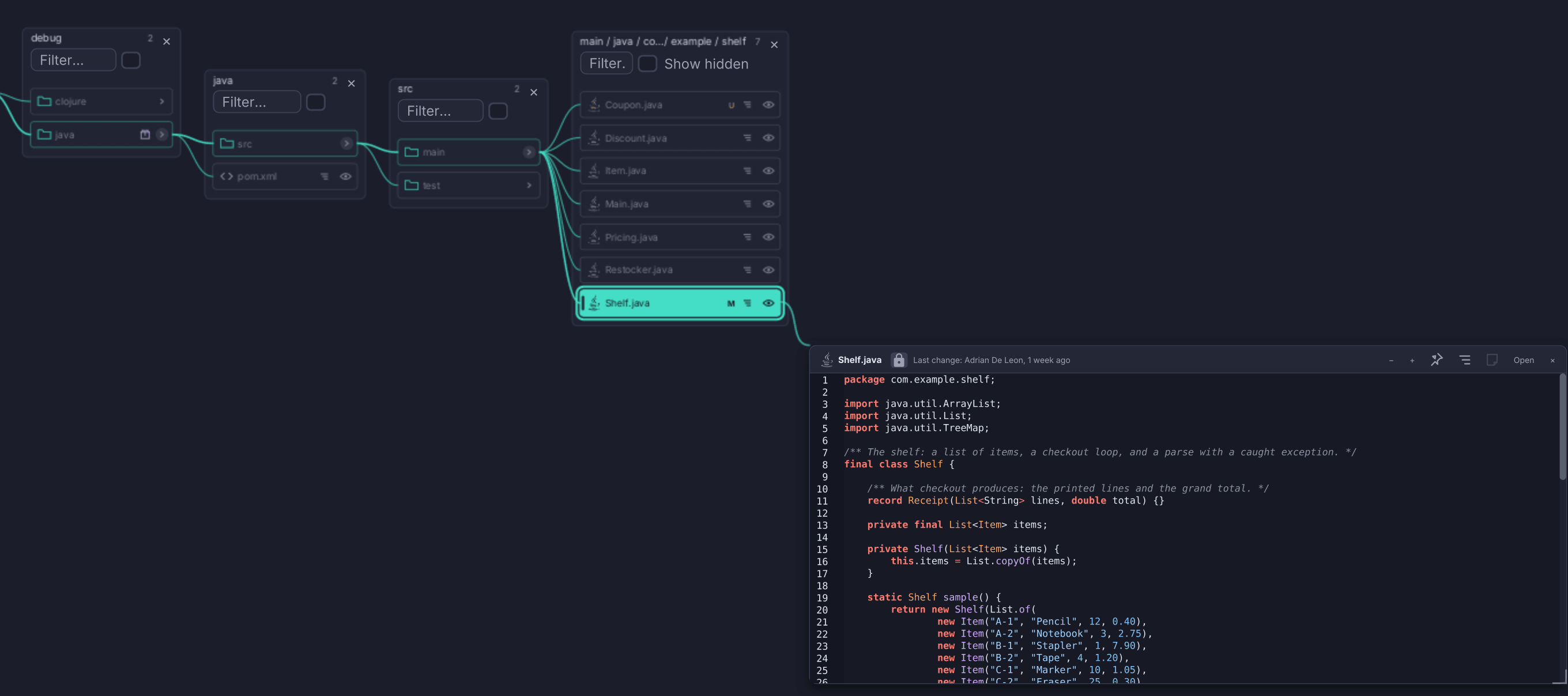
Cards are for a glance beside the map; Open takes the file to the editor for reading and editing. A card’s lock says so: Preview — read only; Open to edit.
Where a card opens
A card, code or note, opens the way a new column does: past its row’s column the way the map flows (right of it when the map flows left to right, below it when it flows down, and so on), level with its row, and past any column or card already open there.
- A second card opened from a row of the same column lines up with the first: at the same left edge and below it when the map flows sideways, at the same top and beside it when it flows up or down.
- The map then pans to put the card in the middle of the window, with its row still in sight. This follows Focus new column in the options (⋯) menu, as columns do.
- With Focus new column off, the map never pans for a card: a card opens past its column when there is room in the window, and otherwise beside the column, level with its row, without covering the folders that lead to the file, the place where its next column will open, the zoom bar or the overview.
- A declaration card opened from a card’s Structure column opens right of it, level with its row, and one opened from the map’s Structure column opens past that column.
- Move to Free Space in a card’s menu places it again.
Moving among cards
Preview and note cards sit on the map like columns: panning carries them along, zooming scales them with the columns around them, and you can drag a card past the edge of the window and pan back to it later.
- The overview marks every open card, and ⋯ → Open cards lists them, the most recently used first; click a mark or pick one to bring that card back into view with the keyboard in it.
- Switch Card…, first in that menu, or the Recent Files key typed on the Map
(
Ctrl+Ein the IntelliJ keymap,Ctrl+Rin VS Code’s), lists the open cards by name, starting on the one you were in before: type to filter,Enterto go there. Ctrl+Shift+arrow keys move the keyboard to the nearest card in that direction, from a card or from the map’s selected row; the map moves only when that card is partly out of view.- With a card focused,
Alt+arrow keys move it andAlt+Shift+arrow keys resize it. A card’s resize corner stays under the pointer at any zoom. - Cards, the zoom bar and the overview never hide one another. Each card also keeps a live connector to its source row.
What a card shows
- Image previews support common bitmap formats.
- A binary file’s card shows its size, type and date with Reveal in File Manager instead of its bytes.
- A very long file is coloured for its first lines, with the card saying how many. A card cut at its display limit says how much it shows (Showing lines 1–7,515 of 9,135) and ends in a line, Preview ends here; Open to read the rest, that opens the file when you click it.
- A text or image card’s own − and + buttons size its content on top of the map’s zoom, so a card can stay readable when the map is zoomed out.
At most eight cards are open at once, previews and notes together; opening a ninth replaces the one used least recently that is not pinned. The Overview, Changes, History, Dependencies, Code Metrics and Symbol Graph cards are one of each and do not count toward the eight.
- Pin a card from its title bar, or with Card ▸ Pin Card in its menu, to keep
it open until you close it with its own ×: it is never closed to make
room, and closing its folder, Collapse All, Close Other Branches,
Escapeon the map or a trail moving on all leave it open. When all eight are pinned, a new card is refused, and the status line asks you to unpin one. - Find in a card with
Ctrl+F(⌘Fon macOS,C-sin Emacs) while the card has the keyboard, or Find in Card… in its menu. A find bar opens under the title bar with k of N, previous and next, and Aa for match case. Every match is highlighted, the current one more strongly.EnterandShift+Enter(orF3andShift+F3) step through the matches.Escapecloses the find bar with the match still selected; a secondEscapecloses the card. - Who changed it last. In a Git project a card’s status line ends with the last change to its file, or to a declaration card’s lines: Last change: Ada, 3 days ago. Hover it for the commit’s subject. Annotate, in the card menu’s Git ▸ submenu beside Show Git History, opens the file with blame annotations.
Searching the map
The Map window has its own search field, Search the map…, at the top (the
Project tool window’s field filters the tree only). Ctrl+F (⌘F on macOS,
C-s in Emacs) in the Map window jumps to it. The search covers the whole
project, up to 200,000 files and 64 levels deep, and answers as you type.
- Type a name to find files and folders. A folder match is selected and opened.
- Type part of a path, such as
core/v1/types.goorcmd/kube-scheduler, to narrow a common file name; several words must all match the path. End the query with/to find only folders. - Start with
#to find files only, or with@to find declarations (@NewScheduler), as in Search Everywhere. A declaration is shown in its file’s Structure column. - Start with
%to find text in the files (%needle) instead of their names. The files that hold it stand out on the map, and each step through the lines found opens the card of the declaration that holds the line, with the text selected. The next step replaces that card unless you keep it withCtrl+Enter, move it or pin it. Find in Files (search.inFiles) typed in the Map window starts the same search, and Find in Folder… on a folder of the Map starts it limited to that folder; the status line names the folder searched.
The best match comes first: the exact name, then whole words, then partial
matches; a name in the case you typed; source before tests, fixtures, resources
and docs; your code before vendored code; and a top-level README.md before
nested ones. A one-character query only filters what is already on the map;
type at least two characters to search the whole project. The query also
matches the declarations in open Structure columns.
While a query searches, a results strip under the search field counts the matches (3 of 49), with previous and next buttons and a drop-down list of every match and its folder; folders and declarations are marked.
| Key (in the search field) | Result |
|---|---|
Enter / Shift+Enter | Step to the next / previous match (both wrap) |
F3 / Shift+F3 | The same, also on the map |
Ctrl+Enter (⌘Enter on macOS) | Open the current match: a file in the editor, a declaration in its card |
Limits keep a broad search readable:
- The search keeps the best 2,000 matches and opens the folders of the best 30 only, so a broad search does not turn the map into a tower of columns; stepping to a later match opens its folders.
- During a search a column’s +N more row reads +N not matching, so no match hides behind it.
- The status line says when more matched than were kept and when the search did not reach the whole project (it lists up to 200,000 files, 64 levels deep), and the strip then reads partial.
- When nothing matches, No files match names your query. While Exclude .gitignore files and folders from search (Settings → Search) is on, ignored files are not searched, and No files match says so.
- On an SSH project the host lists the project’s files with one command.
Clearing the search keeps your place. Press Escape, the field’s × or
Clear: the row the search took you to stays selected, with the folders that
lead to it and any you opened during the search still open. Back returns to
where you were before you searched.
Finding your way
Back and Forward (Alt+Left / Alt+Right) step through the places
you visited: files you opened or previewed, where a search landed, reveals,
breadcrumb jumps and rows you clicked, and the cards you
followed the code through, in the order you visited
them.
- A run of arrow keys is one step, so Back returns to where the run started.
- The same history answers the buttons,
Alt+Left/Alt+Righton the map, and your keymap’s Back and Forward (nav.back,nav.forward) typed anywhere in the Map window, a card included; they never move the editor. - A card comes back with its caret where you left it, and one you have closed since opens again at that line.
- Right-click either button, or run Project Map: History
(
projectMap.history), for the list of places; a card’s place says which line it was at.
Project Map: Reveal Active File (projectMap.revealActiveFile; Alt+F1,
C-c o r in Emacs) opens the Map window, or brings it forward, and selects the
file you are editing.
- The crosshair button after the breadcrumb and ⋯ → Reveal Active File do the same, and Show in Map in Search Everywhere does it for the highlighted file.
- To find any other file on the Map, right-click its editor tab, or the file in the Project tree, and choose Reveal in Map.
- Turn on Always select opened file in the ⋯ menu to have the Map follow every file you open. A Map opened with nothing selected starts at the current file.
A revealed row, like a search landing or a Back step, is shown a third of the way down with the folders that lead to it (zooming out to no less than 70% when that shows more), and flashes briefly (not when the system’s reduced-motion setting is on).
In a column, type the first letters of a name to jump to it; a one-second
pause starts again, and the same letter again steps to the next row with that
initial. Home and End go to the column’s first and last rows.
Project overview
The first time the Map shows a folder in a session (not again when you close the window and open it later in the same session), a Project overview card shows its README, build system and modules, languages, top-level folders with their file counts, likely entry points, and where the tests and docs are. Click any of them to see it on the map.
- It opens before the project’s own column, the way the map flows (left of it, right of it, above or below), and the map moves aside just enough to make room.
- Its − and + make its text smaller or larger, as a file card’s do, and the next overview opens at the same size.
- Reopen it from ⋯ → Project overview; it does not count toward the eight cards.
Module folders carry a small package badge, and a folder’s tooltip gives its project-relative path and how many folders and files it holds.
What the Map remembers
The Map remembers your exploration of a local project across restarts: the folders you opened, the selected row, Back and Forward, the zoom and pan, and the code cards you had open, with their place, size, Structure column, caret and scroll position. The answers asked from a card (references, callers, a definition and the rest) come back with their edges and their +N more list, without asking the language server again.
All this is saved moments after it changes, so it survives a crash too. It comes back the first time the Map shows that folder again; anything deleted meanwhile is dropped. Note cards are not kept. To keep a view you want to come back to on purpose, save it as a working set.
File structure
A file whose language the Structure tool window can outline (Java, Python,
JavaScript and TypeScript, Go, Kotlin, Markdown headings, Typst, .http
requests, Clojure, YAML, Dockerfiles, Makefiles, Maven poms and more) has a
Structure icon, three stepped lines, just before its eye. Click it to open a
structure column next to the file: its declarations, in the order they are
written, as the Structure tool window lists them.
- A declaration that holds others, such as a class’s members or a heading’s subsections, has its own chevron and opens a further column, like a folder.
- A file with a single top-level class opens that class’s members right away.
- Click the icon again, or the column’s ×, to close it.
Click a declaration to open a preview card of only its lines: its block, with the doc comment and annotations written above it. Its line numbers are the file’s own, in the amber the editor uses for a narrowed file, and the card title names the declaration with its parameter types, for example App.java › add(int, int), so overloads are easy to tell apart. In the card:
- Open opens the file narrowed to the declaration’s block.
- Open Narrowed, in the card’s right-click menu, does the same, as the Structure tool window’s Narrow to fold region toggle does.
A declaration row’s own right-click menu has Preview, Open at Declaration and Open Narrowed; then the Map’s questions about it (Show References, Callers, Callees, Implementations, Supertypes or Subtypes as Cards, Go to Type Definition, Go to Super Method, Show Call Hierarchy, Show Type Hierarchy and Symbol Graph, see Following the code); In the Editor ▸; and Related Test / Subject, Declaration History and Show Git History.
Usage counts. A method, class or field row, in the Map’s Structure columns and in a card’s, says how many times it is used (12 uses, no uses), as the editor’s code lens does. The counts come from a language server already running for the file (the Map never starts one), and they update a moment after you stop typing. Without a server a row shows no count.
A declaration card’s ‹ › buttons, or Alt+Page Up / Alt+Page Down, show
the previous or next declaration of the same file in the same card. Show in
Structure, in the card menu’s Card ▸ submenu, selects the declaration in
the file’s Structure column, opening the column if it is closed.
Several declarations of one file can be open side by side, within the eight-card limit. The columns and cards follow your edits:
- A card follows its declaration when lines move above it or its signature changes. A card whose declaration was removed keeps its last lines and says so.
- A file that is open in a tab is read from its unsaved text, using the language server’s symbols when the Structure tool window has them.
- When a language server is already running for a file’s language, the Structure columns use its outline even for files you have not opened. The Map never starts a server for this, and uses its own outline when none is running.
- A closed file is read again when it changes on disk.
Structure columns are included when the map is printed, and they are not remembered when Editora restarts.
Outlines follow the language’s own conventions, here and in the Structure tool window:
- Go files are listed as gopls lists them: methods by receiver
(
(*Kubelet).Run) under their type, struct fields, interface methods, and constants, a typed one under its type. Parameter lists show as(…). - Java fields are listed, and a Java or Kotlin class whose header wraps onto
an
extendsorimplementsline still holds its members. Kotlin annotations are not listed as types. - Gradle Kotlin scripts (
*.gradle.kts) list theirplugins,dependenciesand task blocks. - A YAML key’s card shows its whole block or list. Dockerfiles are
outlined by build stage, and a Makefile target defined in several branches
is labelled by line and includes its recipe. One-line members, CSS rules, and
a
.httprequest with its headers and body are listed too.
A structure column reads files up to 4 MB, so even a very large source file lists all its declarations, and a declaration card shows its own lines even past the whole-file card’s display limit. A larger file says only its start was outlined.
A card’s Structure column
A preview card has a Structure column too. When the card’s file can be outlined, its title bar has a Structure button, before Notes. It sticks the file’s declarations beside the card as an indented list, coloured as the editor colours them.
The column belongs to the card: it works even when the file’s row is filtered or scrolled off the map, moves, zooms and closes with the card, and does not count toward the eight cards. It always sits on the card’s right, so the declarations read on from the code; opened on a card near the right edge, the card first steps left to make room for it. It is only as wide as the rows you can see need, from 200 to 360 pixels, so a long name inside a closed row does not widen it; opening or closing a row fits it again.
- Click a declaration, or press
Enteron it, to open it in a card of its own, right of the column, level with its row and connected to it. When there is no room there, the file card steps left to make some. - Shift-click or
Shift+Enterscrolls the file card to the declaration instead and highlights its lines. - A declaration card follows the Structure column you last opened it from. If the file’s Structure column on the map is open too, clicking the same declaration there moves its card beside that column, with its line from that row; clicking it in the card’s column brings it back. A pinned card stays where it is, and only its line moves.
- From the keyboard, the Structure tool window’s key (
Alt+7in the Emacs and IntelliJ keymaps,⌘7in IntelliJ on macOS) or Card ▸ Show this preview’s Structure in the card’s menu opens the column and puts the keyboard in it; the same key goes back to the card. The arrows andC-n,C-p,C-fandC-bmove in the column, its right-click menu is a declaration row’s, andEscapeor its × takes it off.
Reading code in a card
A code card reads like the editor. It shows the language server’s semantic highlighting and inlay hints, and pins the headers of the class or method you have scrolled into, as sticky scroll does; each follows its editor setting.
- The gutter. Beside each line number a card shows the line’s breakpoint,
bookmark and Git change bar, and a ▶ on a JUnit test or a Java
mainmethod that runs it, as the editor’s gutter does. Each column appears only when the file has something to show in it, and a declaration card marks the file’s own lines. - Breakpoints. Click in the breakpoint column to set or remove a
breakpoint, whether the file is open in a tab or not; a running debug session
is told at once. Project Map: Toggle Breakpoint in Card
(
projectMap.cardToggleBreakpoint) and Run from Card Gutter (projectMap.cardRun) do the same at the caret’s line. - Problems. While a language server runs for the file, a card underlines its errors and warnings as the editor does, and its status line counts them; a declaration card shows only its declaration’s. Rest the mouse on the text to see the problems there and, on a name, its documentation.
- Moving around. Your keymap’s keys move the card’s caret, never the
editor’s. Go to Line (
nav.goToLine) opens a small bar under the card’s title, numbered as the file numbers its lines, so a declaration card keeps its file’s line numbers; the matching bracket and Beginning / End of Defun work too. - Jumping. In a file card,
Alt+Page Up/Alt+Page Downmove the caret to the declaration before or after it. Next Problem and Previous Problem (lsp.nextProblem,lsp.previousProblem) go through the card’s problems. When the caret rests on a name, its other uses in the card are highlighted. - Copying. Your keymap’s Copy and Select All keys (
M-wandC-x hin Emacs, Ctrl+C and Ctrl+A (⌘C, ⌘A) in the others) work in a card. Copy in the card’s menu copies the selection, or the whole text (Copy All) when nothing is selected.
The card’s right-click menu has, in order:
- Copy, Select All, Find in Card… and Go to Line… (a declaration card puts Open Narrowed first);
- the code questions: Go to Definition and Show References as Cards, a Navigate ▸ submenu (Go to Declaration, Go to Type Definition, Show Implementations as Cards, Go to Super Method), a Hierarchy ▸ submenu (Show Callers, Callees, Supertypes and Subtypes as Cards, Show Call Hierarchy, Show Type Hierarchy and Symbol Graph), Quick Documentation and In the Editor ▸;
- Related Test / Subject, Dependencies, a Git ▸ submenu (Declaration History, Show Git History, Annotate, Copy Permalink), Add Bookmark and Add Note;
- a Card ▸ submenu (the card’s Structure column, Previous and Next Declaration, Show in Structure, Pin Card, Move to Free Space).
A row the file’s language cannot answer, such as Show Callers in a pom.xml,
is greyed, and its tooltip says why.
Following the code
The editor’s code navigation works inside Map cards and answers with cards beside them, without leaving the Map: Go to Definition (and Peek Definition), Go to Declaration, Go to Type Definition, Go to Implementation, Go to Super Method, Find Usages, Call Hierarchy and Type Hierarchy.
- Ask by typing your keymap’s keys in a card (
lsp.gotoDefinition,lsp.findReferencesand the rest), from a card’s or a declaration row’s menu, or byCtrl+clicking (⌘+click on macOS) a name. With a declaration row selected, the same keys ask about that declaration. - Answers are cards, each joined to the card it came from by a labelled edge (definition, implements, extends, calls…). The keyboard follows a definition to its card, and Back and Forward step between the cards you followed.
- Quick Documentation (
lsp.hover) shows the language server’s hover over a card. - Who answers. A language server that is already running for the language answers, even for files with no editor tab, and the editor stays where it is. Without one, Go to Definition finds the declarations of that name.
- One card for a chain of steps. Like an editor’s preview tab, a card opened by Go to Definition, Declaration, Type Definition or Super Method is a preview, with its title in italics. The next Go to from it opens where it stood and replaces it, so a chain of steps keeps one card in view. Pin, drag or resize a preview to keep it.
- Into libraries. In a Java project, a definition, caller or supertype in the JDK or a dependency opens that class’s source as a card, as the editor’s library tabs do. It is highlighted, outlined and searchable like any other card, and says it is library source; its Open opens the editor’s library tab of that class.
- In the Editor ▸, in a card’s and a declaration row’s menu, runs Go to Definition, Find Usages, Go to Implementation, Type Hierarchy and Call Hierarchy in the editor instead, at that spot, bringing the editor window forward.
- Go to File and Go to Symbol. Typed in the Map window, the file finder
(
file.find;Ctrl+Pin VS Code,Ctrl+Shift+Nin IntelliJ,C-x C-fin Emacs) and Go to Symbol in Workspace (lsp.gotoSymbol) open over the Map, and what you pick opens as a card there, its name selected. The finder starts in the folder of the card you are in, Go to Symbol asks that card’s language server, and Back returns to the card you came from. Without a language server, Go to Symbol starts an@namesearch in the Map instead.
Callers, references and callees as cards
To see where a declaration is used, right-click it, or a name in a card, and
choose Show Callers as Cards, Show References as Cards, Show
Implementations as Cards or Show Subtypes as Cards. Show Callees as
Cards (projectMap.showCallees, which you can bind to a key) opens a card for
each declaration the function calls, from the language server’s call
hierarchy, with the number of call sites on its edge.
- The places found open as cards around it, each joined to it by an edge that says how: calls, references, or by name. Each opens at the call or use, with the name selected.
- Up to six open, the code nearest the declaration first and tests last, and a +N more chip on the card holds the rest. When pinned cards leave no room, the places left over go under the chip too, and the status line says so.
- Closing the card you asked from closes the cards it opened, except pinned ones, and stepping it to another declaration ends its question.
- With no server running, or when it fails or does not answer in time, Editora matches the name in the project’s files instead: those edges are dashed and say by name, and the status line says why.
The +N more chip opens a list beside the card with every place,
grouped by file, each with its line’s text; the places that have a card are
marked. Type to filter by file or text, and clear Tests to leave out test
files and folders. Enter or a double-click opens a place as a card at that
very line. Project Map: Show All Places (projectMap.allPlaces) opens the
list from the keyboard.
Tests, history and folders
- Related Test / Subject, in a file row’s and a card’s menu, finds the file’s test, or the class a test tests, and reveals it on the Map; when there are several you pick one.
- Show Git History in a card’s Git ▸ submenu shows the file’s log. A folder’s menu has Git ▸ Show Git History, the Git log of that folder.
- Find in Folder…, in a folder’s menu, searches the folder’s text on the Map (see Searching the map); in the Project tree it opens Find in Files on that folder.
Hierarchies and the Symbol Graph
Show Call Hierarchy and Show Type Hierarchy, in a card’s or a
declaration row’s menu, or Call Hierarchy and Type Hierarchy typed there
(lsp.callHierarchy, lsp.typeHierarchy), open a tree beside the card. It
starts with the callers (or, for a type, its subtypes); open a row to see its
own callers, one level at a time, as deep as you want.
- It works with a language server and, for callers, without one by matching names.
- A function that calls itself through others is marked (recursive) instead of repeating forever.
- The ⇄ button (
projectMap.hierarchyFlip) turns the tree the other way: callers ⇄ callees, subtypes ⇄ supertypes. Enteror a double-click opens that row’s declaration as a card, and Back returns to where you were;Escapecloses the tree.
Symbol Graph (projectMap.showSymbolGraph), in a card’s or a declaration
row’s menu, opens a card with the method or class in the middle: what calls it
on the left, what it calls on the right, the types it extends or implements
above, and those that extend or implement it below. Enter on any of them
moves the graph there (Show Its Graph), so you can walk the code;
Backspace goes back. Press the middle, or choose Open as Card, to open its
card. One Symbol Graph card is open at a time.
Problems on the map
Files with errors or warnings, and the folders that hold them, are marked on the
map with a red or amber dot and coloured names, as the Problems window lists
them; their tooltip says how many. The Problems chip in the filter row
(projectMap.filterProblems) highlights them. Next Problem and Previous Problem
(lsp.nextProblem, lsp.previousProblem) typed on the map step through the
whole project’s problems, opening each one’s card; typed in a card they go
through that card’s problems first.
Following the debugger
When a debug session pauses while the Map window is open, the Map opens the card of the method it stopped in, marks the line with the editor’s amber execution line and arrow (red on an exception), and shows the Call Stack beside it.
- Click a frame there, or press
Enter, to show it in the debugger; the card follows. - Each step replaces the stop card where it stood, unless you pinned, moved or resized it.
- The Map pans to the card but leaves the keyboard where it is.
- Turn it off with ⋯ → Follow the debugger
(
projectMap.toggleFollowDebugger); the choice is remembered per workspace.
Breakpoints set from a card’s gutter are described under Reading code in a card.
Notes on cards
Select text in a preview card (a file’s or a declaration’s) and a small bar
appears over the selection with Add Personal Note; the note prompt opens over
the Map window and names the file and lines. The same shortcuts that add a note
or toggle a bookmark in an editor (C-c n and C-c m in the Emacs keymap) work
inside a focused card on that card’s file.
The Notes button before Open counts the notes on what the card shows and sticks them beside it as small editable sheets, each tied by a connector to its line, which is marked in the note’s amber.
- The keymap’s caret keys work in a sheet as in the editor’s Notes box (
C-f,C-b,C-n,C-p,C-a,C-e,M-f,M-bin the Emacs keymap), and so do they in a note card. - A sheet’s × takes that one note off the card; it stays saved and comes back the next time the card shows its notes.
- Up to two stacks of sheets fit beside a card; the rest gather in one +K more notes sheet that opens the file’s note card.
- Notes follow changes made to the file outside Editora; one whose text can no longer be found is marked orphaned.
- While Hide all open Personal Notes is on, the Notes button says so.
A file’s Personal Notes badge on the map, and Personal Notes in its row’s menu, open the file’s card with its notes already out. A folder’s notes open in a note card of their own. In a note card, each note is headed by its line; click the heading to open the file there.
Recent changes and owners
⋯ → Show recent changes warms each row by how often it changed in the last 90 days, with a heat bar along the foot of the row. Hover a row to see how many commits touched it and who changed it last. The option is off by default.
- Merges are left out, and a very long history is read only up to a limit, so the Map stays quick; a renamed or moved file keeps its history.
- A folder is never warmer than the folder it is in.
- A shallow clone counts only the history it holds, so a clone of one commit shows no heat.
- When there is nothing to show (a shallow clone, no Git history, no commits in the window) or only the newest commits were read, turning the option on says so in the Map’s status line.
If the project has a CODEOWNERS file (in .github/, the root, docs/ or
.gitlab/, with GitLab sections and their default owners) or Kubernetes-style
OWNERS files, each row’s tooltip says who owns it, and who reviews it when an
OWNERS file names reviewers. A folder whose OWNERS file names only reviewers
shows them as reviewers, and its owners come from the nearest folder above that
names approvers. Teams and aliases show as the file writes them: everything is
read from the project’s own files, with no network, and an edited owner file is
read again.
The Project overview card adds both: Most changed (90 days) lists the folders where most of the work happens, counting commits to each folder’s own files and leaving out generated, vendored and ignored folders, and Owners lists who owns the project and its top-level folders. A card’s status line ends with the last change to its file or declaration; in a shallow clone, a change older than the clone’s history reads before this shallow clone’s history.
Declaration History, in a declaration card’s Git ▸ submenu or a
Structure row’s menu (projectMap.declarationHistory), opens a card beside it
that lists every commit that changed that method, class or field, newest
first, with how many commits and authors and who added it.
- Under the list, Changes shows what the picked commit changed in it, and Blame shows who last changed each of its lines.
Enteror a double-click (or Open Commit) opens the commit’s diff of the file in the editor.- Lines not committed yet have no history, and the card says so.
Reviewing changes
⋯ → Review Changes (projectMap.reviewChanges), or Show Changes
(projectMap.changes) on a changed file or folder, opens the Changes card:
every file changed against HEAD below the Map’s folder, untracked ones too, with
the lines each adds and removes, and under them the picked file’s diff, its
lines numbered as in the old and the new file and the words a changed line
changes marked.
F7/Shift+F7, the arrows, or your keymap’s Next / Previous Change keys (git.nextChange,git.previousChange) typed on the Map step through the hunks of every file.Enteron a line opens that file’s card at it,Ctrl+Enter(Open in Editor) the editor, and Compare with HEAD the side-by-side diff.- The card follows the Git status as you save and commit; Refresh asks Git again.
Review a branch. The card’s Against menu chooses what the working tree is compared with: Uncommitted changes (against HEAD), This branch, since it left the default branch, or Since it left another branch. The last two show everything your branch changes, committed or not, as a pull request does. The branch’s changed files get a stripe on the map, and the folders holding them a muted one, with a tooltip that says so. Compare with base opens the editor’s diff of a file against the commit where the branch left.
Dependencies and code metrics
Dependencies, in a folder’s or source file’s menu on the Map or in a code card’s menu, and ⋯ → Project Dependencies, open a card that shows what a file or folder uses of the project and what uses it.
- Around draws it in the middle, what uses it on the left and what it uses on the right, Files one box per file or Folders one box per folder, with what is on both sides marked ⇄.
- For a folder, Inside shows how its parts use each other as a matrix ordered so that cycles stand out.
- Press anything (a box or a cell) to list the import lines behind it, and
press a line to open it;
Entermoves the card onto a file or folder, andBackspacegoes back.
The card reads the files’ imports in Java, Kotlin, Groovy, Scala, C#, PHP, Python, JavaScript, TypeScript, Go, Rust, C, C++, Ruby and Dart, without a build or a language server.
⋯ → Show dependencies of the selection
(projectMap.toggleDependencyOverlay) tints the rows the selected file or
folder uses (violet), the rows that use it (olive) and the rows on both sides
(amber), folders included, so a collapsed folder still shows that something in
it is involved. The tooltip says which side a row is on, and the status line
how many files each way. It reads the same imports as the Dependencies card and
is remembered per workspace.
Code Metrics, in a folder’s menu on the Map, or ⋯ → Project Code
Metrics, opens a card listing the folder’s files (Files) or its
subfolders added up (Parts), with their lines of Code and
Comments, their Complexity (decision points: if, loops, case,
catch, && and ||, ?:) and their Changes, the commits of the last 90
days.
- Hotspot scores code that is both complex and often changed, 100 for the hottest, and the hottest come first; without Git history, the most complex do.
- Any column sorts. The summary gives the folder’s totals and its code by language.
Enteropens a file’s card or looks inside a subfolder, andBackspacegoes back.
Working sets
A working set is a view of the Map you can go back to.
- Save one. Choose ⋯ → Working sets ▸ Save Current As… and give it a name. It keeps the open folders, the selected row, the zoom and pan, and the open cards with their Structure columns, pins, caret and scroll position, and the answers asked from them (references, callers and the rest, with their edges and +N more list), which come back without asking the language server again. Saving under a name you already used replaces that set.
- Show it again. Pick the set from the same menu. It comes back as a restart would: the search is cleared, a playing trail ends, the cards you have open now close, and the set’s folders and cards come back at the zoom and pan you saved. Anything deleted since is dropped.
- Delete ▸ removes one.
Working sets are kept per workspace, and the menu lists only the sets of the folder the Map shows. They need a local folder.
Trails
A trail is a guided tour of the code. It is kept in the project’s
.editora/map-trails/ folder, so the team can commit it and everyone gets the
same tour.
- Make a trail. Choose ⋯ → Trails ▸ New Trail… and give it a name. Then open a card on the code you want to show and choose Add This Card as a Stop, from the card’s menu or from ⋯ → Trails. Write a note for the stop, or leave it empty. A stop keeps the card’s file and its lines: a declaration card’s declaration, else the lines you selected, else the lines in view.
- Play it. Choose ⋯ → Trails ▸ Play and the trail’s name. A bar at
the top of the map shows Stop 3 of 9 and the stop’s title, with ‹ › to
step, or
Ctrl+Right/Ctrl+Left(⌘on macOS) from the map, the bar or a note. The palette commands Project Map: Next Trail Stop (projectMap.trailNext), Previous Trail Stop (projectMap.trailPrevious) and Close Trail (projectMap.trailClose) do the same and can be bound to keys. - Each stop opens its card at the stop’s lines, with your note stuck beside it; a card you pin during a stop stays open when the tour moves on. If you close the stop’s card, the bar’s title says (card closed) and clicking it shows the stop again.
- End it with the bar’s ×, or
Escapeon the map or in the bar. The tour ends before any card closes, and leaves the last card open. - Edit it. Edit in the bar or in ⋯ → Trails opens the trail’s
stops in a card over the map. Move Up and Move Down (
Alt+Up/Alt+Down), Remove (Delete), Rename… and Note… change a stop; Play from Here (Enter, or a double-click) starts the tour at it, and Rename Trail… renames the trail. Each change is saved at once, unless the file changed on disk meanwhile (a pull, say): then the editor shows the trail as it is now and saves nothing.
Trail files
- A new stop goes to the trail you made, played or edited last; with none yet, Editora asks for a new trail’s name first.
- A trail file can be named or renamed by hand.
- A stop whose file is gone, or whose lines are past the end of its file, says so in the status line.
- A trail file that cannot be read is listed with the reason and left alone, and one written by a newer Editora, or with more than 200 stops or fields Editora does not know, plays but cannot be edited.
- Trails need a local folder.
Large folders
- A local project. A column lists its whole folder, up to 50,000 entries, so you can scroll a folder of thousands of files from top to bottom. Whole folders list at most 60,000 rows between them; past that, a folder ends in +N more….
- An SSH project. A column shows up to 300 rows of a folder and ends in a +N more… row that loads the next 300; after it loads, the selection continues at the first new row.
- A column’s header reads shown/total whenever a filter or a limit hides rows, and its own filter searches the whole folder, not only the rows already loaded.
The map as a whole shows at most 1,200 rows; a long folder counts as one screenful of them, so it does not crowd out the other columns. The column you are reading keeps its rows when other columns open.
- When the limit is reached the status line says so, and a folder that does not fit stays open with a Not loaded row until you close a column; when there is no other column to close, type in the long folder’s filter to find the rest.
- An empty or unreadable folder opens a column that says so (an unreadable one in the status line too).
- A folder on a slow or stalled mount shows Not responding instead of holding up the map; the Map does not wait for it again.
The Map lists a folder again only when it has changed. Opening a file from the Map or moving between Editora’s windows does not re-read your folders, and coming back from another program only checks which ones changed. On an SSH project a folder’s listing is reused for 30 seconds.
Files sort in natural order (note-2 before note-10) here and in the Project
tree. A folder whose names are all hashes (a fuzz corpus, a cache, an object
store) sorts in plain character order, so you can scan for a hash prefix.
File management
The map works on one row at a time: its context menu, F2 and Delete act on
the selected file or folder, with the tree’s New, Rename, Delete and move actions.
Renaming to a name that is taken says so, and a rename that only changes case
works on case-insensitive disks. Multi-select and drag-to-move are in the
Project tree, not the Map. Preview and note cards follow a
file you rename or move inside Editora.
Printing and exporting the map
Print… and PDF… in the options menu, or Project Map: Print…
(projectMap.print) and Project Map: Export to PDF…
(projectMap.exportPdf), output the whole map, not only the part on screen,
with the current flow, filters, open branches and column positions. The columns
are light whatever the theme.
- Open preview, note and Overview cards, what is stuck on them and their connectors are printed where they stand on the map, as they look on screen; the pages grow to take in a card beyond the columns.
- A map that is wider than tall goes on a landscape page.
- A map slightly too big for one page is shrunk a little, with labels no smaller than 6 pt; a larger one is split across several pages, and the status bar says how many. One print or PDF makes at most 40 pages: a bigger map is shrunk to fit them, and the status bar says so.
- A long folder is output as its first 300 rows and a +N more row, not every file.
- The PDF is searchable: every name on it is text, so a PDF viewer’s find, select and copy reach it.
The Print Preview and the Save dialog open over the Map window. See Print & PDF export for the preview and the Save dialog.
⋯ → Export ▸ saves the map as an image:
- PNG… saves the map area exactly as you see it, at twice its size, with the cards and their connectors but not the zoom bar or the overview.
- SVG… saves the whole map, laid out as Print and PDF lay it out, with every name as text you can search and copy. It leaves the open cards out.
The Save dialog opens over the Map window in the project folder, and the status line says where the file went.