
Project Map
See a project as a map in a window of its own: folders as columns on a canvas, code cards you navigate like the editor, callers, references, hierarchies and a symbol graph as connected cards, branch review, dependencies and hotspots, and trails that walk a team through the code.
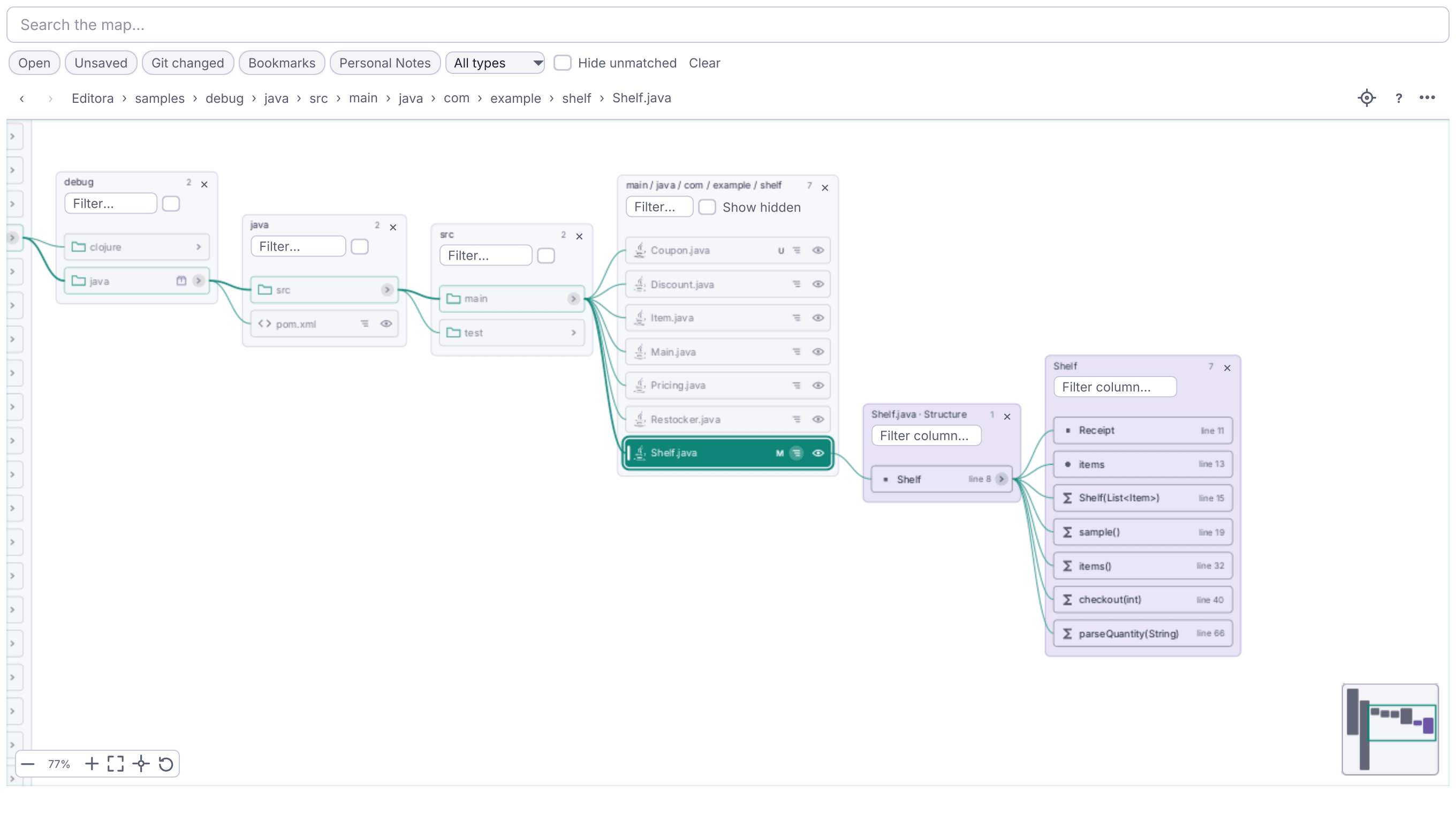
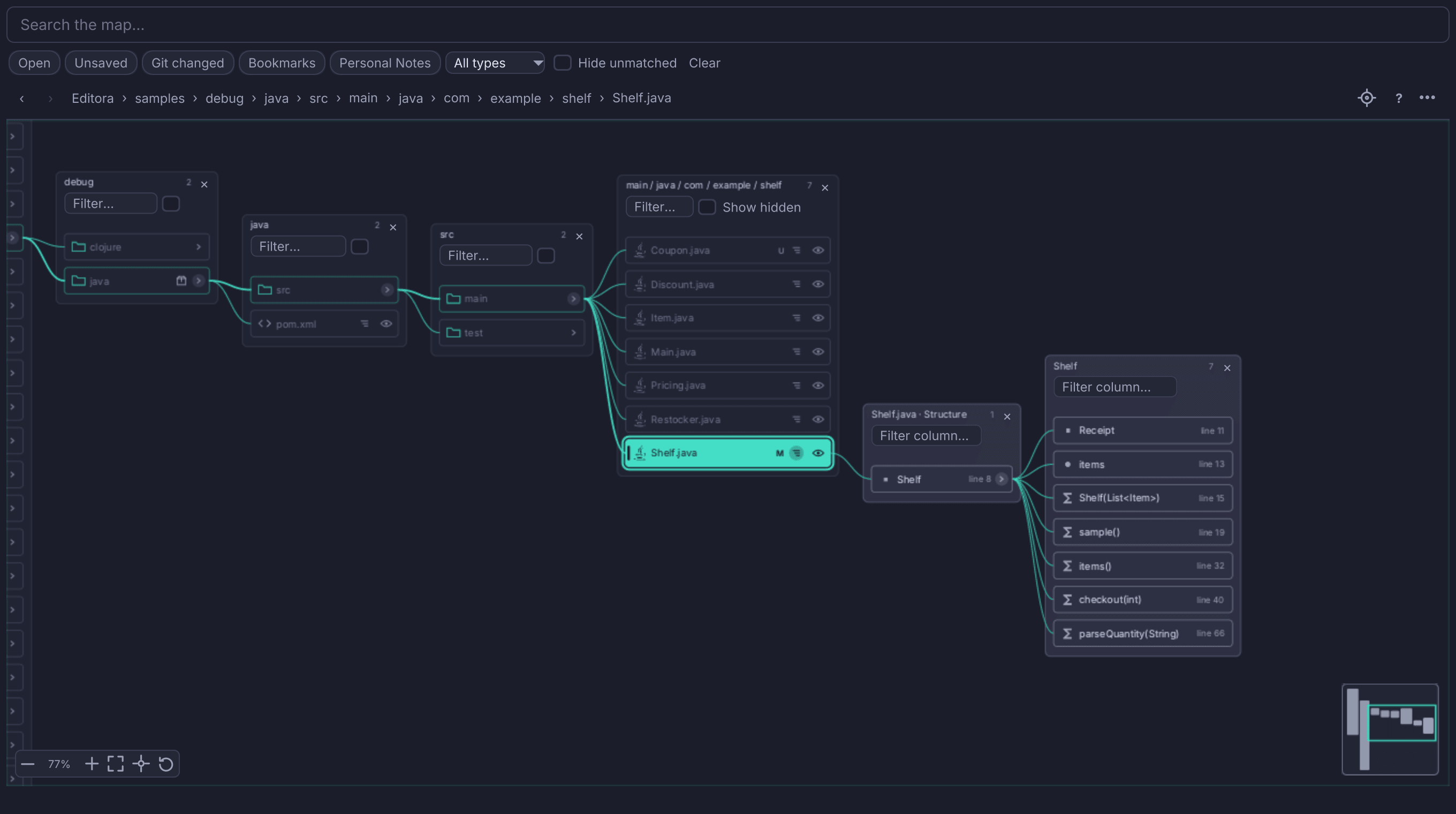
The Project Map is a second way to look at a project, beside the file tree. It opens in a window of its own (place it next to the editor window, or on another screen) and lays the project out on a canvas you can pan and zoom. Open it with the Map button in the Project tool window, Alt-Shift-1 (Cmd-Shift-1 on macOS, C-c o m in Emacs), or Project: Open / Close Project Map Window. Alt-F1 reveals the file you are editing on it.
Columns on a canvas
Select a folder and its children open in the next column, Miller-style, while the path that led there stays on screen. Several branches sit side by side without mixing. A chain of single-child folders such as src/main/java/com/acme opens with one click as one column. The map flows left to right by default; ⋯ → Flow turns it right to left, top to bottom or bottom to top, and the connectors and arrow keys follow.
Drag to pan and use the wheel to zoom around the pointer, from 15% to 225%. Below 60% the columns become labelled blocks, so even a big map fits on screen and the matches still stand out. Fit, Center selection, the corner overview and Collapse All bring you back to the path you are on. Ignored, generated and vendored files are drawn dimmed, and one option takes them off the map.
A local folder is listed whole, up to 50,000 entries, so a folder of thousands of files scrolls end to end. The Map remembers what you explored across restarts: the open folders, the selection, Back and Forward, the zoom and the code cards.
Cards for a glance
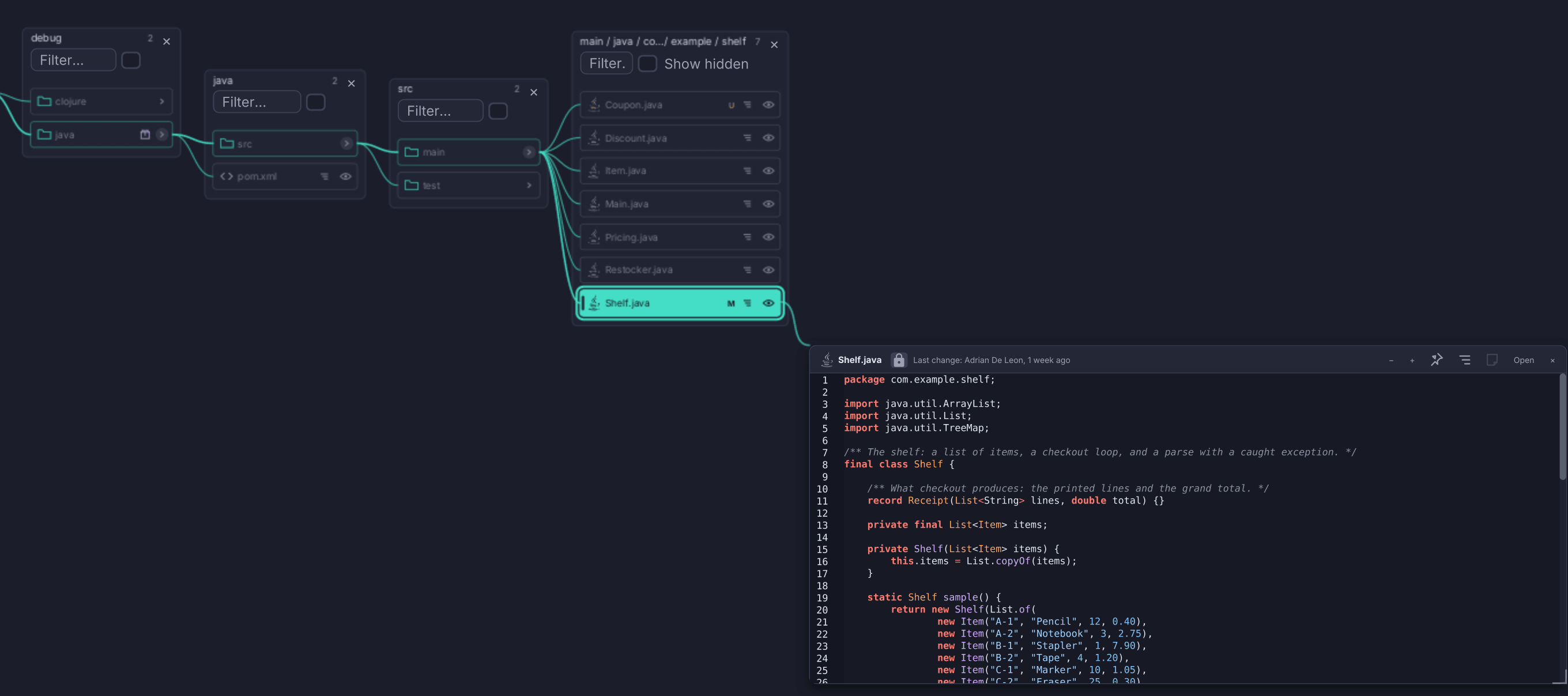
Click a file’s eye for a read-only, syntax-highlighted preview card over the canvas, in the editor’s font and with any unsaved text. A card opens the way a new column does, past its row’s column the way the map flows, and the map pans to centre it with its row still in sight. A live connector keeps it tied to its row as you pan, zoom, move or resize it. Open takes the file to the editor.
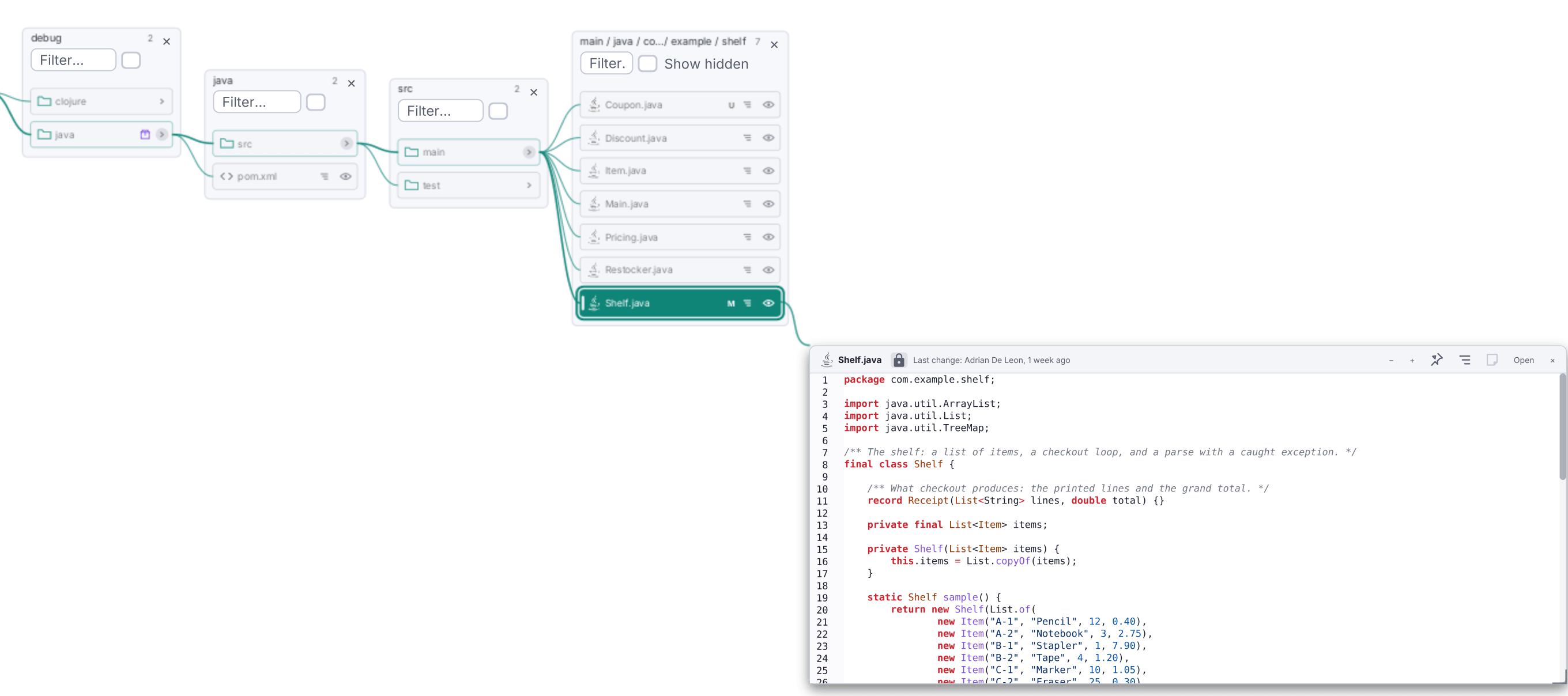
A file’s Structure icon opens a column of its classes, methods or headings, and clicking a declaration opens a card of only its lines, with ‹ › to step through the file’s declarations. Up to eight cards stay open at once. Pin the ones you want to keep, find text inside a card with Ctrl-F, and read who changed the code last on the card’s status line. Select lines in a card to add a Personal Note; a card’s notes stick beside it as small editable sheets, each tied to its line.
Follow the code without leaving the map
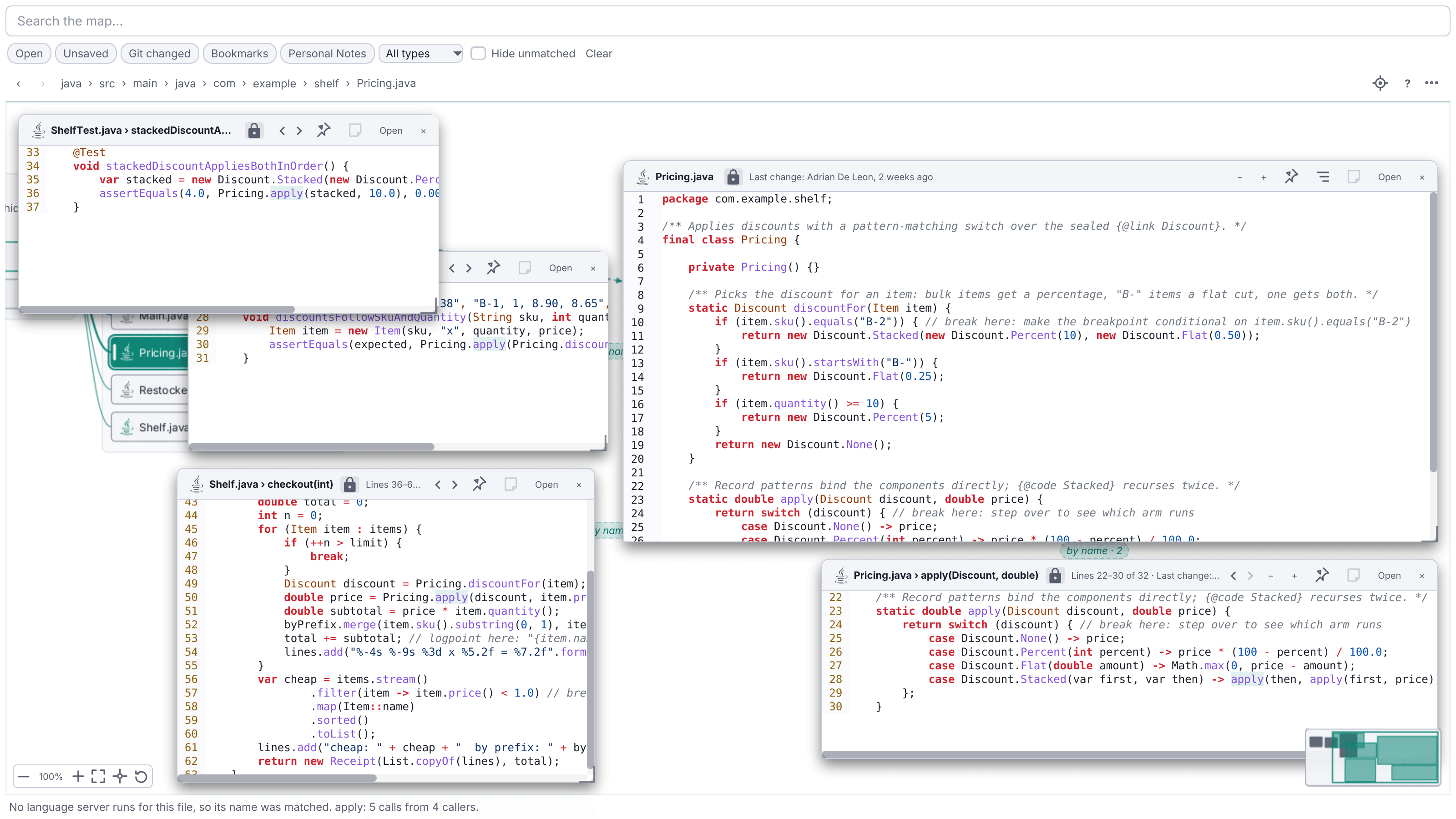
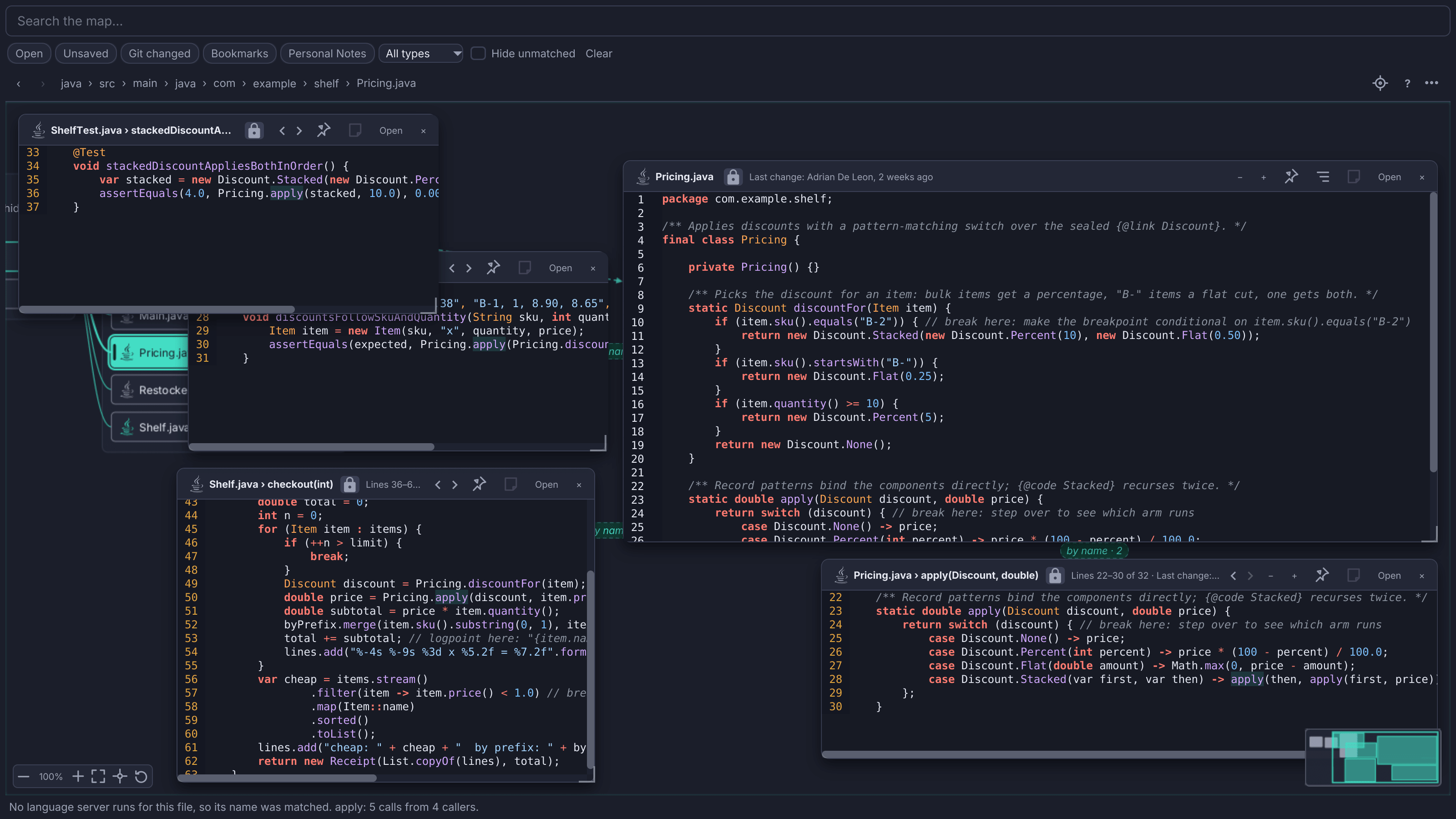
The editor’s code navigation works inside cards and answers with cards beside them: Go to Definition, Declaration, Type Definition, Implementation and Super Method, Find Usages, and Ctrl-click on a name, each joined by a labelled edge. A chain of Go to steps keeps one preview card in view, Back and Forward walk the rows and cards you visited, and in a Java project the JDK and your dependencies open as library-source cards. Show Callers, Callees or References as Cards opens the places found around a declaration, with a list of every place one click away. Call and type hierarchies open as trees you can expand as deep as you like, and the Symbol Graph puts a method in the middle with its callers, callees, supertypes and subtypes around it, to walk the code. A language server that is already running answers, even for files that are not open; with none running, Editora matches names across the project and draws those edges dashed. Related Test / Subject jumps between a class and its test. Cards read like the editor, with semantic colours, inlay hints, sticky headers, problems, usage counts on declaration rows, and a gutter where you set breakpoints and run tests.
Review, dependencies and hotspots
Review Changes opens every changed file and its diff in one card, and its Against menu shows what your branch changes since it left the default branch, as a pull request does, with the changed files striped on the map. Dependencies shows what a file or folder uses and what uses it, or a folder’s parts as a matrix where cycles stand out, read from the imports of 15 languages with no build. Code Metrics lists lines, complexity and the last 90 days’ commits, with a hotspot score for code that is both complex and often changed. A declaration’s own commits and blame open as a card, and while you debug the Map follows each stop with the call stack beside it.
Search and filter
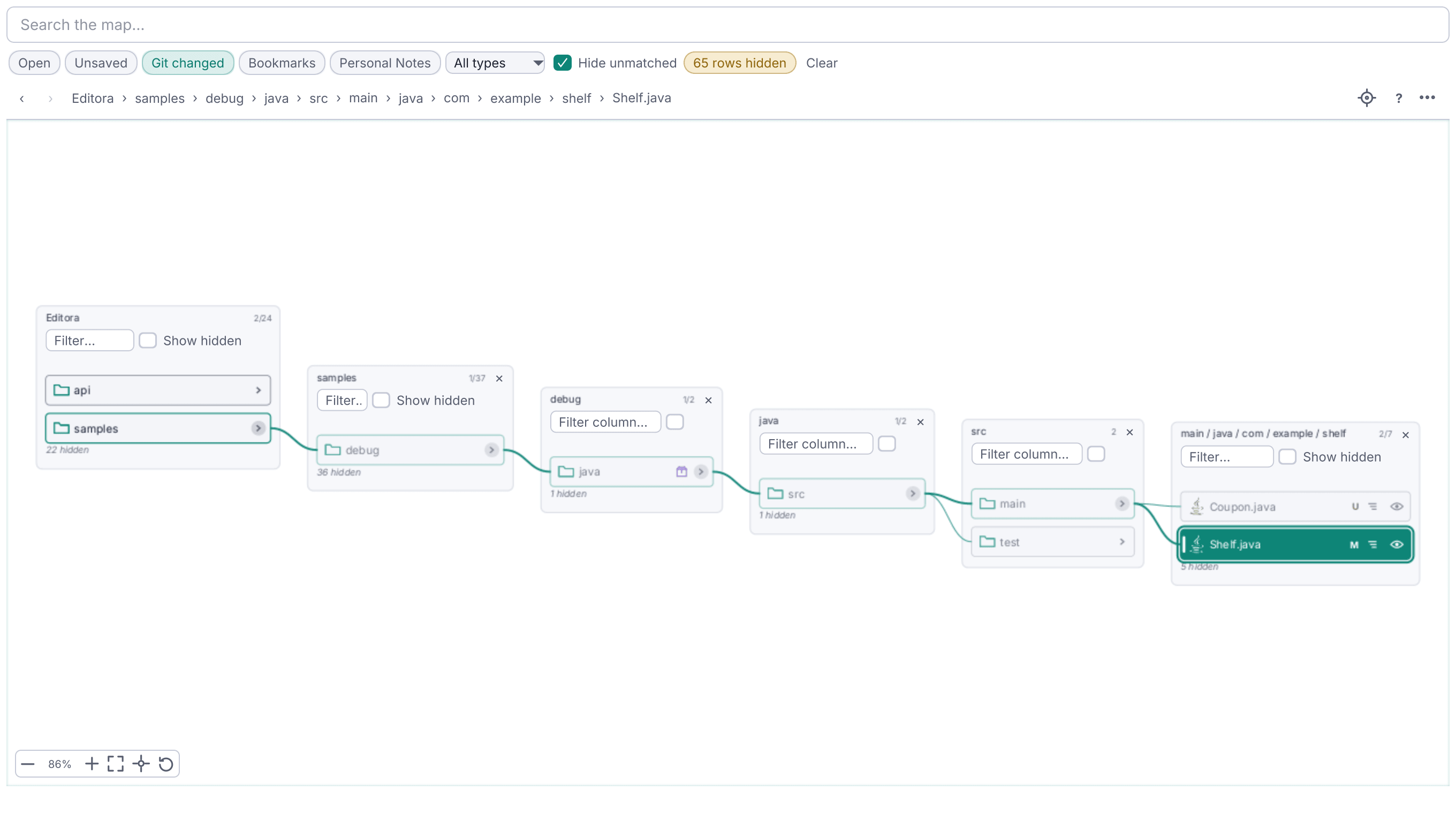
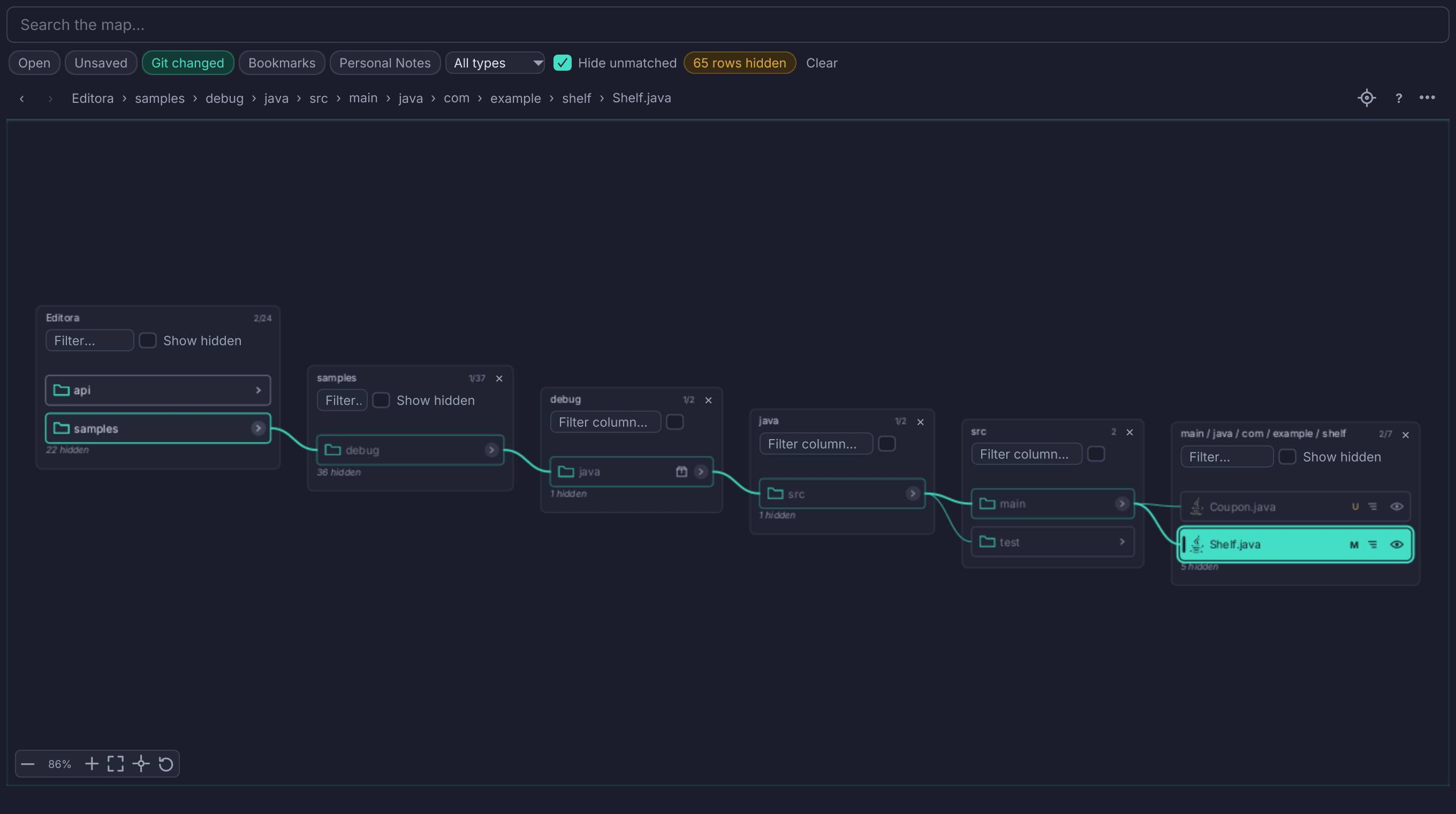
The Map window has its own search over the whole project, however large: type a name, part of a path (core/v1/types.go), # for files only, @ for declarations, or % for text in the files. A results strip counts the matches and steps through them, and clearing the search keeps your place. The filter row narrows the map to open, unsaved, Git-changed, bookmarked, noted or problem files and by file type, fading everything else; Hide unmatched takes the rest off the map and counts what it hid.
See where the work happens
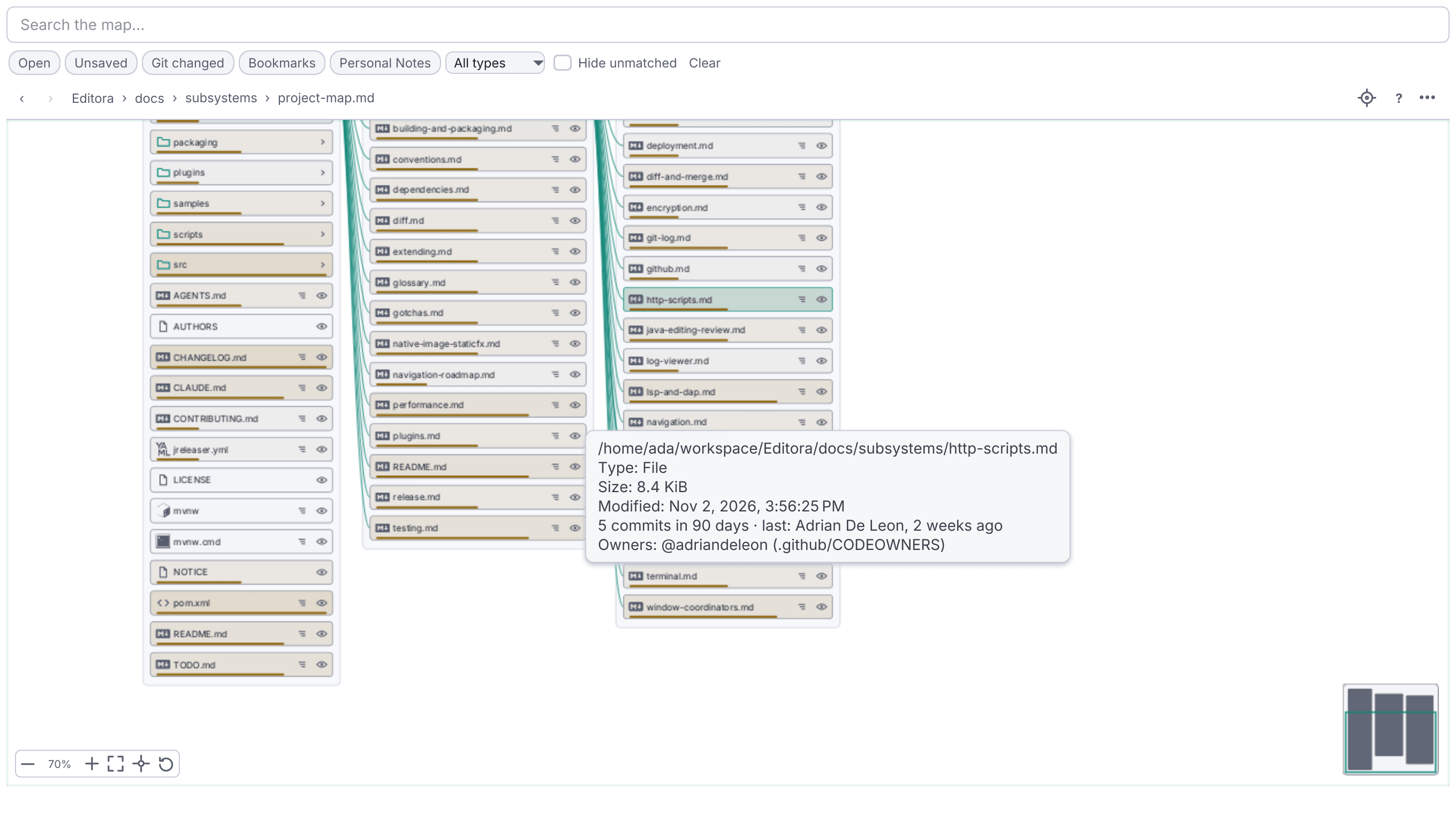
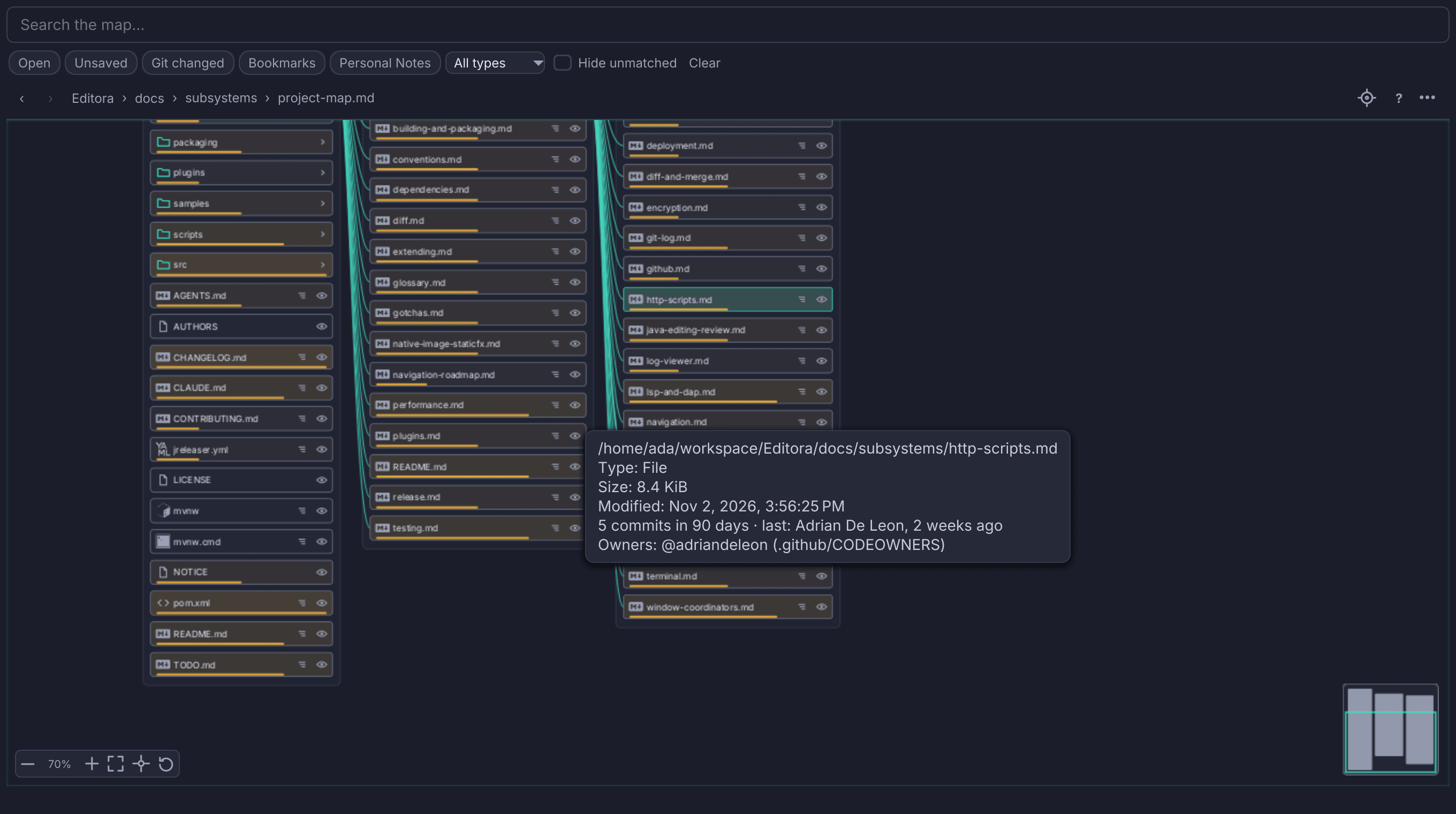
⋯ → Show recent changes warms each row by how often it changed in the last 90 days, and its tooltip says how many commits touched it and who changed it last. With a CODEOWNERS or Kubernetes-style OWNERS file, every row’s tooltip names its owners and reviewers, read from the project’s own files with no network. On the first Map of each session, a Project overview card shows its README, build system and modules, languages, likely entry points, where the tests live, the most-changed folders and the owners.
Working sets and trails
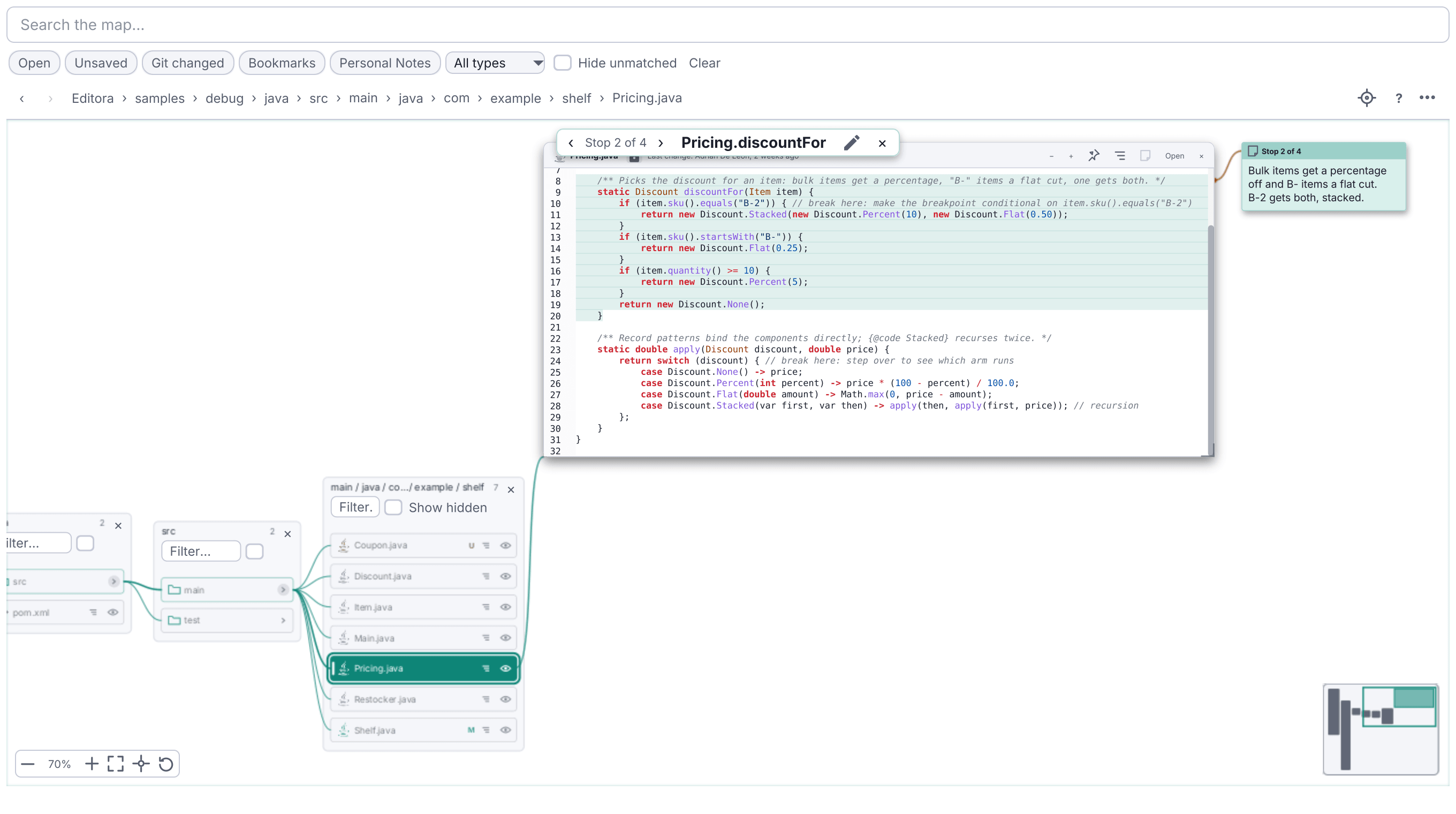
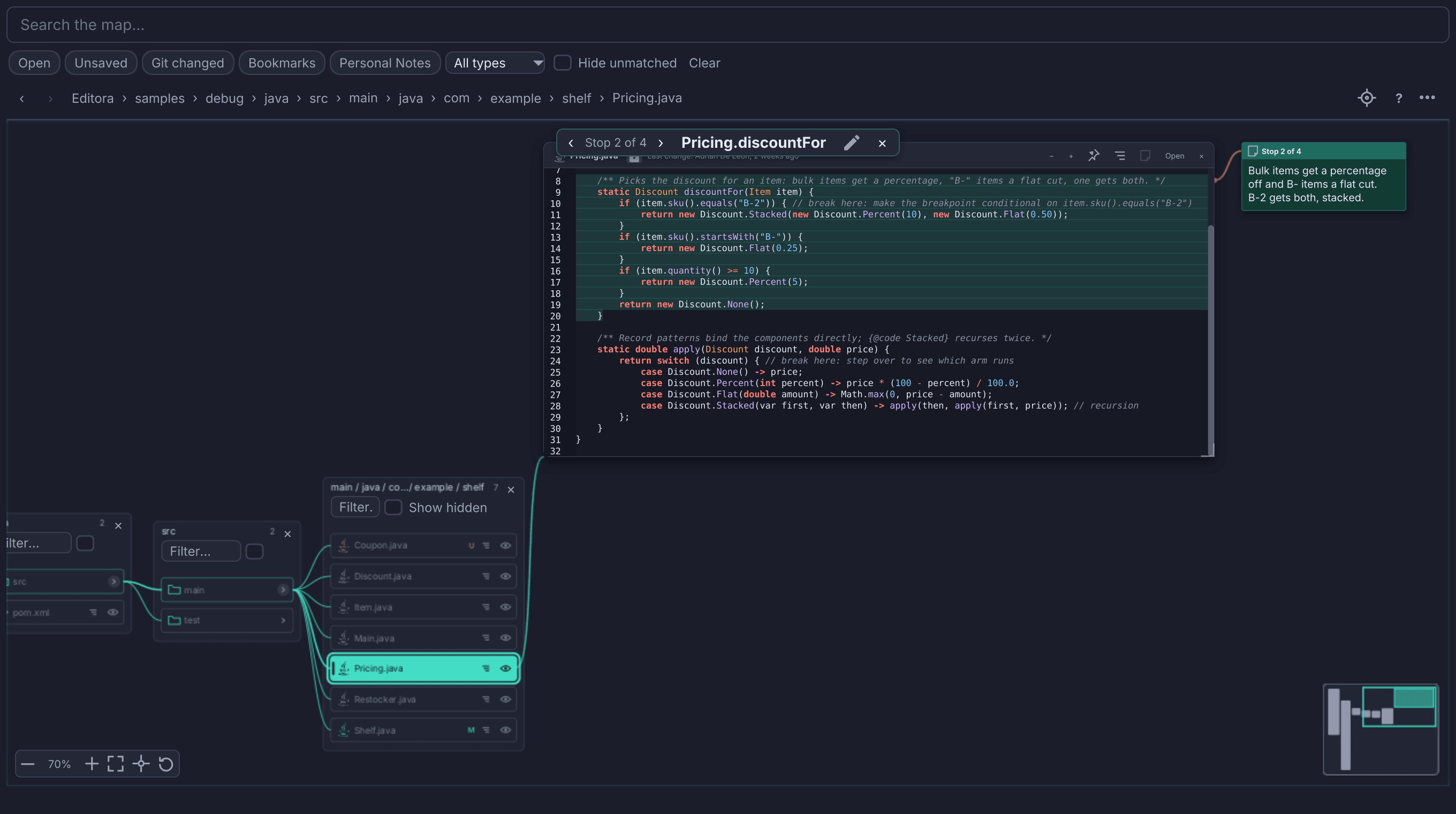
Save the map as a working set (open folders, selection, zoom, cards and pins) and pick it to come back to exactly that view. A trail is a guided tour of the code: add cards as stops, write a note at each, then play it stop by stop with Ctrl-Right / Ctrl-Left. Trails live in the project’s .editora/map-trails/ folder, so the team can commit them and everyone gets the same tour of a new codebase.
Keyboard, print and export
Everything works from the keyboard: arrows follow the flow, typing a name jumps to it, / filters a column, Alt-Left / Alt-Right step back and forward through the places you visited, and Alt+arrows move a focused card, Ctrl-Shift+arrows jump between cards, and every row and button of the Map is a command you can bind to a key. Print… and PDF… output the whole map, split across pages when it is large, and the PDF is searchable; Export saves it as a PNG or an SVG. Screen readers read the rows on screen as a tree.
See the Project Map docs for every option and key.