
HTML
Files ending in .html, .htm and .xhtml open as HTML. Most of what this
page describes works out of the box: highlighting, tag editing, comments,
folding, Structure, spell checking, snippets, following links, markup checks
and Format Document need nothing installed. The
HTML language server adds completion, hover,
problems in embedded CSS and JavaScript, and its own formatter. The
live preview opens the page in your browser and reloads it as
you edit.
Opening HTML files
Besides the three extensions, a file whose name says nothing (no extension)
opens as HTML when it starts with <!doctype html or an <html> tag, in any
case, after an optional byte-order mark, blank lines and <!-- --> comments.
A .txt file stays plain text.
Templates open as HTML too:
- Jinja, Nunjucks, Twig, Liquid, Mustache, ERB and EJS files (
.html.erb,.erb,.ejs,.njk,.jinja,.jinja2,.j2,.twig,.liquid,.mustache) are HTML Template in the status bar. - Handlebars files (
.hbs,.handlebars) are Handlebars.
Both get the HTML colours, tag auto-close and rename, folding, Structure,
spell checking, the HTML snippets and <!-- --> comments (a line of template
code gets the engine’s own comment; see
Comments and indentation). The HTML language
server is never started for an HTML Template, so template syntax is not
reported as errors or reformatted; Handlebars files do get the server’s
completion, hover and formatting. A template named after the file it renders,
such as nginx.conf.j2, config.yml.erb or theme.css.liquid, opens in that
file’s language instead, so an Ansible or Chef template is not called HTML.
page.html.erb stays an HTML Template. To pick a language yourself, click the
language in the status bar (see Languages).
Editing tags
-
Auto-close. Typing the
>that ends a start tag inserts its end tag after the caret:<section>gives<section>|</section>. Void elements such as<br>,<img>and<input>get none. -
Typing the end tag anyway. If you type
</section>by habit, the/joins the end tag that is already there and the rest steps over it, so you do not get a second one. Only the end tag of the element you are closing is joined: typing</b>inside<p>Hello <b>world|</p>writes</b>before the</p>. Tag names match in any case. No completion list pops up while you type over it. -
Auto-rename. Editing a start tag’s name renames its end tag, and the other way round.
-
Attribute quotes. In a start tag, typing
=straight after an attribute name inserts the quotes chosen in Quotes after a typed or completed = (Settings → Editor → Editing, beside Auto-close HTML/XML tags), with the caret inside:<a class=gives<a class="|">with Double quotes (the default), or<a class='|'>with Single quotes; No quotes leaves the=alone. The same choice applies to an attribute chosen from the language server’s completion, and it can be changed with language servers off.- Angular bindings count as attribute names:
=after(click),[value],[(ngModel)]or*ngIfbrings its quotes too, as in<button (click)="|">. - If you type the same quote yourself next, it is taken as the opening
quote, so typing
class="x"still givesclass="x". - Typing the other quote replaces the pair, so typing
class='x'givesclass='x'even with double quotes chosen. - A space or
>typed while the pair is still empty takes the pair back, so typinga=>givesa=>. - No quotes are added inside template tags (
{% %},{{ }},<% %>), or in the code of a<script>, even a long one.
This is part of auto-close, in HTML pages and templates, not in XML.
- Angular bindings count as attribute names:
Auto-close and auto-rename are on by default. Turn them off with Auto-close
HTML/XML tags and Auto-rename paired HTML/XML tag in Settings → Editor →
Editing, or with View: Toggle Auto Close Tags (view.toggleAutoCloseTags)
and View: Toggle Auto Rename Tag (view.toggleAutoRenameTag).
Comments and indentation
Edit: Toggle Comment (edit.toggleComment; M-; in the Emacs keymap,
Ctrl+/ in the others, ⌘/ on macOS) uses the syntax of where the selection is:
<!-- -->in the markup,/* */inside a<style>,//inside a<script>.
On a line that holds the tags as well, such as <script>init()</script>, only
the code is commented, with /* */. A selection that runs from the markup into
a script or style is refused, and the status bar says The selection runs from
the HTML into a script, style or PHP block: comment each part on its own. The
content of <script type="text/x-template"> counts as markup.
In a template, a line that holds template code ({% %}, {{ }}, {# #},
<% %>) is commented in the engine’s own syntax, because an HTML comment does
not stop a template engine: <!-- {% include "x" %} --> still includes, and
<!-- <% deleteAll() %> --> still runs.
| Engine | Files | Comment |
|---|---|---|
| Jinja, Twig, Nunjucks | .jinja, .jinja2, .j2, .twig, .njk | {# … #} |
| Liquid | .liquid | {% comment %} … {% endcomment %} |
| ERB, EJS | .erb, .ejs | each tag becomes a comment tag: <%= x %> gives <%#= x %> |
| Handlebars | .hbs, .handlebars | {{!-- … --}} |
| Mustache | .mustache | <!-- … -->, with each tag a comment tag: {{x}} gives {{!x}} |
Mustache has no block comment: its {{! }} ends at the first }}, so a
commented line would end early. Each tag on the line becomes a comment tag
instead ({{{x}}} gives {{!{x}}, and a comment {{! c}} gives {{!! c}}),
and the line is wrapped in <!-- -->. Uncommenting undoes both.
In ERB and EJS, a tag that is already a comment (<%# note %>) gets a second
# when you comment the block it is in, and uncommenting takes one # off
every tag, so commenting and uncommenting a block gives back your own
<%# … %> comments.
A .html page is judged by what it uses:
<% %>is ERB.{%or{#is Liquid in a page with front matter or under_includes/or_layouts/(Jekyll). Otherwise it is Django or Jinja, and each line gets its own{# #}, since Django’s comment is one line only.- Handlebars blocks (
{{#each}},{{/if}}) take{{!-- --}}. - Go template actions (Hugo’s
{{ if }},{{ range }}) take{{/* */}}. - A page with only Angular or Vue
{{ value }}keeps<!-- -->.
Lines with no template code keep <!-- -->, and a comment that would nest is
refused.
In a PHP file the HTML part is commented with <!-- -->, and the code of a
line that opens a PHP block is commented inside it: <?php echo 1; ?> gives
<?php /* echo 1; */ ?>. A selection that starts on a bare <?php line
comments the code lines below it. On a line with only <?php, or an <?=
echo, the status bar says This line opens a PHP block: comment the code after
the opener, or select the lines below it.
Enter after a start tag indents the next line. Inside a <script> or
<style>, Enter follows the brace rules instead: it indents after {, and a
typed } lines up with its opener. Enter between <style> and </style> (or
<script> and </script>) opens an indented line and puts the end tag on its
own line below.
Tab in a line’s leading whitespace re-indents it:
- In an inline
<script>or<style>, Tab follows the braces of the code there. The first code line sits one level inside the start tag, and</script>lines up with<script>. - On a line inside
<pre>or<textarea>(or<listing>,<xmp>,<plaintext>), Tab keeps the line’s whitespace and moves the caret to the end of its indent. On a blank line, or with the caret mid-line, it inserts one indent.
These lines are never sent to the language server to re-indent, so code and preformatted text are not pushed to the markup’s indent.
Enter and Tab find the <script> or <style> they are in the way a browser
does, reading back up to 100,000 characters: a long inline script keeps the
brace rules all the way down, and a string in a script that holds '<style>'
or '<pre>' does not end it, since only </script> does.
Folding and Structure
Elements that span several lines fold. Without the language server, Editora
folds them itself: tag names match in any case (<DIV>…</div>), void
elements open nothing, and the content of <script> and <style> is skipped,
so a script holding a < b does not break the folds below it. With the server
running, its folding ranges are used (see
Folding and selection).
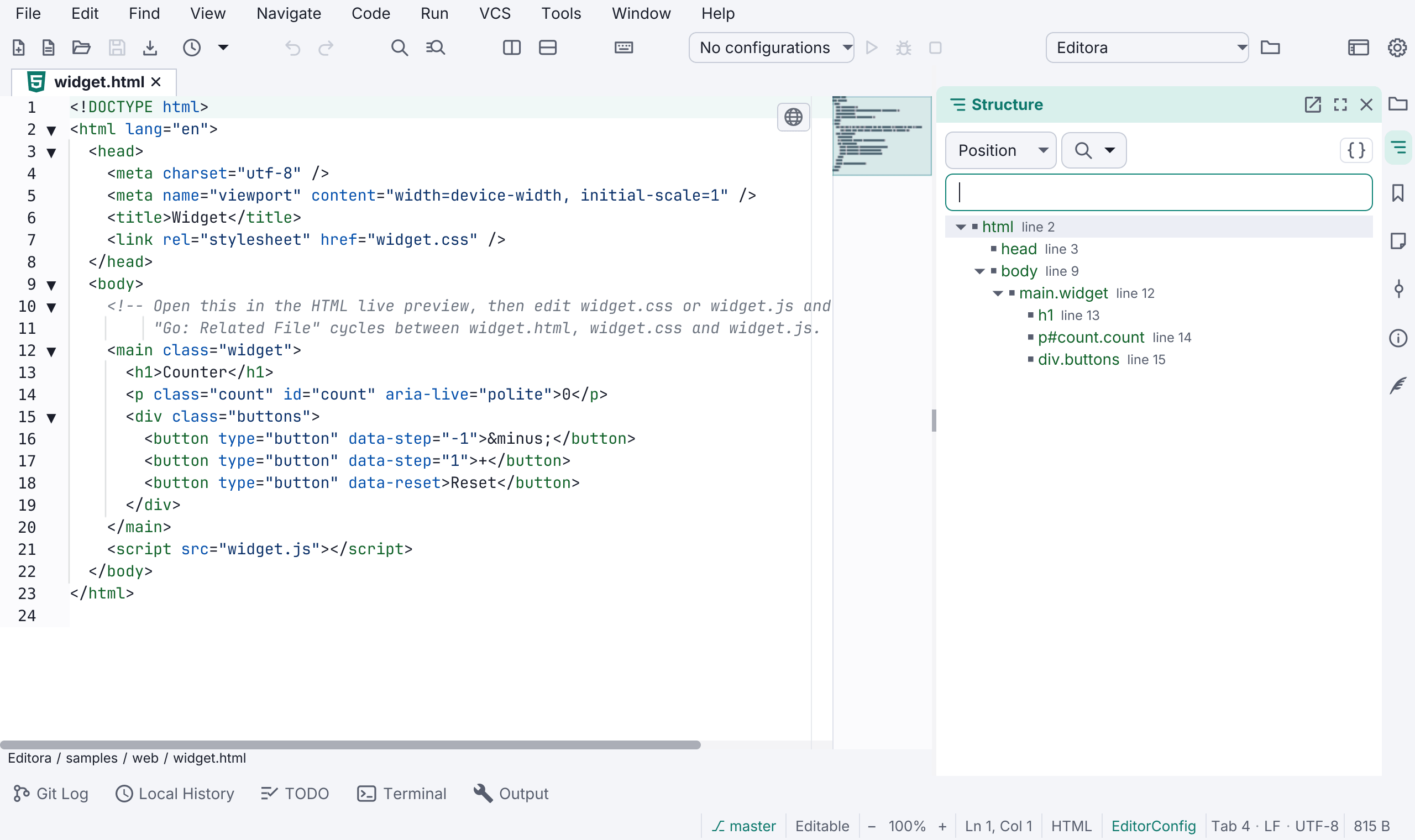
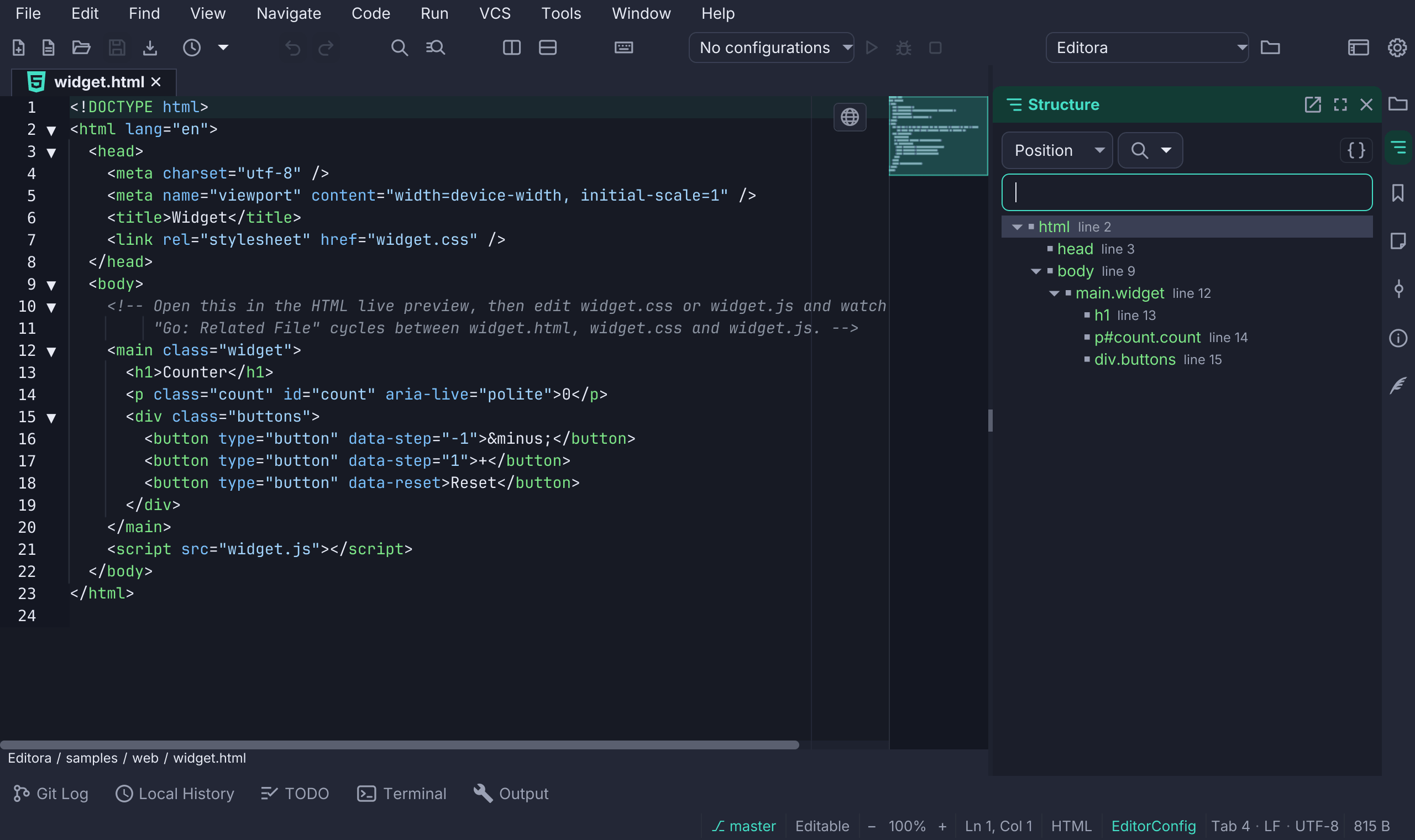
Structure outlines the page:
- With the server, Structure, Structure: Jump… and the breadcrumbs list
every element, repeated siblings included (every link of a
<nav>, a second<script>), and the functions of every inline script. - Without it, Editora labels elements the way the server does
(
header#hero.card, tag then#idthen.class) and lists the elements that span several lines, plus one-line headings (<h1>to<h6>) and elements with anid. Omitted end tags, void elements and script content are handled. The XML server’s Structure element limit (see XML settings, 5,000 by default) caps how many are listed.
Spell checking
In an HTML page the text visitors read is checked, and comments. Tags and
attribute names are not, and neither are most attribute values. The values
visitors do read are checked: alt, title, placeholder, aria-label and
aria-description. The content of <script>, <style>, <pre>, <code>,
<kbd>, <samp> and <var> is skipped, while the rest of a line that holds
an inline <script> is still checked. A tag mentioned inside a comment does
not turn checking off, and its name is not checked as a word. Template
expressions and tags ({{ … }}, {% … %}, <% … %>) are skipped wherever
they are, in title and alt values too; template comments ({# #},
<%# %>) are checked as prose. See
Spell checking.
Snippets and new files
Snippets cover the elements by name, with div. and div# forms, ! and
html5 for a whole page, and CSS and JavaScript snippets inside <style> and
<script>; see HTML snippets.
New File From Template (template.new) has HTML Page (a minimal
HTML5 page) and HTML Page + CSS (the page and a stylesheet it links), both
with <!DOCTYPE html>, UTF-8 and the viewport meta. File: New File of
Type… (file.newFileOfType) → HTML starts the same kind of page.
Following links
Go to Definition (lsp.gotoDefinition: M-. in the Emacs keymap, F12 in
the VS Code, CUA and Sublime keymaps, Ctrl+B in IntelliJ’s) or Ctrl/Cmd-click
on an href, src, poster, action or similar attribute opens the file it
names. This works with or without the HTML language server, and with LSP off.
Editora resolves the link itself first, the way a browser does, and asks the language server only when that names nothing on disk:
- The page’s
<base href>is followed, a?queryis dropped,%20,%23and other escapes are decoded. So a cache-bustedstyle.css?v=3, a page that uses<base href>and a file namedC#notes.html(linked asC%23notes.html) open their file, with the HTML server running too. - A root-relative link (
/css/site.css) starts from the root the HTML language server has for the page, whether or not a server is running: the project for a page in it. For a page outside the project, it is the nearest folder, from the page’s own up, with apackage.jsonor.git(one in your home folder or above it does not count), else the page’s own site, the folder holding its topindex.html, as the live preview finds it. The markup checks use the same root. - A link with a
#fragmentopens the file at the element whoseid(or<a name>) matches. A link that is only#topmoves within the page. A fragment that names no element says No element with id “top”. - A link to a folder opens its
index.html. A folder without one says pages/ is a folder with no index.html. - A web address asks Open https://… in the browser? with Open, every time, and then opens in your browser.
- A link to a file that does not exist says File not found: missing.html.
mailto:,javascript:and template values ({{ url }}) say Nothing to open for ….
Markup checks
Editora checks an HTML page’s markup itself and marks three things as warnings:
- an element that is never closed: Element <div> is not closed;
- an end tag that closes nothing: End tag </span> closes no open element;
- a link to a local file that does not exist: File not found: missing.html.
Elements whose end tag is optional (<li>, <p>, <td>, <option> and the
others HTML allows), void elements, comments and the content of <script> and
<style> never count. As in a browser, /> closes only a void element or an
element inside <svg> or <math>: <div/> and <x-icon/> open their element,
and a minified <a href=/about/> is an ordinary start tag.
Angular templates are compiled by Angular, which closes any element with
/>, so <app-header /> is closed there. A page counts as an Angular template
when it is a *.component.html file, when an angular.json sits in a folder
above it (up to the project root), or when it uses Angular syntax (@if (…) {,
@for, @switch, @defer, *ngIf=, [value]="…", (click)="…") outside
code it only shows. A plain HTML page still reports <my-el /> as not closed.
The missing-file check looks only at links whose last part has an extension, so
routes like /about and docs/ are not flagged, and skips web addresses, form
actions and <base>. It runs only for pages on this machine. A link is not
reported when the file is there for the site’s build tool:
- a root-relative link (or any link under a root-relative
<base href>) names a file in the project’spublic/orstatic/folder (Vite, Create React App, Angular, SvelteKit, Hugo); without a project, those folders beside the page count; - a page-relative link names a file at the same path under
public/orstatic/, in a project whose root has a build tool’s file:package.json,angular.json,vite.config.*,svelte.config.*,hugo.toml(.yaml,.json) orconfig.toml. On a plain static site, with none of them, a page-relative link whose file exists only underpublic/is reported as missing, since nothing will serve it from there; assets/is not one of these folders (Angular servessrc/assetsat/assets/, and Hugo builds itsassets/rather than publishing it): a link toimg/logo.pngwhose file is only atassets/img/logo.pngis reported as missing;- in an Angular template, a page-relative link names a file in the app’s source
folder (the nearest folder above holding an
index.html, usuallysrc/) or in the project’spublic/orstatic/, so a component’sassets/logo.svgis found insrc/assets/; - the link holds a build placeholder such as
%PUBLIC_URL%; - a missing
.csshas a.scss,.sassor.lesssource of the same name in the same folder (Jekyll buildsassets/css/style.cssfrom one).
A root-relative link starts from the same root as Go to Definition, for a page outside the project too.
The marks follow the disk: creating, deleting or renaming a linked file updates them without an edit to the page.
Template pages. A .html page that uses template syntax (Django, Jinja,
Jekyll, Hugo, Handlebars, ERB: {% %}, {# #}, <% %>, {{#each}},
{{ if }}…) is not checked for unclosed elements and stray end tags, since
its tags are split across files; its links still are. The same goes for a page
in a template folder (templates/, _includes/, _layouts/, layouts/,
partials/, _partials/ or includes/) between the project root and the
page. A page that only has Angular or Vue {{ value }} is checked as usual.
Template syntax counts only in the page’s own markup, not in code it shows or
holds as data: a page that shows {% if %} in a <pre> or <code> (or a
<textarea>, comment, <style> or <script>), or keeps an Underscore
template in a <script type="text/template">, is still checked for unclosed
elements, and still formats.
With the HTML language server, these warnings join the server’s own
diagnostics in the Problems window and the problem counter, with editora as
their source. Without it, they show as squiggles in the page, with the message
on hover, but not in the Problems window.
The checks apply to .html and .htm files, not to .xhtml or templates. They
are on by default; turn them off with HTML markup checks in Settings →
Editor → Editing.
Related File
Go: Related File (nav.relatedFile) from a page offers the stylesheets and
scripts it loads (<link href>, <script src>) first, the ones that exist.
From a .css, .js or .mjs file it offers the project’s pages that load it.
That direction reads the project’s indexed pages, so it needs the
symbol index. See
Go to Related File.
Formatting
Format Document (lsp.formatDocument: C-c l f in the Emacs keymap,
Shift+Alt+F in the VS Code, CUA and Sublime keymaps, Ctrl+Alt+L in IntelliJ’s)
formats an HTML file with or without the language server.
With the server, its formatter is used, with the settings on the HTML card:
- The content of
<pre>,<code>and<textarea>is left exactly as written, so code samples and a textarea’s default value keep their spaces.<script>code is never reflowed as HTML; it is formatted as JavaScript. - Editora keeps the final newline itself, rather than the server: the file
ends with one when its EditorConfig
insert_final_newlinesays so, else when the project’shtmlobject setsformat.endWithNewline, else when it had one before. So no blank line appears before each</style>, and formatting a page that is already formatted says Already formatted and leaves no undo step, withinsert_final_newline = truetoo. - Code in a
<script>gets VS Code’s JavaScript spacing (function f() { return 1 }), and a<style>VS Code’s CSS formatting. - Long lines wrap at the file’s EditorConfig
max_line_length(never, foroff), else at Wrap lines at column (120 by default). - The indentation is the file’s own: EditorConfig’s
indent_styleandindent_size, else what the file already uses.
Format Selection formats only the selected lines. When the server times out, stops or refuses, the status bar says Format failed: … with the reason rather than Already formatted.
Without the server (LSP off, or no HTML server running), Editora’s own formatter puts one block element per line and indents by nesting, in the file’s indent unit.
- Only block elements get a line of their own. Everything else stays in the
line of text it is in:
<select>,<textarea>,<svg>,<video>, custom elements, and a comment inside a word (foo<!-- x -->bar), so formatting adds no spaces to the rendered page. - The content of
<pre>and<textarea>is kept exactly. The code in a<style>, or in a JavaScript or JSON<script>, keeps its own relative indents and moves with its start tag, one level inside it, and an end tag on its own line lines up with the start tag. When a string in the code runs over lines, only the end tag moves. - Any other script, such as a
<script type="text/x-template">holding a Vue or Underscore template, is kept exactly as written. - In a page that uses Angular’s control flow, the lines of an
@if,@for,@switch,@caseor@deferblock (and after an} @else {) are indented one level inside it, and the}that ends it lines up with its@. - Your line breaks around text are kept, and up to one blank line in a row.
It says Formatted with the built-in HTML formatter. When a tag, comment,
script or <pre> is left open, it says Not formatted: a tag, comment, script
or <pre> is left open and changes nothing.
Template pages are not formatted, with the server or without it: a .html
page that uses template syntax (Django, Jinja, Hugo, Handlebars, ERB: {% %},
<% %>, {{#each}}, {{ if }}…) in its own markup, as for the
markup checks, is left alone with Not formatted: this page
uses template syntax, since a formatter would break its tags. In an HTML
Template file (Jinja, Twig, ERB…), which no server reads, Format Document says
No formatter available for this file, with LSP on or off. Handlebars files
(.hbs) still format with the server.
The HTML language server
The HTML server is vscode-html-language-server, from the
vscode-langservers-extracted npm package: the HTML, CSS and JSON servers
taken out of VS Code. One install gives all three
(vscode-css-language-server and vscode-json-language-server too). It is a
Node.js program, so it needs Node.js.
If language servers are off, the first HTML (or CSS) file a window opens asks Turn on HTML code intelligence?, with Turn on and Not now. The switch is Enable LSP (language servers) in Settings → LSP. See Language servers.
The server reads .html, .htm and .xhtml files and Handlebars files, not
HTML Templates. It runs once per workspace root: the project, else the nearest
folder with a package.json or .git (one in your home folder or above it
does not count). A loose page of a static site with neither is rooted at its
site root, the same folder the live preview serves. Which
cases share a root with the preview is under
What is served. HTML files keep their server up to 50,000
lines.
Installing it
Install on the banner of an HTML file, Install… on the HTML card in
Settings → LSP, Doctor’s Install…, or Install: Language Server…
(install.languageServer) runs npm to put vscode-langservers-extracted
4.10.0 into Editora’s own folder, plugins/lsp/web under the
config folder, not npm install -g. 4.10.0 is the
version Editora is tested with, not npm’s latest. Only Node.js and npm are
needed. The banner says what Install does before you click:
The HTML language server isn’t installed. Install adds vscode-langservers-extracted 4.10.0 with npm (it needs Node.js) to Editora’s own folder; the one package brings the HTML, CSS and JSON servers.
When a Node.js is chosen in the Node.js card under Settings → Build
Tools and has npm beside it, Install uses that npm, so it works with
nothing on your PATH; otherwise it uses the npm on your PATH. When neither
is found, the banner says so before you click: npm was found neither on PATH
nor beside the Node.js chosen in Settings, with the advice to install Node.js
or choose one in Settings.
The install also links the TypeScript libraries the HTML server looks for, so
JavaScript in a page gets the DOM and the standard library. A copy installed
with npm on its own (npm install -g vscode-langservers-extracted) cannot load
them: nothing completes after document. and there is no parameter help.
When the HTML server in use is such a copy, the first HTML page a window opens
says so on a banner, once:
This copy of the HTML language server (from an earlier npm install) cannot load TypeScript’s libraries, so JavaScript in <script> gets no DOM or standard library completion. Update installs Editora’s own copy, which has them.
Its Update installs Editora’s copy and moves the running servers to it. The banner is not shown when the HTML command is your own. Doctor’s HTML row warns about such a copy too and offers Update.
With the HTML, CSS and JSON commands left blank in Settings → LSP, Editora
runs its own copy first, then one on your PATH. A command you set always
wins; a command that is just the default text
(vscode-html-language-server --stdio) counts as blank. The server runs on the
Node.js chosen in the Node.js card under Settings → Build Tools, else
node on your PATH. A project’s .nvmrc or .node-version does not
change it, so an old Node.js pinned for the project cannot break the server.
What the server adds
- Completion of elements, attributes and their values, with each item’s
MDN documentation beside the list as formatted text with a working MDN
Reference link. CSS in a
<style>orstyle=""completes like a stylesheet, and JavaScript in a<script>oron…=""attribute gets the DOM and standard library: completion afterdocument., parameter help and hovers. With auto-close on, the list does not offer the end tag Editora has already inserted. Enter and Tab accept the selected item while the documentation shows; links in it open with a click. The documentation panel is as tall as its text, up to a limit, so a long description is not cut short. - Two-step completions. Accepting a CSS property opens the list of its
values, and accepting a folder in an
hreforsrcopens the list of its files. The second list stays open, as if you had asked for completion there. - Hover documentation for elements, attributes and CSS properties, opening at the start of its text.
- Problems in embedded scripts and styles (each can be switched off, below), with Editora’s markup checks added.
- Colour swatches. A colour in a
<style>, astyle=""attribute or a CSS file shows a small square in its colour before it. The squares move with the text as you type before them; a square whose colour you replace disappears until the server answers again. There is no colour picker. - Structure of every element, as above.
- Format Document and Format Selection, as above.
Settings → LSP → HTML
The HTML card in Settings → LSP has the server’s switch, its command and Detected line, and two groups of the server’s own settings:
| Setting | Default | What it does |
|---|---|---|
| Formatting (HTML server) | ||
| Wrap lines at column | 120 | Format Document wraps lines longer than this; 0 never wraps. A file’s EditorConfig max_line_length wins |
| Attributes when formatting | Wrap only when the line is too long | How an element’s attributes are laid out: also One per line after the first, One per line, aligned with the first, One per line, each on a new line, Wrap when too long, aligned with the first, Keep as written and Keep as written, aligned with the first |
| Keep content as written in | pre, code, textarea | The elements whose content Format Document leaves exactly as written, separated by commas. <script> code is always formatted as JavaScript, never as HTML |
| Embedded code (HTML server) | ||
| Check embedded scripts | On | Report problems in the <script> elements of an HTML file |
| Check embedded styles | On | Report problems in the <style> elements of an HTML file |
The quotes an attribute gets after its =, typed or chosen from completion,
are set in Settings → Editor → Editing, with Quotes after a typed or completed
= beside Auto-close HTML/XML tags (see Attribute quotes).
Searching Settings for attribute quotes finds it.
A project can set them for everyone who opens it, with an html object in its
.editora/settings.json (see
Configuration). It uses the names of
VS Code’s html.* settings, without the html. prefix:
{
  "html": {
    "format": { "wrapAttributes": "force-aligned", "wrapLineLength": 100 },
    "validate": { "scripts": false }
  }
}
VS Code’s dotted keys work too, inside the object ("format.wrapAttributes")
or at the top level of the file with the prefix, as in a VS Code
settings.json:
{
  "html.format.wrapAttributes": "force-aligned",
  "html.validate.scripts": false
}
The keys are a format object (wrapLineLength, wrapAttributes,
contentUnformatted, unformatted, indentInnerHtml, preserveNewLines,
maxPreserveNewLines, indentHandlebars, extraLiners, templating,
unformattedContentDelimiter, endWithNewline, wrapAttributesIndentSize,
indentScripts), validate (scripts, styles), suggest (html5),
hover (documentation, references) and completion
(attributeDefaultValue). format.endWithNewline is not sent to the server:
it is Editora’s own final-newline choice when the file’s EditorConfig says
nothing (see Formatting). A key the project leaves out keeps your
own setting.
The project’s html settings apply as soon as its window opens a page, the
first one included, so Format Document uses them from the start.
A key Editora does not use, or a value of the wrong type, is ignored, and the
status bar names it once, as soon as the window opens a page, here for a
misspelt key: Not used from
.editora/settings.json (html): format.wrapAtributes. That includes
customData and dataPaths, which are not supported, and autoClosingTags,
which always follows Editora’s own Auto-close HTML/XML tags switch.
Nothing in the object runs a program, so it applies in untrusted folders too.
It applies
only to the project’s own files: a page from another folder opened in the same
window keeps your settings. A file’s EditorConfig max_line_length and
insert_final_newline still win.
What it does not do
- No markup validation. The server reports no unknown elements or
attributes, wrong nesting or broken anchors; its only problems come from
embedded
<style>and<script>. Editora’s own markup checks cover unclosed elements, stray end tags and missing local files. - No Emmet. Abbreviations such as
ul>li*3are not expanded. Use the snippets instead. - No templates. HTML Templates (Jinja, Twig, ERB…) are not sent to the server.
Live preview
On an HTML file, a floating globe button at the top right of the editor opens the page in a browser, served by a small web server inside Editora that only this machine can reach. The page reloads as you edit.
- HTML Preview: Open in Browser (
htmlPreview.open) opens the page in the browser you used last, or the one chosen in Settings. - HTML Preview: Open in Browser… (
htmlPreview.openIn) picks one of the detected browsers. - The preview is on by default. Turn it off with Enable HTML Live
Preview on the HTML Preview card in Settings → Web, or with View:
Toggle HTML Live Preview (
view.toggleHtmlPreview). Open the preview in on the same card chooses the browser (the system default until you choose one).
The globe shows on .html, .htm and .xhtml files and on a file that opens
as HTML from its first lines or its modeline, not on templates or
encrypted files. A new, untitled
page must be saved once, so its stylesheets and images have a folder to load
from: Save the HTML file first so its assets can load.
The preview follows a file to its new name. After Save As, Encrypt
File… or a rename (from the tab menu or the Project tree, a folder moved with
the file in it included), the old address serves the file on disk, or nothing
once it is gone, and the new name serves your edits; the site reloads. After
Encrypt File… the new .gpg name is never served and your edits reach neither
name (see Encrypted files).
What is served
The preview serves the page’s whole site, so ../css/site.css and
root-relative /img/logo.png links load. The site root is:
- for a file in the project, the project folder;
- otherwise, the folder found by climbing from the file’s folder: the nearest
folder that holds an
index.html, then on up while the folder above holds one too.site/blog/post.htmlis served fromsite/when bothsite/andsite/blog/have anindex.html, and a saved page higher up, in Downloads or~/src, is not reached past a folder without one. The climb never goes into your home folder or above, Downloads, Desktop, Documents or a temporary folder; - otherwise, the file’s own folder.
Go to Definition on a /css/… link, the
markup checks and the
HTML language server start from the same folder,
and so open the file the browser loads, in these cases:
- a page in the project, unless the project is your home folder, Downloads, Desktop, Documents or a temporary folder: the preview then uses the rules for a loose file, while Ctrl-click and the server start from the project;
- a page outside the project with no
package.jsonor.gitin its folder or any folder above it (one in your home folder or above it does not count): both use the site root above.
When such a page does have a package.json or .git above it, Ctrl-click and
the server start from that folder, and the preview still serves the site root.
The two agree only when that folder is the site root; for a page in a
repository’s docs/ folder, for example, the preview serves docs/, while
Ctrl-click looks for /css/site.css at the top of the repository.
Folder addresses work as on a static host: / and a folder link such as
blog/ serve that folder’s index.html, and blog without the slash
redirects to blog/. There is no folder listing: a folder without an
index.html, the site root included, is not found.
Some files are never served, whatever the page asks for; they answer not found:
- hidden files and folders (
.env,.git/,.ssh/,.npmrc…), except.well-known; - private keys:
*.pem,*.key, andid_rsa-style files without an extension or ending in.pub; - certificate and password stores (
*.p12,*.pfx,*.kdbx), Terraform state and variables (*.tfstate,*.tfstate.backup,*.tfvars), databases (*.sqlite,*.sqlite3,*.db),credentials*.jsonandsecrets.*; - encrypted files (
*.gpg,*.asc,*.pgp).
A page you preview in a hidden folder, such as .github/ or .vitepress/, is
served with the files of its own folder, still without the dotfiles and
secrets in it. Nothing in .git, .ssh, .gnupg, .aws, .docker, .kube
or a .env… folder is ever served.
A page sitting directly in your home folder, Downloads, Desktop or Documents
(also their OneDrive forms, under ~/OneDrive or the folders %OneDrive%
names on Windows), in a temporary folder (/tmp, /var/tmp, /dev/shm,
macOS’s /private/tmp and the system’s own), or at the top of a drive, is
refused, because the whole folder would be served: Not serving …: the preview
server exposes the file’s whole folder. Move the HTML file into its own folder
first. When the project is your home folder, the rules for a loose file apply
instead.
Video and audio play and seek (Safari included), because files are streamed with byte ranges. Only HTML pages up to 20 MB and the unsaved text of open files are put together in Editora’s memory, a few at a time; everything else is streamed from disk, text files included. If something requests such pages and stops reading them, other pages wait at most 10 seconds for their turn and then answer 503 Service Unavailable instead of hanging; they load again once those connections close. Streamed files and live reload are not held up. A file open in large-file mode, or with more than about 4 million characters, is served from disk without its unsaved edits. Each page keeps its own character encoding.
Live reload
The page reloads when you edit it, when you save it, and when you edit or save
any other file of its site that is open in Editora: a stylesheet, a script,
another page. Opening a file without editing it reloads nothing. Unsaved edits
are served as you type. An edit to a stylesheet only swaps the page’s own
stylesheets without a reload, so the page keeps its scroll position and state;
stylesheets from a CDN or another site are left alone. Closing a file serves
it from disk again. Files changed outside Editora, such as a build tool writing
dist/, are not watched.
Each previewed site has its own address, with its own port on 127.0.0.1 and
its own random path. The browser keeps sites at different addresses apart, so
a page you preview later, such as a downloaded one, cannot read another site’s
files or unsaved edits. Previewing a page of a site already served reuses it.
Up to 32 sites are served at once; past that, the one served least recently
stops. Each Open opens a new browser tab. The tabs keep working until the
server stops: when the preview is turned off or the window closes. The address
changes every time the server starts. A tab whose server has stopped backs off
and then says Editora’s preview server has stopped. Open the preview again
from Editora.
Browsers
Editora detects Safari, Google Chrome, Chromium, Firefox, Firefox Developer
Edition, Microsoft Edge, Brave, Vivaldi, Opera and Arc. On Linux it also finds
Flatpak and Snap installs and other web browsers by their desktop launchers: a
launcher in the WebBrowser category (or one that opens both web addresses and
HTML files) that is not hidden and is meant for your desktop. A launcher whose
TryExec program is gone is not listed, whether it names a program on your
PATH or a path such as an AppImage or a browser in /opt, so a browser you
removed drops out of the browser menu and Doctor. An app that only opens links,
such as a chat app, is not listed. On Windows it finds per-user installs too. A
browser installed later shows up without reopening the window. Doctor’s Web
Browsers row lists what was found.
If the browser you chose is no longer installed, Open uses the system default browser and says Brave wasn’t found, so the default browser opened the preview at …. Your choice is kept, so Settings → Web shows it as Brave (not found) until you choose another or reinstall it.
Status messages
The status bar says what happened:
- Opening in Firefox…, then HTML preview at http://127.0.0.1:….
- Couldn’t start the preview server: … for a server problem.
- Couldn’t open the browser: … for a browser that could not be started.
- Brave wasn’t found, so the default browser opened the preview at … when the chosen browser has gone.
- Firefox quit right away (exit code 1). The preview is at …, with the address to open by hand.
Encrypted files
The preview never serves an encrypted file, because every script the page runs, a CDN or analytics script included, could read what it is given. An encrypted page has no globe, and the HTML Preview commands say HTML Live Preview doesn’t serve encrypted files: every script the page runs could read the decrypted text. The decrypted text of an encrypted file you have open never reaches the preview, and the encrypted file itself is not found.
That holds when a file becomes encrypted while the preview runs, too. After Encrypt File…, the old address no longer serves your edits: it serves the unencrypted file still on disk, if you kept it, and nothing once it is deleted. Text you typed before encrypting and never saved unencrypted is not served.
Remote files
The preview serves local files only. A file on an SFTP host has no globe, and the HTML Preview commands say HTML Live Preview serves local files only; this file is on a remote host.