
Keymaps & keybindings
Editora is keyboard-first, and every action is a command, so the keyboard layer is entirely yours to change.
The five keymaps
Editora ships five complete keymaps, selectable in Settings → Keymaps or with
keymap.select:
- Emacs (default)
- CUA
- Sublime Text
- VS Code
- IntelliJ IDEA
None of them is modal: they’re different chord-to-command
maps over the same command ids, so switching changes accelerators without
stranding any feature. Switching is live, with no restart, and every chord
hint updates with it: the menu bar, right-click menus and drop-downs, toolbar
and button tooltips, the command palette, tool-window tooltips, and the Welcome
shortcuts. Hints are written in the notation of the
active keymap and platform: Ctrl+Shift+P, ⇧⌘P, or Emacs notation in the
Emacs keymap.
Undo and toggle-comment also have chords that can be typed on keyboards where
/ is a shifted key: C-x u, C-_, and Ctrl+Shift+7 undo in the Emacs keymap,
and Ctrl+Shift+7 or the numpad slash toggle a comment in the other keymaps.
On macOS the non-Emacs keymaps mostly use ⌘ where the keybindings reference shows Ctrl. A few chords differ beyond the modifier, where macOS reserves the obvious one: Replace is ⌥⌘F rather than Ctrl+H in the CUA, Sublime Text and VS Code keymaps, for example. The command palette always shows the chord that applies on your machine. Emacs uses Control on every platform.
Emacs notation reads C- as Ctrl, M- as Alt (Option on macOS) and S- as
Shift, and a space separates the steps of a sequence: C-x C-s is Ctrl+X, then
Ctrl+S.
Keys that can follow a prefix
Press the first key of a sequence, such as C-x in the Emacs keymap or
Ctrl+K in the VS Code one, and wait a moment: a card at the bottom of the
window lists every key that can come next, with the command it runs. A key that
leads further, such as C-x v, shows how many commands lie behind it, and
pressing it lists those keys in turn. The list follows the keymap in force and
your own bindings, flows into columns when it is long, and goes away as soon as
the sequence runs or is cancelled.
The card never takes the keyboard: the next key does what it would have done
without it. A sequence typed at speed, such as C-x C-s, finishes before the
card appears, so it never shows.
Menus and buttons from the keyboard
View: Focus Menu Bar (view.focusMenuBar) opens the first menu, and the
arrow keys walk the menu bar from there. It is on F10 in the Emacs and IntelliJ
IDEA keymaps and on Ctrl+Shift+F10 in the CUA, VS Code and Sublime Text keymaps,
where F10 steps the debugger. On macOS the menu bar is the system’s, so the
command says to use the system’s own shortcut for it instead.
The Menu key or Shift+F10 (also on macOS) opens the selected row’s right-click menu in every list, tree and table, at that row. A row of a right-click menu or a drop-down shows the key of the command it runs, as the menu bar does, and a row that deletes, discards, reverts or resets something is drawn in red.
Every row of a right-click menu and every button of a panel is also a command, so the palette reaches it and you can give it a key under Rebinding commands. Such a command acts on what the keyboard is in: the selected row, the card or the active tab. With nothing there, or on a row whose menu would not offer it, the status bar says so and nothing happens. A button’s tooltip shows the key of its command. For the lists of the Settings pages and the other windows, the List commands do what a row’s menu does: List: Open, List: Copy, List: Rename…, List: Turn On or Off, List: Remove, List: Move Up and List: Move Down.
Tab moves through the content of a window and skips the toolbar, the tool-window stripes, a tool window’s header buttons and the panel buttons that a command also runs; reach those by their commands, the palette or the menus.
Keys in text fields
Your keymap’s editing keys work in Editora’s text fields too: the file finder
and every picker and prompt, the find bars of the editor, the consoles, the
terminal and the Project Map’s cards, and the fields of dialogs. In the Emacs
keymap that is C-a and C-e, C-k and C-y, and M-DEL, which deletes the
word before the caret (one folder at a time in a path); in the other keymaps,
Ctrl+V, Ctrl+X, Ctrl+C and Ctrl+Z (⌘ on macOS). A field still takes its own
Enter, Tab and Esc.
Debugger keys
Every keymap binds the debugger’s commands. The Emacs keymap’s are listed under
Debugging; besides those, C-c C-d followed by
r restarts, v shows the value at the caret, x evaluates, w adds a
watch, l lists the breakpoints, m mutes them, t enables or disables the
caret line’s breakpoint, 1 toggles a temporary breakpoint, s smart-steps
into, f restarts the frame and h applies code changes. With Shift,
C-c C-d S-u runs to the cursor past every breakpoint, C-c C-d S-a
attaches again to the last address, and in Java C-c C-d S-m toggles a method
breakpoint, C-c C-d S-w a field watchpoint and C-c C-d S-l a
lambda breakpoint. The other keymaps have
no keys for method breakpoints and field watchpoints.
The CUA and Sublime Text keymaps use VS Code’s function keys:
| Key | Action |
|---|---|
| F5 | Start or continue |
| Shift+F5 | Stop |
| Ctrl+Shift+F5 | Restart |
| F6 | Pause (CUA only: in Sublime Text, F6 is spell checking) |
| F9 | Toggle breakpoint |
| Shift+F9 | Toggle lambda breakpoint (Java) |
| F10 | Step over |
| F11 | Step into while the program is paused, otherwise Full Screen |
| Shift+F11 | Step out |
| Ctrl+Shift+Y | Open the Debug window (⌘⇧Y on macOS) |
Because F11 steps into only while a program is paused, Full Screen also has Ctrl+Alt+F in these two keymaps (Ctrl+⌘F on macOS). The VS Code keymap has the same debugger keys, with F11 always Step Into and Ctrl+Shift+D (⌘⇧D) for the Debug window. It has no Full Screen key; use Window ▸ Toggle Full Screen or the palette.
The IntelliJ IDEA keymap adds Ctrl+F5 Restart, Alt+F8 Evaluate, Ctrl+Alt+F8 Show Value at Caret, Ctrl+Shift+F8 Breakpoints, Ctrl+Alt+Shift+F8 Toggle Temporary Breakpoint (⌥⇧⌘F8 on macOS), Ctrl+Alt+F9 Force Run to Cursor (⌥⌘F9 on macOS), Shift+F7 Smart Step Into and Ctrl+F9 Apply Code Changes to its usual debugger keys.
Some debugger keys are the same in every keymap. While the program is paused,
Ctrl+Space completes an expression in the evaluate field, the Evaluate window,
a watch prompt and a breakpoint’s condition and log message, and typing .
opens the same list. In the evaluate fields, Shift+Enter starts a fragment of
several lines, which Ctrl+Enter evaluates; your keymap’s own editing keys work
there too. Alt+click on an expression in the editor evaluates it
(Quick Evaluate).
In the value popup of Show Value at Caret, the arrow keys move and unfold,
Enter unfolds a row or loads the next page, Shift+Enter adds the row to
Watches, Ctrl+C (⌘C on macOS) copies its value and Esc closes the popup. See
Inspecting values.
Java chords
The IntelliJ IDEA keymap uses IntelliJ’s chords for the Java tools:
| Chord | Command |
|---|---|
| Alt+Enter | Quick fixes |
| Shift+F6 | Rename |
| F2 / Shift+F2 | Next / previous problem |
| Ctrl+F1 | Show problem at caret |
| Alt+Insert | Generate (New in the Project tree) |
| Ctrl+O / Ctrl+I | Override / Implement Methods |
| Ctrl+Alt+L / Ctrl+Alt+O | Format / organize imports |
| Ctrl+N, Ctrl+Alt+Shift+N | Go to Symbol in Workspace |
| Ctrl+Alt+B / Ctrl+Shift+B | Go to implementation / type definition |
| Ctrl+H / Ctrl+Alt+H | Type / call hierarchy |
| Ctrl+P | Parameter info |
| Ctrl+Shift+I | Peek definition |
| Ctrl+Shift+T | Related file (test ⇄ class) |
| Ctrl+Alt+V / C / F / M / P / N | Extract variable / constant / field / method, introduce parameter, inline |
| F6 / Ctrl+F6 | Move / change signature |
| Ctrl+Alt+Shift+T | Refactor This |
| Ctrl+Alt+T | Surround With |
| Ctrl+J | Insert snippet |
| Ctrl+Shift+Enter | Complete statement |
| Ctrl+Shift+Space | Smart Type completion |
| Ctrl+Alt+Left / Right | Back / forward |
| Ctrl+Shift+F10 | Run context at caret: the test at the caret (the class above its declaration), else the class’s main, else the file |
| Ctrl+U | Go to super method |
| Ctrl+Alt+Shift+C | Copy fully qualified name (IntelliJ’s Copy Reference) |
| Ctrl+Alt+F7 | Find usages |
| Ctrl+Shift+= / Ctrl+Shift+- (also on the numpad) | Expand all / collapse all folds |
So in that keymap F2 is not Rename (Shift+F6 is), and Alt+Insert is New only in the
Project tree; New File elsewhere is Ctrl+Alt+Insert. On macOS the keymap follows
IntelliJ’s: ⌘N is Generate in the editor and New in the Project tree, New File
is ⌃⌘N, ⌃I is Override/Implement Methods, ⌘J is Insert snippet, ⌃⇧R runs the
context at caret, ⌘U goes to the super method, ⌘⇧= / ⌘⇧- expand and collapse all folds, and ⌘[ / ⌘] go back
and forward. Text zoom keeps Ctrl+= / Ctrl+- (⌘= / ⌘-). The command palette also
finds commands by IntelliJ’s and VS Code’s names for them: Optimize Imports,
Show Context Actions, Reformat Code, Find Usages, Go to Test,
Copy Reference, Show Call Hierarchy, Find Action, Super Method and others; typed
in full, such a name comes first. Menus in this keymap show Alt+Enter for Code Actions. The
VS Code keymap binds Ctrl+F12 Go to Implementation, Alt+F12 Peek Definition,
Ctrl+T Go to Symbol in Workspace, Shift+Alt+F Format Document, Shift+Alt+O
Organize Imports and Ctrl+Shift+Space Signature Help (⌘F12, ⌥F12, ⌘T, ⇧⌥F, ⇧⌥O
and ⇧⌘Space on macOS). The CUA keymap has the same language-server keys
as VS Code: F2 Rename, F12 Go to Definition, Shift+F12 Find References, Ctrl+.
Code Actions (⌘. on macOS) and Shift+Alt+F Format Document. Ctrl+Space opens
the completion list in every keymap but Emacs, where it sets the mark and
C-M-i or M-/ completes. Sublime Text
adds Ctrl+Shift+R Go to Symbol in Workspace (⌘⇧R) and Shift+Alt+F Format
Document. The default Emacs keymap gathers the language-server
commands under a C-c l prefix (C-c l a code actions, C-c l g generate,
C-c l t refactor this, C-c l r rename, C-c l f format, C-c l o organize
imports, C-c l e problem at caret, C-c l u undo last refactoring, and
others), M-g s for Go to Symbol in Workspace, with M-g M-n / M-g M-p for the next and previous problem and M-, /
C-M-, for back and forward. Every keymap binds Back and Forward. The
Keybindings page lists them all.
Rebinding commands
The Settings → Keymaps page lists every command with its current chord.
Help → Keyboard Shortcuts (help.keyboardShortcuts, Keyboard Shortcuts
in the palette) opens it from anywhere. Click a row, or move to it with the
arrow keys and press Enter, to show its buttons:
- Record captures a new chord. Multi-key sequences like
C-x C-swork. The field shows the chord in the active keymap’s notation (Ctrl+Shift+K,⇧⌘K, orC-S-kin the Emacs keymap), and so do the question about a clashing chord and the status-bar message. Enter saves it and Esc cancels. - Reset restores that command’s default chord. If another command has taken that chord, Editora asks first, because the other command loses it.
- Remove unbinds the command. Delete or Backspace on a row does the same. A binding you removed or reset comes back with Edit: Undo Last Removal.
- Reset all shortcuts clears every override of the keymap in use. Overrides made under another keymap stay with that keymap.
A chord cannot start with a key that types a character, such as a letter, a digit, punctuation or Space with no modifier other than Shift. Bound, that key would run the command everywhere you type, so Editora refuses it and asks you to add Ctrl, Alt or another modifier. When a new chord collides with existing bindings, Editora lists them and asks before binding it.
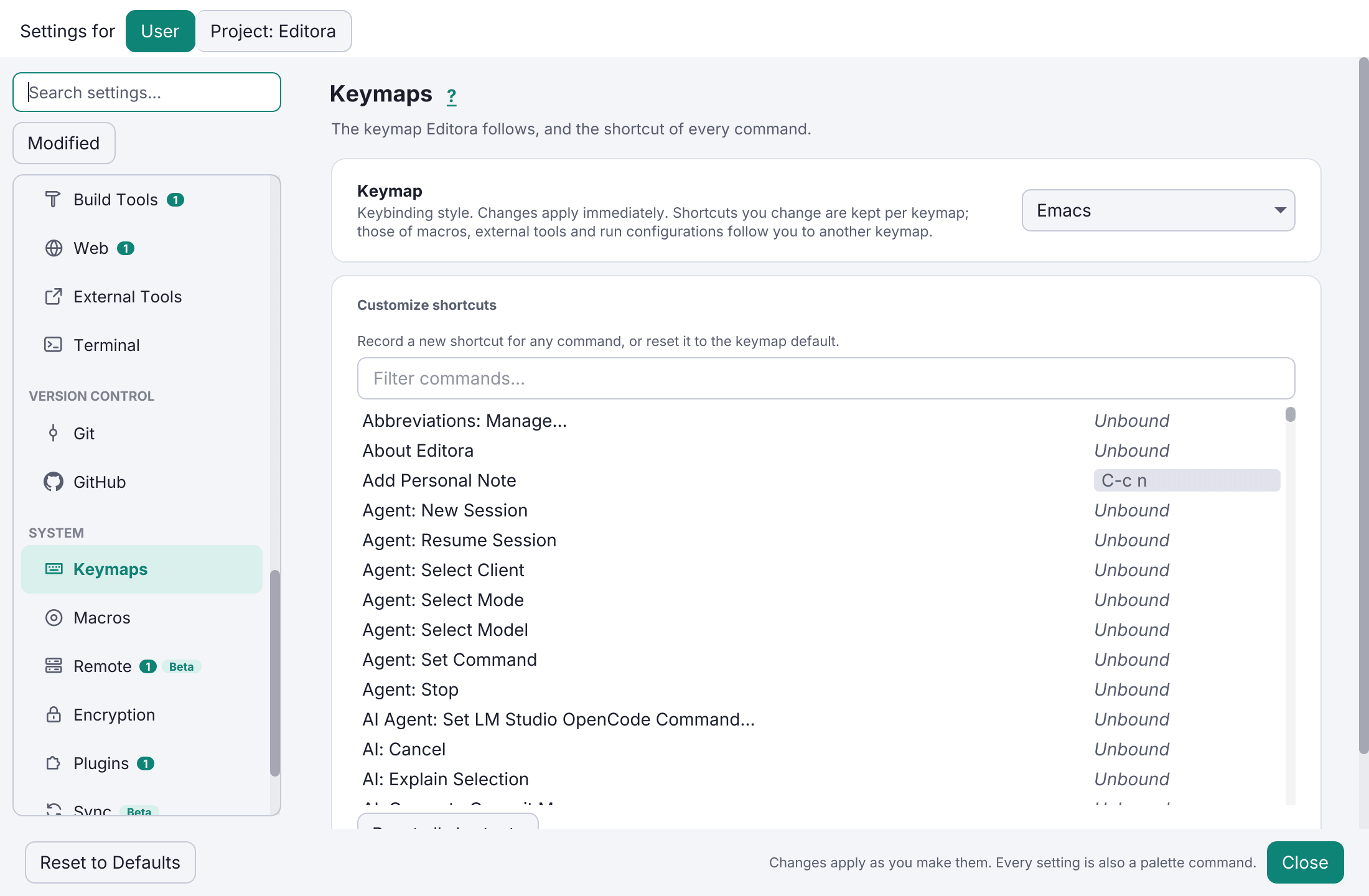
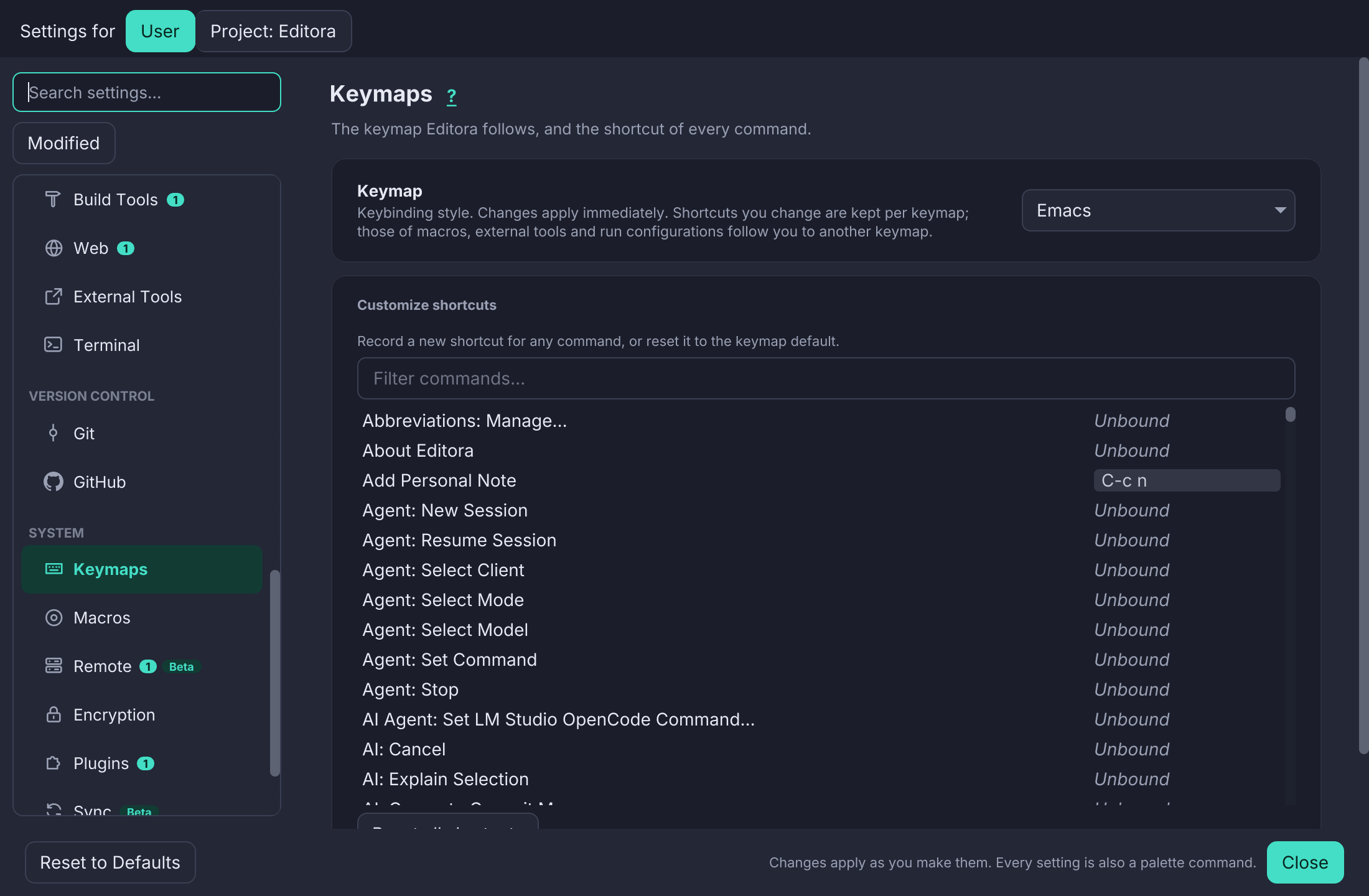
The Filter commands… field matches every word you type, in any order, so
save file finds File: Save. You can also type a chord in any notation:
Ctrl+S, C-s, ⇧⌘S or a sequence like Ctrl+K Ctrl+W lists the commands on
that chord, written the way the active keymap writes it.
Changes apply live across all windows. Your overrides are saved in
settings.json (the keymap name plus per-command entries) and layer on top of
the active keymap, so you only store what you change. Overrides are kept per
keymap: switching keymap does not unbind unrelated keys, and switching back
restores the rebinds you made there. Shortcuts of commands that no keymap binds
by default (saved macros, external tools and run configurations) follow you to
the new keymap instead. When the new keymap already uses that chord, or the
chord would clash with one of its chords, the shortcut stays with the keymap it
was made in and comes back when you switch back.
Your overrides are one set for every operating system. In a keymap with a macOS form (CUA, VS Code, IntelliJ IDEA and Sublime Text), a chord you record with Ctrl is used with ⌘ on a Mac, and a chord recorded with ⌘ on a Mac is used with Ctrl on Windows and Linux. The Emacs keymap’s chords are the same everywhere. A chord only a Mac can type (the Control key in a keymap that puts ⌘ where the others have Ctrl, or ⌘ in the Emacs keymap) stays the Mac’s own, and Windows and Linux keep the chord they had for that command. Settings sync can carry your overrides, for every keymap, to your other computers; which keymap each one uses stays its own.
The reference pages
- The Commands page lists every command grouped by area, with its description and default chord per keymap.
- The Keybindings page shows each keymap’s bindings grouped by area, with a tab per keymap.
Limitations
Modal Vim is deferred: the flat chord-to-command resolver can’t express a normal/insert/visual state machine yet.