
Typst
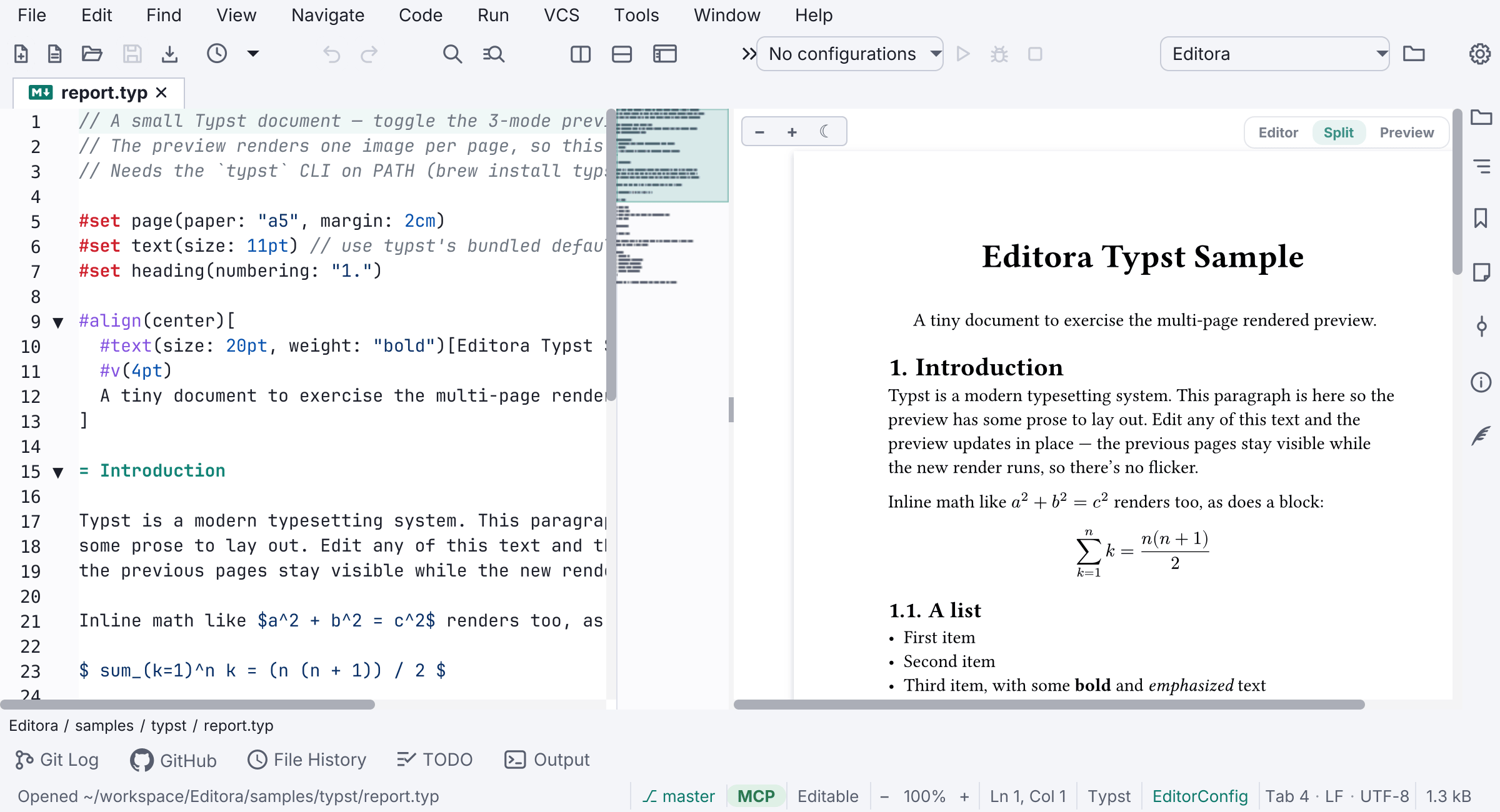
Standalone .typ (Typst) files get the same 3-mode view
(Editor / Split / Preview) as Markdown, rendered off-thread by the external
typst CLI as a multi-page stack, one image per page.
The last good render stays on screen as you edit, without flicker, and a compile error keeps the pages visible under a small banner. Zoom resizes the pages.
Editing
Typst files get Markdown-style ergonomics:
- Enter continues a
-/+/N.list. - Selecting text pops a format bar (bold
*, emphasis_, raw`, link, bullet, heading), with matching right-click and palette actions (typst.bold,typst.emph,typst.raw,typst.link,typst.bulletList,typst.headingPromote/Demote). - Insert a table, image, or table of contents (
typst.insertTable,typst.insertImage,typst.outline). - Bundled snippets cover figures, tables, and more.
Code intelligence comes from the tinymist language server. Editora can
install it for you: click Install on the banner that appears when you open a
.typ file without it, use Install… beside it in Settings → LSP, or run
Install: Language Server… (install.languageServer); see
One-click install. To install it yourself, use
brew install tinymist or a binary from
tinymist’s releases on
your PATH.
Editing actions are grouped under a single Typst submenu in the editor’s right-click menu. Run and Debug stay at the top level of the menu.
Structure and folding
A .typ file folds and outlines by section. Headings (=, ==, …) drive
both, so the Structure window reads as the document’s own table of contents and
a section collapses like one. Folding at #align / #table brackets still
works alongside it, and a long embedded listing collapses at its ``` fence,
which is usually the thing you most want out of the way.
#let and #show bindings join the outline in document order, each nested
under the section it is written in (one above the first heading stays at the
root), so a template file made mostly of bindings still has an outline.
Three forms are left out:
#set, which configures the document rather than defining anything. A run of#set page/#set textwould top most files.- An indented
#let, inside a function body, naming something that means nothing outside it. - Destructuring and
#show:forms, which name nothing you could jump to.
The parser has to tell a section marker from every other = in a Typst file
(an assignment in #let x = 1, an equality inside math, a rule of =
characters) and from anything written inside a raw block, a line comment or one
of Typst’s nesting block comments. Folding and the outline share one
parser, so the two surfaces cannot disagree about where a section begins.
Export
Export the document with typst.export: PDF (a native single file), PNG,
or SVG (also typst.exportPng / typst.exportSvg). Printing paginates the
pages.
PNG and SVG write one file per page. A one-page document is written under
the name you chose (report.png); a longer one becomes numbered page files
(report-1.png, report-2.png, …). When any of those page files already exist,
the export lists them and asks before replacing them; cancelling replaces
nothing.
The PDF is laid out by Typst itself, so the page size, orientation and margins
come from the document (#set page(…)) rather than from Editora’s
Export & Print settings.
Enabling
It’s on by default, self-gating on detection, so it stays inert until the
typst CLI is found. Install it with your package manager
(brew install typst, cargo install typst-cli) or the in-app Install…
button (install.typstCli). The toggle and tool path live under Settings →
Typst, with a Detected line below the path, for example typst: found
(/usr/local/bin/typst) or typst: not found beside the Install… button.