
Navigation & search
This page covers the fuzzy pickers and search commands that take you anywhere without the mouse.
For moving around code in particular (symbols, definitions, the scope you’re in), see Code navigation.
Command palette
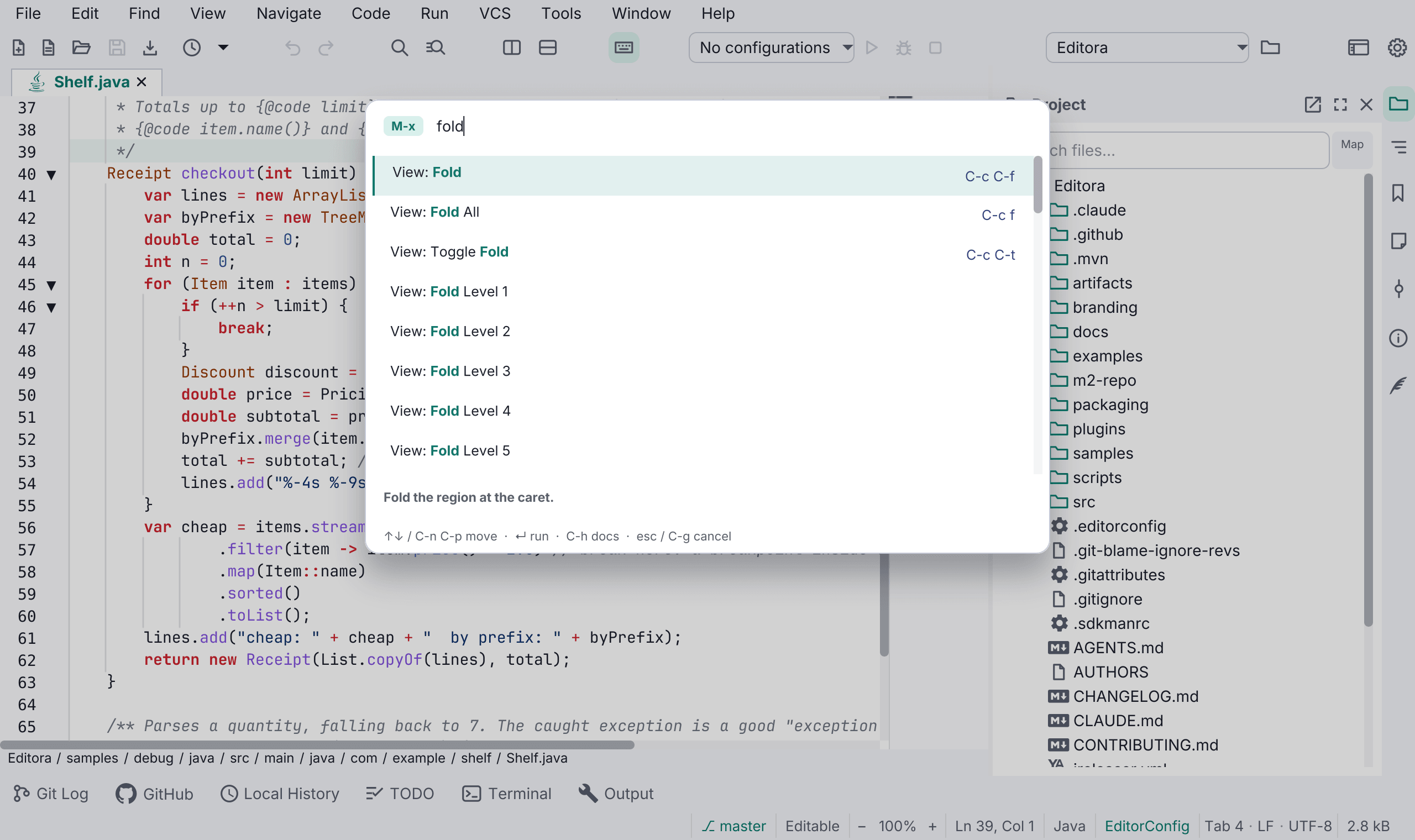
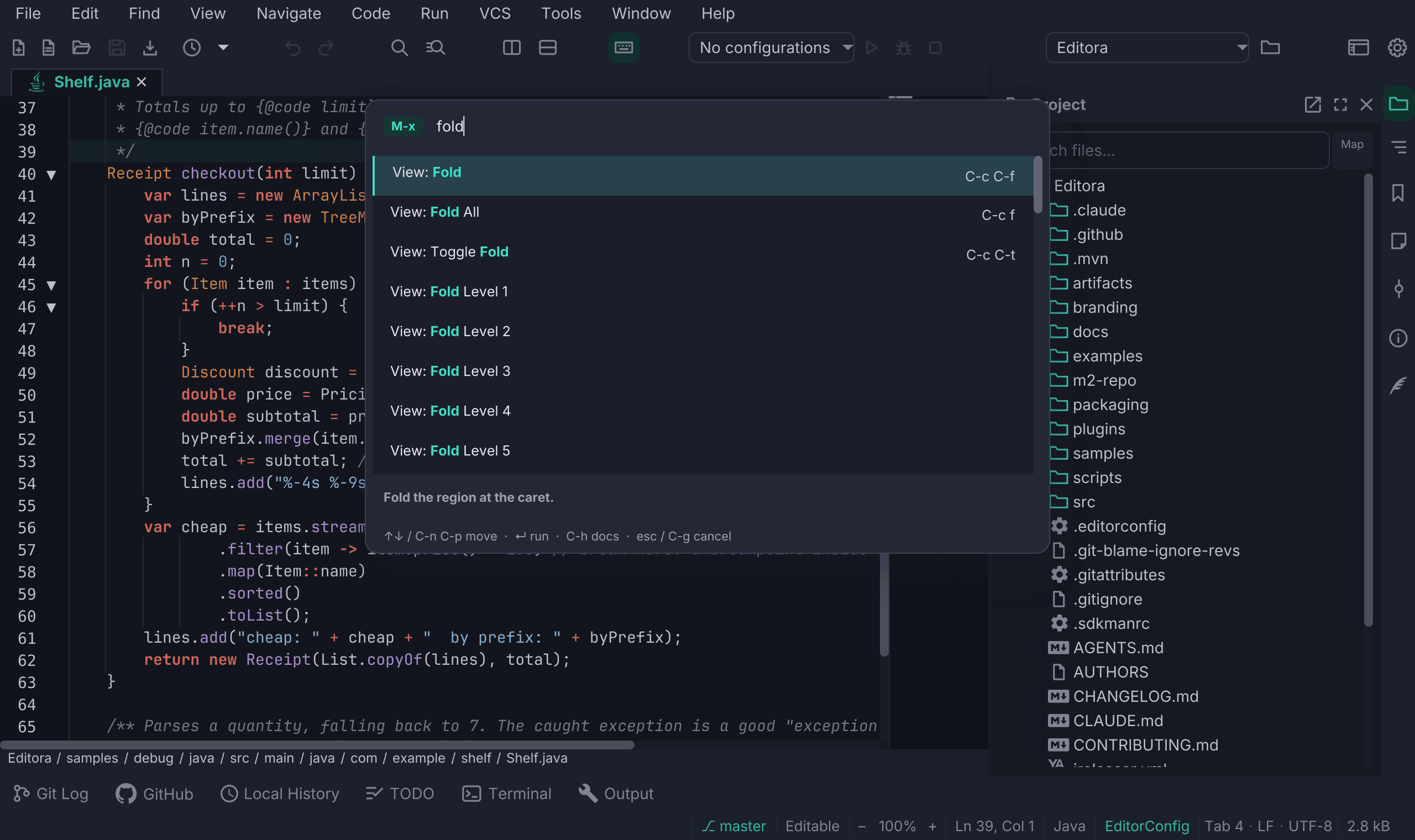
The command palette (palette.show) lists every command by name. Type a few
letters (matching is fuzzy, see How matching works),
press Enter, and it runs.
| Keymap | Chord |
|---|---|
| Emacs | M-x |
| CUA, Sublime, VS Code | Ctrl/Cmd+Shift+P (VS Code also F1) |
| IntelliJ | Ctrl/Cmd+Shift+A |
Each row shows the command’s current keybinding, and the highlighted row’s
description appears under the list. The docs key opens that command’s
documentation in your browser: C-h in the Emacs keymap, and F1 or
Shift+F1 in the keymaps that already use Ctrl+H or F1 for something else.
The hint line along the bottom names the key that applies.
A command is also found by the first word of its id when its title does not carry it, so “markdown table” finds the Table: … commands of Markdown. Those matches rank below every match on a title.
A command that can’t run right now stays listed and dimmed, with an explanation of what would enable it, rather than disappearing.
A screen reader hears the selected row as the arrow keys move it, with the command’s title and keys, and the reason when the command cannot run. The other pickers announce their selected row the same way.
The palette also reaches every setting. Most Settings pages have a command that lists the page’s settings with their values and changes the one you pick, such as Terminal: Change a Setting… or Debug: Change a Setting…; see The Settings window.
Search Everywhere
Search Everywhere (search.everywhere) is one picker over commands,
project files and symbols, so you can type the name of the thing instead of
first deciding which of Editora’s five pickers, each behind its own chord, it
lives in.
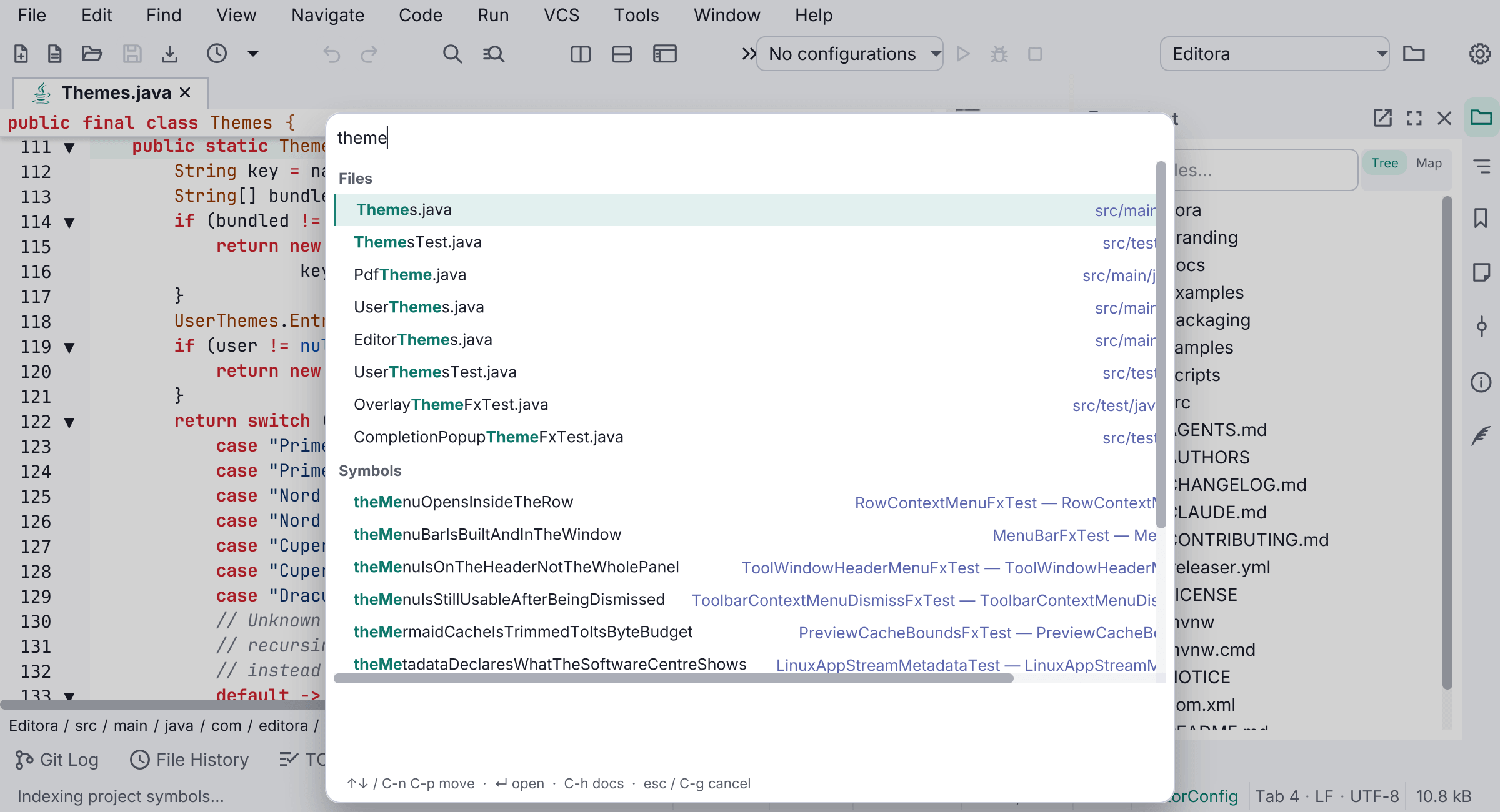
With a Java language server running, the symbols include the JDK’s and your
dependencies’ classes (List, Assertions), listed after the project’s own and
opened as read-only library source.
A leading sigil restricts it to a single source when you already know:
| Prefix | Searches |
|---|---|
| (none) | commands, files and symbols together |
> | commands only |
# | files only |
@ | symbols only |
These are VS Code’s sigils, chosen because the muscle memory for them already exists.
Results stay grouped by source rather than interleaved on raw score. The sources differ in size by orders of magnitude (tens of thousands of symbols, thousands of files, a few hundred commands), so a flat merge would fill the list from the biggest source and push the other two out. Each source gets a guaranteed share (8 rows, 24 overall), the groups compete on their best result rather than their bulk, and the overall cap trims a group’s tail instead of dropping a source outright.
A single-source query is not capped. When a sigil restricts the picker to
one source, or when the query is empty (which lists commands), there is no
smaller source for a large one to crowd out, so you get the whole list: a >
search lists as many commands as the command palette does.
An empty query lists every command and touches no other corpus, so opening it is a browsable list rather than a blank box. A bare sigil is a scope rather than an empty query: it names what it will search and walks nothing.
A single-line selection seeds the query, the same way the find bar and Find in Files do.
File results come from the same list of the project’s files as the
Project Map’s search and the
Project tree’s filter, kept current as you work,
and they rank the same way: the name as you typed it first, then the project’s
own source, then vendored code, then tests. So all three find the same file
first. Deep and very large projects are searched completely, and a path such as
core/v1/types.go narrows a common name.
Show in Map selects the highlighted file, or a symbol’s file, on the
Project Map, opening the Map window if needed.
Its key is Alt-Enter where the keymap leaves it free, else Shift-Enter or
Alt-M; the hint line names it.
The symbol half is backed by Editora’s own project symbol index, so it works with no language server installed.
In a remote project whose host may run commands, the host lists the project’s files in one command, so files are offered without walking the folder over the network. There are no symbols for a remote project: finding them would mean reading every source file over the connection.
Commands you can’t run yet
A command whose feature is switched off is listed, greyed, with an explanation naming the setting that would enable it, the same way the command palette treats it, so you learn the command exists. Greyed rows sort after everything you can run, and both the cursor and the mouse step over them.
The highlighted row’s description appears under the list, and the docs key
(C-h in the Emacs keymap) opens that command’s documentation in your
browser. Both match the palette. The hint line along the bottom names them, alongside C-n/C-p.
Opening it
| Keymap | Chord |
|---|---|
| Emacs | M-S-x |
| CUA, Sublime, VS Code, IntelliJ | Ctrl/Cmd+Shift+E |
M-S-x was chosen because it sits beside M-x.
It can also take over the command palette’s shortcut: switch on Palette
shortcut opens Search Everywhere under Settings → Interface → Pickers, or
run view.togglePaletteSearchEverywhere. It is off by default, because which picker a
chord opens is muscle memory and a release should not change it for you. Nothing is lost by switching: an empty query
lists every command exactly as the palette does, and typing also reaches project
files and symbols. Search Everywhere keeps its own chord either way.
How matching works
Every picker scores what you typed rather than only testing whether it matched, and emboldens the characters responsible for the match.
- Contiguity, boundaries and case. A character earns a bonus for landing on a word boundary (the start, after a separator, a camelCase hump, a letter→digit transition) or for continuing a run. Spread-out matches are penalized. So an exact prefix beats an acronym beats a scattered subsequence.
- The best alignment, not the first. The match is computed by dynamic
programming rather than greedily left to right, so
mcmatches the two humps ofMainControllerrather than whicheverccomes first. - Several terms, any order. Whitespace splits the query into terms that must
all match, in any order, so
toggle gitfinds Git: Toggle Blame. - Paths know their basename. The Project tree’s filter, Search
Everywhere’s files and the Project Map’s search match a file’s name, and a
query with a
/in it matches the relative path, socore/v1/types.goorcmd/kube-schedulercan name a directory as well as a file.
Grouped and structural lists (build actions, branches, the Structure tree) use the same matcher but keep their own order, because a tree that reorders under a filter is harder to read.
Jump pickers
Each of these opens an in-scene picker with a footer legend of its keys. Type to filter; Enter opens.
| Jump to | Command | Default key |
|---|---|---|
| Recent files | recent.jump | C-x C-r |
| Symbols / file structure | structure.jump | M-g i |
| Open tabs | buffer.jump | C-x b |
| Tool windows | tool.jump | M-g t |
| Bookmarks (cross-file) | bookmarks.jump | M-g b |
| Notes (cross-file) | notes.jump | M-g n |
| Markdown headings, project-wide (more) | project.gotoMarkdownHeading | (palette) |
The pickers share styling and dirty-file markers, so an unsaved buffer shows the same dot you see on its tab. A picker with nothing to list says so (“No bookmarks in this project”), and shows “No matches” when what you typed matches nothing.
The file finder
C-x C-f opens an Emacs find-file-style path finder with prefix
autocomplete. Type and press Tab to complete, Enter to descend into a folder or
open (or create) a file. There’s a matching folder finder for picking a
directory.
C-d opens a folder as a project, the same as
Project: Open Folder… (project.open), and closes the finder.
The folder it opens is:
- the highlighted folder, when you picked it: typed its name, or moved the highlight onto it;
- the folder being listed, when the field ends in a path separator and you haven’t moved the highlight (the first row is just the folder’s first entry, not a choice);
- on a file row, the folder that file is in.
The key legend shows it as “C-d open as project”. It is only offered when
projects are on (Settings → Workspace), not in the Project: Open Folder… picker
(whose Enter already chooses a folder), and not in the IntelliJ macOS keymap,
where C-d is Start Debugging.
The tab switcher
C-x C-b (switcher.show) opens an IntelliJ-style switcher over the open
files, listed in tab order with the current tab preselected. C-n / C-p or
the arrow keys move through the list, releasing Ctrl or pressing Enter switches,
and C-g or Esc cancels. The chord is the Emacs keymap’s; the other keymaps
leave the command unbound, so run it from the palette or bind it in
Settings → Keymaps.
Buffer: Next (buffer.next) and Buffer: Previous (buffer.previous)
step to the tab after or before the selected one, wrapping around at the ends.
Both are in the Window menu and have no key until you give them one.
Find in the current file
C-s / C-r open the Find/Replace bar at the top of the editor. It searches as
you type (incremental), highlights every match, and shows a “{n} of {total}”
count. A repeated C-s / C-r cycles to the next or previous match, and so do
Enter and Shift+Enter in the find field; C-g closes the bar. Case, regex, and whole-word toggles are on the bar, along with
AB (preserve case) and Sel (find in selection); a clear (✕) button
empties a field in one click.
Preserve case recases each replacement after the text it replaces, so
replacing foo with bar rewrites FOO as BAR and Foo as Bar instead of
flattening everything to lowercase. snake_case and kebab-case are cased per
segment. Find in selection is picked up automatically when you open the bar
with a multi-line selection, scoping both search and Replace All to it and
following the region as you edit; a single-line selection seeds the query
instead.
Replace understands regex capture groups: search (\w+)_(\w+) and replace
with $2-$1. A replacement naming a group the pattern doesn’t have reports the
error and leaves the buffer untouched. In literal (non-regex) mode $ is
inserted verbatim. Alt+Enter puts a cursor on every match at once (see
Multiple cursors).
Open the bar in replace mode with Ctrl+H in the CUA, Sublime and VS Code
keymaps or Ctrl+R in IntelliJ (Option+Cmd+F and Cmd+R on macOS). The
Emacs keymap has no chord for it: there M-% runs
query-replace instead, the
replace-with-confirmation loop, and the find bar’s own replace is still on the
bar and in the palette.
The find bar’s switches are commands too, so a key of your own can flip them:
Find: Toggle Match Case, Find: Toggle Regular Expression, Find: Toggle
Whole Word, Find: Toggle Preserve Case and Find: Toggle In Selection.
Edit: Clear Search Field (edit.clearSearchField) empties the search or
filter field the keyboard is in, as its ✕ does.
Find in a console
The Output, Run, External Tools and Debug consoles, the test output in Test Results and the Application Log each have a find bar. Press your keymap’s Find key while the console has the keyboard (the Application Log also has a Find button), or run the console’s own command from the palette:
| Console | Command |
|---|---|
| Output (builds) | buildOutput.find |
| Run | run.findInOutput |
| External Tools | externalTool.findInOutput |
| Debug | debug.findInConsole |
| Test Results | test.findInOutput |
| Application Log | debugLog.find |
None of them has a default key; give them one under Settings → Keymaps. Each shows its panel and opens the bar. The bar searches as you type, starting from where the caret was when it opened, highlights every match and shows a count. Enter goes to the next match and Shift+Enter to the previous one, wrapping around, and pressing Find again, or running the command again, also goes to the next match. Escape closes the bar and gives the keyboard back to the text. In the terminal, too, pressing Find while its bar is open goes to the next match; see Find in the terminal.
Occur
Edit: Occur… (M-s o) lists every line in the current buffer matching a
regular expression in a keyboard picker, and picking one jumps to it. It is the
buffer-scoped counterpart to Find in Files, and the picker’s own filter narrows
the list further as you type.
Find in files
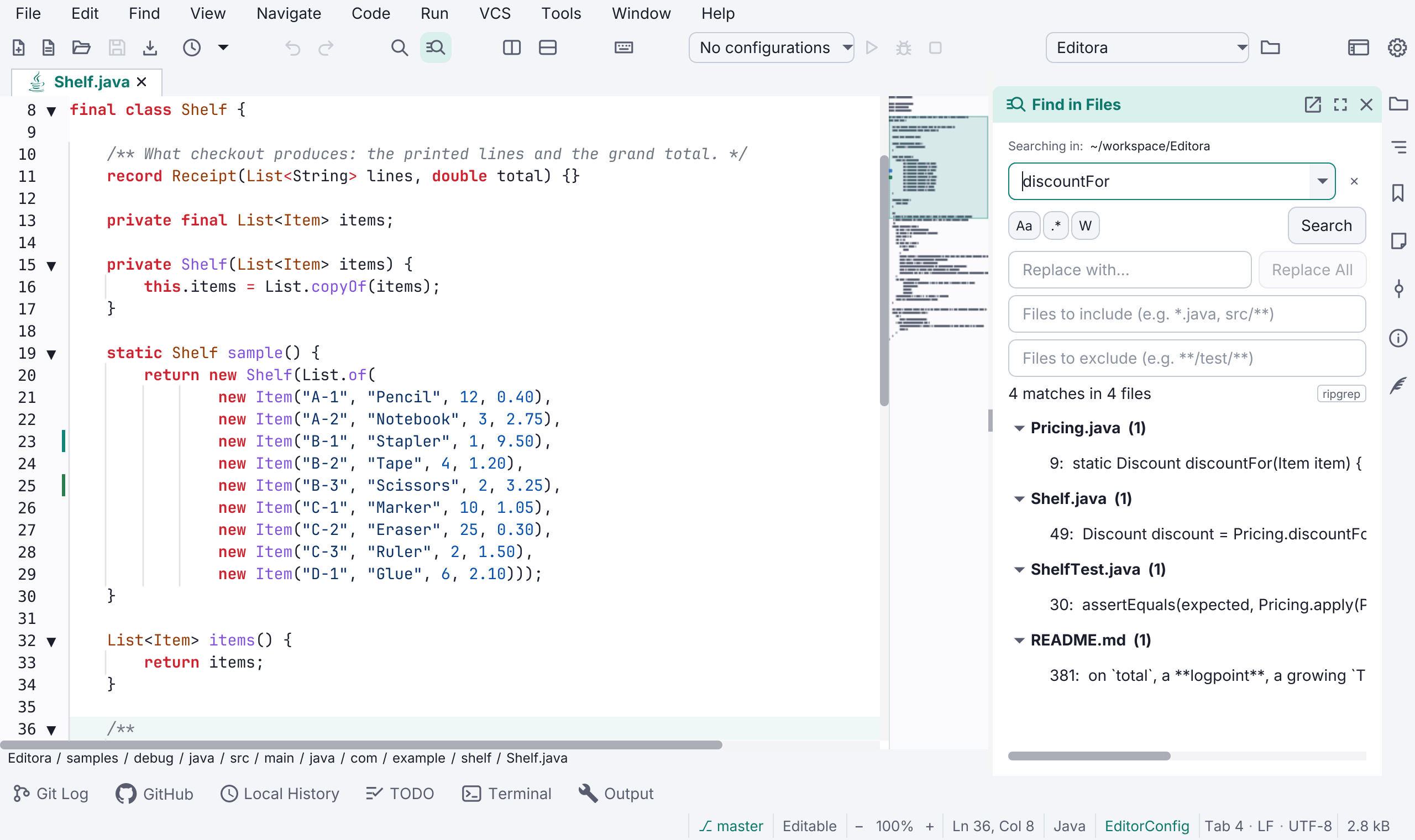
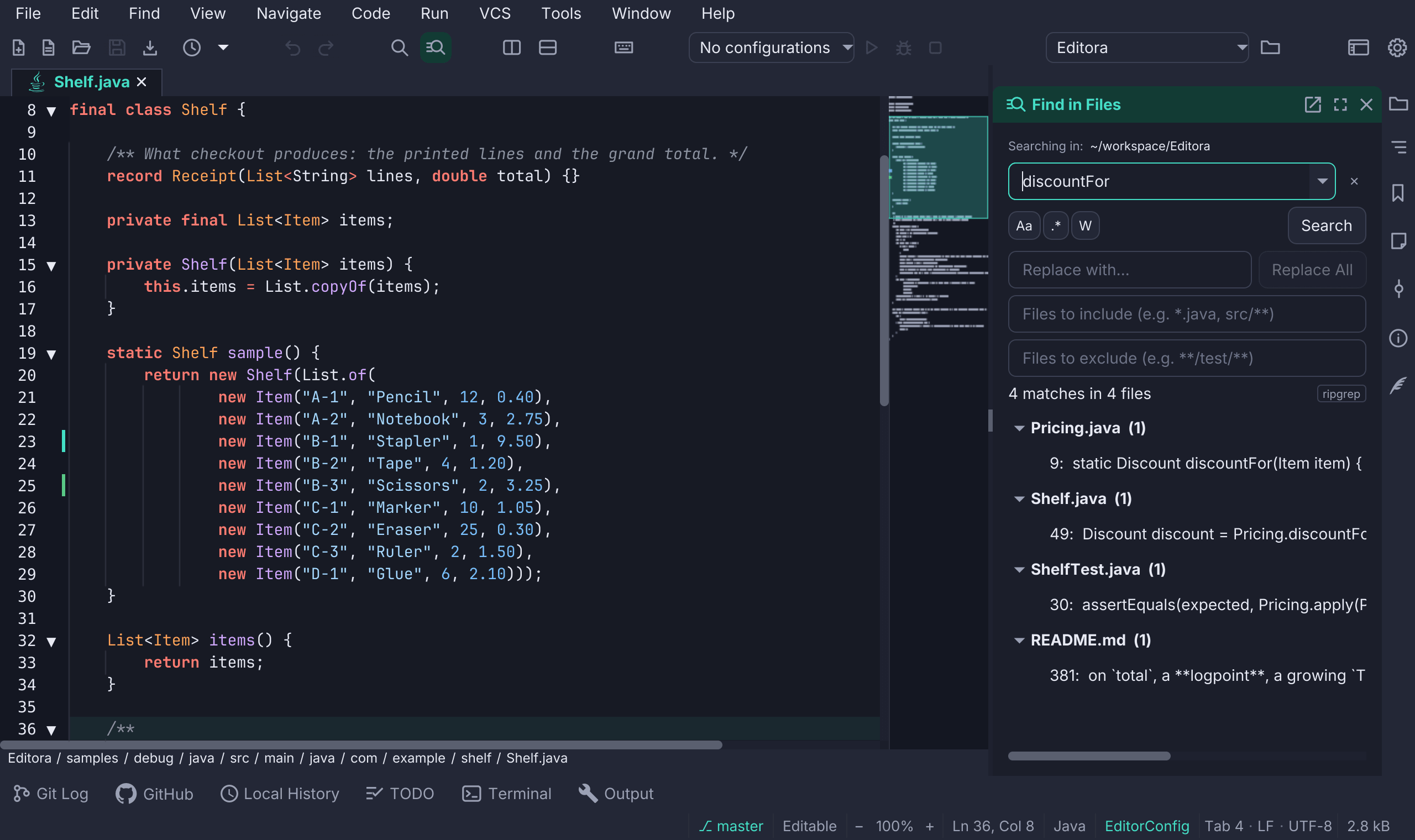
C-S-f opens the Find in Files tool window and focuses it. It searches the
active project (skipping dot-dirs, binary files and files over 2 MB) plus the
in-memory text of open buffers, so unsaved edits are included. Results are
grouped by file; Enter or double-click jumps to a match. Case, regex, and
whole-word apply here too. A match’s right-click menu (or the Menu key, or
Shift+F10) has Open and Copy, and your keymap’s Copy key copies the
selected match’s line, or a file heading’s path. As commands they are
Find in Files: Open Match (searchResults.openSelected) and
Find in Files: Copy Line (searchResults.copySelected).
While Exclude .gitignore files and folders from search is on (Settings →
Search, on by default), Find in Files skips what the project’s .gitignore
excludes. It also skips every node_modules folder, even in a project with no
.gitignore yet, because a node_modules often holds tens of thousands of
files. The symbol index, Go to File, Search Everywhere, the TODO window and the
Project tree’s filter skip it the same way. To search inside it, add
!node_modules/ to the .gitignore, or name it in an include glob such as
node_modules/react/**. With the setting off, the symbol index and Go to File
take the project’s own files first and node_modules after them, so their file
limit is not used up before your own code is reached.
Find in Files stops at 5,000 matches, and says so when it stops there. The
built-in search and ripgrep both skip files over 2 MB, such as a built
dist/bundle.min.js, without counting them, so the results say (truncated)
only when the search stopped short: at the match or file limit, or at a folder
it could not read.
Replace in files rewrites matches across the project after a confirmation: open buffers are edited in-memory (undoable) and closed files are rewritten on disk, preserving their line endings. The search re-runs afterward to refresh the panel.
There’s also a lightweight Find in Files popup (search.inFilesPopup) if you
prefer a quick, keyboard-first search without opening the tool window.
When ripgrep is installed, Find in Files uses it to search faster (Use ripgrep
when available under Settings → Search, on by default). In a
remote folder, the host’s own ripgrep does the search in one
command when the host may run commands
and has rg; otherwise each file is read over the connection. Whether this
machine has ripgrep does not matter there.
Folding
The gutter carries a fold chevron beside every foldable region. Beyond clicking it:
| Action | Command | Default key |
|---|---|---|
| Fold at the caret | view.fold | C-c C-f |
| Unfold at the caret | view.unfold | C-c C-u |
| Toggle the fold at the caret | view.toggleFold | C-c C-t |
| Fold all | view.foldAll | C-c f |
| Unfold all | view.unfoldAll | C-c u |
| Fold by nesting level (1 to 7) | view.foldLevel1 … 7 | (palette) |
| Fold / unfold recursively | view.foldRecursively / view.unfoldRecursively | (palette) |
| Go to parent / next / previous fold | view.gotoParentFold … | (palette) |
| Fold the selection | view.createFoldFromSelection | (palette) |
| Remove your manual folds | view.removeManualFolds | (palette) |
| Fold all block comments | view.foldAllBlockComments | (palette) |
Fold / unfold all #region markers | view.foldAllMarkerRegions | (palette) |
| Fold / unfold all except the caret | view.foldAllExcept / view.unfoldAllExcept | (palette) |
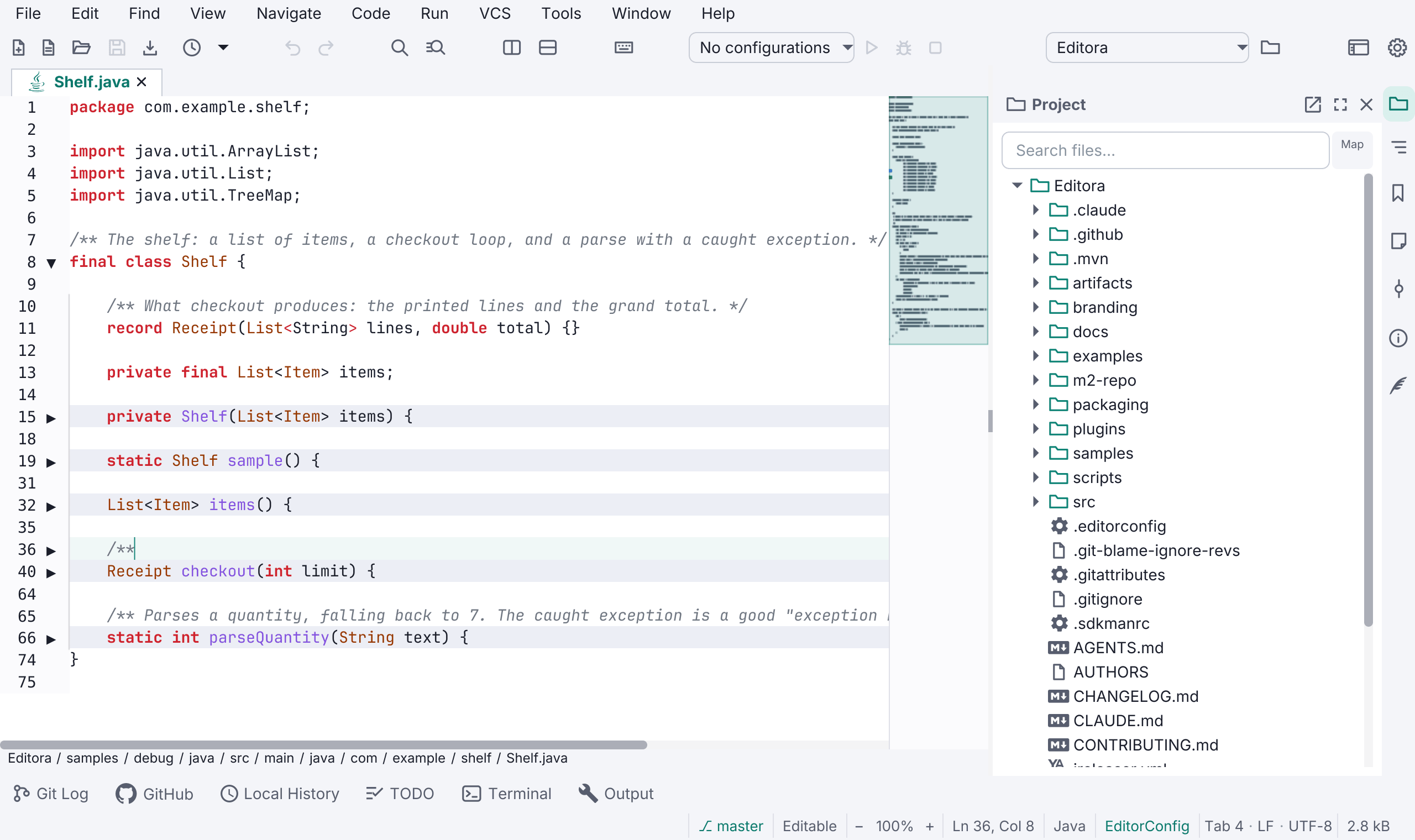
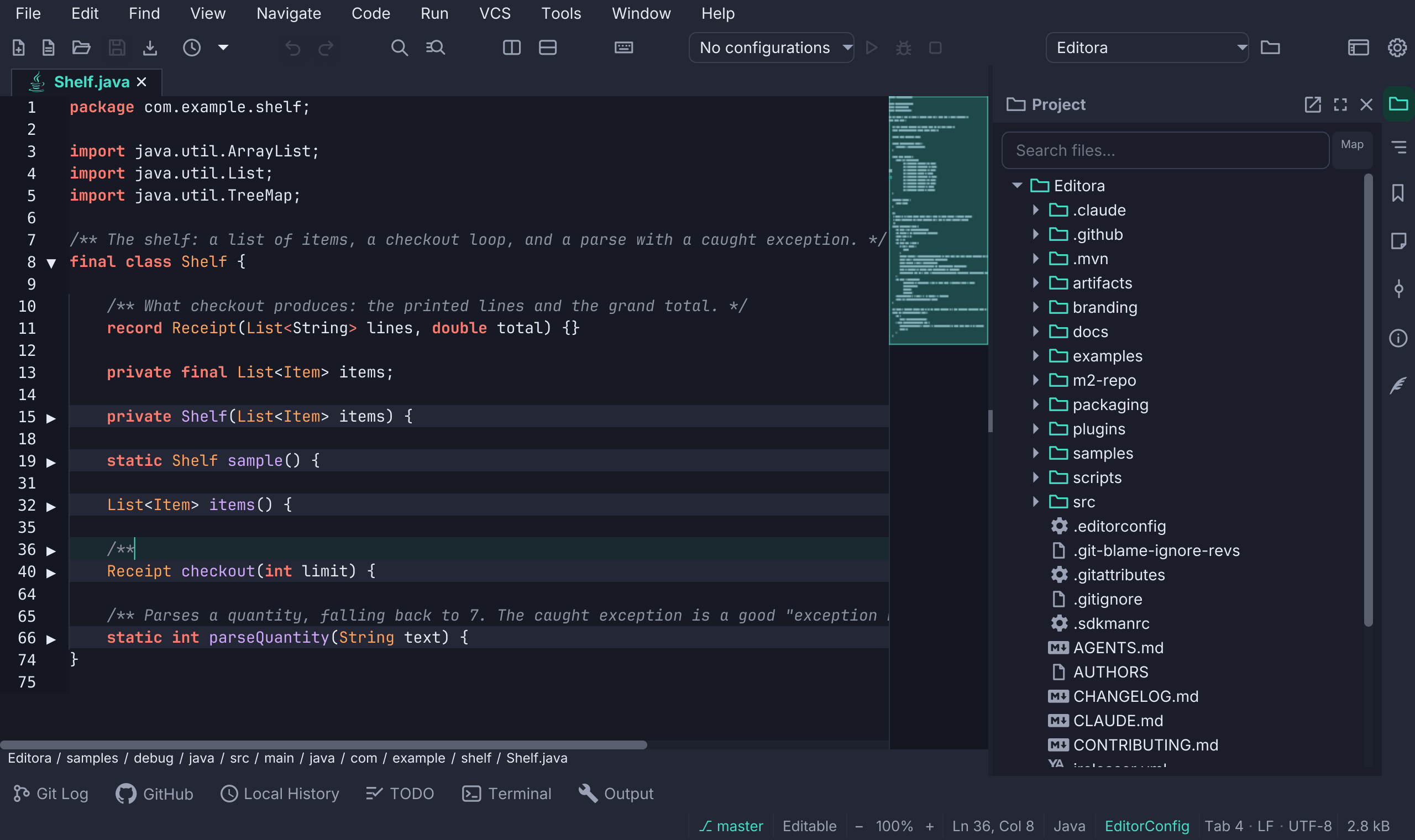
Fold Level n collapses everything at that nesting depth, like VS Code’s
Ctrl+K Ctrl+1..7. Fold Recursively collapses the region at the caret and
everything nested inside it, and unfolding recursively reveals the whole subtree.
The three Go to … Fold commands move the caret to a fold header, revealing it
first if it is hidden. None of these has a default key; bind them from
Settings → Keymaps.
Folds of your own
Fold the selection creates a fold range from whatever lines you picked, with no syntactic basis. Unlike a detected region, which is recomputed from the text as you type, a manual range is tracked through your edits, and it persists across restarts with the rest of your session. Remove Manual Fold Ranges clears them for the file, after asking; the text itself does not change.
Fold All Block Comments and Fold All #region Markers fold exactly
those. The marker families recognized are //#region, //region, #region,
# region, #pragma region, <!-- #region --> and --region; Markdown and
Markwhen are excluded, since # region there is a legal heading.
Fold All Except Caret collapses everything but the block you are in. Fold
All, Unfold All and the others keep the caret where it was, or put it on the
fold that now hides it.
All of these merge with the folds Editora detects, and with any a language server reports, rather than replacing them.
Where a language server is running, the fold regions come from the server rather than from brace and indent scanning, so import blocks and javadoc fold as single regions. Collapsed regions are saved per file and restored with your session.
Back and forward
Jump around and step through your navigation history with Go: Back
(nav.back) and Go: Forward (nav.forward), like a browser’s back/forward
for the caret.
| Keymap | Back | Forward |
|---|---|---|
| Emacs | M-, | C-M-, |
| CUA | Ctrl+Alt+Left (Cmd+[ on macOS) | Ctrl+Alt+Right (Cmd+] on macOS) |
| Sublime | Alt+- (Ctrl+- on macOS) | Alt+Shift+- (Ctrl+Shift+- on macOS) |
| VS Code | Ctrl+Alt+- (Ctrl+- on macOS) | Ctrl+Shift+- |
| IntelliJ | Ctrl+Alt+Left (Option+Cmd+Left or Cmd+[ on macOS) | Ctrl+Alt+Right (Option+Cmd+Right or Cmd+] on macOS) |
Recent Locations
Go: Recent Locations… (nav.recentLocations) lists the session’s trail
newest-first, each row showing the line you were on. A location such as
Foo.java:214 says nothing about why you were there, and the line’s text
usually does.
It reads the same trail Back walks rather than keeping a second log, so the picker and Back can never disagree about where you have been.
The picker also previews: the highlighted row is shown in the editor as the selection moves, and dismissing the picker puts everything back where it was. Without that restore, arrowing through a list and pressing Escape would leave you wherever the cursor stopped. Preview navigates without taking focus and without recording history, so browsing a picker can’t itself become something to navigate back through, and a location whose file isn’t open lands in the preview tab, so a list of twenty locations costs one tab rather than twenty.
AceJump
M-g j labels every visible occurrence of the next character you type. Type a
label to jump the caret there. Esc or C-g cancels. It’s the fastest way to
move the caret to something you can see. Line mode (nav.aceJumpLine,
M-g S-l) labels every visible line so you can jump straight to one.
Between the editor and the tool windows
Window: Other (window.other) moves the keyboard from the editor to the
next open tool window, and on round to the editor again. Window: Other,
Reverse (window.otherReverse) goes the other way. Every keymap binds both,
and both are in the Window menu:
| Keymap | Other | Other, Reverse |
|---|---|---|
| Emacs | C-x o | C-x S-o |
| CUA, Sublime, VS Code, IntelliJ | Alt+Page Down (Option+Page Down on macOS) | Alt+Page Up (Option+Page Up on macOS) |
Closing tool windows
M-g closes a focused tool window (any of them) and returns focus to the
editor. View: Close Current Tool Window (view.closeFocusedToolWindow,
C-x 0) does the same as a regular command.