
Troubleshooting
A launcher is blocked on first run
The Windows installer is unsigned, so Windows stops it until you allow it. You only do this once.
- Windows: when you run the downloaded
.msi, SmartScreen shows Windows protected your PC. Click More info, then Run anyway. The installer installs Editora for every user of the computer, so Windows then asks for administrator rights, and its prompt names the publisher as Unknown. Once installed, Editora starts without these prompts. - macOS: the app is signed and notarized by Apple. The first time you open it, macOS asks once whether to open an app downloaded from the Internet; click Open.
To check that a download is the one the release workflow built, see Checking a download.
External tools aren’t found
Language servers, debug adapters, git, mmdc, and the file runner are
external programs Editora launches. A GUI-launched app inherits a stripped
PATH that often misses Homebrew, npm, and version-manager directories, so a
tool that works in your terminal may look “not found” in the app.
Editora rebuilds the PATH from your login shell plus the usual install
locations before launching anything, which recovers most setups (including
nvm/fnm/asdf per-version bins). A Python environment you activated before
starting Editora ($VIRTUAL_ENV, $CONDA_PREFIX) stays first on that PATH.
Doctor shows the command each feature found, or that it found none.
If a tool still isn’t found:
- Set its absolute path in the relevant Settings page (LSP, Debugging, Mermaid).
- Confirm it runs from a plain login shell, since that’s the
PATHEditora reads. - On Windows there’s no login-shell convention, so prefer setting absolute paths.
Doctor
View: Doctor (in the Tools menu and the command palette, linked from the
Welcome page and from the message log’s Open Doctor button) opens a full-tab
health report of every external command Editora’s features rely on, in the
spirit of flutter doctor. It covers Git and the GitHub CLI (including whether
gh is signed in), ripgrep, GnuPG and its passphrase prompt for encrypted
files, the preview and diagram tools (mmdc, maid, Graphviz, PlantUML, the
Typst CLI), every enabled language server, the Python formatter, ShellCheck and
shfmt, a JavaScript project’s ESLint, Prettier and Biome, the debug adapters (java-debug, debugpy, js-debug, Delve, CodeLLDB, netcoredbg, rdbg, PHP Debug), the Run interpreters
(with a JDK 25 check for Java, and the Python interpreter and Node.js that Run,
Debug and the language servers share), the Node.js for HTTP scripts, the build
tools, the AI provider and agent, the container engine (and WSL on Windows),
elevated save, browsers, the in-app installer’s prerequisites, and plugins that
failed to load or start.
A missing tool is a problem only when the window needs it: a file of that language is open, the project has the tool’s marker file, or you set its command. Anything else shows as Not installed and is not counted. The Python formatter row (Ruff or Black) is optional the same way: it is a warning only while Format on save (Ruff/Black) is on. Problems and warnings are gathered under Needs attention at the top; sections where everything is OK fold to one line.
Each row shows the resolved command and its version or path. When something is off, the row carries a plain-language tip and its fix: Install… (the in-app installer), Turn on for a switched-off feature, How to install, and Settings… straight to the right page. All probes run off the UI thread, and only when you open or refresh the screen.
A row’s buttons are commands too, acting on the row the keyboard is in:
Doctor: Install or Update Check’s Tool (doctor.installRow), Open
Check’s Install Instructions (doctor.howToInstallRow), Open Check’s
Settings (doctor.openRowSettings) and Clear Check’s Cache
(doctor.clearRow); Copy Check (doctor.copyRow), Copy Check’s Path
(doctor.copyRowPath) and Reveal Check’s Path in File Manager
(doctor.revealRowPath) are in its right-click menu.
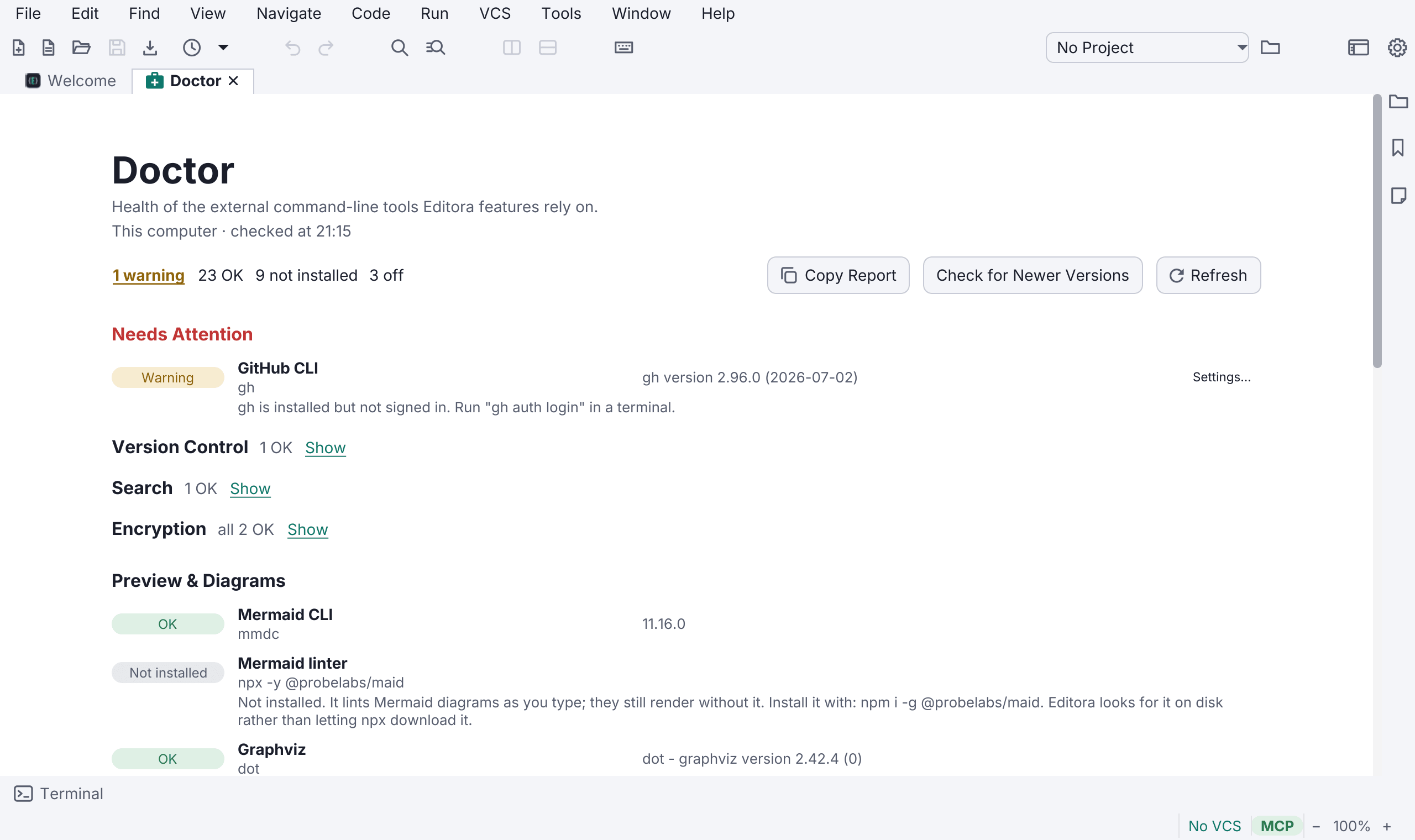
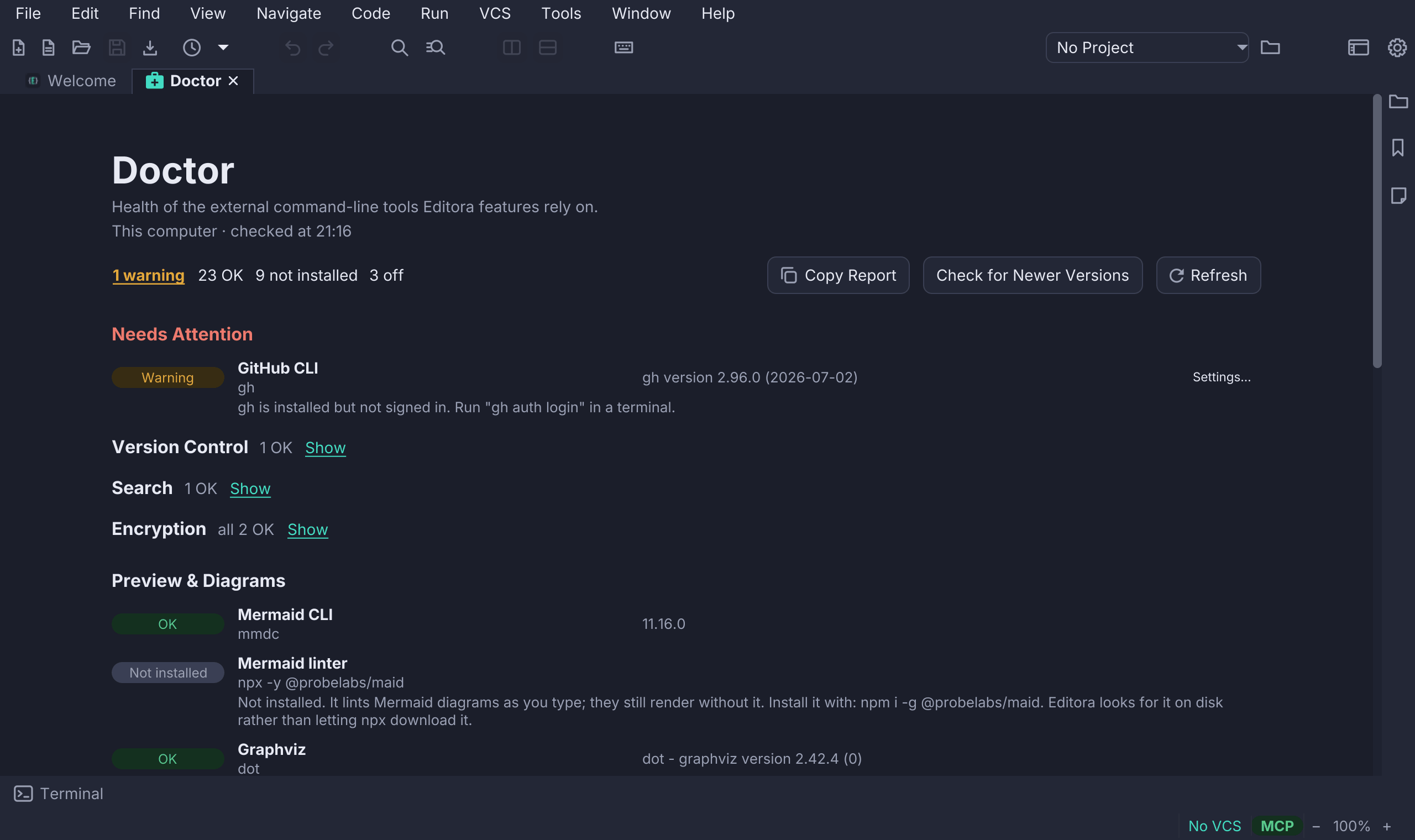
Start here when something that should work doesn’t: it answers “is the tool installed, is it the version I think, and is Editora looking at the right one” in one pass. Copy Report puts the whole report on the clipboard, ready to paste into a bug report.
Under the XML language server, the XML schema cache row shows how much the
server has downloaded (the schemas and DTDs XML files name) and where it keeps
it, cache/lemminx in Editora’s config folder, with a Clear button. With
the XML server off, the row sits under the Maven pom.xml server instead, and
either way it follows its server into Needs attention. Under the Maven
server, the lemminx-maven artifact store row shows the size of the
.lemminx-maven folder where lemminx-maven keeps what it resolves (beside your
local Maven repository: ~/.m2/.lemminx-maven, or next to the folder
<localRepository> names in ~/.m2/settings.xml, with ${env.…} expanded), with
Clear, and Reveal in File Manager in its right-click menu. The XML
server’s row names the Java fallback (Java lemminx 0.30.1 (fallback)) when
XML runs on it, and is an error when the XML command would load lemminx-maven,
which Editora refuses to start. A language
server that keeps crashing, or fails its requests, is a warning with an
Install… button that installs it again and a Restart Language Servers
button; the same goes for a server this window stopped restarting after it
kept crashing, and for a Node.js server (bash-language-server, Pyright, the
JSON, YAML and other npm servers) when no node is found. The rows of
npm-installed servers show the installed package version. A language server
that exits as soon as it starts shows what it printed, rather than OK; for lemminx on a Linux older than glibc 2.34, see
Installing lemminx. A server that keeps
failing while it runs a command you set in Settings gets no Install…,
since installing would not change that command: its tip says to fix the
command or clear it to use the default, then run Restart Language Servers.
The HTML row warns when the copy of vscode-langservers-extracted in use
cannot load TypeScript’s libraries, which is the case for any copy installed
with npm on its own: JavaScript in <script> then has no DOM or standard
library, nothing completes after document. and there is no parameter help.
Update installs Editora’s own copy, which has them, and a blank HTML
command uses it. A command that is just the default text
(vscode-html-language-server --stdio) counts as blank, so Update is offered
for it too. When the HTML command is your own, the tip says to clear its
command in Settings, then click Update. Editora’s own copy shows in the row by
its program, as vscode-html-language-server —stdio (Editora’s copy), rather
than by its long path in the config folder. See
Installing it.
The Node.js row counts the open npm-installed servers (HTML, CSS, JSON,
YAML, Bash, Pyright…) as needing Node.js, not only JavaScript and TypeScript.
When it is missing and one of them needs it, the tip names that server, or,
when several need it, names them and says they are Node.js scripts, and says to
install Node.js or choose one on the Node.js card under Settings →
Build Tools. A server’s own row that cannot start without Node.js says the
same: install Node.js (or start Editora where it is on PATH), or choose one
in Settings → Build Tools → Node.js, then click Restart Language Servers.
The TypeScript / JavaScript row shows the TypeScript the server runs and
where it is. It warns when that TypeScript is 6 or newer: TypeScript 6 leaves
out @types/node and the other installed @types packages unless a tsconfig
lists them, and TypeScript 7 has no tsserver, so the server cannot start on
it. Update… installs Editora’s own TypeScript 5.9, which the server then
uses. When the server’s command is your own, the tip says to use Install…
on the TypeScript card in Settings → LSP instead; your command then uses
Editora’s TypeScript. See
TypeScript features are off or show false errors.
For a project with a package.json at its root, Formatting & Linting has
an ESLint, a Prettier and a Biome row. Each reads the tool from
the project’s own node_modules and its version from the tool’s
package.json; nothing is run.
- OK: the tool is installed and the folder is trusted. The row shows its version and path.
- Not installed (not counted): the project has no ESLint configuration, or does not use Prettier or Biome.
- Warning: the project has a configuration (or Prettier in its
dependencies, or the tool chosen as Formatter) but the tool is not
installed; run
npm installin the project. Or the tool is installed but the folder is not trusted, and the tools run only in trusted folders. - Off: Check with ESLint is off in Settings (the ESLint row only).
Their Settings… button opens Settings → LSP; see ESLint and Formatting JavaScript and TypeScript.
Update… for servers older than Editora’s
Editora installs some servers and tools at the exact release it is tested with:
jdtls (Java), the JavaScript debugger (js-debug), lemminx (XML), the Maven
pom.xml server (lemminx-maven), gls (Groovy), Metals (Scala), the Kotlin server, clojure-lsp,
bash-language-server, vscode-langservers-extracted (the HTML, CSS and JSON
servers), ShellCheck and shfmt. A newer Editora can move to a newer release of one of
them. When the copy you have is older than the one this Editora is tested with,
its Doctor row is a warning that names both versions, and its Install…
button reads Update….
Update… downloads the release Editora is tested with, replaces the old copy, and restarts the server on it. If the download fails, the server starts again on the old copy. Install… in Settings also replaces Editora’s own copy when it is known to be older.
What the warning says depends on whose copy it is:
- Editora installed it. For example Editora installed 0.10.0; this release of Editora is tested with 0.11.0. Update replaces it.
- Installed by an earlier Editora. Editora records the version of each copy it installs. For a copy with no record, Doctor reads the version from its files, or from what the program prints, where it can. Where it can’t tell (a Kotlin server from an earlier Editora, for example), the row says the copy may be older and offers Update, which installs the tested release.
- Your own copy is older. A language server you installed yourself, or a
ShellCheck or shfmt found on your
PATH: Update installs Editora’s own copy and uses it instead, and your copy stays where it is. Doctor warns about your own copy only when it can tell its version; otherwise the row stays OK. - A ShellCheck or shfmt path set in Settings. You get the warning but no Update, since Settings names that copy on purpose. Update that copy yourself, or clear the path in Settings → LSP to use Editora’s own.
bash-language-server is a global npm package, not a copy in Editora’s folder. Its row warns when it is older than 5.7, the oldest release that works well with Editora, and Update installs the tested 5.8.1.
vscode-langservers-extracted is installed with npm into plugins/lsp/web in
Editora’s config folder, at 4.10.0. For a copy of your own, Doctor reads the
version from its package.json.
Check for Newer Versions
Many other servers and tools Editora installs at their latest release, so there
is no tested version to compare with. Check for Newer Versions, in Doctor’s
header, asks where each one is published (npm, the Go module proxy, GitHub and
HashiCorp) for its latest release. It covers Pyright, the YAML, Dockerfile, TOML
and Astro servers, gopls, clangd, lua-language-server, tinymist, terraform-ls
and the Mermaid CLI (mmdc), and only the ones that are installed and working.
typescript-language-server is not looked up: Editora installs it at 5.3.0 with
TypeScript 5.9.3 (see TypeScript and JavaScript),
and Install… replaces Editora’s own copy when it is older than that.
Nothing is looked up until you click the button: opening Doctor or clicking Refresh never asks for newer versions. The status bar then says what the check found: newer releases for some of your language servers and tools, that they are all on their latest releases, or that some could not be checked (when you are offline, for example).
A row with a newer release moves to Updates available, below Needs attention, and the summary links to it. The row stays OK, says which version is installed and which is the latest release, and has an Update… button that installs the latest release. Editora keeps what the check found until you close the window, so a Refresh still shows the group.
The pinned servers and tools above are never looked up: a new Editora release brings their newer versions, and Update… on their rows installs them. Servers that a toolchain keeps up to date, such as rust-analyzer through rustup, are not looked up either.
A language server starts but does nothing
The status bar shows an LSP: <server> segment and a loading bar while a
server initializes. If it never settles, restart servers with LSP: Restart
Language Servers (lsp.restartServers). For Java specifically, a stale jdtls process from a
previous run can hold its workspace lock; the loading bar clearing is the sign
the handshake completed. A server that starts but then fails its requests is
announced in the status bar (lemminx-maven: internal error on hover — see the log), stopped after three failures in a row, and shown as a warning in Doctor,
with Install… for a server Editora installs;
the Maven pom.xml server whose folder is missing jars is reported as
incomplete in Settings → LSP and Doctor, and its Install… repairs it.
A server whose requests time out twice in a row is reported once, with its name: Not responding: its requests time out. Run “Restart Language Servers” to start it again. When it answers again, the status bar says Responding again. Timeouts do not count while the server is busy: while jdtls is still importing a project, or while a server reports work in progress. Requests sent before the server finished starting do not count either.
Format Document says why it changed nothing. Already formatted means the
server answered with no edits, or with edits that change nothing together
(an HTML page that already ends the way its EditorConfig
insert_final_newline asks, for example); no undo step is left. Otherwise it says Format failed: the language
server did not answer in time, Format failed: the language server stopped
before it answered, or Format failed: with the server’s own error.
Java shows errors on every import, or a server never starts
In a folder you have not trusted, language servers that would run the project’s build to load it are held back. Java’s jdtls starts without the Maven or Gradle build, so the project’s dependencies and other modules don’t resolve; the Kotlin, Scala, Rust, Ruby, C# and Clojure servers don’t start at all. The file says so, with Trust Folder. Trusting the folder restarts the server with the build. See Servers that load a project’s build.
JavaScript in an HTML page completes nothing
If completion after document. in a <script> offers nothing and there is no
parameter help, the HTML server cannot find TypeScript’s libraries (its log
says Unable to load library). That happens with a copy of
vscode-langservers-extracted installed with npm on its own, such as
npm install -g. The first HTML page a window opens says so on a banner, and
so does Doctor’s HTML row: click Update on either, or Install… on the
HTML card in Settings → LSP, to install Editora’s own copy, and leave the HTML
command blank so it is used. See
Installing it.
Language servers run the wrong Node.js
The Node.js chosen on the Node.js card under Settings → Build Tools
runs every language server installed with npm, not only TypeScript’s: the
HTML, CSS, JSON, YAML and Bash servers, Pyright and the others. Left blank,
they run on node on the PATH. A project’s .nvmrc or .node-version does
not change them, so an old Node.js pinned for the project cannot break them;
only the TypeScript server follows the project’s version file (from nvm), as
Run does. A server row that would warn about
a missing Node.js does not, when that setting names one that exists.
Install uses the npm beside that Node.js when there is one, so npm-installed
servers install even with nothing on the PATH. A server installed with
npm install -g into that Node.js (Bash, YAML, Pyright and the other npm
servers) is found in its folder even when that folder is not on the
PATH: Settings, Doctor and the banner’s install check look there after the
PATH. If npm is set up to put global packages somewhere else, Install fails
and says where they went: npm installed it, but Editora does not find
yaml-language-server — npm put it in …/bin. Add that folder to PATH, or choose
the Node.js there in Settings → Build Tools → Node.js, then try again.
Doctor’s Installer Prerequisites row counts that Node.js and the npm beside
it too, so a machine with no node or npm on the PATH is not reported as
missing them; they are listed as npm, node (from Settings → Build Tools →
Node.js).
TypeScript features are off or show false errors
JavaScript and TypeScript need a TypeScript with a tsserver, and Editora
installs its own: Install… on the TypeScript / JavaScript card in
Settings → LSP puts typescript-language-server 5.3.0 and TypeScript 5.9.3
in Editora’s config folder, not in your global npm folder. Do not install a
newer TypeScript globally to fix the server:
- TypeScript 6 leaves out
@types/nodeand the other installed@typespackages unless a tsconfig lists them. Node.js code then shows false errors such as Cannot find name ‘process’, and JavaScript hovers Node’s APIs asany. Doctor’s TypeScript / JavaScript row and the card’s TypeScript line warn: TypeScript 6.0.3: leaves out @types packages. - TypeScript 7 has no
tsserver, so the server cannot start. The status bar says JavaScript and TypeScript features are off: TypeScript 7.0.2 has no tsserver, and Doctor’s row warns too.
In both cases, click Update… on Doctor’s row, or Install… on the card. Editora’s own TypeScript is then used even by a server you installed yourself, except in a trusted folder that has its own. Which TypeScript runs, and in what order, is under TypeScript and JavaScript.
When the status bar says the only TypeScript here is this folder’s own, and
the folder is not trusted, either trust the folder with Project: Trust This
Project’s Settings (lsp.trustProjectSettings) or install Editora’s own
TypeScript.
Too many open files in a big JavaScript project
In a large JavaScript or TypeScript project, the TypeScript server can run out
of file watchers: it watches each node_modules folder it reads. On Linux this
shows as too many open files, or as a file-watcher limit reached, and changes
on disk may stop reaching the server. Editora cannot pass watch options to
tsserver, so set them in the project. Add this to tsconfig.json (or
jsconfig.json):
"watchOptions": {
  "excludeDirectories": ["**/node_modules"]
}
Or raise the system’s limit, for example with
sudo sysctl fs.inotify.max_user_watches=524288, and put
fs.inotify.max_user_watches=524288 in a file under /etc/sysctl.d/ to keep
it. Then run Restart Language Servers.
Python imports show as errors
Import "requests" could not be resolved on a package you have installed
means Pyright is looking at a different Python than the one the package is in.
- Look at the interpreter item in the status bar, for example
Python 3.13.5 (PATH).(PATH)means no project environment was found. - Click it, or run Python: Select Interpreter (
python.selectInterpreter), and pick the project’s environment, or Browse… to the environment’spython. The server picks the change up at once. The status bar shows the interpreter Pyright analyses with. - A
.venvcreated after the project was opened, and packages added withpip install, reach Pyright within a few seconds. There is no need to restart the server. - A folder with its own
pyproject.toml,setup.py,setup.cfgorpyrightconfig.jsongets its own Pyright, which uses that folder’s.venv. A uv workspace member uses its workspace’s.venv, with or without a project open. - An environment named something other than
.venv,venv,envor.env, or one outside the project, is not found by itself: pick it once, and the project keeps it. - A
pyrightconfig.jsonor[tool.pyright]section that setsvenvwins over the pick inside Pyright. - Doctor’s Python interpreter row shows the same interpreter, its version and why it was chosen. Its Settings… opens the Python card on Settings → LSP, where the fallback interpreter is set.
Python Format Document changes nothing
Format Document on a Python file runs Ruff or Black, from the project’s
environment first, then from your PATH. When it leaves the text alone, the
status bar says why:
- No Python formatter found: install
rufforblackin the project’s environment or on yourPATH. - printed nothing, so the text was left as it was: the formatter skipped the
file, usually because it matches Black’s or Ruff’s
force-excludesetting. - the result is larger than 10 MB: the output was cut off, so it is not applied.
- Widen the buffer to format it: the buffer is narrowed.
- Ruff and Black cannot format a file on another machine yet: the file is on a remote host, in WSL or in a container. A Python language server that formats still formats it.
A read-only file is not formatted either, and the status bar says so.
A project’s tools don’t run in its container
A project’s tools run in a container only when all of these hold:
- Run commands on the remote host is on in Settings → Remote.
- The container is running, and one of its bind mounts covers the project
folder. A dev container is found only when the project folder itself has a
.devcontainerfolder or a.devcontainer.jsonfile. - You allowed that container. Not Now holds until you restart Editora, and so does going back with Containers: Run This Project’s Tools Here. Picking the container with Containers: Run This Project’s Tools in a Container… allows it at once.
Editora looks for a dev container when the project opens and when its window
comes back to the front, at most every 30 seconds, so one started meanwhile is
picked up once you switch back to the window. If the picker says no containers
are running, check that the Container engine in Settings → Remote names the
engine you use (docker or podman) and that it lists your container in a
terminal.
A debug session that cannot reach its port in the container or WSL distribution
needs nc, bash or python3 in it; see
Ports and debuggers.
A WSL project misses outside changes
Windows cannot watch a folder on the \\wsl.localhost share. Editora watches a
WSL project from inside the distribution, but only while the project’s
tools run there. Allow the distribution
when asked, and install inotify-tools in it for changes to show at once
rather than within a few seconds. See
Outside changes in WSL.
Shell scripts show no problems or don’t format
The Bash language server needs two helper programs: ShellCheck for
diagnostics and shfmt for Format Document. Without them a script looks
clean and Format Document changes nothing. A banner above the script says so,
with Install, and the Bash / Shell card in Settings → LSP and the
Doctor show whether each is found. Install them with the Install… buttons
there, or with Install: ShellCheck and shfmt (install.shellTools) in the
palette. If you turned Lint with ShellCheck or Format with shfmt off on
the Bash / Shell card, turn it back on. See ShellCheck and shfmt.
If ShellCheck runs but ignores a .shellcheckrc, the file is probably in a
subfolder of the project; ShellCheck reads it only from the project folder or
above. See Where ShellCheck finds .shellcheckrc.
A script whose ShellCheck problems seem to be missing, while others show
theirs, may be a zsh script: ShellCheck cannot check zsh, and the problem
counter says Not checked. A PKGBUILD shows no SC2034 or SC2154 by design.
The server’s own warnings, such as a helper it could not find, are in the Application Log (below).
Java debugging does not start or apply changes
When the Debug window’s state line reads Not started: the import failed, the Java language server could not import the Maven or Gradle project, so nothing was built or launched. The Debug console lists the import’s errors. Fix the build file and debug again. When the errors name a Java version, choose another Default JDK in Settings → Build Tools.
Not started: the build failed means the project has compile errors; the Debug console lists them, with a link to each line.
When a save during a session says Code changes not applied: the program runs Java N, but the code was built for Java M, the program runs on another JDK than the one the language server builds for. Choose the program’s JDK as the Default JDK, or restart the debug session. See Build tools for which JDK a program runs on.
A plugin does nothing or stops Editora starting
A plugin’s row in Settings → Plugins says why it did not load or start, and
--disable-plugins starts Editora without any plugin. See
Plugins: Troubleshooting.
Seeing errors in a packaged build
A packaged app has no visible console. Editora captures its logging and uncaught exceptions into an Application Log. It is Editora’s own log, not the output of a program you debug, which is in the Debug console.
- Open it with Settings → Advanced → Show Application Log… or
View: Application Log (
view.debugLog). - It also mirrors to
editora-session.login your config folder, so it survives a crash for a bug report. The session before keeps its file aseditora-session.prev.log, so reopening Editora after a crash does not erase the log that recorded it. Neither file goes into a configuration export.
The message log (click the status-bar message, or view.messageLog) keeps a
session history of the transient status-bar messages. A message’s right-click
menu has Copy (Message Log: Copy, messageLog.copySelected); Ctrl+C (⌘C),
or your keymap’s copy chord (M-w in Emacs), copies too. Esc, or your keymap’s
cancel chord (C-g in Emacs), closes it. Message Log: Clear empties it.
Reporting a problem
Help → Report a Problem… (help.reportProblem, also a button in the
Application Log window) prepares a bug report from the Application Log of this session and the one
before. It also lists Editora’s version, the Java it runs on, your operating
system and your plugins, and ends that block with one Settings: line saying how
Editora is set up: the theme, the language, the keymap, the interface zoom, the
font size, which bars show, and which features are on (language servers,
debugging, Git, plugins, AI and so on). That line holds no path, address or
key. Before you see it, Editora replaces what looks private:
paths in your home folder, your user name, e-mail addresses, credentials in URLs,
authentication headers and values shaped like tokens. The window says how many it
replaced.
The report is shown, and you can edit it, before anything leaves your computer. Editora sends nothing by itself:
- Open GitHub Issue copies the report and opens a new issue in your browser with it filled in. A report too long for the link is left on your clipboard instead, for you to paste into the issue’s Problem report box. Describe what happened, then submit the issue yourself.
- Copy and Save… are there for any other way of sending it.
The issue is public, so read the report first and delete anything you would rather not share.
When Editora will not start, run editora --report instead (see
command-line flags). It writes the same report to the current
folder, prints its path and the link of a new issue, and opens both. Its
Settings: line comes from the settings file, and says so when that file
cannot be read.
After a crash or an interrupted save
- Unsaved edits. If Editora did not close normally (a crash, a kill, a
logout, a power cut), the next launch opens Recover Unsaved Edits with the
text of every tab that had unsaved changes. See
crash recovery. Reopen the list any time
with
file.recoverUnsavedEdits. - A save that did not finish. Some files are overwritten in place rather
than replaced. While that happens their previous contents are held in
save-backups/in the config folder. If Editora stops in the middle, the next launch shows an Unfinished Save dialog that names the backup and offers Restore Previous Contents, Keep Current File, or Decide Later. Keep Current File deletes the backup. When the file itself is gone, the backup is the only copy left and that button reads Delete Backup. - Save as Administrator. The file is backed up beside itself
(
<name>.editora-backup) before it is overwritten, and put back if the write fails. If it cannot be put back either, the status bar names the backup, and the next administrator save of that file is refused until you restore or remove it. - A refactoring that moves or deletes files. If Editora is interrupted in the middle of one, opening the project again shows an Interrupted Refactoring dialog that lists the files that were moved aside and offers to put them back.
- A damaged config file. A config file that is empty or unreadable at
startup is copied to
<name>.corrupt.bakand reported in the status bar rather than reset silently. See Configuration.
Two editors show different settings
Two Editora processes on the same config folder (the second started with
--new-instance) do not overwrite each other’s data, but each one reads the
other’s changes only when it starts. Restart the one that looks stale. See
Configuration.
Settings sync shows “Sync ⚠”
The status-bar segment means the last automatic sync failed; click it to open
Settings → Sync, where the Status row gives the reason. Automatic syncs
never prompt for credentials, so a repository that needs a password or an SSH
passphrase fails until a credential helper or an SSH agent can supply it. Run
Settings Sync: Sync Now (sync.now) to try with your credential helper. See
Settings sync.
A file shows the wrong characters
Editora reads a file as UTF-8 unless a byte-order mark or an .editorconfig
charset rule says otherwise. A file in some other encoding still opens without
losing any bytes, but its accented or non-Latin text can look garbled, and the
encoding in the status bar is drawn in the warning colour. Click it and choose Reopen with Encoding… with the file’s
real encoding (Shift_JIS, windows-1251, GBK and so on). Editora remembers the
choice for that file. See File encodings.
Performance
Editora aims to stay responsive on large files. Highlighting and the minimap turn off automatically at about 5 MB; the status line then lists everything a large file opens without (highlighting, folding, Structure, spell check, the minimap, undo and the language server), and the Structure window says why it is empty. Such a file, one with a line of 64K characters or more, and minified code open in View Mode with the reason; Enable Editing edits them, and the status bar says Editable, No Undo while undo is off. Files of about 50 MB open read-only with a capped load. A file of 5 MB or more that would not fit in the memory that is left (typically a second or third very large file) opens the same way, as a read-only slice of its first part; close other large tabs and reopen it to edit it. Lines longer than 20,000 characters are not syntax-highlighted, though the rest of the file is. A line of 2,000 characters or more with more than 400 tokens, or one that takes too long to colour, is shown plain. A file with a line of 10,000 characters or a long run without spaces (minified code, an embedded image) opens unwrapped even where word wrap is on; View: Toggle Word Wrap wraps it anyway. Find in a very large file searches in the background and holds at most 100,000 matches around the current one, so the count can read “N of 100,000+”; Next, Previous, Replace, and Replace All still reach every match. If editing or scrolling feels heavy:
- Check whether a language server is busy (the LSP loading bar).
- Try Simple UI mode (
view.toggleSimpleMode), which drops the gutter, minimap, and the heavier features. - The native builds set conservative heap and GC options and bake in an AOT class cache for faster startup; a missing cache just falls back to a normal start.
Reset or isolate your config
- Reset to Defaults in Settings → Advanced resets every preference,
including the keymap choice, which goes back to Emacs. Text zoom is kept, and
your key rebinds stay stored with the keymap you made them in, so they apply
again when you switch back to it.
The previous preferences are first saved as
settings.json.before-reset-<date>.bakin the config folder, and the status bar names the file; copy it back oversettings.jsonwhile Editora is closed to undo the reset. - Export Configuration… zips the active config folder for a backup or bug report.
- Run with
--devor--config-dir <path>to use a separate config without touching your everyday one. See Configuration and the command-line reference.
Editora 0.13.0 quits instantly on startup
If you are on 0.13.0, upgrade to 0.13.1 or later. 0.13.0 crashed a fraction of a second into startup, intermittently, on any CPU without AVX-512 (most consumer Intel from the 12th generation onward, and every AMD before Zen 4). It is fixed in 0.13.1, and there is no workaround worth applying on the old build.
If you are still stuck, report a problem: the report carries the Application Log, redacted.